Team and security · 7 min read · Updated:
Team and roles: inviting users and granting permissions
Accounting software where everyone can see everything is software where no one is responsible for anything. Assigning roles properly takes five minutes.

In short
- Users are added from the Users tab in Settings (/settings?tab=users) with the Invite user button.
- The invited person sets their own password; the secure password link is valid for 24 hours.
- There are seven roles: Owner, Admin, Accountant, Finance, Sales, Inventory and Viewer; only Owner and Admin manage settings and users.
- When a user's access status is set to Access disabled, their open web sessions are closed immediately.
- A business must always have at least one active admin; the system won't let you disable access for the last admin.
Atlas Kahve's sales lead issues invoices to cafés every day. The warehouse manager records incoming coffee beans. The accountant downloads reports at month-end. All three log in to the same software, yet none of them can touch the others' work.
Roles are what make this possible. In this guide you'll learn how to invite users, choose the right role and close access for an employee who leaves with a single click.
Part 1 · Tour What's on this screen?
The Users tab lists everyone with access to your company, with their name, email, role and access status. Open it from the Users row on the left in Settings.
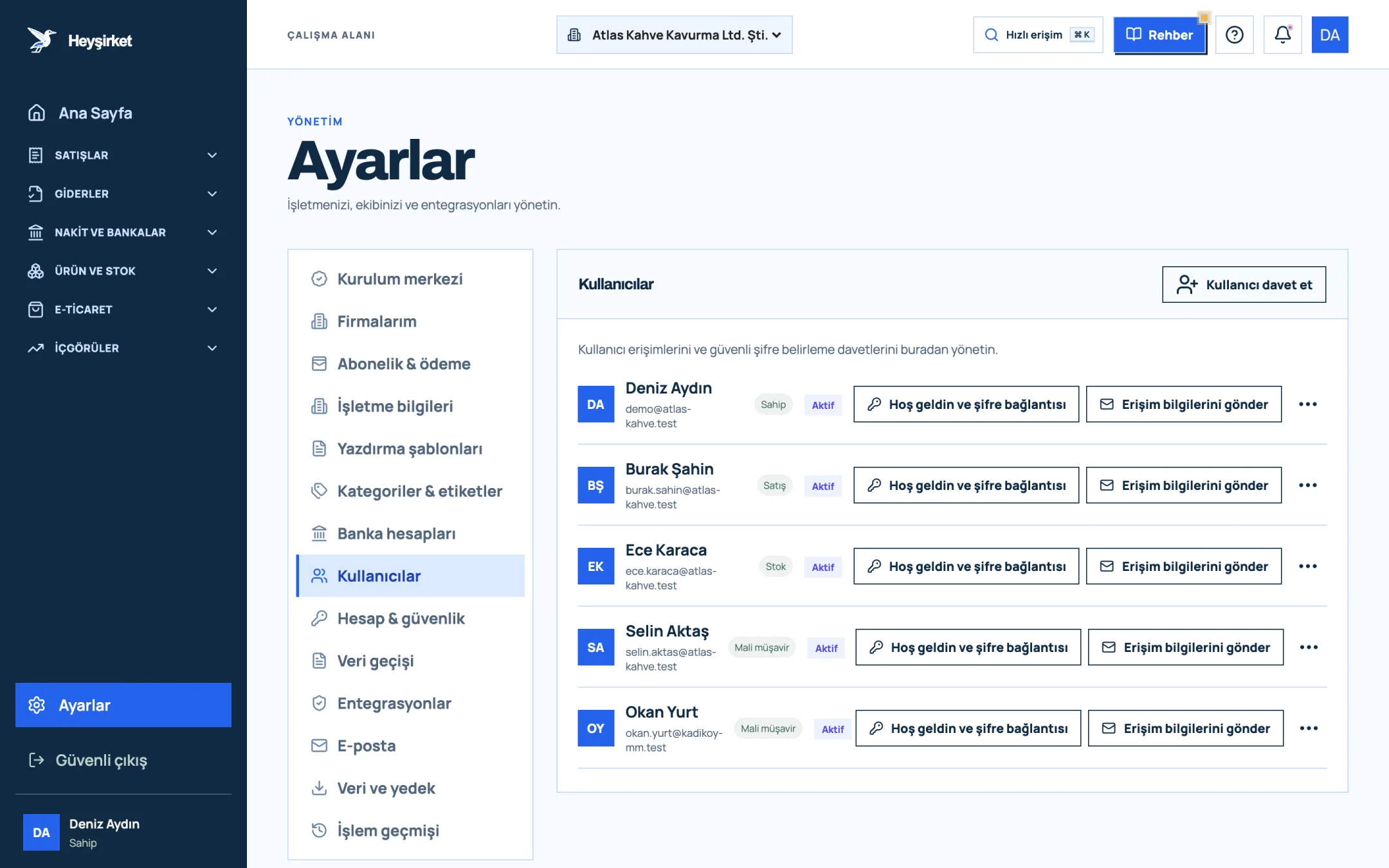
- 1. Invite user
- 2. User role (Owner, Sales, Stock, Accountant)
- 3. Send access details
Each row has two more helper buttons: Welcome and password link sends a new link to set a password, and Send access details emails the user a reminder of their sign-in details.
Part 2 · Roles What can each role access?
A role is a permission package that determines which records a user can see and which they can change. Heyşirket has seven roles, each designed around a specific job.
| Role | Best for | Can do | Can't do |
|---|---|---|---|
| Owner | Company owner | Everything: records, reports, users, settings, integrations | — |
| Admin | Partner, general manager | Same full access as Owner | — |
| Accountant | External accountant (mali müşavir) | Record customers, invoices and collections; cancel invoices; view and export reports; view inventory and purchasing | Manage users and settings, integrations, enter stock movements |
| Finance | Accounting/finance staff | Record collections and payments; view and export reports | Issue invoices, edit customers, inventory |
| Sales | Sales representative | Add/edit customers, prepare invoices, view inventory | Cancel invoices, record collections, reports |
| Inventory | Warehouse manager | Product, warehouse and purchasing records | Issue invoices, collections, reports |
| Viewer | Partner, investor, auditor | Read-only view of records and reports | Any changes |
You've picked the right role; now it's time to send the invitation.
Part 3 · Hands-on Inviting a user step by step
Inviting a user step by step
Open the Users tab
Click Settings in the profile menu at the top right, then the Users tab on the left.
Open the Users tab - 1. Invite user
- 2. User role (Owner, Sales, Stock, Accountant)
- 3. Send access details
Open the invitation window
Click the Invite user button at the top right. At the bottom of the window that opens, you'll see the note "The secure password setup link is valid for 24 hours."
Enter the person's details
Fill in the First name, Last name and Email address fields. Since this email will be the address they sign in with, use their work address.
Choose the role
From the Permission role list, pick the role that fits their job: Sales — daily sales tasks, Accountant — financial access, Finance — collections and reports, Inventory — warehouse and purchasing, Viewer — read-only or Admin — full access.
Send the invitation
Click Send invitation. The person is added to the list with Invitation pending status and sets their own password; the password isn't sent by email and isn't shown to you either.
If the email doesn't arrive, share the link
If the email can't be sent, a One-time invitation link ready box appears on screen. Use Copy link and send it to the person through a secure channel; the link is valid for 24 hours.
Part 4 · Changes How do you change a role or close access?
To change a user's role or access status, click the three-dot button at the end of their row. The window that opens has Permission role and Access status fields.
- Choose the new role from the Permission role list.
- If the employee has left, set the Access status field to Access disabled.
- Click Save access. The user is notified of the change by email.
Once a user's access is disabled, their open web sessions end immediately. Their records aren't deleted; the invoices they issued and the collections they entered stay in the activity history under their name.
Part 5 · Why it matters The big picture: the principle of least privilege
The principle of least privilege means giving each person only as much access as they need to do their job. It reduces both the chance of mistakes and the damage if an account is ever compromised.
Separating roles is also an internal control: when the person who issues the invoice and the person who records the collection are different, the records have a better chance of checking each other. Take a look at our broader article on team permissions and data security as well.
Once you've assigned permissions, the natural next step is to protect every user's sign-in with two-step verification.
How many people should I make Admin?
We recommend at least two, so that when one is on leave or unavailable, the other can manage users and settings. But more admins than necessary weakens the principle of least privilege; give people who do day-to-day work the role that fits their job.
What do I do if the invitation link expires?
Send a new link by clicking the Welcome and password link button in the user's row. Each link is valid for 24 hours.
When inviting someone, I get the warning "A user with this email address already exists." What should I do?
It means this address is already registered with Heyşirket. Ask the person for another work email, or contact our support team at info@heysirket.com or on WhatsApp at 0530 681 36 16 to sort it out.
Can I restore access for a user whose access was disabled?
Yes. From the three-dot menu, set the Access status field to Active and click Save access.
Why can't I see the Owner role when inviting?
The Owner role belongs to the person who created the company. For additional people with full access, use the Admin — full access role.
Invite your team Separate the sales, finance, inventory and accountant roles so everyone has just the access they need. Open Users
Author: Heyşirket Editorial Team