Team and security · 8 min read · Updated:
Two-step verification: setup, recovery codes and sessions
Even if your password leaks somewhere, no one should be able to get into your account. Two-step verification makes sure of that with a six-digit code on your phone.
In short
- Each user turns on two-step verification for their own account from the Account & security tab in Settings (/settings?tab=account).
- During setup, you enter a secret setup key manually into Google Authenticator, Microsoft Authenticator or a similar app, then confirm with the six-digit code from the app.
- After activation, eight one-time recovery codes are shown once; if you lose your phone, you use one of these codes to sign in.
- Turning verification off requires both your current password and the current code from the app.
- From the Open sessions and Mobile devices lists on the same tab, you can close any session you don't recognize with one click.
An accounting account holds your customers' tax numbers, your IBAN and your entire sales history. Locking such a valuable door with a single password is like leaving the key under the doormat.
Two-step verification adds a second lock: on top of your password, a code that the app on your phone generates every 30 seconds. Setup takes four minutes, and the most important part is the recovery codes you'll see at the end.
Part 1 · Tour What's on this screen?
The Account & security tab is where you manage your personal profile, password, two-step verification and open sessions. Open it directly by clicking My profile in the profile menu at the top right; it's available to every user, whatever their role.
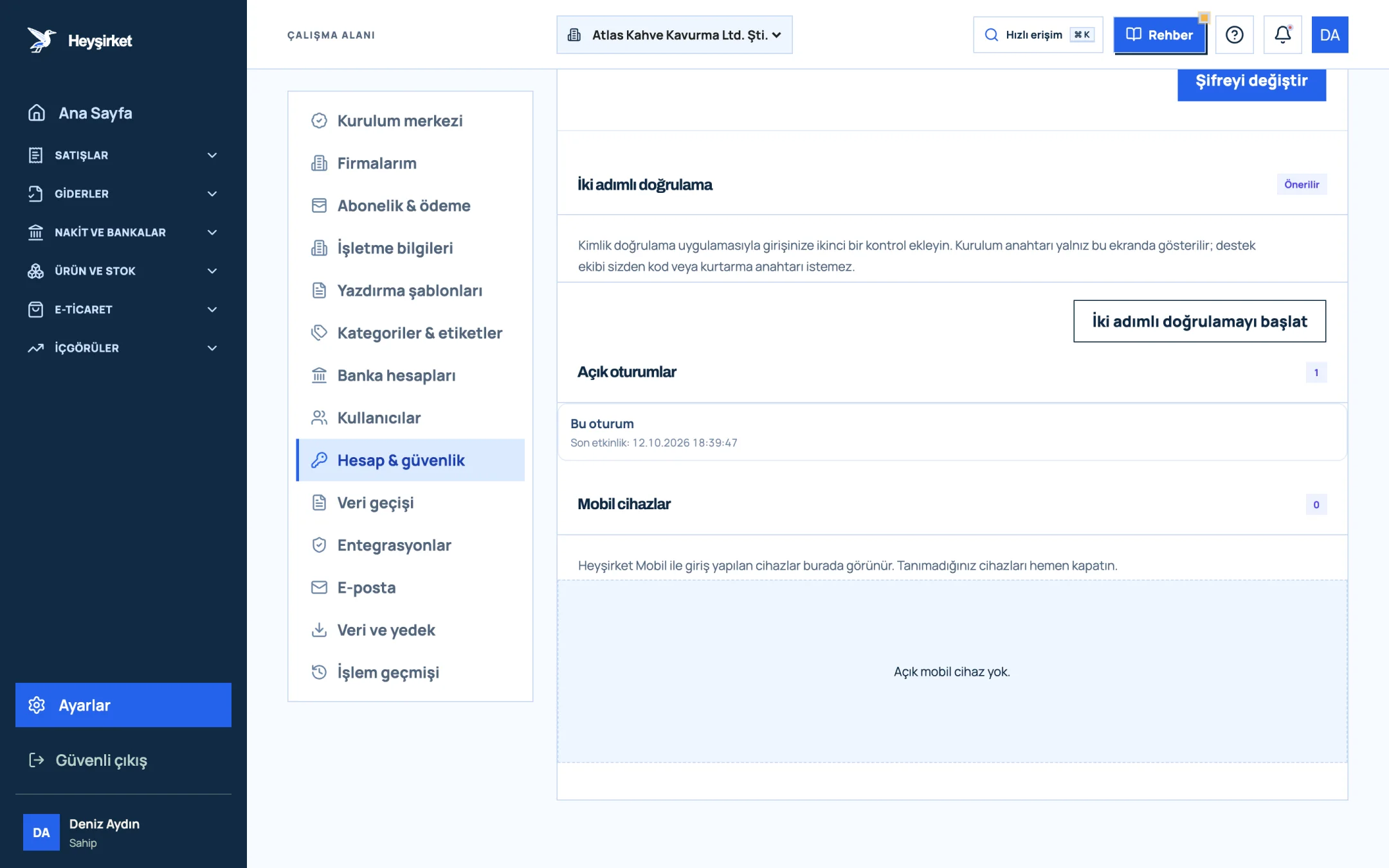
- 1. Account & security tab
- 2. Two-step verification section
- 3. Start two-step verification
- 4. Active sessions
| Section | What it does |
|---|---|
| Profile | Updates your first and last name; your email address can't be changed here. |
| Password | Changes your password; all other sessions are closed when you do. |
| Two-step verification | Turns the second check with an authenticator app on or off. |
| Open sessions | Shows where you're signed in on browsers and when each was last active. |
| Mobile devices | Lists the devices signed in with Heyşirket Mobile. |
Part 2 · Setup Turning on two-step verification step by step
Setting up two-step verification step by step
Install an authenticator app
Install Google Authenticator, Microsoft Authenticator or a similar authenticator app on your phone. These apps generate codes even without an internet connection.
Start the setup
In Heyşirket, open My profile from the profile menu and click the Start two-step verification button in the Two-step verification section.
Start the setup - 1. Account & security tab
- 2. Two-step verification section
- 3. Start two-step verification
- 4. Active sessions
Enter the secret key in the app
A secret key appears in the Add to your app box. In your app, open the "enter a setup key" or manual setup option and type in the key. You can also copy it to your clipboard with the Copy setup key button.
Confirm the six-digit code
Type the six-digit code shown in the app into the Six-digit code from the app field and click Verify code. If it works, you'll see the message "Two-step verification enabled."
Save your recovery codes
Eight recovery codes are listed on screen. Save them somewhere safe right now; these codes won't be shown again, and each one can only be used once. Once you've saved them, click I've saved them.
Try it at your next sign-in
When you sign out and back in, a Verification or recovery code field appears after your password. Type the current code from the app and click Verify code.
Part 3 · Emergency How do I sign in if I lose my phone?
If you can't get to your phone, type one of your recovery codes into the Verification or recovery code field on the sign-in screen. A code that's been used won't work again.
After you sign in, the Account & security tab shows how many recovery codes you have left, for example "3 unused recovery codes left." To move to a new phone, turn verification off and on again; a new setup generates new recovery codes.
If five incorrect codes are entered in a row on the sign-in screen, the verification session ends and you have to start again with your email and password. This limit prevents the code from being guessed.
When changing phones: While you still have your old phone, turn verification off on the Account & security tab using your current password and current code, then set it up again with your new phone. You'll get new recovery codes with the new setup; destroy the old ones.
Part 4 · Turning it off How do you turn off two-step verification?
To turn off two-step verification, expand the Turn off two-step verification heading, fill in the Current password and Six-digit code fields, and click Turn off verification. These two requirements stop someone from turning verification off on a computer where you forgot to sign out.
Part 5 · Sessions Why should I check my open sessions?
The open sessions list shows which browsers and devices are currently signed in to your account. The session you're using is marked This session; the others have a Sign out session button next to them.
Phones signed in with Heyşirket Mobile are listed separately under Mobile devices and can be signed out with Sign out device. When you change your password, all other sessions are closed automatically.
Part 6 · Why it matters The big picture: why a password alone isn't enough
Passwords get stolen through lists leaked from other sites, fake sign-in pages and reused passwords. With two-step verification, an attacker also needs physical access to your phone on top of your password.
A good rule is for everyone on your team who issues invoices or enters collections to turn on verification. You'll find who should have which permissions in the team and roles guide, and the overall framework in our team permissions and data security article.
I forgot my password. Will two-step verification get in the way?
Resetting your password and two-step verification are separate steps. After you set a new password, you'll still be asked for a verification or recovery code when signing in, so keep protecting your authenticator app and recovery codes.
Does setup show a QR code?
The setup screen shows the secret key as text. You use the manual setup option in your authenticator app and enter the key; the Copy setup key button makes this easier.
Do I turn on two-step verification separately for each company?
Verification is tied to your personal account. You don't need to set it up separately for the companies you manage with the same account.
Is a code required on Heyşirket Mobile too?
Yes. When you sign in to the mobile app with an account that has verification turned on, you're also asked for a verification or recovery code.
Can I force everyone on my team to turn on verification?
Each user turns on verification from their own account. As an admin, you can ask your team to turn it on and share this guide with them for setup.
Protect your account with two steps Connect your authenticator app, save your recovery codes and review your open sessions. Open Account & security
Author: Heyşirket Editorial Team