e-Documents · 8 min read · Updated:
Connecting your e-Belge provider: testing, going live and credits
Heyşirket prepares the invoice, and your GİB-connected e-Belge provider issues the official document. This guide shows you how to connect the two safely.
In short
- The e-Belge connection is set up in the Integrations tab under Settings (/settings?tab=integration) and belongs to that company only.
- Setup takes four steps: complete your business details, add your e-Belge account, check the account and enable invoice sending.
- Test connection checks that the account is valid and doesn't create an invoice; no documents are issued in Trial mode either.
- e-Belge credits are separate from your Heyşirket subscription and are priced by your provider.
- Once the connection is ready, incoming e-invoices are fetched automatically every 15 minutes and their PDFs are moved to the archive.
For an invoice to be official in Türkiye, it has to reach the GİB (Turkish Revenue Administration) system. That path is opened by an e-Belge (e-document) provider, also known as a private integrator.
In Heyşirket you prepare the invoice; the moment you click Issue and send invoice, the document goes to your provider, gets its number and becomes official. By the end of this guide you'll have tested your connection safely and then taken it live.
Part 1 · Tour What's on this screen?
The Integrations tab shows your company's catalog of e-Belge providers and the setup form for the provider you choose. Open it from Settings by clicking Integrations in the list on the left.
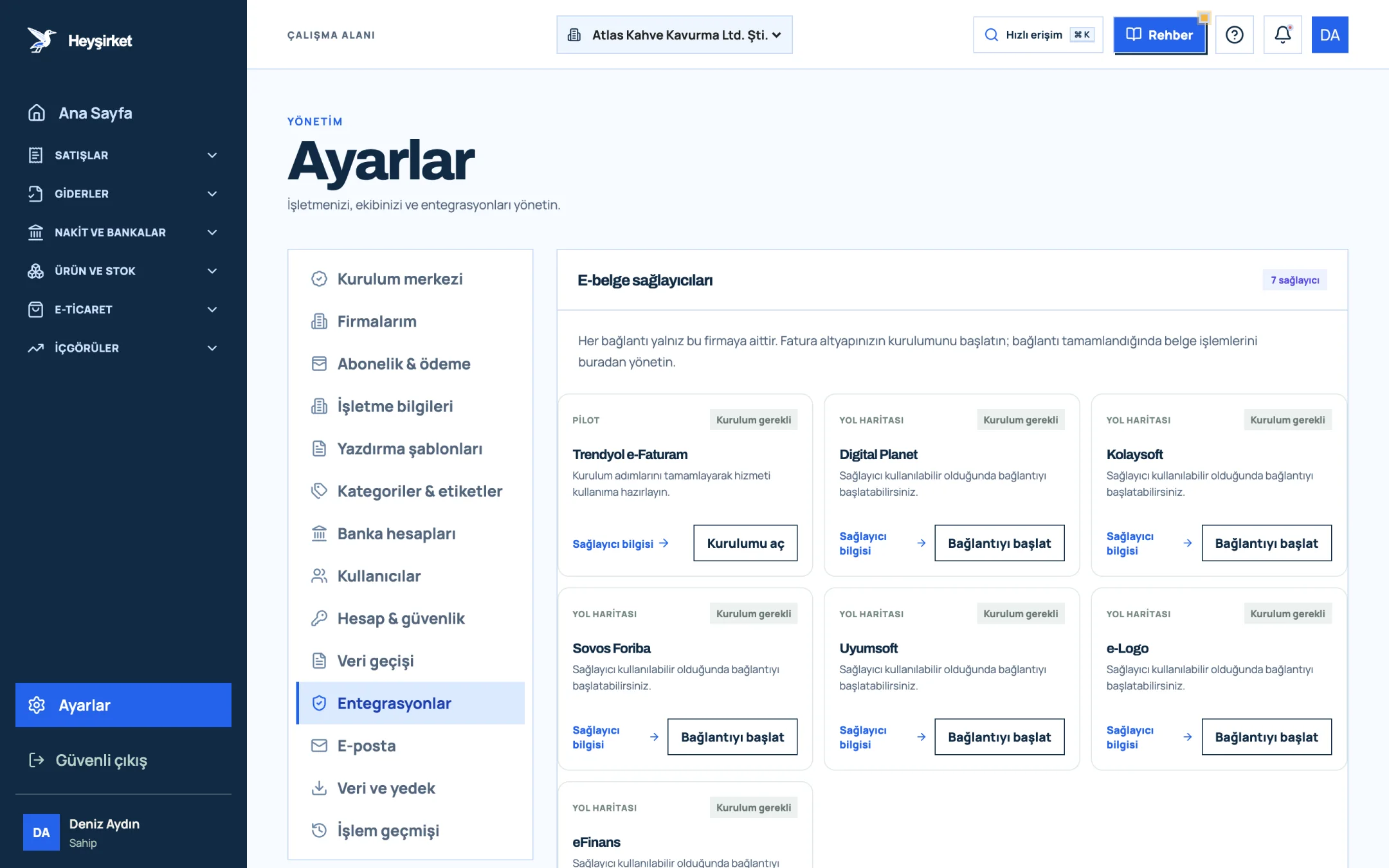
- 1. Integrations tab
- 2. Trendyol e-Faturam card
- 3. Open setup button
- 4. Other e-document providers
| Label | Meaning |
|---|---|
| Setup required | No connection has been set up for this company yet. |
| Connection request open | Your connection request has been received and the setup is being reviewed. |
| Active | The connection is working and you can process documents. |
| Stopped | The connection request was stopped; no documents are sent. |
| Error | There's a problem with the connection; open the setup screen and check it. |
The provider you can set up directly today is Trendyol e-Faturam, and its card has an Open setup button. The e-Logo, Uyumsoft, Sovos Foriba, Digital Planet, eFinans and Kolaysoft cards carry a Roadmap label; for these, you can leave a request by clicking Start connection.
Part 2 · Preparation What do you need before you start?
To connect e-Belge, you need the account details your provider gave you and complete business details in Heyşirket. If either is missing, the test step will fail.
Preparation checklist
- The email address and password of your provider account.
- The company number and user number issued by the provider.
- Your three-character invoice series registered with the provider (e.g. ATK).
- The Business details tab in Heyşirket filled in completely.
- Enough credits in your provider account.
Part 3 · Setup Connecting e-Belge step by step
Connecting e-Belge step by step
Open the setup
In Settings, go to the Integrations tab and click Open setup on the Trendyol e-Faturam card. The step list at the top of the screen shows where you are.
Open the setup - 1. Integrations tab
- 2. Trendyol e-Faturam card
- 3. Open setup button
- 4. Other e-document providers
Start in trial mode
Leave Trial selected in the Usage mode field. No official documents are created in this mode; you only confirm that the connection is set up correctly.
Enter your account details
Fill in Account email, Account password, Company number and User number exactly as your provider gave them. In the Invoice series field, type the three-character series registered with your provider.
Choose the scenario
In the E-invoice scenario field, choose Commercial invoice or Basic invoice. If you're not sure, ask your accountant; most businesses go with the commercial scenario.
Save and test
Click Save settings, then Test connection. If it succeeds, you'll see a “Connection verified” message and a Stage connected label. The test checks that the account is valid; it doesn't create an invoice.
Go live
If the test succeeds, set Usage mode to Live. Tick the Enable invoice sending after the check box that appears, click Save settings and then Test connection again. Once the label reads Live and active, you're ready to issue invoices.
Choose the invoice layout
After the connection is saved, in the Invoice layout box choose Heyşirket template (recommended) or Trendyol E-Faturam standard template as the Invoice template. Your choice only affects new invoices.
Part 4 · Security What should I do if I see a password renewal warning?
If the saved provider password can't be read securely, Heyşirket suspends the connection and shows a Password renewal required label. While it's suspended, no invoice requests are sent to the provider. You also need to enter the new password here if you've changed it in your provider's panel.
Just type the new password in the Account password field and click Renew and save password. If you're not changing the password, leave the field empty; the saved password is kept.
If the connection drops while a document is being sent, the system marks the record as Invoice sending awaiting check so the document isn't sent twice. If you've confirmed in your provider's panel that the invoice wasn't created, you can close the record with Confirm not sent.
Part 5 · Incoming documents How are incoming e-invoices received?
Once the connection is ready, the system fetches new incoming e-invoices every 15 minutes, moves their PDFs to the secure archive and notifies authorized users. If you don't want to wait, use the Check for incoming e-invoices now button.
Incoming documents land on the Incoming e-Invoices screen under the Expenses menu. For details, see the Incoming e-invoices guide.
Part 6 · Why it matters The logic: why trial first, then live?
An e-Fatura (Turkish e-invoice) is an official document that reaches the recipient's system the moment it's issued; undoing an incorrect invoice requires a cancellation or return process. Trial mode removes that risk entirely.
The scenario choice matters too. With a commercial invoice, the recipient can accept or reject the document through the system; a basic invoice has no such response mechanism. We explain which document to use when in our e-Fatura vs. e-Arşiv article.
Do I buy credits from Heyşirket?
No. e-Belge credits are separate from your subscription and are priced by the provider you connect to. You get your credits from your provider.
Can I work with the other providers in the list?
For providers labeled Roadmap, you can leave a request by clicking Start connection; the status changes to Connection request open. To withdraw the request, use the Stop button.
The test failed. What should I check?
Make sure you entered the company and user numbers, email address and password exactly as your provider gave them. Then check that the VKN/TCKN (tax ID / Turkish ID number) is correct in the Business details tab.
Do I need to fill in the custom e-Arşiv template code field?
No. This field is only used if you've uploaded your own template to your provider account; when filled in, it overrides the invoice template setting.
Who can set up the connection?
Integration settings are only available to users with the Owner or Admin role.
Set up your e-Belge connection Add your provider account, test it in trial mode and go live when you're ready. Open integrations
Author: Heyşirket Editorial Team