Expenses · 8 min read · Updated:
Incoming e-Invoices: how supplier invoices arrive on their own
If you're registered for e-Fatura, you don't need to enter the invoices your suppliers issue to you by hand. Heyşirket picks them up every 15 minutes, archives the PDF and adds them to your expenses; all that's left for you is to check and pay.
In short
- For companies whose e-document connection is ready, Heyşirket automatically picks up new incoming e-invoices every 15 minutes.
- Every incoming e-invoice is recorded as an expense document with the "Incoming e-Fatura" type, and its PDF is moved to the secure archive.
- There's no separate "move to expenses" step; an incoming e-invoice appears in the expense list and in reports as soon as it's received.
- Invoices picked up automatically arrive with no due date; payment is recorded with Add payment in the document details.
- Accepting or rejecting an invoice under the commercial scenario is done in your e-document provider's panel, not in Heyşirket.
On Monday morning, when Atlas Kahve's bookkeeper opens their email, they see a "New incoming e-invoice" notification: the green coffee bean supplier's 86.400 TL invoice arrived in the system overnight, and its PDF has been archived.
Nobody downloaded anything, and nobody typed in an amount. This guide explains how that works and the two jobs left for you — checking and paying. The FAQ at the end also answers the question everyone asks: "where do I accept or reject?"
Part 1 · Flow How do incoming e-invoices reach Heyşirket?
An incoming e-invoice is an invoice that another e-Fatura (Turkish e-invoice) registered business issues directly in your name through the GİB (Turkish Revenue Administration) system. While Heyşirket is connected to your e-document provider, it pulls these invoices from the provider automatically.
- Supplier issues it — It reaches you via GİB
- Heyşirket picks it up — Checked every 15 minutes
- PDF is archived — Moved to the secure archive
- Notification goes out — Email to selected people
- You pay — Add payment
Each check scans documents from the last 30 days; an invoice that's already been picked up isn't added twice. The notification isn't sent until the PDF is archived, so by the time you get the email, the document is ready to open.
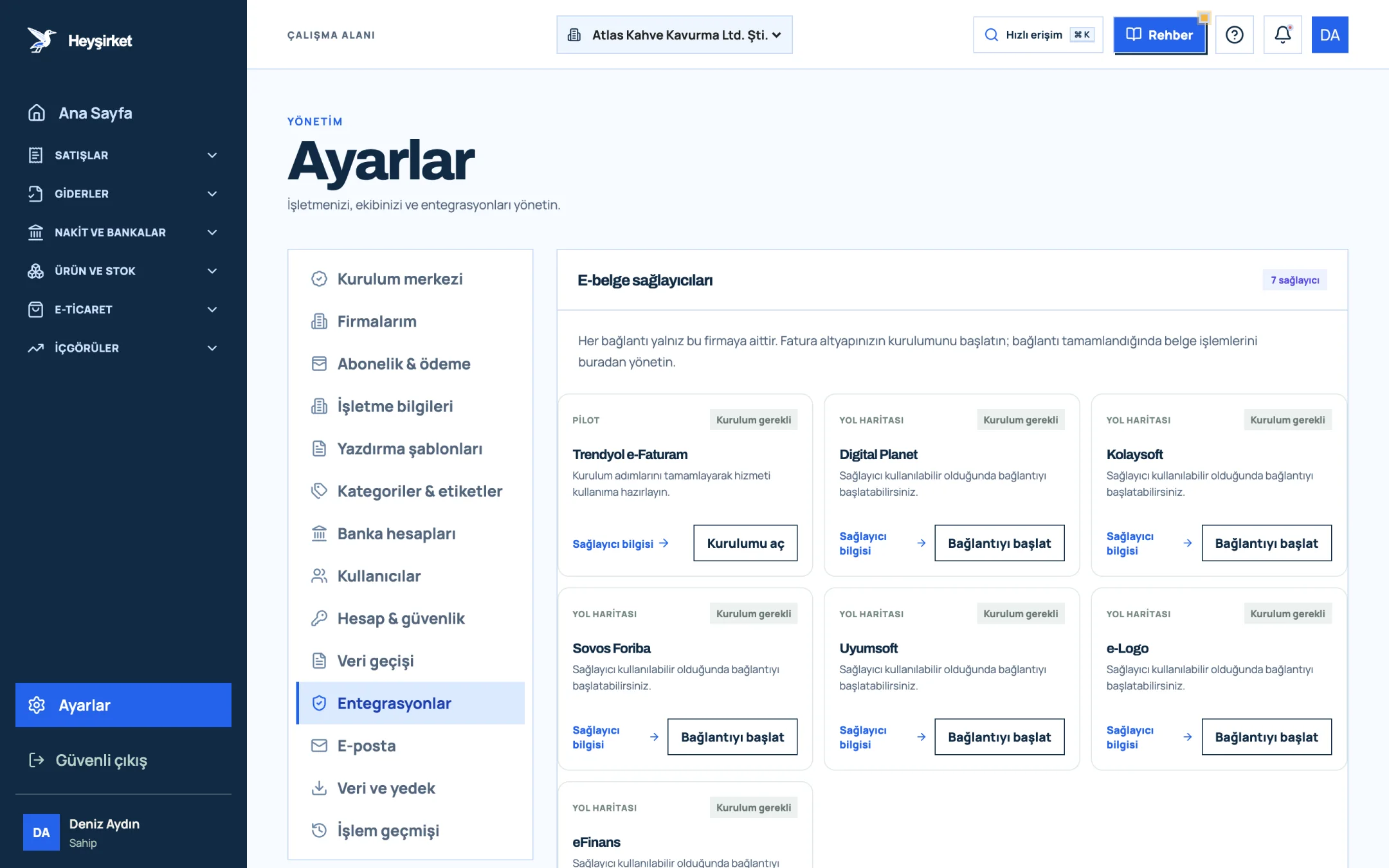
- 1. Integrations tab
- 2. Trendyol e-Faturam card
- 3. Open setup button
- 4. Other e-document providers
Part 2 · Tour What's on this screen?
The Incoming e-Invoices screen is a filtered view of the Expenses list that shows only documents of the "Incoming e-Fatura" type. Open it from the Incoming e-Invoices item in the Expenses group of the left menu.
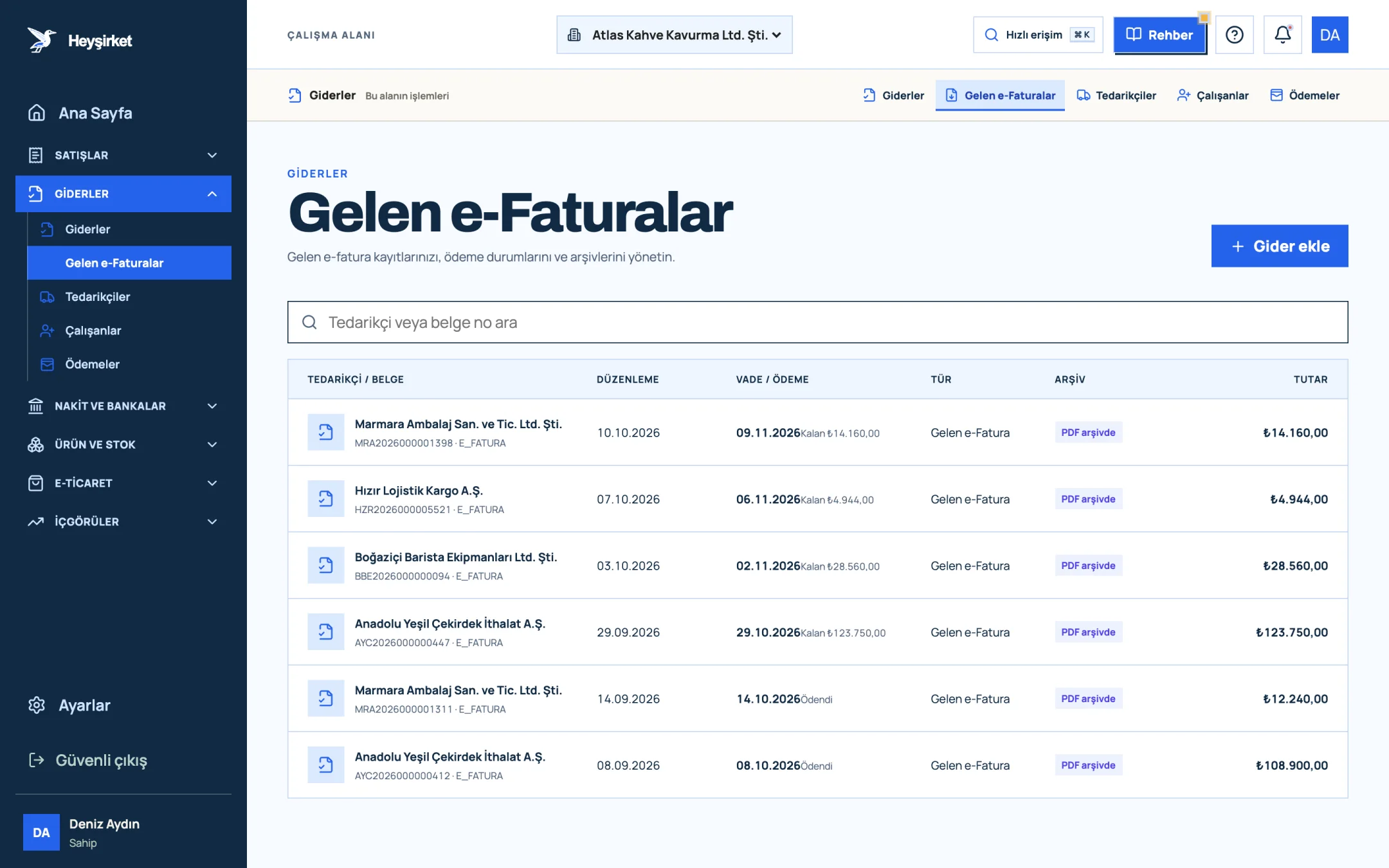
- 1. Incoming e-Faturas tab
- 2. Supplier and document number
- 3. Remaining payment amount
- 4. PDF archive status
- In the Type column, all rows read "Incoming e-Fatura"; the supplier's name, VKN (tax ID) and amounts are read from the invoice itself.
- In the Due date / payment column, automatically received invoices start as "No due date" and show the remaining amount.
- If the Archive column reads "PDF archived", the View document button in the details opens the original invoice in a new tab.
Part 3 · In practice Step by step: checking and paying an incoming invoice
Incoming e-invoice workflow
Open the list
In the left menu, click Expenses › Incoming e-Invoices. To search by supplier name or invoice number, use the Search supplier or document no. box.
Open the list - 1. Incoming e-Faturas tab
- 2. Supplier and document number
- 3. Remaining payment amount
- 4. PDF archive status
Open and check the document
Click the row. In the details, review the Supplier, Total, VAT and Subtotal amounts; open the PDF with View document and compare it with your order or delivery note.
Open and check the document - 1. Incoming e-Faturas tab
- 2. Supplier and document number
- 3. Remaining payment amount
- 4. PDF archive status
If there's a problem, act in the provider's panel
If the price, quantity or company name is wrong and the invoice is under the commercial scenario, give your accept/reject response in your e-document provider's panel; the record in Heyşirket is for information.
Record the payment
When you pay, press the Add payment button in the details; choose the amount, Payment date, Payment method and Cash / bank account, then press Save payment. The status updates to "Partially paid" or "Paid".
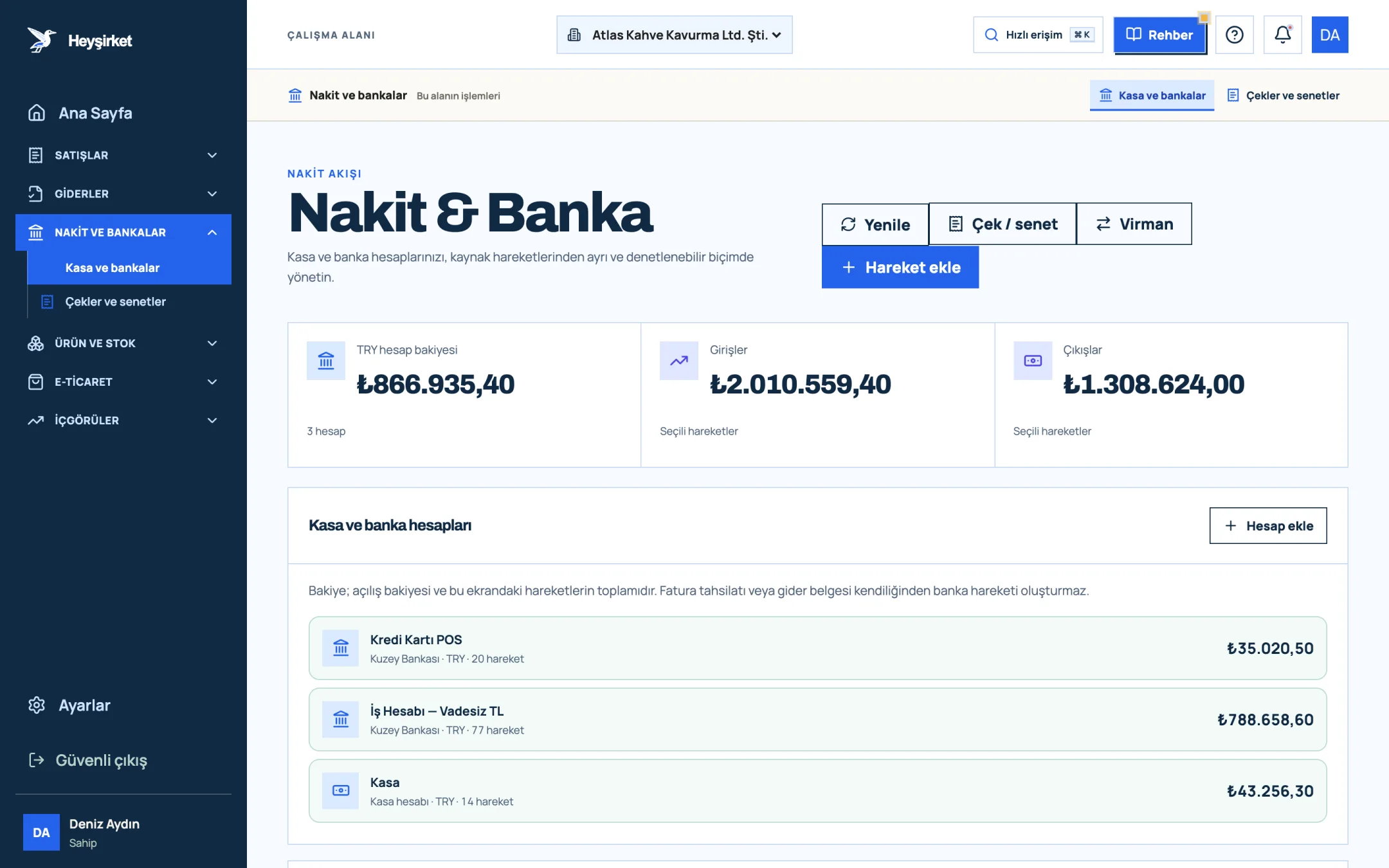
Record the payment - 1. Add transaction button
- 2. Transfer between accounts
- 3. Total TRY balance
- 4. Cash and bank account list
Set the notification recipients
In the "Incoming document notifications" section under Settings › Email, tick the Incoming e-Invoices box, choose any additional recipients and press Save notification preferences.
Part 4 · Know-how The reasoning: acceptance, rejection and deadlines
Under the commercial invoice scenario the buyer has the right to object; under the basic scenario they don't. You can accept or reject a commercial-scenario invoice through your e-document provider within 8 days of its issue date; for a basic invoice, you have to object through traditional channels such as a notary or registered letter with return receipt.
There's also the KDV (VAT) side: the VAT on an incoming e-invoice appears under "Input VAT" in the VAT report. If the record of an incorrect or rejected invoice stays in the list, be sure to tell your accountant. For the full logic of VAT, see our VAT guide.
Do I need to move incoming e-invoices to expenses separately?
No. In Heyşirket an incoming e-invoice is recorded as an expense document as soon as it's received; it appears in the Expenses list and in reports on its own. Supplier balances on the purchasing screen, however, only reflect documents linked to a supplier card; automatically received invoices don't arrive linked to that card.
Where's the button to accept or reject an invoice?
There's no accept/reject button in Heyşirket. For commercial-scenario invoices, do this in your e-document provider's panel within 8 days of the invoice's issue date.
An invoice isn't showing in the list. What should I do?
Check the last check time in the "Incoming e-invoice retrieval and archive" box under Settings › Integrations and press the Check for incoming e-invoices now button. The check scans the last 30 days; for older documents, write to the support team.
Why does the due date come in blank?
Due date information isn't processed for automatically received invoices, so the row shows "No due date". You can track payments through the payment history and remaining balance in the document details.
Who receives the notifications?
The people you choose in the "Incoming document notifications" section under Settings › Email. If Send to main company members is on, active company owners receive them too; each document is notified to each recipient only once.
Take a look at your incoming invoices See the e-invoices issued to you in the last 30 days, their payment status and PDF archives in one list. Open Incoming e-Invoices
Author: Heyşirket Editorial Team