Pricing · 8 min read · Updated:
How to create a price list: customer-specific prices and bulk discounts
One price for resellers, another for retail. Price lists exist so you don't have to remember that difference on every invoice.
In short
- Price lists are created with the New price list button on the Price lists screen in the Products and inventory menu.
- A list's scope can be Selected products, Category or All products; Bulk discount (%) applies the same discount to every line.
- The new price after the discount is fixed on each product line, and invoices use that price.
- A customer can be linked to only one active price list at a time; when assigned to another list, they leave the previous one.
- Customers on an archived list go back to using the catalog price.
You have an annual agreement with Moda Sahil Kafe: 12% off all coffee beans. The new sales assistant doesn't know this and issues the invoice at the catalog price. The next morning, the café calls.
A price list is how you write the agreement into the system once. By the end of this guide, your customer-specific prices will fill in correctly on their own, no matter who issues the invoice.
Part 1 · Tour What's on this screen?
The Price lists screen is where you keep customer-specific product prices and discounts as lists. Open it from the Price lists link in the Products and inventory group of the left menu.
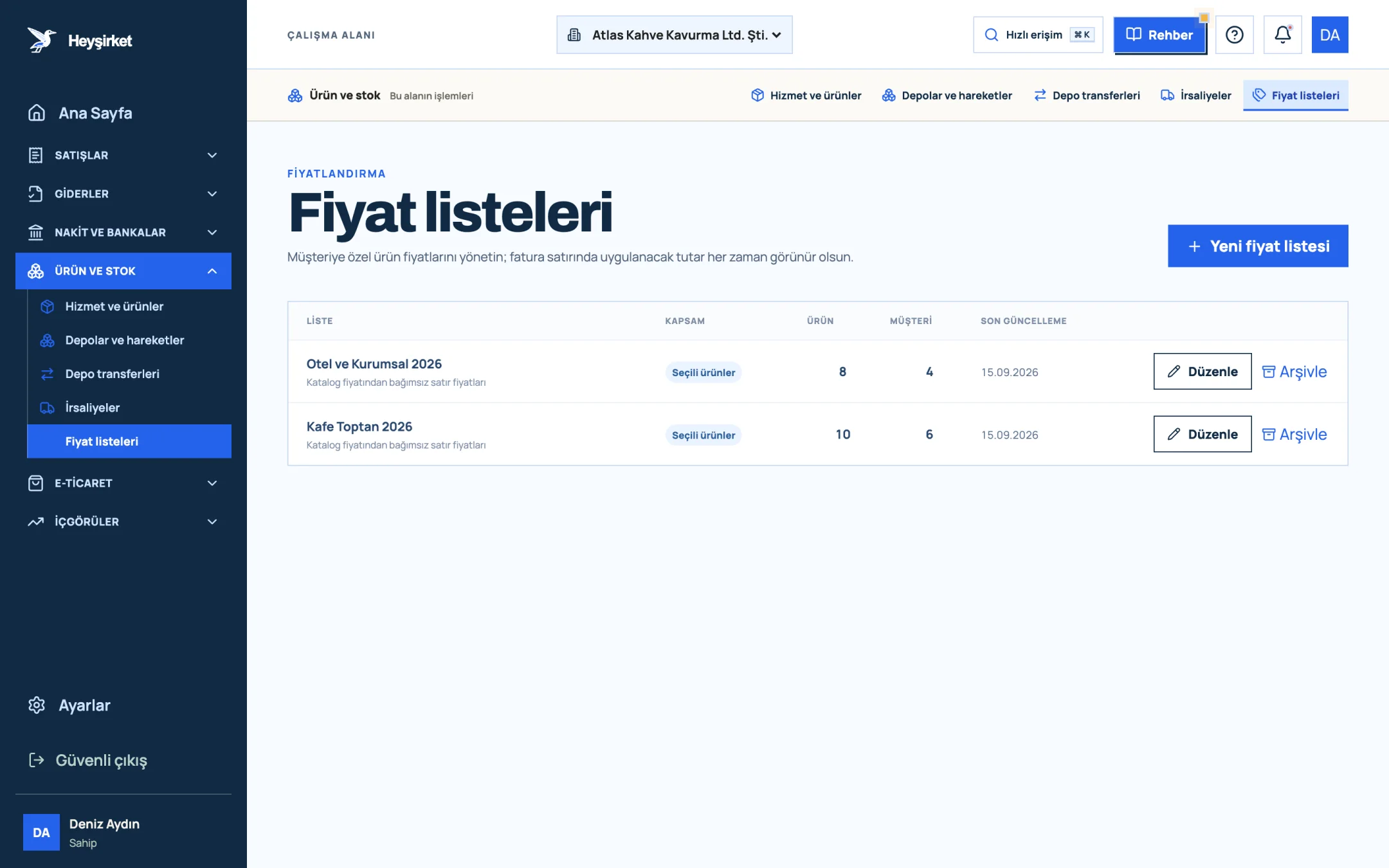
- 1. New price list
- 2. Kafe Toptan 2026 list
- 3. Number of assigned customers
- List: The name of the list; if it's category-scoped, “Category: …” appears below it.
- Scope: Selected products, Category or All products.
- Products and Customers: How many products are in the list and how many customers it's assigned to.
- Last updated: The day the list last changed; the easiest way to keep track of your pricing rhythm in an inflationary period.
If there are no lists yet, a Create your first list button appears in the middle of the screen. Let's set up the first list together.
Part 2 · In practice Step by step: a customer-specific price list
A price list consists of a name, a product scope, line prices and customer assignments; when you press Save price list, they're all saved together.
Creating a price list step by step
Open the list and name it
Press the New price list button. In the List name * field, enter a name that describes both who it's for and the terms, such as “Cafés on annual agreement 12%”.
Open the list and name it - 1. New price list
- 2. Kafe Toptan 2026 list
- 3. Number of assigned customers
Choose the product scope
The Product scope field has three options. With Selected products you add products one by one; if you choose Category, you pick a category in the Category * field and include every product in it; All products puts the whole catalog in the list.
Add the products
With the Selected products scope, choose the product from the “Add products…” list. When a product is added, its catalog price becomes the line's starting value, and the Catalog price, Discount and New price columns appear.
Apply the discount
To give the same discount on every line, enter “12” in the Bulk discount (%) field; each line's New price is recalculated immediately. To set a different discount for a single product, change the Discount box on that line.
Assign customers
In the “Customer assignments” section, tick the boxes for the customers who will use the list; the number on the right shows how many customers you've selected.
Save and see it on the invoice
Press Save price list. From now on, when you issue an invoice to an assigned customer, an “… applied” note appears on the invoice screen, and the special price fills in automatically when you choose a product from the list.
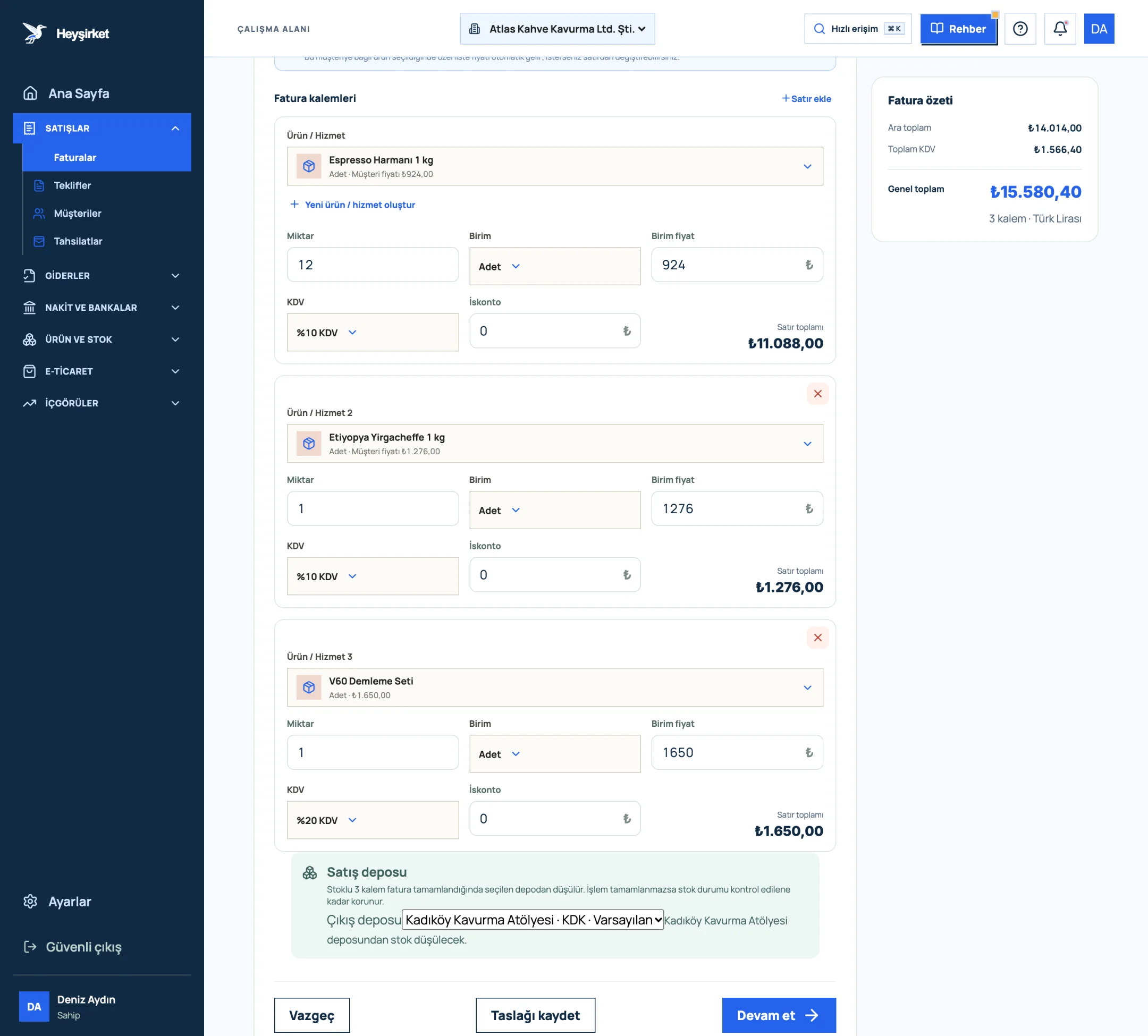
Save and see it on the invoice - 1. First invoice line item
- 2. VAT rate selection
- 3. Add row
- 4. Invoice summary and VAT total
| Espresso blend 1 kg · catalog price (excl. VAT) | 850,00 TL |
|---|---|
| Bulk discount | 12% |
| Discount amount | 102,00 TL |
| New price (unit price on the invoice, excl. VAT) | 748,00 TL |
KDV (VAT) is added on top of this unit price on the invoice, at the rate on the product card.
Part 3 · Watch out What should you watch out for with price lists?
The new price in a price list is fixed the moment you save it; changing the catalog price later doesn't update the list price automatically. This is deliberate: your agreed price is protected until you change it.
- One customer, one list: A customer can be linked to only one active list at a time. When you assign them to another list, they're removed from the previous one.
- Products can't be removed without changing the scope: With the Category or All products scope you can't delete a single line; to leave a product out, change the scope to Selected products.
- You can still change the line: The list price fills in on the invoice automatically, but you can still change the line price by hand on the invoice.
- Archiving: When you press Archive, the list closes and assigned customers go back to the catalog price.
Part 4 · Background The reasoning: why is a price list a profitability tool?
A price list takes the discount decision out of the moment of sale and turns it into a management decision. The discount is given in the list, not in negotiation, so it's always visible who buys on which terms.
A 12% discount sounds small, but on a product with a 30% gross margin it takes away about 40% of the profit: on an 850 TL product, a gross profit of 255 TL drops to 153 TL with a 102 TL discount. We explain this calculation in detail, along with the extra sales needed to make up for the discount, in our pricing strategy article.
Do price lists work on quotes too?
Yes. The list price is also used when you prepare a quote for an assigned customer, and delivery notes take item prices from the customer's list as well.
Do list prices include VAT?
No. The catalog price and the new price exclude VAT; VAT is added on the invoice at the rate on the product card.
Can I give a product a different fixed price instead of a discount?
Yes. Enter the price you agreed in the line's Catalog price box and leave the Discount value at 0; the New price becomes that amount.
Who can edit price lists?
Users with the Owner, Admin, Accountant and Sales roles can create and edit lists. Other roles can view the list, but the New price list button stays disabled.
Set up your first segment list Write the agreement for the customer group you work with most into a list, so the next invoice comes out right on its own. Open Price lists
Author: Heyşirket Editorial Team