Sales and invoicing · 8 min read · Updated:
How to create a quote: from quote to invoice draft in Heyşirket
The Quotes screen keeps a record of the part of the sale that happens before the invoice. An accepted quote becomes an invoice draft with one button, so you never retype a line item.
In short
- A quote is not a financial document; once accepted, it can be turned into a sales invoice.
- Every quote has a validity date; it's set 14 days ahead by default, and once that date passes the quote moves to Expired.
- Quotes move through the statuses Draft, Sent, and then Accepted or Rejected.
- Only quotes in Accepted status can be turned into an invoice draft with the Create invoice draft button; each quote gets a single draft.
- If a quote uses custom line items, you'll need to match those lines to a saved product or service in the invoice draft.
Karaköy Pera Otel wants 60 kilos of coffee a month for its breakfast room, plus two barista training sessions. If you just quote a price over the phone, two weeks later nobody will remember which number you agreed on.
The Quotes screen turns that conversation into a lasting record: what you offered, how long it's valid and what the customer said. By the end of this guide, you'll have turned an accepted quote into an invoice draft without typing a single line item.
Part 1 · Tour What's on this screen?
The Quotes screen lists the price quotes you've prepared, together with their validity dates and the customer's decisions. There's a New quote button in the top right and a Search customer or quote no. box at the top.
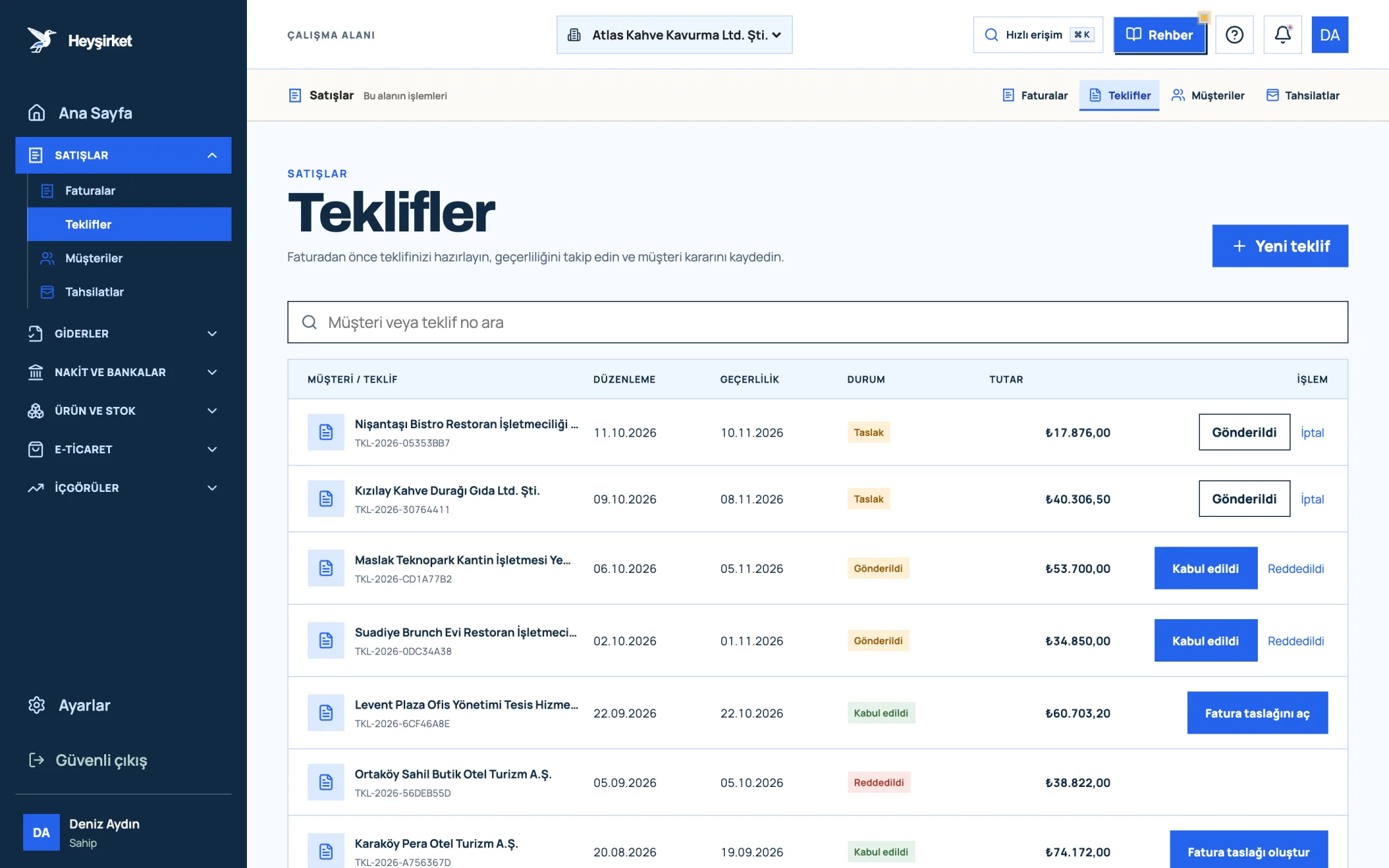
- 1. New quote button
- 2. Quote status (Accepted)
- 3. Create invoice draft
- 4. Decision buttons for a sent quote
The Action column on the far right is the heart of this screen. A draft quote shows Sent and Cancel, a sent quote shows Accepted and Rejected, and an accepted quote shows the Create invoice draft button.
| Status | When? | Next step |
|---|---|---|
| Draft | The quote has been created but not yet sent to the customer | Sent or Cancel |
| Sent | The quote has been sent to the customer | Accepted or Rejected |
| Accepted | The customer approved it | Create invoice draft |
| Rejected | The customer didn't accept the quote | A new quote if needed |
| Expired | The validity date passed while the quote was still a draft or sent | A new quote with current prices |
| Cancelled | You withdrew the quote | No action |
Part 2 · How to Creating a quote step by step
Creating a quote means entering the customer, the validity date and the line items, clicking Create quote, and then recording the customer's decision in the list.
Step by step: from quote to invoice draft
Open the new quote window
Go to Quotes in the left menu and click New quote. In the Create new quote window that opens, pick your customer from the Customer list. If the customer has a price list assigned, its name appears in the window.
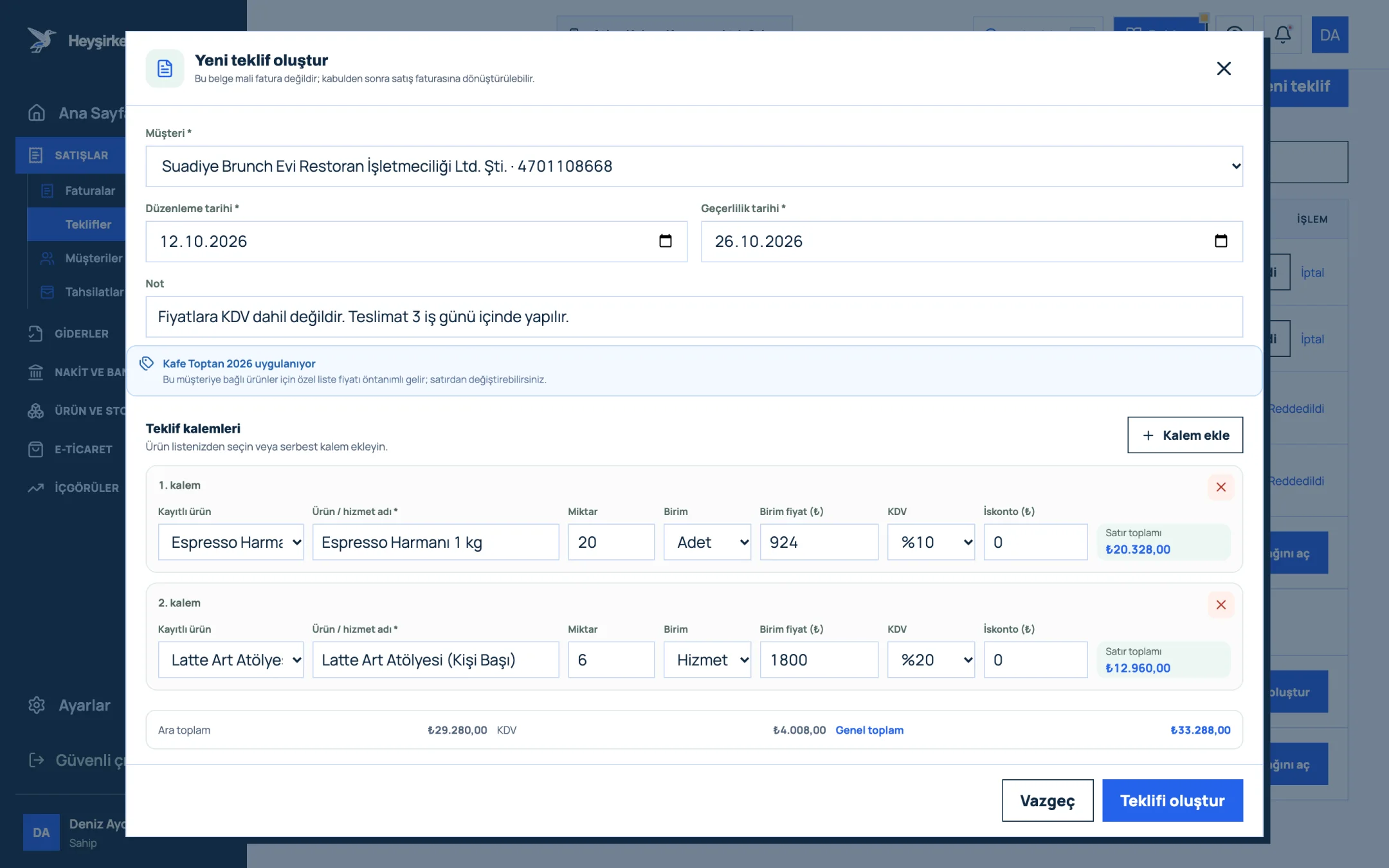
Open the new quote window - 1. Customer and date fields
- 2. Quote line items
- 3. Add line item
- 4. Quote total
- 5. Create quote button
Set the dates
Issue date shows today, and Valid until defaults to 14 days from now. If your prices depend on raw material costs or exchange rates, shorten the period. You can add payment or delivery terms in the Note field if you like.
Add line items
For each line, choose your product from the Saved product list; the name, unit, price and KDV (VAT) fill in automatically. For work that isn't in the list, leave it as a Custom item and fill in the Product / service name field. Check the Quantity, Unit, Unit price (₺), VAT and Discount (₺) fields; click Add item for a new line.
Save the quote
Check the Subtotal, VAT and Grand total lines in the window, then click Create quote. The quote is added to the list in Draft status with an automatic quote number.
Mark it as sent
Once you've sent the quote to your customer, click Sent in the list and confirm. If Send quote status updates to the customer is turned on in Settings, the customer also gets a status email.
Record the customer's decision
When the customer approves, click Accepted; if they decide against it, click Rejected. This record lets you see later which quotes turned into sales.
Turn it into an invoice draft
On the accepted quote's row, click Create invoice draft. Heyşirket creates an invoice draft with the same customer and line items and takes you straight to the New invoice screen. If a draft already exists, the button reads Open invoice draft.
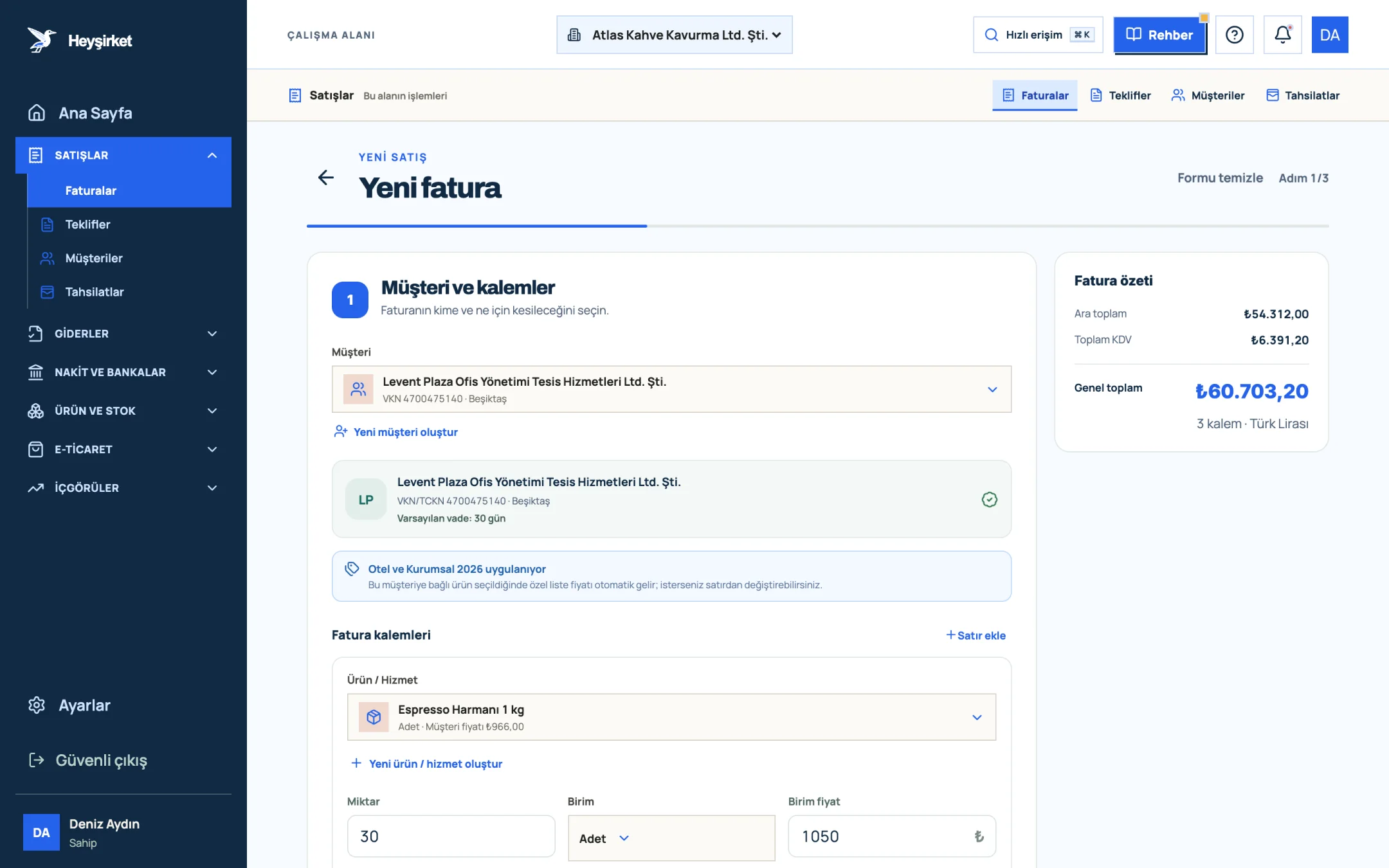
Turn it into an invoice draft - 1. Customer carried over from the quote
- 2. Line items from the quote
- 3. Customer price list note
- 4. Invoice summary
Part 3 · Conversion What happens when it becomes an invoice draft?
When a quote is turned into an invoice draft, the line items, quantities, prices, VAT rates and discounts carry over exactly. The quote number and the quote's note are written into the invoice note automatically, while the issue and due dates are set to the day of the conversion.
When the draft opens, continue with the steps in the invoicing guide: adjust the due date to the customer's terms, approve the PDF preview and issue the invoice.
A second draft is never created for the same quote. Clicking the button twice, or a teammate clicking it at the same time, always takes you to the same draft. This prevents the same order from being invoiced twice.
Part 4 · Background The logic: why should a quote be in writing?
A written quote is proof that both sides understood the same thing about price, scope and timing. When an invoice is disputed, the accepted quote is often the first document anyone looks at.
The validity period protects you. For products tied to exchange rates and commodity prices, like coffee beans, being held to a price you gave three months ago can quietly eat into your profit. An expired quote moves to Expired automatically, which gives you a natural opportunity to reprice.
For the terms a quote should include, discount discipline and the steps after acceptance, read our quote-to-invoice sales process article.
Is a quote a financial document?
No. A quote doesn't replace an invoice and isn't sent to GİB (Turkish Revenue Administration). The sale becomes official when the accepted quote is turned into an invoice and issued.
Do I enter quote prices including VAT?
Enter the amount excluding KDV (VAT) in the unit price field; VAT is calculated separately at the rate you choose and shown on the Grand total line. Use the Note field to make it clear to your customer how the prices are stated.
Can I turn a rejected quote into an invoice?
No. Only quotes in Accepted status can be turned into an invoice draft. If the customer changed their mind, prepare a new quote or issue a new invoice directly.
Do customer-specific prices carry over to the quote?
Yes. If the customer has a price list assigned, the special list price fills in automatically when you choose a saved product; you can still change it on the line.
Create your first quote Choose your customer, add the line items and set the validity date. When it's accepted, move to the invoice in one click. Go to Quotes
Author: Heyşirket Editorial Team