Customer accounts · 9 min read · Updated:
The customer account workspace: balance, documents and statement on one screen
When a customer calls, use this screen to answer “how much do they owe, and which invoice is open?” in five seconds.
In short
- The account workspace opens from the Open details link on the Customers screen and shows the full financial picture of a single customer.
- The four indicators at the top are Total owed, Collected, Current balance and Credit limit; the Current balance is the difference between what's owed and what's been collected.
- The Create quote, Record payment and Create invoice buttons work with the customer already selected; Record payment only appears if there's an open invoice.
- The statement window puts the opening balance, invoices and payments in date order with Debit, Credit and Balance columns.
The owner of Kuzguncuk Fırın & Kahve is on the phone: “We paid last month's invoice, what's our balance?” If you have to open invoices one by one to find the answer, this call is going to take a while.
The cari (customer/supplier account) workspace answers that question at a glance. A customer's debt, payments, open invoices, quotes and contacts all sit on the same page, and you start new actions from here too.
Part 1 · Tour What's in the account workspace?
The account workspace is the customer page that brings together a single customer's identity details, balance indicators and document history. Open it with the Open details link at the bottom of a card on the Customers screen; “ACCOUNT WORKSPACE” appears above the heading.
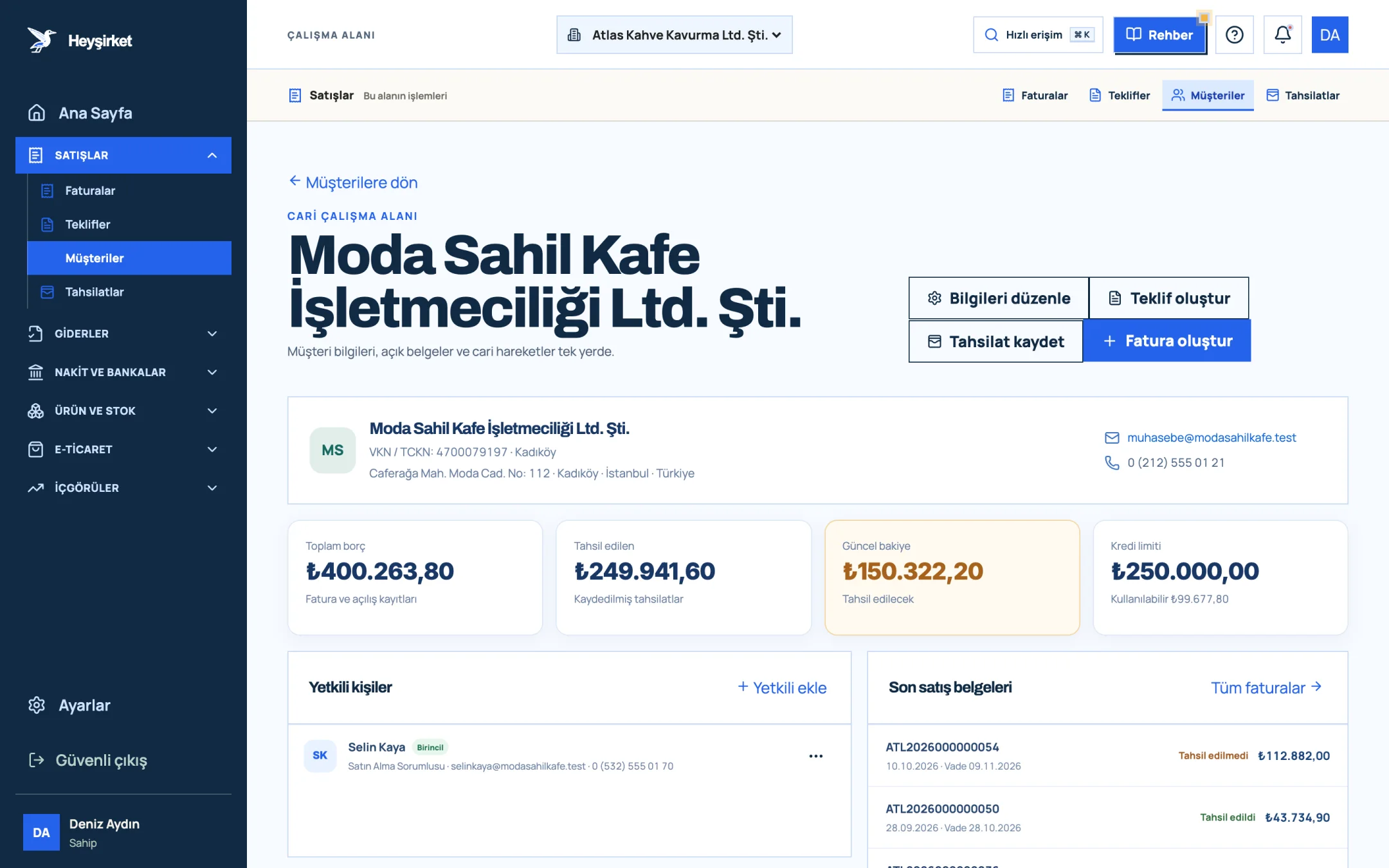
- 1. Quick actions (Create invoice, Record collection)
- 2. Current balance
- 3. Credit limit
- 4. Recent sales documents
Four indicators
| Indicator | Meaning | Subtitle |
|---|---|---|
| Total owed | The total of invoices issued to the customer plus the opening balance | Invoice and opening records |
| Collected | The total of payments recorded from this customer | Recorded payments |
| Current balance | Total owed minus collected; what the customer still owes you | To collect / No open balance |
| Credit limit | The risk ceiling set on the card | Available amount or default payment term |
Four panels
- Contacts: The people you deal with on the customer's side; add a new one with Add contact, and the primary contact appears with a “Primary” label.
- Recent sales documents: The customer's latest invoices; each row shows the number, date, due date, payment status (Unpaid, Partially paid, Paid) and amount. All invoices takes you to the invoice list.
- Account transactions: The last eight invoice, payment and opening records; each row shows the balance at that point.
- Quote history: The quotes you've given the customer, with their validity date and status. All quotes takes you to the quote list.
If you've written a note on the card, a Customer note panel also appears at the bottom. Use this field for information that makes collecting easier, such as “Pays in bulk on the 5th of the month, call Ayşe Hanım in accounting”; whoever on your team opens it sees the same information.
When the identity details, address, payment term or limit change, the Edit details button in the top right opens the customer card. In the same window, you can remove a customer you no longer work with from the list using Deactivate; past invoices and payments aren't deleted. So how does day-to-day work happen on this screen?
Part 2 · How to Step by step: reviewing a customer's account and taking action
The typical flow in the account workspace is to read the balance, check the statement and, if needed, start a payment or a new document from the same page.
The account workspace step by step
Open the customer's page
On the Customers screen, type “Kuzguncuk” into the search box and click the Open details link at the bottom of the card.
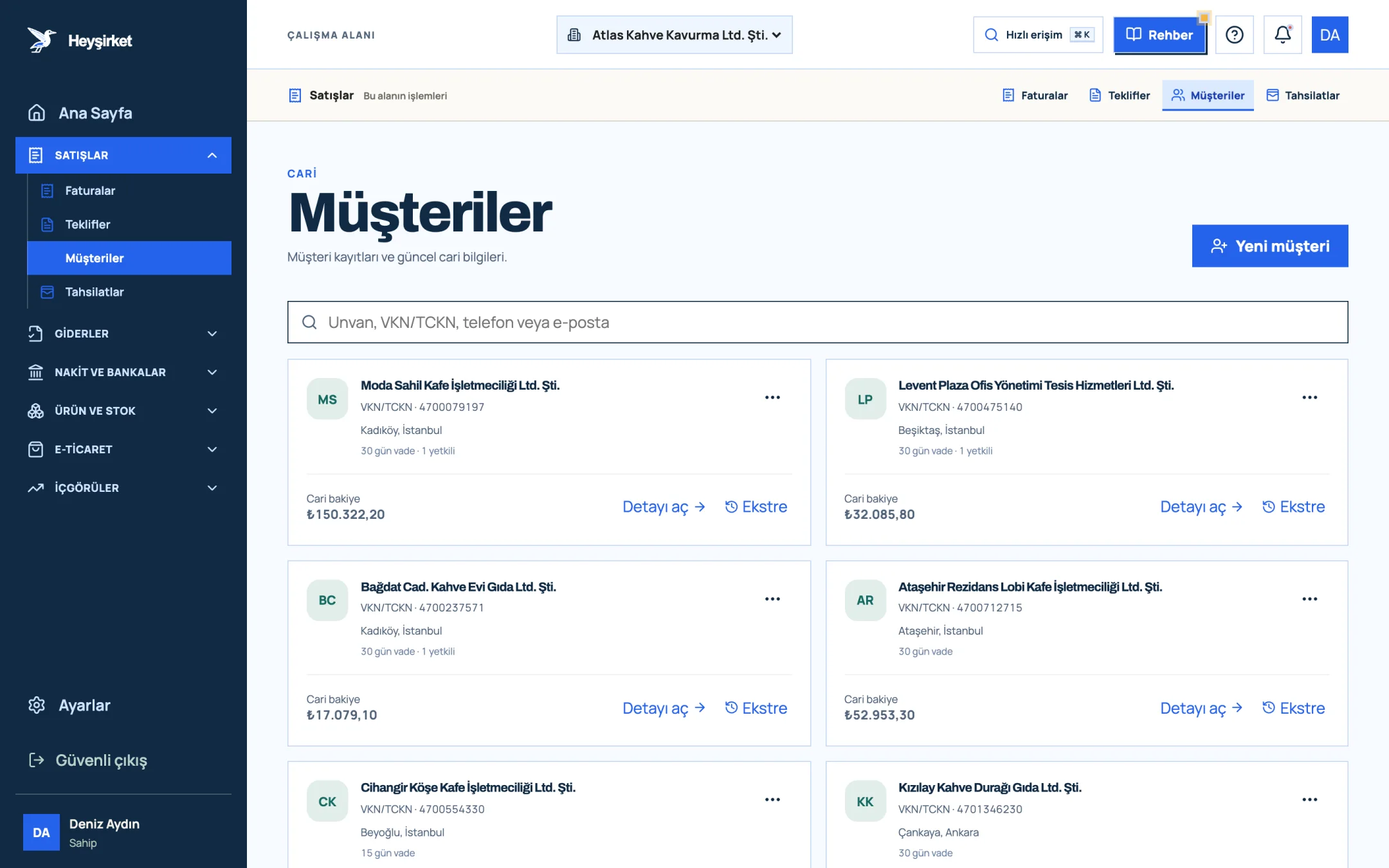
Open the customer's page - 1. New customer button
- 2. Customer search
- 3. Customer card: account balance and payment terms
- 4. Statement link
Read the current balance
Look at the Current balance box. If the amount is greater than zero, the subtitle reads “To collect” and the box is highlighted. You'll also see the remaining available amount in the Credit limit box.
Read the current balance - 1. Quick actions (Create invoice, Record collection)
- 2. Current balance
- 3. Credit limit
- 4. Recent sales documents
Find out which invoice is open
In the Recent sales documents panel, look for rows with the status Unpaid or Partially paid. Click a row to open the invoice details, where you'll find the remaining amount and payment history.
Find out which invoice is open - 1. Quick actions (Create invoice, Record collection)
- 2. Current balance
- 3. Credit limit
- 4. Recent sales documents
Open the statement
For a full list of transactions, use the Statement link at the bottom of the card on the Customers screen. The window has Date / transaction, Debit, Credit and Balance columns, with the Debit, Payment and Balance totals at the top.
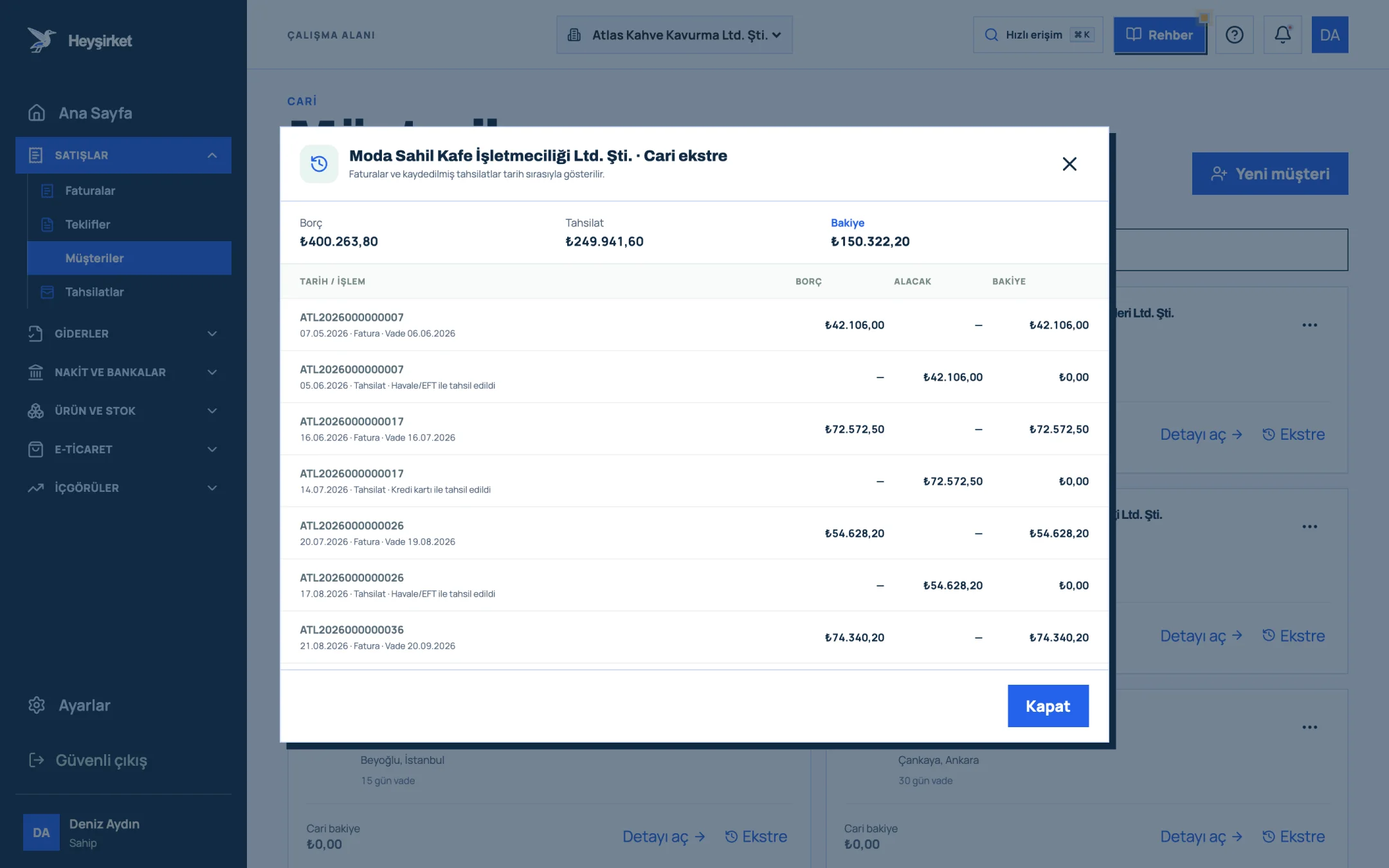
Open the statement - 1. Account statement window
- 2. Statement transactions and balance
Record the payment
If a payment has come in, click Record payment, choose the invoice in the Select an open invoice window and click Continue, then enter the amount, date and account and finish with Save payment. Details are in the payments guide.
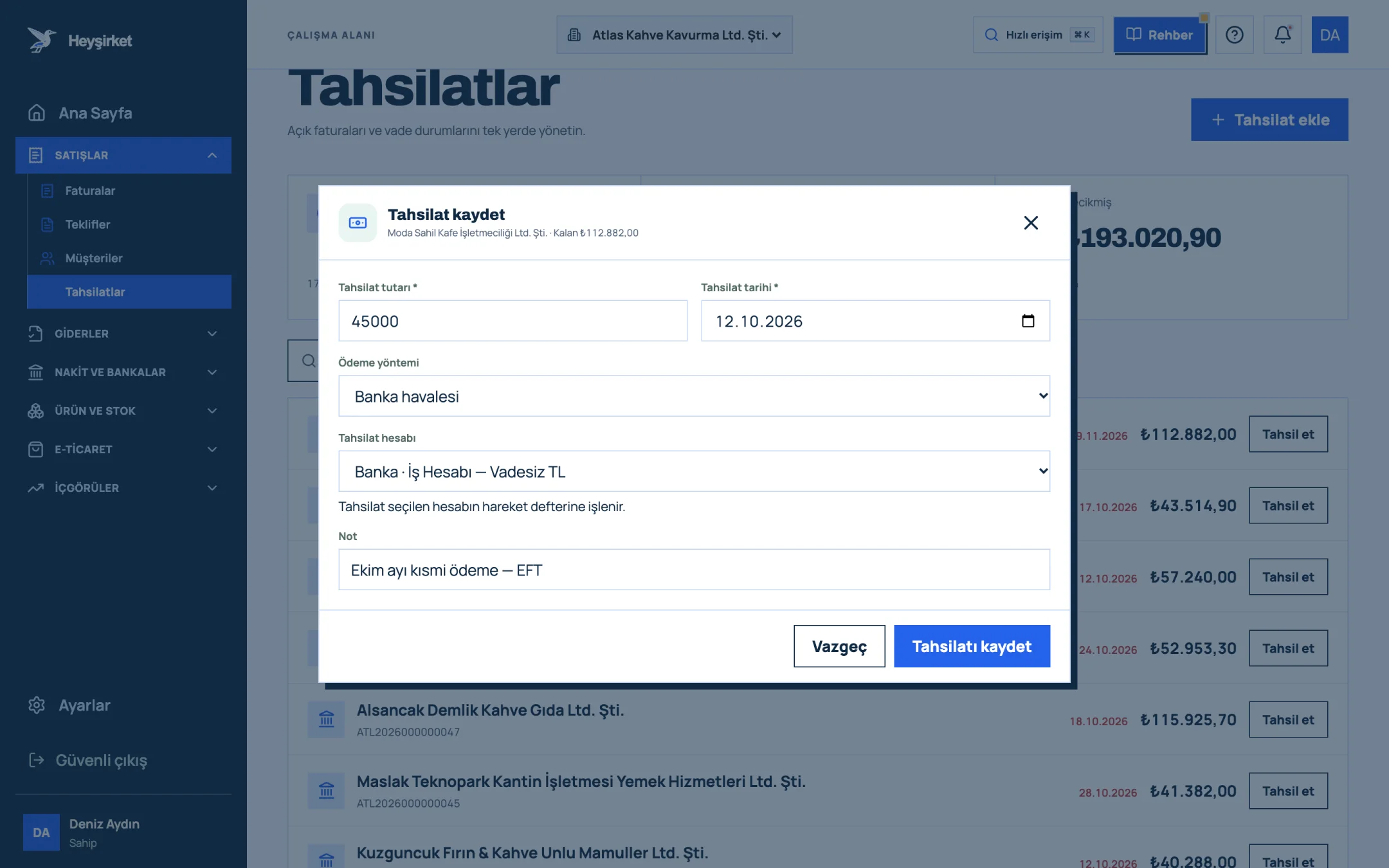
Record the payment - 1. Collection amount
- 2. Payment method
- 3. Cash/bank account receiving the payment
- 4. Save button
Start a new quote or invoice
For a new order, click Create quote or go straight to Create invoice. Either way, the customer comes preselected and the due date is filled in from the card's default payment term.
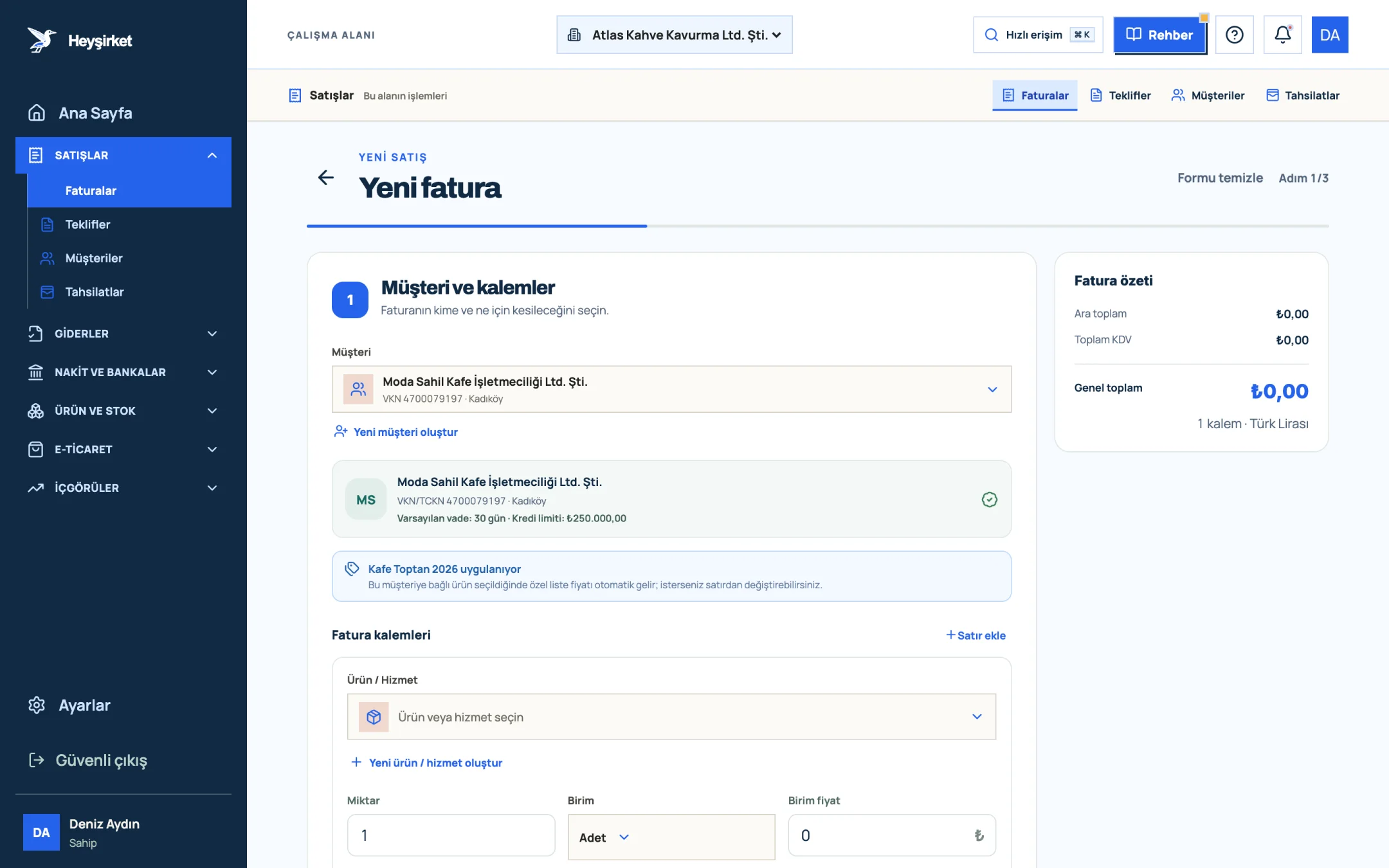
Start a new quote or invoice - 1. Selected customer
- 2. Customer card summary (tax ID, payment terms, credit limit)
- 3. Customer price list info
Part 3 · Know-how The logic: how do you read a customer account?
A cari account is the ledger, kept in date order, of what you and a customer owe each other. A sales invoice increases the customer's debt (the debit side), a payment reduces it (the credit side), and the difference is the current balance.
| Opening balance (from previous software) | 12.000,00 TL |
|---|---|
| Invoice of 3 September | + 28.800,00 TL |
| Bank transfer payment of 10 September | − 20.000,00 TL |
| Invoice of 24 September | + 14.400,00 TL |
| Current balance | 35.200,00 TL |
Total owed is 55.200 TL and collected is 20.000 TL. The Balance column on each row of the statement runs this calculation step by step.
A previous balance brought over from your old software through data import sits at the very top of the statement as an “Opening balance” row, and later transactions are added on top of it. That way the account continues without a break, even in the month you switch.
The statement is also the basis for confirming balances with your customer at the end of a period. We explain what to do when there are differences step by step in our customer account reconciliation article.
How do I get to the account workspace?
On the Customers screen, click the Open details link on the relevant customer's card. To leave the page, use the Back to customers link at the top.
What's the difference between the statement and the Account transactions panel?
The Account transactions panel shows the last eight transactions. The Statement window on the Customers screen lists all transactions with Debit, Credit and Balance columns, along with due dates and notes.
Can I invoice a customer who has reached their credit limit?
If the open balance plus the unpaid amount of the new invoice exceeds the limit, the invoice isn't issued and the available limit is shown. You can update the limit with Edit details.
How do I remove a contact?
In the Contacts panel, click the three-dot button next to the person and use the Remove button in the window that opens.
Open a customer's account On the Customers screen, click Open details for the customer you work with most and see their current balance. Open Customers
Author: Heyşirket Editorial Team