Collections · 9 min read · Updated:
How to record a payment: full, partial and one-click collections
If you don't close an invoice as soon as the money reaches your account, your cash figures start lying to you. Here are the three ways to record a payment correctly, plus every detail to watch out for.
In short
- A payment is recorded with the Collect button on the Collections screen, the Add collection button, or the Record collection button in the customer account; every collection is linked to an invoice.
- The collection amount is prefilled with the remaining balance; if you enter a smaller amount the invoice moves to Partially collected, and amounts above the remaining balance aren't accepted.
- When a collection account is selected, the amount is also posted to the movements of the chosen cash or bank account.
- The Mark as collected link in the emails the invoice owner receives one week and one month after the invoice is created closes the remaining balance in one click; it doesn't create a cash or bank movement.
On Monday morning, 18.000 TL from Nişantaşı Bistro landed in Atlas Kahve's bank account. The invoice was for 24.000 TL. If you don't record this transfer correctly, the Bistro will still appear to owe 24.000 TL in the system, and next week a wrong reminder goes out.
This guide helps you record every payment correctly: full payments, partial payments and one-click recording from email. By the end you'll also know which method to use when.
Part 1 · Tour What's on the Collections screen?
The Collections screen is the page that lists every uncollected or partially collected sales invoice with its due date and remaining balance. You open it from Collections in the left menu; "CASH FLOW" is written above it.
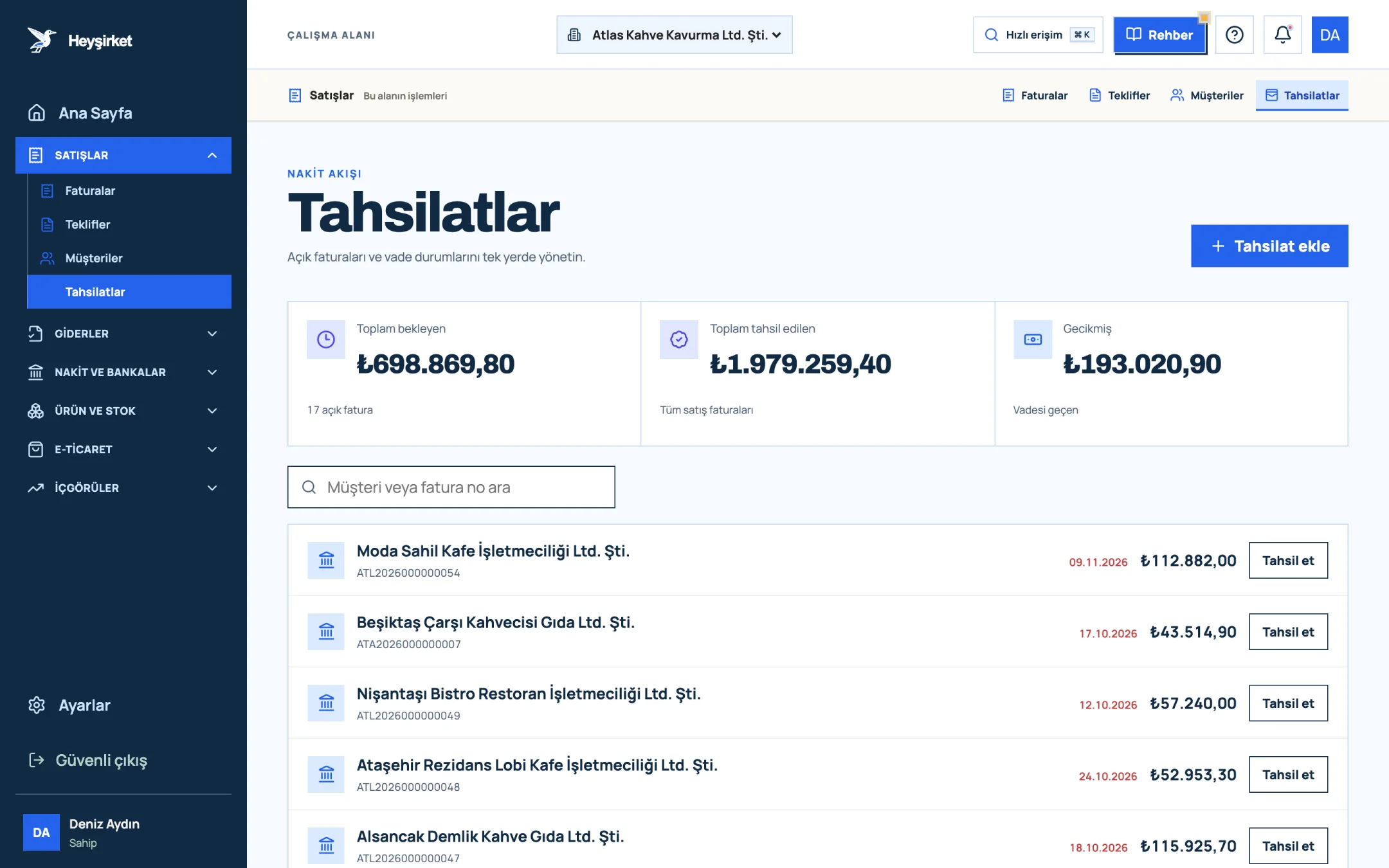
- 1. Add collection button
- 2. Total pending receivables
- 3. Total overdue receivables
- 4. Per-row Collect button
- Total pending: The remaining balance across all open invoices, with the number of open invoices below it.
- Total collected: Collections recorded to date across all sales invoices.
- Overdue: The remaining total on invoices past their due date.
- Search box: Filters the list with "Search customer or invoice no."
- Open invoice row: Customer, invoice number, due date, remaining balance and the Collect button.
- Add collection: At the top right; opens a window where you choose the invoice first. It only appears when there are open invoices.
Part 2 · In practice Step by step: how do you record a payment?
Recording a collection means linking the payment to the related invoice and entering its amount, date, method and the account the money went into. The fastest way is the Collections screen.
Recording a collection step by step
Find the invoice
Open the Collections page from the left menu. Type "Nişantaşı" in the search box to find the customer's open invoice.
Find the invoice - 1. Add collection button
- 2. Total pending receivables
- 3. Total overdue receivables
- 4. Per-row Collect button
Open the collection window
Click the Collect button on the right of the row. The title of the "Record collection" window shows the customer name and the "Remaining" amount.
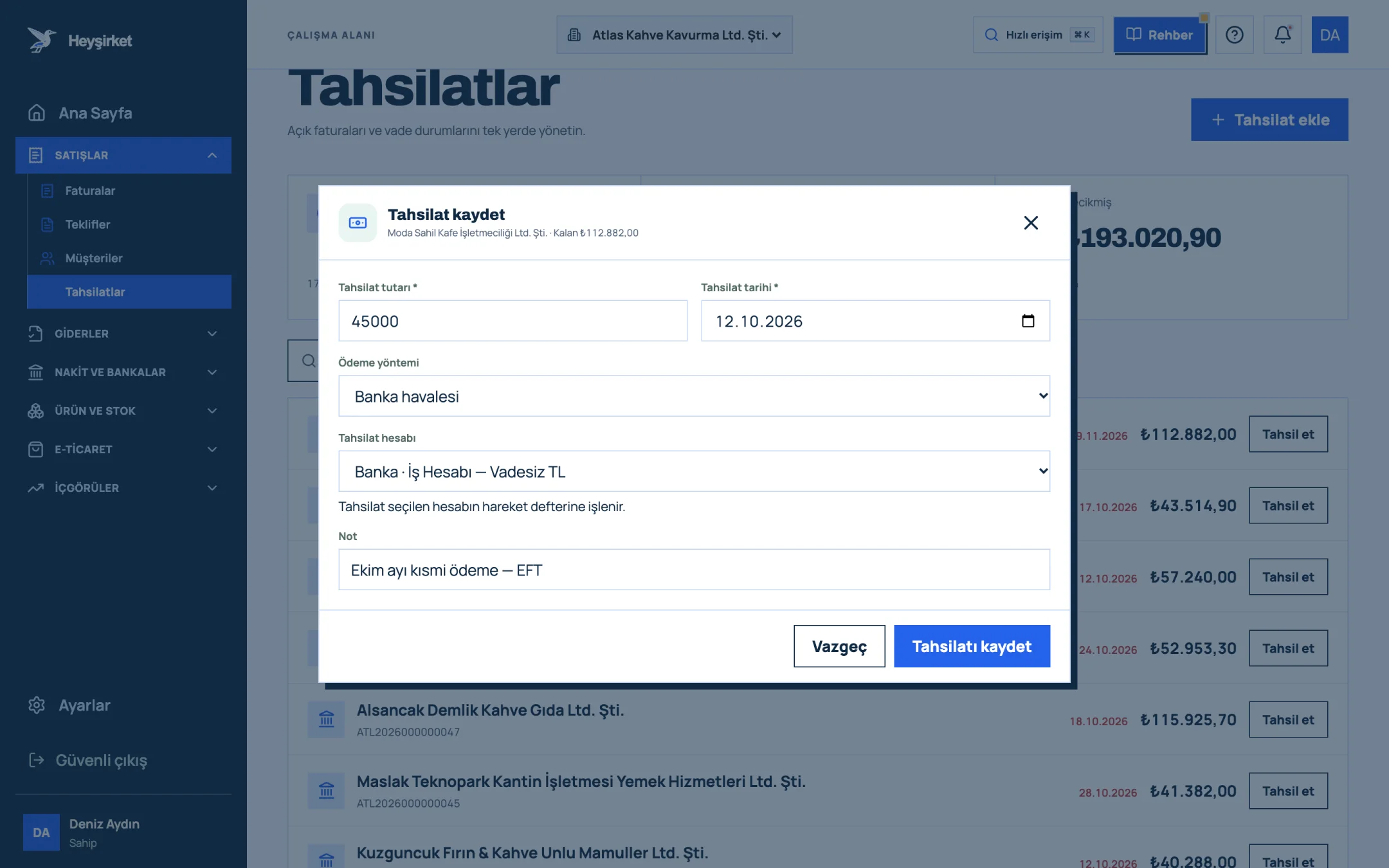
Open the collection window - 1. Collection amount
- 2. Payment method
- 3. Cash/bank account receiving the payment
- 4. Save button
Enter the amount and date
The Collection amount * field is prefilled with the remaining balance. If you received a partial payment, enter the amount received (e.g. 18.000,00). In Collection date *, choose the day the money reached the account; this date can't be earlier than the invoice date.
Enter the amount and date - 1. Collection amount
- 2. Payment method
- 3. Cash/bank account receiving the payment
- 4. Save button
Choose the payment method
Select Bank transfer, Cash, Credit card or Other from the Payment method list.
Choose the payment method - 1. Collection amount
- 2. Payment method
- 3. Cash/bank account receiving the payment
- 4. Save button
Check the collection account
In the Collection account list, choose the cash or bank account the money went into. A cash account is suggested automatically for cash, and a bank account for other methods; change it if you need to. If needed, add a description such as "EFT, receipt no. 4471" in the Note field.
Check the collection account - 1. Collection amount
- 2. Payment method
- 3. Cash/bank account receiving the payment
- 4. Save button
Save
Press the Save collection button. The message "Collection saved. Updating invoice balance." appears; the invoice drops off the list, or stays as Partially collected with its remaining balance.
Save - 1. Add collection button
- 2. Total pending receivables
- 3. Total overdue receivables
- 4. Per-row Collect button
Part 3 · Shortcuts Where else can I record a payment?
Besides the Collections screen, you can record a payment from the customer's cari (customer account), while issuing an invoice, and from the email the invoice owner receives. All of them link to the same invoice and update the same balance.
| Where | How | Best for |
|---|---|---|
| Collections screen | Collect or Add collection → Select an open invoice → Continue | Daily bank check |
| Customer account | In the account workspace, Record collection → choose the invoice | While talking to the customer |
| When issuing an invoice | In the "Payment and note" step of a new invoice, the Collected option, Payment method and Collection account | Cash-in-advance sales, POS card payments |
| Link in the email | Mark as collected in the reminder email | Away from your desk, full payments |
How does one-click collection from email work?
If the invoice is still open, the user who issued it receives a check-in email titled "Has payment for this invoice arrived?" roughly one week and one month after it was created. If the payment has arrived, just press the Mark as collected button.
The link opens the "Collection saved" screen in the portal and records the full remaining balance with that day's date. The link is personal, single-use and valid for 7 days. If the invoice has already been closed, an "Invoice already collected" notice appears and no new record is created.
Part 4 · Know-how The reasoning: partial payments and reminders
A partial collection is when part of an invoice amount is paid and the rest stays open. Enter each partial payment as a separate record; the "Collection history" in the invoice details shows exactly what came in on which date.
| Invoice total | 24.000,00 TL |
|---|---|
| 1st collection (bank transfer) | − 18.000,00 TL |
| 2nd collection (credit card) | − 4.000,00 TL |
| Remaining | 2.000,00 TL |
The invoice stays in "Partially collected" status and continues to appear in the Collections list with 2.000 TL.
To correct a wrong record, open the invoice and use the Cancel record link on the relevant row in the "Collection history" section; the remaining balance reopens. Then enter it again with the correct amount.
If a payment is late, the Send reminder button in the invoice details sends a friendly "Payment reminder" to the customer's email address. If you turn on Send collection notifications in the email notifications in Settings, the customer gets a receipt and company owners get a summary for every collection; Get overdue collections summary sums up overdue invoices every Monday. We explain how to set up a reminder rhythm in our article on speeding up receivables collection.
How do I record a payment that isn't linked to an invoice?
Every record on the Collections screen is linked to an invoice. You can record an incoming payment without an invoice as an account movement on the Cash and banks screen.
Why can't I see the Add collection button?
The button only appears when there are uncollected or partially collected invoices. If all invoices are closed, it's hidden.
How do I delete a collection I entered by mistake?
Open the invoice details and click the Cancel record link on the relevant row in the Collection history section. The invoice's remaining balance reopens.
Does the collection link in the email go to the customer?
No. The Mark as collected link is only sent to the user who issued the invoice; it's single-use and valid for 7 days. The email the customer receives is the Payment reminder sent with Send reminder.
How do I track a payment received by cheque?
Cheques and promissory notes are tracked separately on the Cheques and promissory notes screen in the left menu; on the due date, Collect posts them to the account you choose. See the cheque and promissory note tracking guide for details.
Close your open invoices Open the Collections screen and record the payments that reached your account today with Collect. Open collections
Author: Heyşirket Editorial Team