Employees · 7 min read · Updated:
Employee management: staff records and monthly cost on one screen
Who started when, who's on leave, and what does the team cost each month? The Employees screen keeps staff details organized and shows your monthly cost plan as a single number.

In short
- The Employees screen keeps staff records, job details and planned monthly cost in one place.
- Only first name, last name and start date are required for a new record; if you leave the employee ID blank, one is assigned automatically.
- The "Planned monthly cost" indicator adds up the monthly employer cost entered for employees with Active status only.
- Deactivating an employee doesn't delete the record; their staff history is kept.
- The screen isn't a payroll program; payroll and SGK (social security) filings are prepared by your accountant (mali müşavir).
Six people work at Atlas Kahve: two roasters, a barista trainer, a shipping coordinator, a part-time packer and an intern. Who started when lives in one Excel file, costs in another, and phone numbers in the owner's contacts.
The Employees screen brings these three scattered lists together. By the end of this guide you'll have recorded your whole team and be able to see your monthly staff cost at a glance.
Part 1 · Tour What's on this screen?
The Employees screen is a staff list that holds the identity, role, contact details, start date, status and monthly cost of the people who work for your business. Open it from the Employees item in the Expenses group of the left menu.
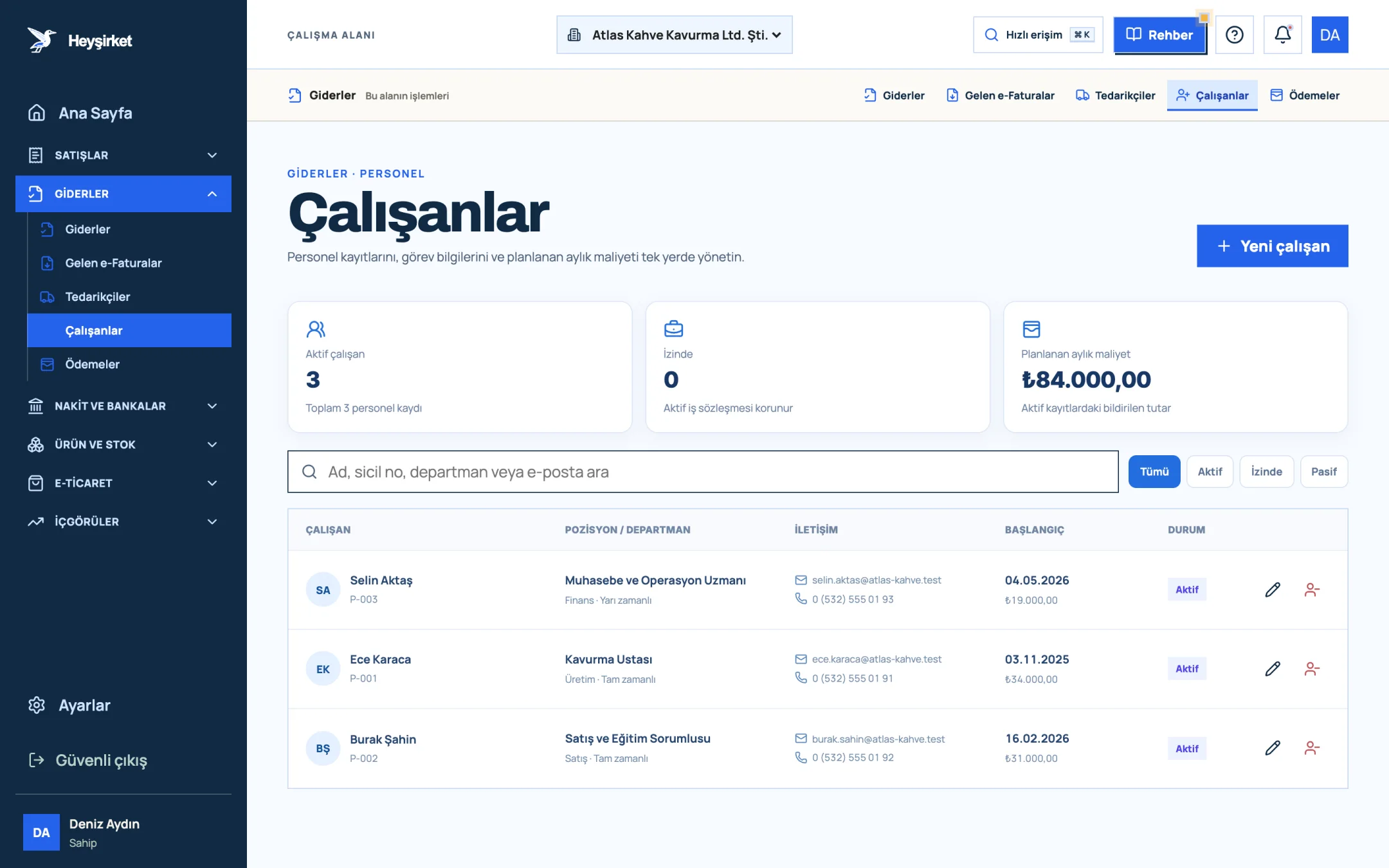
- 1. New employee
- 2. Planned monthly cost
- 3. Employee list
| Column | Content |
|---|---|
| Employee | Full name and employee ID |
| Position / department | Role, department and work type (Full-time, Part-time, Contract, Intern) |
| Contact | Work email and phone; "No contact details" if missing |
| Start | Start date and monthly cost |
| Status | Active, On leave or Inactive |
The search box looks through names, employee IDs, departments and email addresses. So how do you add a record?
Part 2 · In practice Step by step: adding an employee record
New employee record
Open the form
Press the New employee button in the top right. The "New employee" form opens.
Open the form - 1. New employee
- 2. Planned monthly cost
- 3. Employee list
Identity details
Fill in the First name * and Last name * fields (at least 2 characters). If you leave the Employee ID field blank, the system assigns a number automatically; if you have your own numbering, enter that instead. The same number can't be used for two people.
Role and work type
Choose Full-time, Part-time, Contract or Intern as the Work type, then fill in the Position (e.g. Roaster) and Department (e.g. Production) fields.
Dates and contact details
The Start date * is required. The Leaving date is only for employees who have left. The Work email and Phone fields appear in the list as contact details.
Cost and status
In the Monthly employer cost (₺) field, enter the total cost including gross salary and employer contributions. Choose Active, On leave or Inactive in the Status field, add a Note if you like, and press Save employee.
Editing and deactivating
The pencil icon at the end of a row edits the record; the person icon sets the employee to inactive. Deactivation asks for confirmation and keeps the staff history.
Editing and deactivating - 1. New employee
- 2. Planned monthly cost
- 3. Employee list
Part 3 · Know-how The reasoning: why do staff records matter?
For most service and manufacturing businesses, staff costs are the largest fixed expense after rent. Knowing this figure every month instead of guessing it is the foundation of your cash flow plan.
The Employees screen is not a payroll program: it doesn't calculate salaries or file SGK notifications. When you pay salaries you can record the payment as a cash or bank transaction; payroll, contributions and tax returns remain your accountant's responsibility.
An organized staff list helps in three places. First, budgeting: when you're thinking of hiring someone, the figure you'd add to the "Planned monthly cost" card shows the real size of the decision. Second, continuity: when someone leaves, you can see at a glance who worked in which department and since when. Third, inspections: when SGK or a labor inspector asks a question, the dates are right at hand.
| 2 roasters (Full-time, Active) | 2 × 62.000 TL |
|---|---|
| Barista trainer (Full-time, Active) | 58.000 TL |
| Shipping coordinator (Full-time, Active) | 52.000 TL |
| Packing (Part-time, Active) | 26.000 TL |
| Intern (On leave, not included in the indicator) | 0 TL |
| Planned monthly cost | 260.000 TL |
The amounts are examples; for your own figures, use the employer cost from your accountant's payroll.
Who can see the Employees screen?
Because staff information is sensitive, this screen is only available to the company owner and admin roles, who have permission to manage users.
Does Heyşirket prepare payroll?
No. The Employees screen is for staff records and planned cost tracking; payroll, SGK filings and the withholding tax return (muhtasar beyan) are prepared by your accountant.
How is the employee ID assigned?
If you leave the Employee ID field blank, the system assigns a number automatically. If you enter your own number and it's already used on another employee record, the system warns you.
Can I reactivate an employee I set to inactive?
Yes. Choose Inactive in the filter, open the record with the pencil icon, set the Status field to Active and save.
Record your team A name, start date and monthly cost for each employee is all you need. See your staff cost as a single number in five minutes. Open the Employees screen
Author: Heyşirket Editorial Team