Data migration · 7 min read · Updated:
Importing data: moving from Excel, CSV or your old software
You don't need to retype a customer list built up over years. You upload the file, map the columns, and the rest moves forward through reconciliation.
In short
- Data migration runs from the Data migration tab in Settings (/settings?tab=imports) and is only available to the Owner and Admin roles.
- You can upload CSV, XLS, XLSX, PDF and ZIP files, up to 10 MB per file and 25 MB in total.
- Field mapping only works on the first worksheet of CSV and XLSX files; older XLS files need to be saved again as CSV or XLSX.
- Cari (customer/supplier) accounts, products/services, sales invoices, collections and expenses are mapped as separate record types; fields marked with an asterisk are required.
- No uploaded file is posted to your books automatically; records aren't created until reconciliation is complete and you've given your approval.
When Atlas Kahve moved to Heyşirket, it had a 340-row list of cafés, 85 kinds of coffee beans and equipment, and two years of invoice exports. Entering it all by hand would have taken a week.
The data migration center turns that job into uploading files and mapping columns. And no record is created without your approval. By the end of this guide, you'll also know how to prepare your files.
Part 1 · Tour What's on this screen?
The data migration center is where you upload your migration files, map their columns to Heyşirket fields and track the status of your migration jobs. Open it from the Data migration row on the left in Settings.
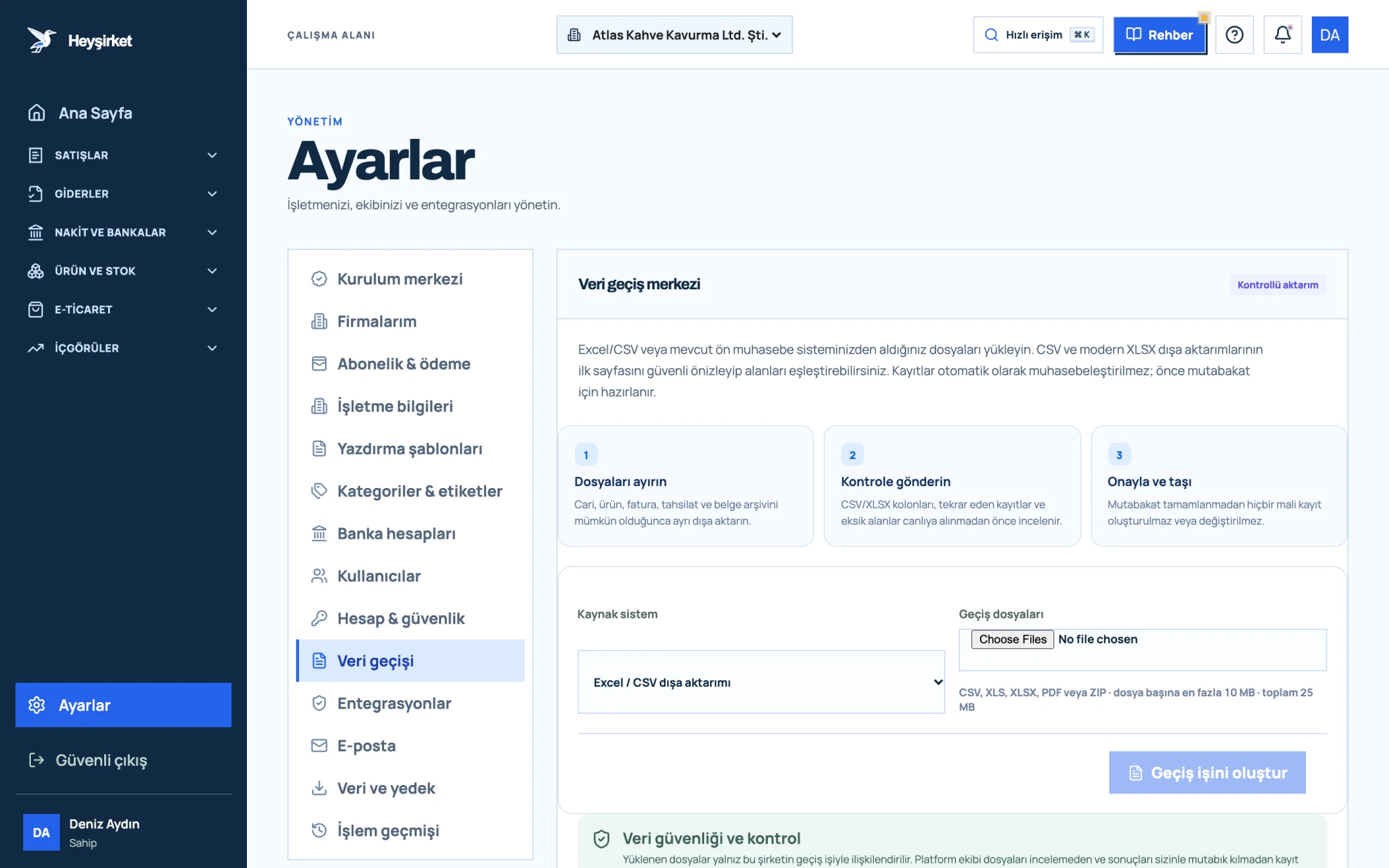
- 1. Data migration tab
- 2. Three-step migration process
- 3. Source system selection
- 4. Create migration job
| Status | Meaning |
|---|---|
| Files received | Files were uploaded securely and are waiting for mapping. |
| Field mapping | The columns of at least one file have been mapped. |
| Validating | Records, duplicates and missing fields are being checked. |
| Awaiting approval | Reconciliation is ready; your approval is needed to import. |
| Importing | Approved records are being imported. |
| Completed | The records are in Heyşirket. |
| Needs review | An issue was found; contact support for details. |
Part 2 · Preparation How should I prepare my files?
A good migration file is a table with column names in the first row, one record per row and a single record type. Keeping customer accounts, products, invoices and collections in separate files makes mapping easier.
| Record type | Required fields | Other fields |
|---|---|---|
| Cari accounts | Account legal name | VKN / TCKN, Tax office, Email, Phone, Address, Province |
| Products / services | Product / service name | Stock code, Barcode, Unit, Sales price, VAT rate |
| Sales invoices | Invoice number, Issue date, Grand total | Cari account, Due date, Currency, Status |
| Collections | Collection amount, Collection date | Invoice number, Cari account, Payment method |
| Expenses | Supplier, Document date, Grand total | Document number, VAT, Currency |
Upload order: Customer/supplier accounts and products/services first, then sales invoices, and finally collections and expenses. Because invoice and collection records are linked to account and product items, this order makes mapping and reconciliation easier.
Part 3 · Hands-on Importing data step by step
Importing data step by step
Open the Data migration tab
In Settings, click the Data migration row on the left. You'll see the Data migration center heading and the Controlled import label.
Open the Data migration tab - 1. Data migration tab
- 2. Three-step migration process
- 3. Source system selection
- 4. Create migration job
Choose the source
In the Source system field, select Excel / CSV export, Current system export or Another pre-accounting system.
Select your files
Choose one or more files in the Migration files area. The selected files are listed with their sizes; you can remove a wrong file with the X icon.
Create the migration job
Click the Create migration job button. A "file added to the migration queue" message appears, and the job is added to the Your migration jobs list with Files received status.
Map the fields
In the list, click the Map fields button next to a CSV or XLSX file. In the Record type in this file field, choose Cari accounts, Products / services, Sales invoices, Collections or Expenses.
Check the columns
For each Source column, pick the right field from the Heyşirket field list next to it. The system makes initial suggestions based on the column names; make sure every field marked with an asterisk is mapped. The row preview below shows that your data is being read correctly.
Save the mapping
Click Save mapping. In the next step, records and totals are reviewed for reconciliation; the import happens only after your approval.
Part 4 · Archive What happens with PDF and ZIP files?
PDF and ZIP files are for adding an archive of your old invoices and documents to the migration job. These files don't go through column mapping; they're stored securely with your migration job and used during the review.
Uploaded files are linked only to this company's migration job. The platform team can't start importing records without reviewing the files and reconciling the results with you.
Reports to keep from your old system: Save your open receivables, open payables and bank balance reports as of the migration date as PDFs. After the import, reconciliation compares against the totals in these reports.
Part 5 · Why it matters The big picture: why a controlled import instead of an automatic one?
A controlled import means the records in your file are counted first, their totals are compared with your old system, and only then are they imported. In accounting, a single wrong total means your opening balances and every report start off wrong.
That's why Heyşirket never automatically creates or changes any financial record from the data you upload. Reconciliation first, import second. We explain how to choose your migration date and how to run a parallel period in our switching accounting software article and on the migration guide page.
Once the import is complete, take a look at our account reconciliation article to confirm open balances with your customers.
How many files can I upload at once?
You can select more than one file. Each file can be up to 10 MB, and the files in one migration job can total up to 25 MB.
Will the records I upload show up in my customer list right away?
No. Records are first prepared for reconciliation, and the import happens after your approval. Meanwhile, you can keep adding customers and products manually.
My CSV file uses semicolons. Is that a problem?
No. The system detects comma, semicolon and tab separators on its own by looking at the first row.
I made a mistake in the mapping. Can I fix it?
Yes. Click the Map fields button next to the same file again; your saved mapping opens, so you can correct it and save again.
Who can I contact if I get stuck?
You can email info@heysirket.com or message us on WhatsApp at 0530 681 36 16.
Start moving your data Upload your files and map the columns; the import is completed with reconciliation and your approval. Open Data migration
Author: Heyşirket Editorial Team