E-commerce · 7 min read · Updated:
Product matching and catalog prep: link channel products to your product cards
If a Trendyol barcode and a product card in your warehouse describe the same item, you only need to tell the system once. This guide covers matching and getting products ready for each channel.
In short
- The Product prep tab has two sections: Product listing prep and Matched products.
- Matching links a channel product to a single product card in your company by its stock code or barcode, so orders are tracked with the right product, stock and price details.
- Every match takes one of three choices: Match with this product, Match later or Ignore this channel product.
- A product listing profile collects and validates the fields a channel requires for a product; it doesn't send the product to the external channel.
On Atlas Kahve's warehouse card, the product is called "Hand Grinder Ceramic Burr". On Trendyol the same product sells under a barcode, and on WooCommerce under a different stock code. Without matching, it looks like three separate products.
The Product prep screen clears up this mess. You link a channel product to your company product card once, and every order after that lands on the right card.
Part 1 · Tour What's on the Product prep screen?
The Product prep screen is the bridge between your company's product cards and the products on your sales channels. Open it from Mappings and catalog under E-commerce in the left menu; the tab is called Product prep.
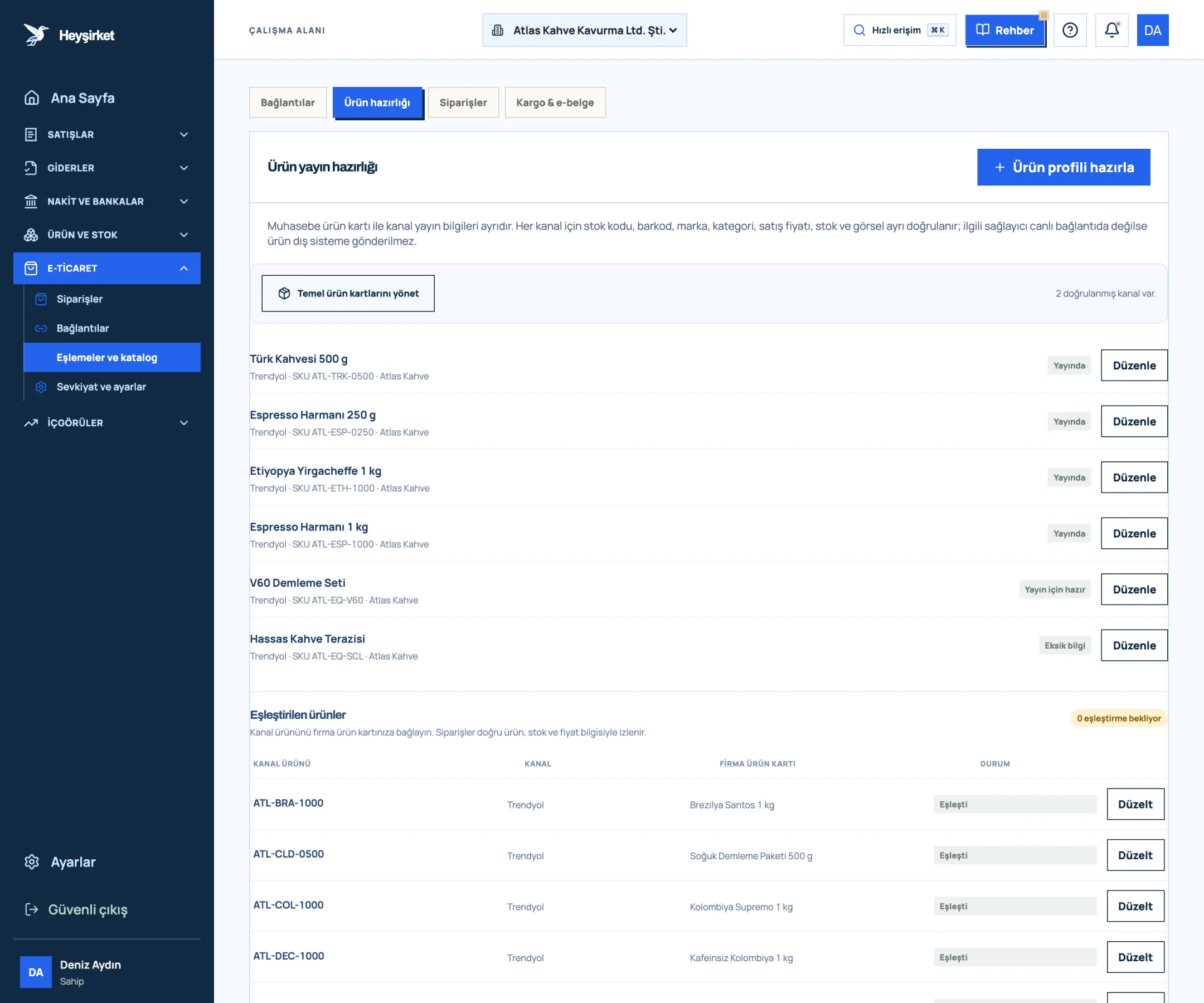
- 1. Prepare product profile
- 2. Live product profile
- 3. Profile with missing info
- 4. Mapped products table
- Product listing prep: each product's profiles by channel. The Prepare product profile button sits at the top right, with a Manage base product cards shortcut below it and the number of validated channels.
- Matched products: a list of channel products with Channel product, Channel, Company product card and Status columns. Products awaiting a match appear at the top of the list.
Part 2 · Concept What is product matching and why does it matter?
Product matching means linking the stock code or barcode of a product on a sales channel to a single product card in your company. Orders for a matched product are tracked with the right product, stock and price details.
| Status label | Meaning | Button |
|---|---|---|
| Action needed | The channel product isn't linked to a product card yet | Match |
| Matched | Linked to a product card | Fix |
| Ignored | This channel product won't be tracked | Match |
Part 3 · Matching Step by step: match a channel product
Product matching step by step
First, make sure the product card exists
The options in the matching list come from your company's product cards. If there's no product card, go to the products screen with Manage base product cards and create one. See Adding products and services.
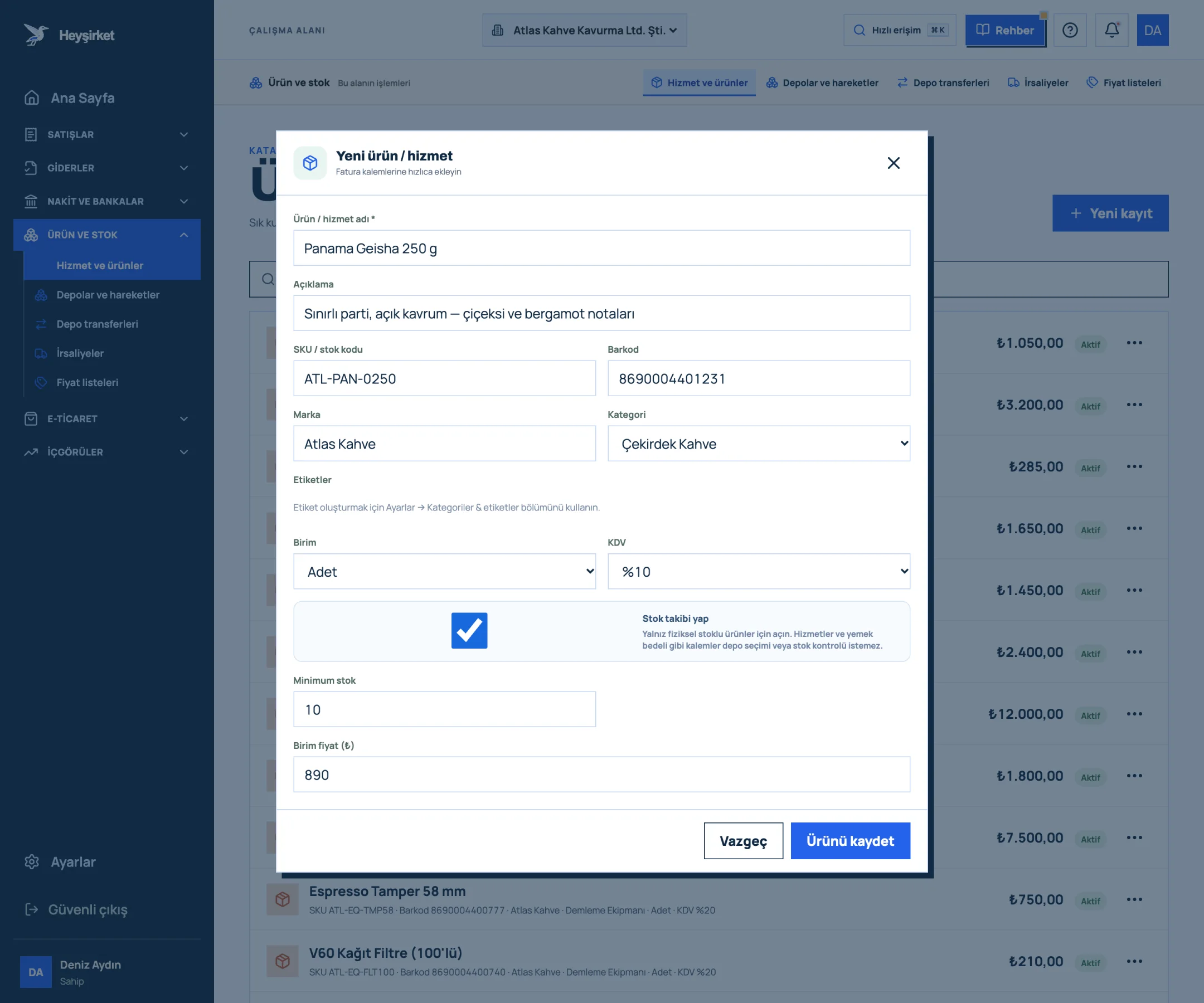
First, make sure the product card exists - 1. Product / service name
- 2. SKU and barcode
- 3. Category selection
- 4. Track stock option
- 5. Save product
Find the pending product
In the Matched products table, find the row whose status label is Action needed. The first column shows the channel stock code, with the barcode below it if there is one.
Find the pending product - 1. Prepare product profile
- 2. Live product profile
- 3. Profile with missing info
- 4. Mapped products table
Press Match
Press the Match button at the end of the row. The title of the Match channel product window shows the channel name and product code.
Choose the company product card
Choose the product from the Company product card list; the list shows the product name and stock code together. When you select a card, Matching choice is automatically set to Match with this product.
Review the choice
If you're not sure, choose Match later; if you'll never track this product, choose Ignore this channel product.
Save
Press the Save match button. The row's status changes to Matched and the button now reads Fix.
Part 4 · Catalog How do you prepare a product listing profile?
A product listing profile is a record that gathers and validates, on a single card, the information a product needs to be sold on a specific channel. Your accounting product card stays simple; the channel-specific title, category and images live in the profile.
Product listing profile step by step
Start the profile
Press the Prepare product profile button at the top right. Choose the Base product and Sales channel.
Start the profile - 1. Prepare product profile
- 2. Live product profile
- 3. Profile with missing info
- 4. Mapped products table
Fill in the required fields
Stock code, Barcode, Brand, Category code (the provider's category code), Listing title, Sale price (₺), Stock quantity and Image URLs are required. Enter the images with one HTTPS address per line.
Add channel attributes
Enter channel attributes such as color or size in the Channel attributes (JSON) field in the format shown in the example; for instance, Black for Color.
Validate and save
Press the Validate and save profile button. If any fields are missing, they're listed at the bottom of the window and the profile is saved as Missing information; if every field is complete, the profile becomes Ready to list.
Part 5 · Background The reasoning: one product card, many channels
In accounting, a product should have a single identity. Stock counts, cost and profitability are always calculated from that card. Channels, however, use their own codes: barcode, seller stock code, variant ID.
Matching connects these two worlds. An order that comes in for an unmatched product means a gap in the profitability report and a silent drift in stock. We explain why that gets expensive in our Inventory management basics article.
Why is the matching list empty?
If there are no channel products to match yet, the list is empty and the screen says so. Once channel products arrive in the list, you can link them to your company product cards here.
How do I fix a wrong match?
Press the Fix button on the row, choose the correct Company product card and press Save match.
Who can do the matching?
The Match and Prepare product profile buttons are visible to users with admin permission. Other users can view the list.
Can I prepare a profile for an inactive product?
No. Profiles can only be saved for active product cards. Reactivate the product on the products screen first.
Match your products Link pending channel products to your company product cards and prepare your channel profiles. Open product prep
Author: Heyşirket Editorial Team