Products and inventory · 9 min read · Updated:
How to add products and services: setting up catalog items the right way
A product item set up correctly once remembers the name, unit, VAT rate and price for you on every invoice. This guide explains why and how to fill in each field.
In short
- In Heyşirket, products and services are added from the Products and services screen under the Products and inventory menu, using the New item button.
- The unit price is entered excluding VAT; VAT is calculated separately on the invoice based on the rate on the item.
- Turn on Track stock only for physical products you keep in stock; leave it off for services.
- Products with a minimum stock value show a warning on the inventory screens when they drop to that threshold.
- An item you no longer sell isn't deleted; you remove it from the list with Deactivate, and past invoices are not affected.
The sales lead at Atlas Kahve Kavurma typed "Espresso blend 1 kg" on every invoice and picked the VAT rate from memory. One day, three invoices issued at the wrong rate came back to the accountant's desk at month-end as correction work.
That's exactly what a product item solves: you save the name, unit, VAT rate and price correctly once, then select it with a single click on every invoice. By the end of this guide, your catalog will be ready for both invoicing and inventory.
Part 1 · Tour What's on this screen?
The Products & Services screen is the catalog where every line item you use on invoices and quotes is stored. Open it from the Products and services link under the Products and inventory group in the left menu.
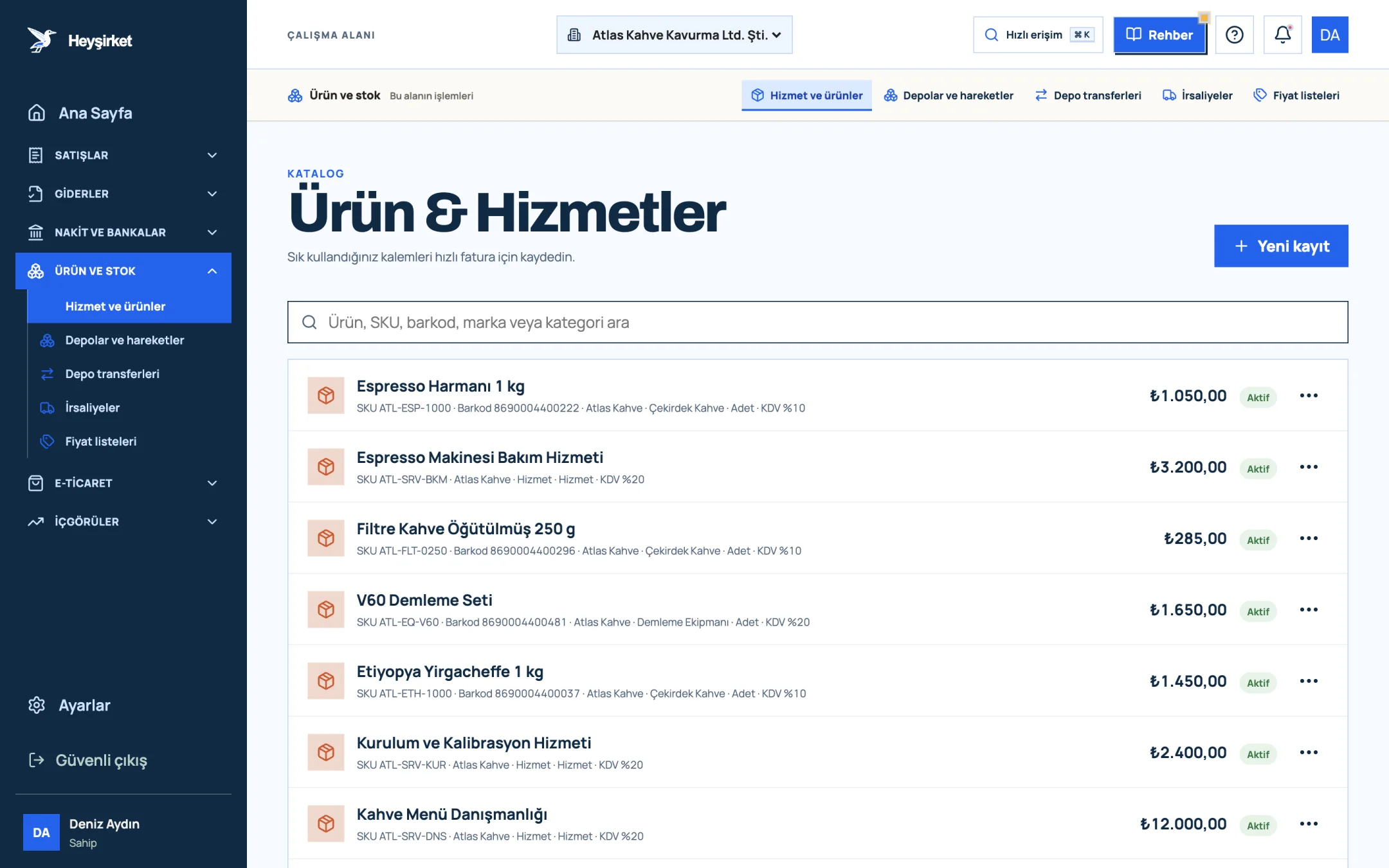
- 1. New item button
- 2. Product search (SKU, barcode, brand)
- 3. Product row: SKU, category, VAT, price
- Search box: The "Search product, SKU, barcode, brand or category" field finds the right item among hundreds in seconds.
- Row summary: Each row shows the name, SKU, barcode, brand, category, tags, unit and VAT rate on a single line, with the unit price on the right.
- Active label: The list only includes items in use; deactivated items drop off this list.
- Pagination: As your catalog grows, the list is split into pages; move between them with the Previous and Next buttons.
Don't let the simple list fool you; the real work happens in the fields inside each item. Let's fill them in one by one.
Part 2 · Hands-on Step by step: create your first product item
Adding a new product or service simply means filling in the form opened by the New item button and clicking Save product. The steps below also show when you need to fill in each field.
Adding a product or service step by step
Open the form
On the Products & Services screen, click the New item button at the top right. A form titled "New product / service" opens.
Open the form - 1. New item button
- 2. Product search (SKU, barcode, brand)
- 3. Product row: SKU, category, VAT, price
Enter the name and description
Product / service name is the only required field, and it's the text your customer sees on the invoice. Choose a clear name that also describes the unit, such as "Espresso blend 1 kg". You can use the Description field for internal notes.
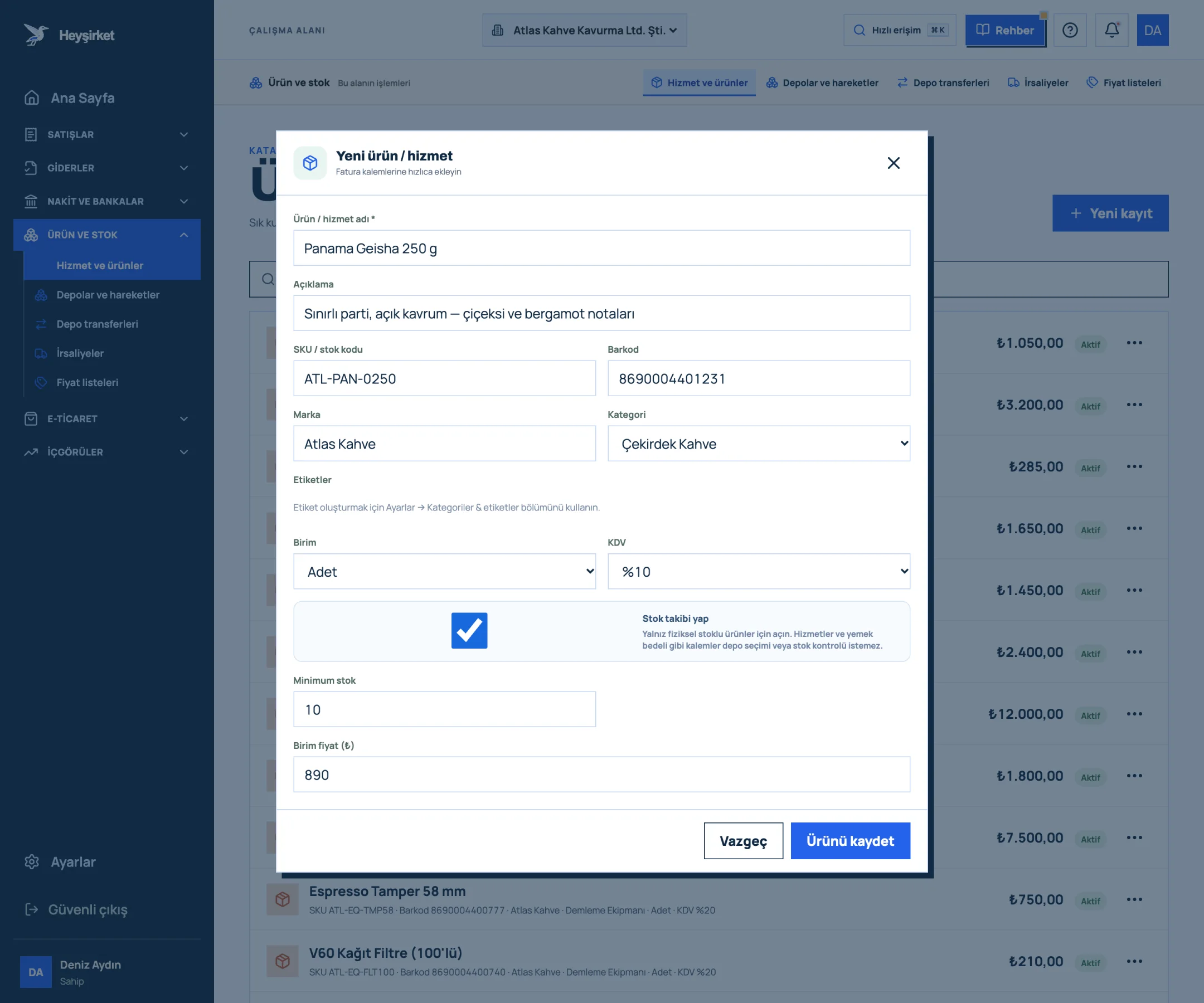
Enter the name and description - 1. Product / service name
- 2. SKU and barcode
- 3. Category selection
- 4. Track stock option
- 5. Save product
Enter the codes
Enter your own internal code in the SKU / stock code field (e.g. KHV-ESP-1000) and the barcode from the packaging in the Barcode field. The Brand and Category fields make reporting and price lists easier.
Enter the codes - 1. Product / service name
- 2. SKU and barcode
- 3. Category selection
- 4. Track stock option
- 5. Save product
Choose the unit and VAT rate
Pick Piece, Kg or Service from the Unit list. The VAT list offers 0%, 1%, 10% and 20%; if you're not sure which rate applies to your product, ask your accountant.
Choose the unit and VAT rate - 1. Product / service name
- 2. SKU and barcode
- 3. Category selection
- 4. Track stock option
- 5. Save product
Decide on stock tracking
If you sell a physical good, check the Track stock box. Checking it also enables the Minimum stock field; when the product drops to this quantity, you'll see a warning on the inventory screens.
Decide on stock tracking - 1. Product / service name
- 2. SKU and barcode
- 3. Category selection
- 4. Track stock option
- 5. Save product
Enter the price and save
Enter the sales price excluding VAT in the Unit price (₺) field and click Save product. The item appears in the list right away and can be selected on invoices.
Enter the price and save - 1. Product / service name
- 2. SKU and barcode
- 3. Category selection
- 4. Track stock option
- 5. Save product
Your item is saved, but which fields will affect you most down the line? Next up: the most common mistakes.
Part 3 · Watch out What are the most common mistakes on product items?
Most product item mistakes come down to entering the price including VAT and turning on stock tracking for services. Both quietly produce wrong results on invoices.
| Item | Unit | Stock tracking | Why? |
|---|---|---|---|
| Espresso blend 1 kg | Piece | On | A physical good stored and counted in the warehouse |
| Green coffee beans (bulk) | Kg | On | A raw material bought and sold by the kilogram |
| Barista training (half day) | Service | Off | A service with no stock; no warehouse needed |
| Espresso machine maintenance visit | Service | Off | Labor being sold; it can't be counted |
If you turn on stock tracking for a service, the system expects a warehouse selection and stock check for that line. The note on the form reminds you of this too: items like services and meal costs don't require a warehouse.
Part 4 · Background The big picture: why the catalog is the foundation of your bookkeeping
Your product catalog is the shared vocabulary that keeps sales, inventory and reports speaking the same language. If you write the same coffee as "Espresso 1kg" on one invoice and "Espresso blend" on another, your reports will treat them as two different products.
With a tidy catalog, three things follow naturally: invoices get faster, VAT rate mistakes drop, and stocked products are deducted from the selected warehouse as they're sold. When you add a stocked item to an invoice, the invoice screen asks you to choose a Dispatch warehouse.
The minimum stock value looks like a small field, but it sets the rhythm of your purchasing. We explain how to calculate it with an example in our inventory management basics article.
Can I delete a product?
Items aren't deleted; they're deactivated. Click the three dots on the right of the row to open the item and use the Deactivate button. The item drops off the catalog list, and invoices issued earlier stay exactly as they are.
The unit I need isn't in the list. What should I do?
Items offer the Piece, Kg and Service units. For sales by pack or carton, write the name so it describes the unit, for example "Filter coffee 250 g pack", and choose Piece as the unit.
If I change the price, do old invoices change?
No. Issued invoices keep the price at the time. The new price becomes the starting value on invoices you create after updating the item, and you can still change the line price manually on the invoice.
Should I put a customer-specific price on the item?
No, the item price is your catalog price. For customer- or dealer-specific prices, create a price list; when you invoice a customer assigned to that list, the special price is applied automatically.
Do I have to enter hundreds of products one by one?
No need. You can import your existing catalog with Excel or CSV; the steps are in the data import guide.
Set up your catalog now Add your first five products and services, so your next invoice is just a matter of picking items. Open Products & Services
Author: Heyşirket Editorial Team