Cash management · 11 min read · Updated:
Cash and bank accounts: opening accounts, adding transactions, transfers and month-end checks
The cash in your till and the money in your bank, on one screen. With this guide you'll open your accounts, record transactions and make sure your balance matches the bank at month end.
In short
- In Heyşirket, an account's balance is its opening balance plus the total of the transactions recorded on the Cash & Bank screen.
- A payment received on an invoice or an expense document doesn't create a bank transaction on its own; you need to record the moment the money reaches the account separately with Add transaction.
- A Transfer creates a matching outgoing and incoming record between two active accounts in the same currency at the same time; it isn't counted in the Money in and Money out indicators.
- Comparing each account's Heyşirket balance with your bank statement at month end is the quickest way to catch a missing or duplicate entry early.
It's the last day of the month, and the founder of Atlas Kahve Kavurma is looking at the screen: invoices are issued, payments are recorded, but the answer to "How much is in the bank right now?" is still in online banking. The Cash & Bank screen exists to answer that question inside Heyşirket.
In this guide you'll open your cash and bank accounts, record money coming in and going out, transfer between accounts and see how to compare your balance with the bank at month end. At the very end, there's a small detail most businesses overlook.
Part 1 · Tour What's on this screen?
The Cash & Bank screen brings together your cash and bank accounts, the money movements in those accounts and your cheque and promissory note portfolio. Open it from the left menu with the Cash and banks link in the Cash and banks group.
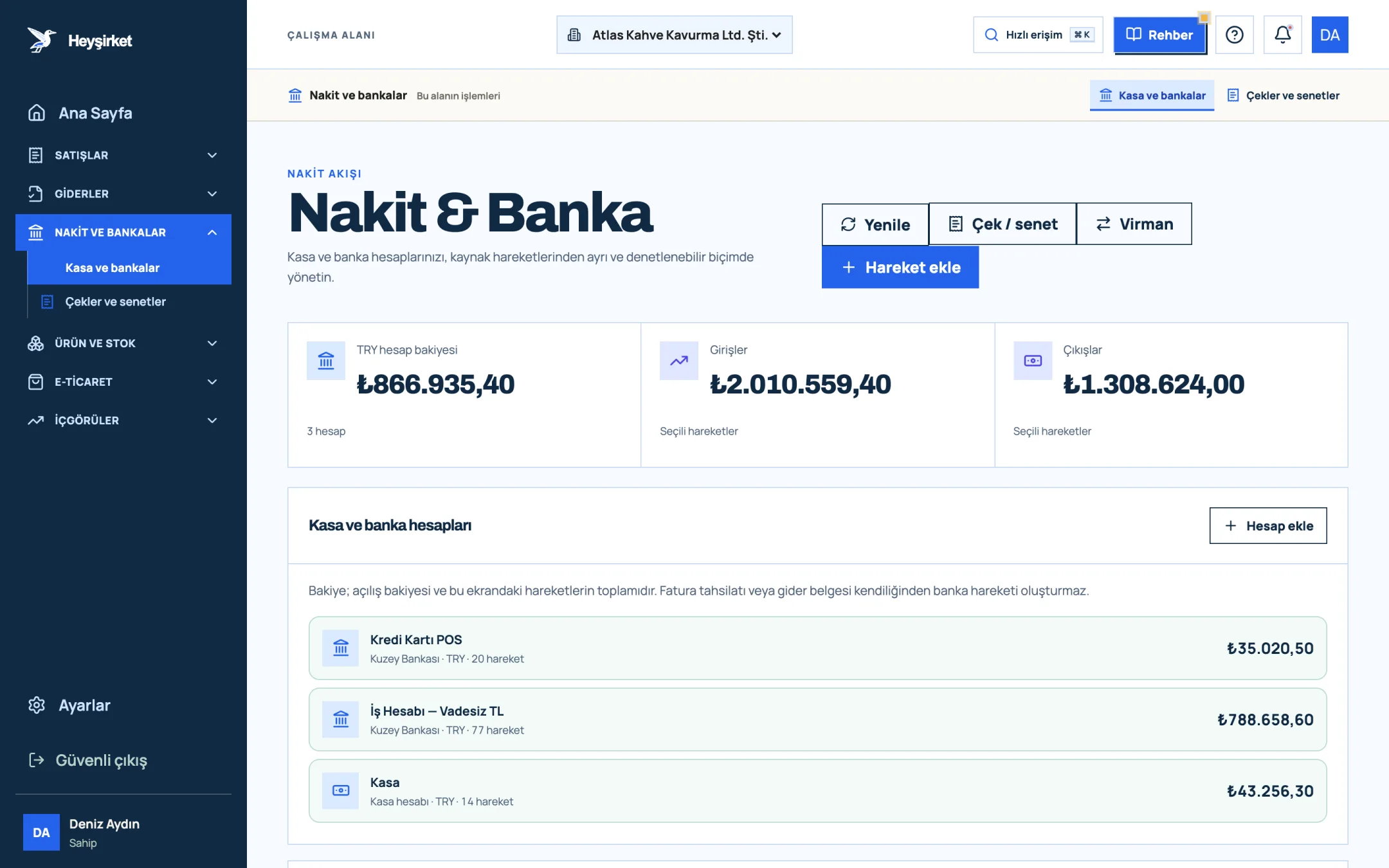
- 1. Add transaction button
- 2. Transfer between accounts
- 3. Total TRY balance
- 4. Cash and bank account list
| Section | What does it show? | Note |
|---|---|---|
| TRY account balance | The total balance of all Turkish lira accounts and the number of accounts | USD and EUR accounts aren't included in this total; they appear on their own rows. |
| Money in / Money out | The total money in and money out of the selected transactions, in TRY | Transfers aren't included in these two indicators. |
| Cash and bank accounts | Each account's name, type, currency, number of transactions and balance | Open a new account with Add account. |
| Cheque & note tracking | Cheques and promissory notes received and issued in your portfolio | See the Cheque and note tracking guide for details. |
| Account transactions | All incoming, outgoing and transfer records, with search and filters | 50 transactions are listed per page. |
Part 2 · How to How do you open a cash or bank account and add transactions?
Opening an account, recording the first transaction and making a transfer takes just a few minutes in total. The buttons are only visible to users with the Owner and Admin roles; other roles see a View only label on the list.
Step by step: from account to transfer
Add an account
Click the Add account button to the right of the Cash and bank accounts heading. Choose Cash or Bank in the Account type field and enter an Account name (e.g. "Main till" or "Business account"). If you choose Bank, the Bank name and IBAN fields also appear.
Add an account - 1. Add transaction button
- 2. Transfer between accounts
- 3. Total TRY balance
- 4. Cash and bank account list
Enter the currency and opening balance
Choose TRY, USD or EUR as the Currency. In the Opening balance field, enter the actual balance on the day you start tracking; for a bank account, use that day's statement balance. Then click Save account.
Add a transaction
Click the Add transaction button in the top right. In the window that opens, choose the Account, set the Transaction type to Money in or Money out, and enter the Amount and Date. The Related person / organization and Description fields are optional but will save you time at month end. Finish with Save transaction.
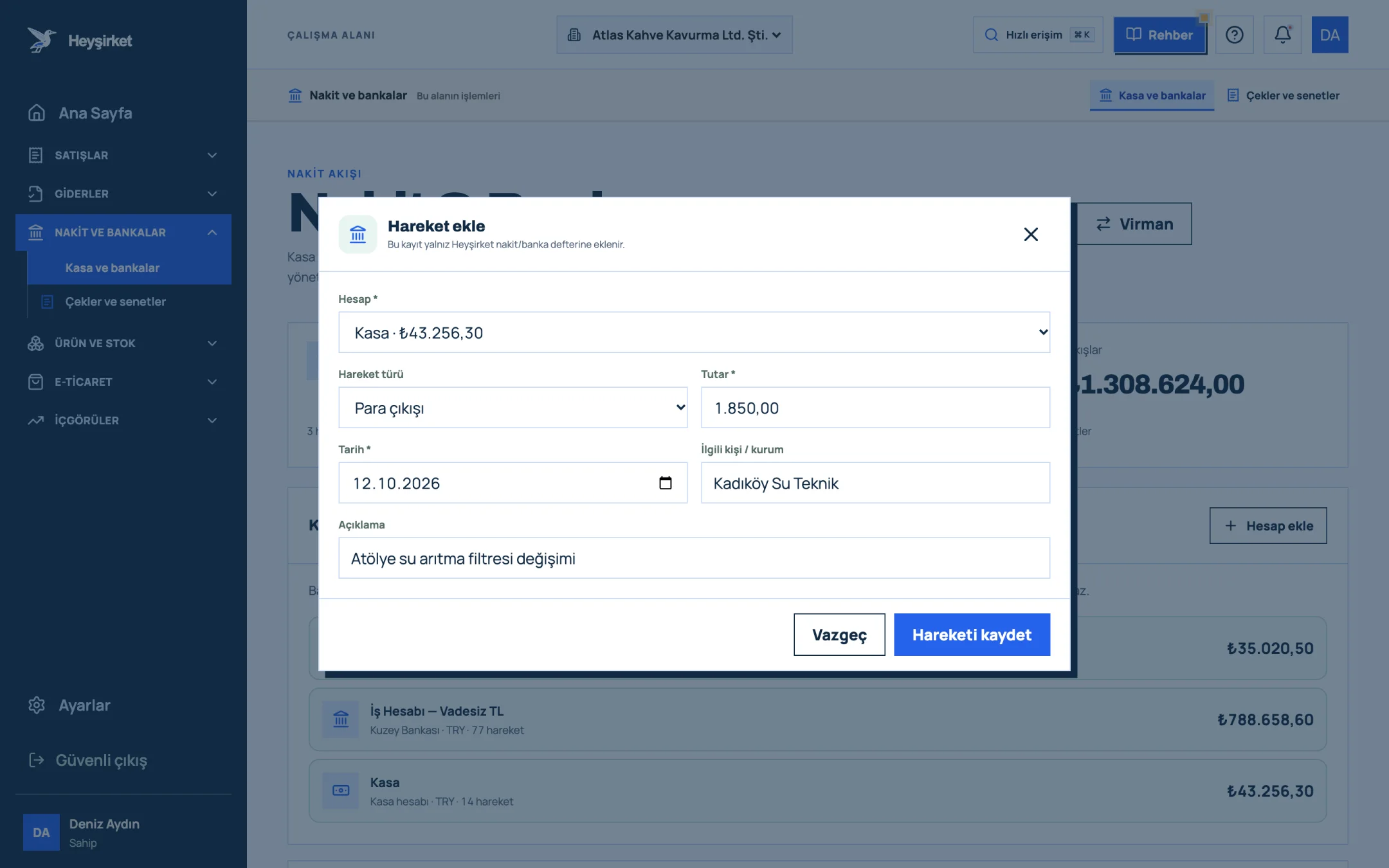
Add a transaction - 1. Account selection
- 2. Amount
- 3. Save button
Transfer between accounts
When you deposit cash from the till into the bank, use the Transfer button. Choose the Source account and Target account, enter the Amount and Date, and click Save transfer. Heyşirket creates an outgoing record in the source account and an incoming record in the target account.
Filter the transactions
In the Account transactions section, type an account, person or description into the search box. In the filters next to it, choose a single account instead of All accounts, and Money in or Money out instead of All directions. The Money in and Money out indicators at the top update to match your selection.
Filter the transactions - 1. Add transaction button
- 2. Transfer between accounts
- 3. Total TRY balance
- 4. Cash and bank account list
Refresh the list
If someone on your team is entering records at the same time, use the Refresh button in the top right to update the accounts, transactions and cheque/note list together.
Two rules for transfers
- The Transfer button becomes available once you have at least two active accounts; with a single account it appears disabled.
- The source and target accounts must be in the same currency. You can't transfer from a TRY account to a EUR account without an exchange rate; record a currency purchase as two separate transactions.
- In the list, transfers appear as Transfer in and Transfer out, while regular records appear as Money in and Money out.
Part 3 · Checks How do you compare your balance with the bank at month end?
A bank reconciliation means comparing the bank balance in your own records with the balance on the bank's statement and finding the reasons for any differences. In Heyşirket, the quickest way is the Upload statement button next to the bank account: you choose your bank's Excel (.xlsx) or CSV statement, and incoming transfers are suggested for matching with open invoices while outgoing payments are suggested for matching with open expenses.
Matching transfers with your statement
Download the statement from your bank as Excel or CSV
For Ziraat, İş Bankası, Garanti BBVA, Akbank, Yapı Kredi, QNB, Halkbank, VakıfBank and Enpara statements, the date, description, amount (or debit/credit) and balance columns are recognized automatically. For other banks, you pick the columns manually once.
Choose the file with Upload statement
The file is read on your device; only the transaction rows are saved. Rows you've uploaded before are recognized and not processed a second time.
Review the suggestions
Next to each bank row you'll see a suggested invoice and a confidence badge. The suggestion is based on the VKN/TCKN (tax ID / Turkish ID number) in the description, the company name, the invoice number, the amount and how close the dates are. A single transfer that pays off several invoices is allocated starting from the oldest invoice.
Click Approve high-confidence matches
Each row you approve is recorded both as a payment on the invoice (or a payment against the expense) and as a transaction in the bank account. You can link unmatched rows to an invoice manually, mark them as Advance from account or Other income/expense, or skip them.
Month-end bank checklist
- Get the statement for the last day of the month from your bank.
- Select the relevant bank account in the Account transactions filter.
- Upload the statement with Upload statement and approve the suggested matches.
- Enter items that are on the statement but not in Heyşirket (fees, commissions, interest) with Add transaction.
- Note items that are in Heyşirket but not on the statement (EFTs in transit, cheques not yet cleared).
- Confirm that the balance on the account card matches the statement balance.
- For the cash account, do a physical count and close any difference with a transaction that explains it.
| Business account balance in Heyşirket | 184.250,00 TL |
|---|---|
| Unrecorded bank fees and commissions | − 640,00 TL |
| Unrecorded deposit interest | + 1.120,00 TL |
| Heyşirket balance after adjustments | 184.730,00 TL |
| Balance on the bank statement | 184.730,00 TL |
| Unexplained difference | 0,00 TL |
If the difference doesn't come to zero, the most common causes are the same payment being entered in both the cash and bank accounts, or a transfer being recorded as a regular transaction.
Part 4 · Background The logic: why a separate cash book?
Sales and payment records tell you who owes you how much; cash and bank records tell you where the money is right now. Keeping them separate lets you see whether a payment marked "paid" actually reached the bank.
This distinction matters especially for businesses that deal mostly in cash. The gap between the physical count in the till and the records is one of the things your accountant asks about most at month end; a well-kept cash book cuts that conversation short. If you're wondering how to project your balances into the future, the cash flow management article is the next step.
I recorded an invoice payment. Why didn't my bank balance change?
Recording a payment updates the invoice's payment status but doesn't create a bank transaction. Record a Money in transaction with Add transaction in the account the money went into.
Can I open a foreign currency account?
Yes. When adding an account, you can choose USD or EUR in the Currency field. These accounts aren't included in the TRY account balance indicator and are listed in their own currency.
Are the Bank accounts in Settings the same as this screen?
No. The Bank accounts tab under Settings holds the payment details shown to your customers on your invoices. The Cash & Bank screen tracks your money's movements and balance.
Why can't my teammate see the Add transaction button?
Adding accounts, transactions, transfers and cheque/note actions are available to the Owner and Admin roles. Other roles can view the screen. You can manage roles with the team and roles guide.
Open the Cash & Bank screen Add your first cash and bank accounts with their opening balances, then enter this month's transactions to bring your balance in line with the bank. Go to cash and banks
Author: Heyşirket Editorial Team