Settings · 8 min read · Updated:
Company settings: business details, invoice layout and bank accounts
Your invoice header, the IBAN at the bottom and its color all come from this screen. Set it up correctly once and every document comes out right on its own.
In short
- The Setup center on the Settings screen lists, in one place, the required steps left before your company is ready to use.
- The legal name, VKN/TCKN (tax ID / Turkish ID number), tax office and address on the Business details tab are the legal details shown on invoices; any missing field keeps setup from completing.
- On the Print templates tab, you choose the Classic, Highlighted or Compact layout, an accent color and a footer, with a live preview.
- Active accounts on the Bank accounts tab are added automatically to the notes of new invoices; the default account appears at the top of the list.
- The invoice number and series are defined with your e-Document provider; in Heyşirket, this comes from the invoice series field on the Integrations tab.
When your customer opens an invoice, the first place they look is the top: legal name, tax number, address. The second is where to send the payment. Both come from this screen.
The Settings screen is where Heyşirket gets to know your business. Information you set up correctly here once is used automatically on every invoice, every email and every report. By the end of this guide, your company will be Ready to use.
Part 1 · Tour What's on this screen?
The Settings screen is a management panel with a list of tabs on the left and the content of the selected tab on the right. Open it by clicking Settings in the profile menu at the top right, or go straight to /settings.
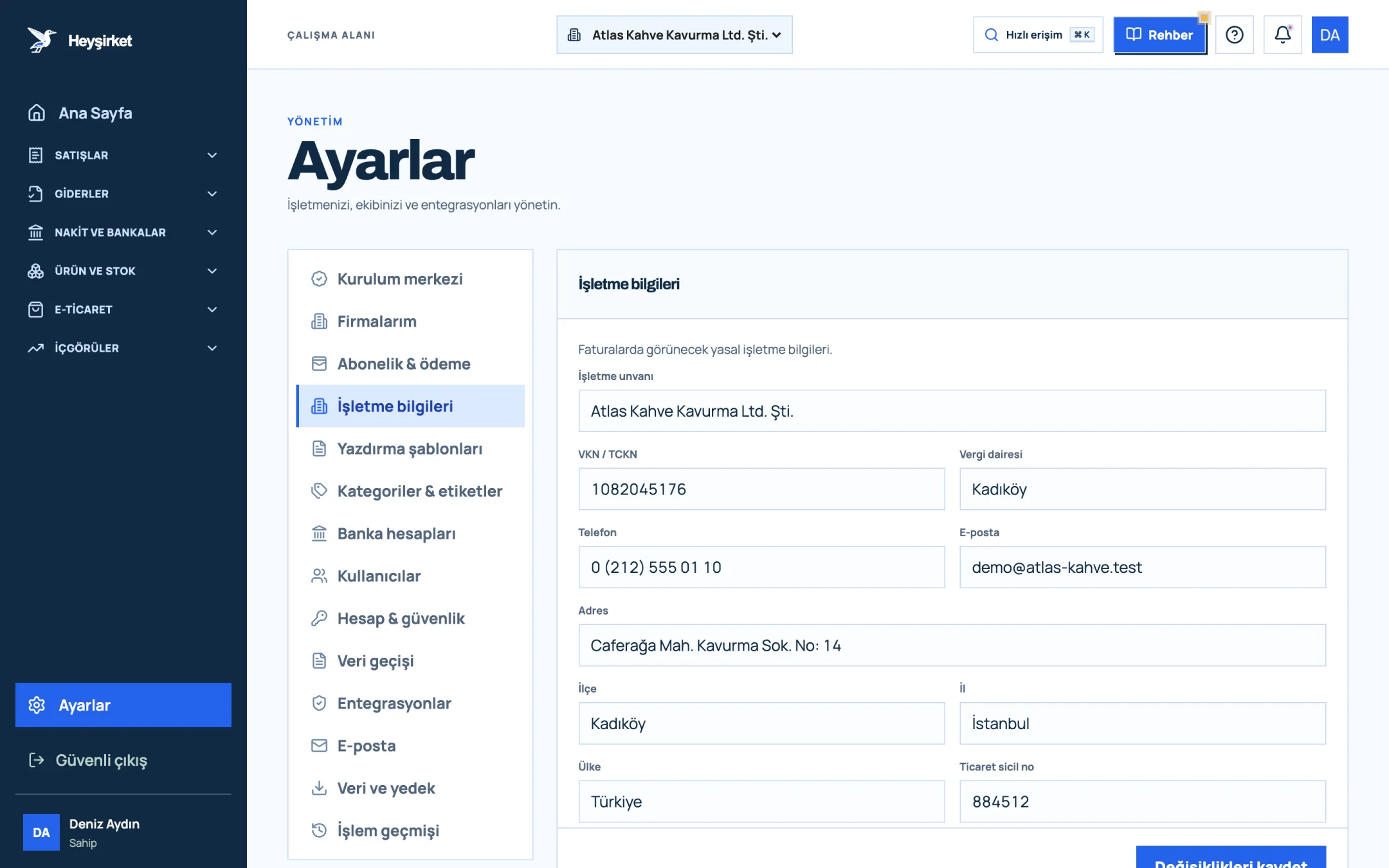
- 1. Business details tab
- 2. Company name and tax details
| Tab | Address | What it's for |
|---|---|---|
| Setup center | /settings?tab=setup | Shows the remaining required steps and your completion rate. |
| My companies | /settings?tab=companies | Lists the companies you manage with the same account and adds new ones. |
| Business details | /settings?tab=business | Legal details shown on invoices: legal name, VKN/TCKN, tax office, address. |
| Print templates | /settings?tab=templates | Document layout, accent color, footer and visible fields. |
| Categories & tags | /settings?tab=categories | Standardizes product, expense and tag groups. |
| Bank accounts | /settings?tab=banks | IBAN details added to invoice notes. |
So in what order should you go? The answer is in the tab at the very top of the screen.
Part 2 · Roadmap What does the setup center tell you?
The setup center is a checklist that marks each of the seven steps your company needs to be fully up and running as done or missing. Clicking any row opens the related tab.
Required steps in the setup center
- Legal business details: legal name, tax, address and contact fields must all be filled in.
- Bank accounts: at least one active account.
- User access: everyone you've invited must have set their password.
- Customer and product data: at least one customer and one product.
- Email delivery: the notification setup is ready.
- Invoicing: the e-Document connection is complete.
- First data backup: at least one backup downloaded from the Data & backup tab.
The badge at the top right shows a ratio such as 3/7 done; once everything is finished, it reads Ready to use. Until setup is complete you can still preview invoices and prepare them as drafts, so you don't have to wait.
Part 3 · Hands-on Completing your company settings step by step
Company settings step by step
Fill in your business details
Open the Business details tab on the left. Enter the Legal business name, VKN / TCKN, Tax office, Phone, Email, Address, District, Province, Country and, if you have one, Trade registry no. fields exactly as they appear on your tax certificate, then click Save changes.
Fill in your business details - 1. Business details tab
- 2. Company name and tax details
Choose your invoice layout
On the Print templates tab, pick the Classic, Highlighted or Compact layout under Document layout. Compact suits businesses that issue long lists of line items; Highlighted suits those who want to bring their brand color forward.
Set the color and footer
Pick one of the preset colors in the Accent color field, or choose your own with the Custom option. Write a note of up to 500 characters in the Footer box; the Live preview on the right shows the result instantly. When you're done, click Save template.
Add your bank account
On the Bank accounts tab, click Add account. Fill in the Bank name, Account holder, Branch name and IBAN fields. If you want payments to come to this account first, check Default account and click Save account.
Standardize your categories
On the Categories & tags tab, choose Product / service category, Expense category or Product / service tag in the Type field, enter a name and color, and click Add. Instead of deleting a record you no longer use, close it with Deactivate; the information on older records is preserved.
Check the setup center again
Go back to the Setup center tab and click Check status again. Rows still missing show a Complete label; click a row to jump to the related tab.
Part 4 · Numbering Where do the invoice number and series come from?
The number of an e-Fatura (Turkish e-invoice) or e-Arşiv (e-archive invoice) is made up of a three-character series defined with your e-Document provider plus a sequence number that resets each year. Heyşirket doesn't invent this number; it uses your series when sending the document to your provider.
You enter the series in the Invoice series (required if your provider asks for it) field on the Integrations tab. So if you need to change anything about numbering, confirm with your provider first, then follow the steps in the e-Document connection guide.
Part 5 · Multiple companies Can I manage more than one company with the same account?
Yes. On the My companies tab you see your current company and your role; in the Add new company section below it, enter the Company legal name and a 10- or 11-digit VKN / TCKN, then click the button to open and switch to a new workspace.
Each new company starts with its own 14-day trial, and its data is completely separate from the others. You switch between companies with the company picker in the top menu.
Part 6 · Why it matters The big picture: why invoice details must be flawless
Under the Turkish Tax Procedure Law (VUK), an invoice is a document of proof, and the issuer's name, legal name, address, tax office and tax number are among its mandatory elements. A document issued with missing or incorrect details can cause problems when the other party records it as an expense.
Showing your bank account on the invoice, on the other hand, is all about getting paid faster. When customers don't have to hunt for payment details, the money arrives sooner. We cover this in detail in our article on speeding up receivables collection.
Can I add a logo to my invoice?
On the Print templates tab you can set the document layout, accent color, footer and the visibility of contact and tax details. There's no logo upload field on this tab.
If I change the template, do my old invoices change too?
The print template affects the preview and the shared document view. Since the official rendering of invoices already sent to your e-Document provider is generated on the provider's side, assume your template choice applies to new invoices.
I want to delete a bank account. How do I do that?
Open the edit form with the three-dot button next to the account and uncheck Active account. An inactive account isn't added to the notes of new invoices.
Why does "Invoicing" show as missing in the setup center?
This step isn't complete until your e-Document provider connection is finished. Set up and test the connection on the Integrations tab, then click Check status again.
Complete your business details Enter your legal name, tax and address details, then set up your print template and add your bank account. Open business details
Author: Heyşirket Editorial Team