Expenses · 9 min read · Updated:
How to record an expense: receipts, invoices and payments step by step
Record a receipt or supplier invoice in two minutes, see its due date and deduct it from your cash account the moment you pay. This guide walks through the whole Expenses screen in order.
In short
- In Heyşirket, expenses are recorded from a single form opened with the Add expense button on the Expenses screen.
- On the form you enter the VAT-inclusive total and the VAT rate; the subtotal and VAT amount are calculated automatically.
- An expense record is for tracking what you owe only; it doesn't create an official e-document and nothing is sent to the supplier.
- Payments are recorded from the expense document's details with Add payment; if a cash or bank account is selected, an outgoing movement is created in that account.
- A wrong payment isn't deleted; it's reversed with Cancel through a reversing entry, so the history stays traceable.
At the end of the month there's a pile of receipts on the desk and a few more in your pocket. Which ones are paid, which are due, and where did the cash shortfall come from? The Expenses screen brings the answers to exactly these questions together in one list.
In this guide we'll follow a real week at Atlas Kahve Kavurma: an invoice from a packaging supplier, a fuel receipt and a debt paid in two instalments. By the end you'll have recorded your own expense from start to finish, payment included.
Part 1 · Tour What's on this screen?
The Expenses screen lists every expense document your business receives — receipts, supplier invoices and incoming e-invoices — in date order. You open it from the first row of the Expenses group in the left menu.
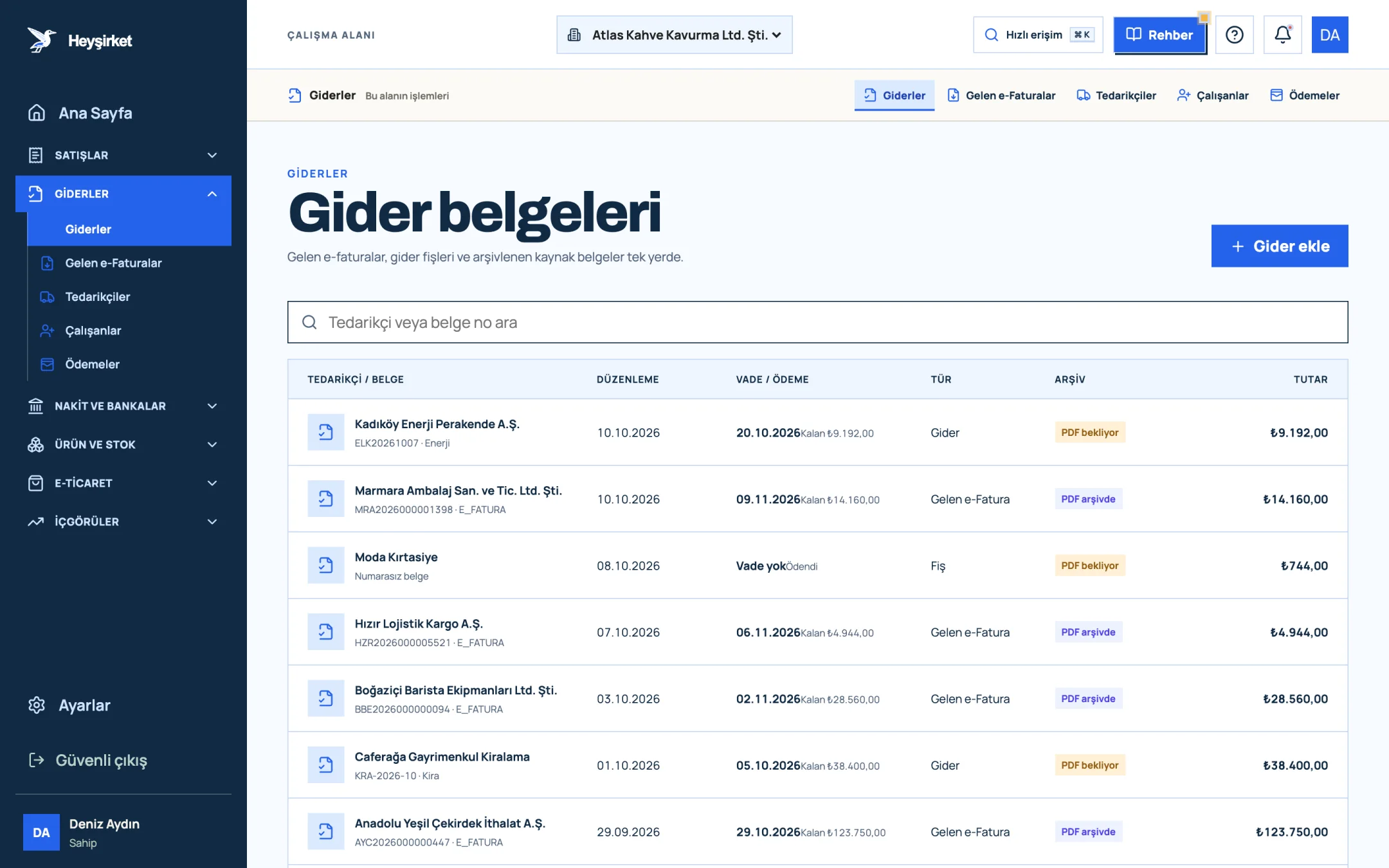
- 1. Add expense button
- 2. Due date and remaining payment
- 3. Document type (Expense, Incoming e-Fatura, Receipt)
- 4. Expense document row
| Column | What it shows |
|---|---|
| Supplier / Document | Supplier name, document number (or "Unnumbered document" if there isn't one) and the expense category, if you chose one |
| Issued | The date on the document |
| Due / payment | The due date or "No due date"; below it "Paid", "Partially paid" or the remaining amount |
| Type | Expense, Receipt, Other or Incoming e-Fatura |
| Archive | "PDF in archive" or "PDF pending" |
| Amount | Document total including VAT |
The search box searches supplier names and document numbers. The list shows 50 records per page; when there are more, Previous and Next buttons appear at the bottom. So how do you add a new document?
Part 2 · In practice Step by step: recording an expense and its payment
Recording an expense means entering the amount, VAT, due date and supplier of a document you've received, and then tracking its payment. The steps below use the 14.400 TL invoice Atlas Kahve received from its packaging supplier as an example.
Entering an expense step by step
Open the form
On the Expenses screen, press the Add expense button at the top right. A form titled "Add expense record" opens.
Open the form - 1. Add expense button
- 2. Due date and remaining payment
- 3. Document type (Expense, Incoming e-Fatura, Receipt)
- 4. Expense document row
Choose or type the supplier
If you've already created a supplier card, choose it from the Saved supplier list; the company name and VKN/TCKN (tax ID / Turkish ID number) fill in automatically. If not, type directly into the Supplier / expense source field (at least 2 characters), for example "Fuel station".
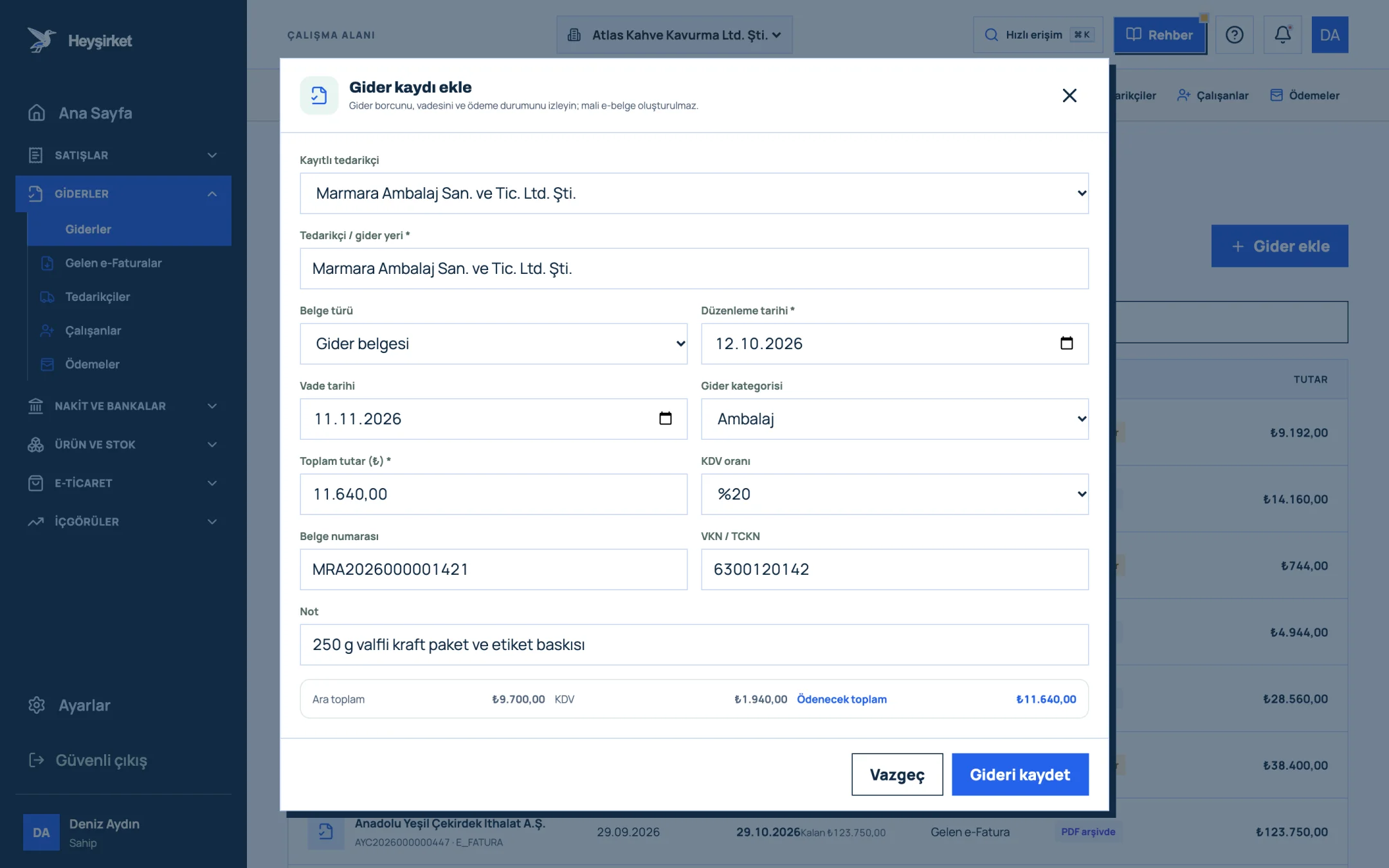
Choose or type the supplier - 1. Supplier selection
- 2. Expense category
- 3. Amount and VAT rate
- 4. Subtotal, VAT and total payable
- 5. Save expense
Enter the document type and dates
In the Document type field, choose Expense document, Receipt or Other. The Issue date is required; if the supplier gave you payment terms, fill in the Due date field as well.
Enter the document type and dates - 1. Supplier selection
- 2. Expense category
- 3. Amount and VAT rate
- 4. Subtotal, VAT and total payable
- 5. Save expense
Enter the amount and VAT rate
In the Total amount (₺) field, enter the final amount on the document including KDV (VAT), then choose 0%, 1%, 10% or 20% as the VAT rate. The summary at the bottom of the form instantly calculates the Subtotal, VAT and Total payable values.
Enter the amount and VAT rate - 1. Supplier selection
- 2. Expense category
- 3. Amount and VAT rate
- 4. Subtotal, VAT and total payable
- 5. Save expense
Add a category, number and note
Group the expense with Expense category (e.g. Packaging, Rent). Document number, VKN / TCKN and Note are optional, but they make your accountant's job much easier. Then press the Save expense button.
Add a category, number and note - 1. Supplier selection
- 2. Expense category
- 3. Amount and VAT rate
- 4. Subtotal, VAT and total payable
- 5. Save expense
Record the payment
Click the document in the list and press Add payment in the details window. The Payment amount is prefilled with the remaining balance; change it for a partial payment. Choose the Payment date, Payment method (Bank transfer / EFT, Cash, Card, Other) and Cash / bank account, then click Save payment.
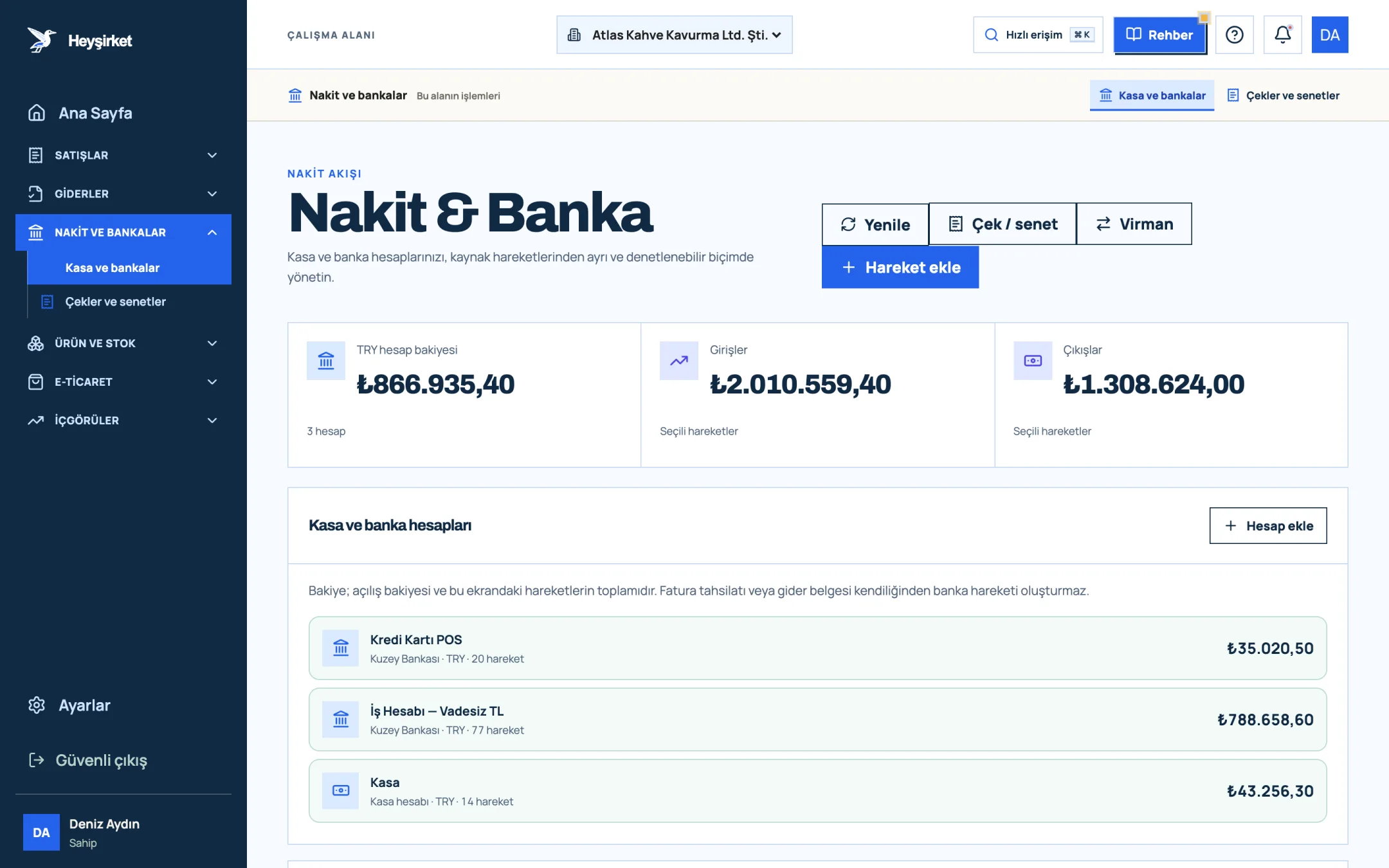
Record the payment - 1. Add transaction button
- 2. Transfer between accounts
- 3. Total TRY balance
- 4. Cash and bank account list
What do you see in the details window?
Clicking an expense row opens the "Expense document" window, which shows the Supplier, Due date, Total and Payment status, with the Paid, Remaining balance, VAT and Subtotal amounts below. At the very bottom, Payment history lists every payment with its method, account and date.
- Payment status takes one of four values: Awaiting payment, Partially paid, Paid or Status unknown.
- The View document button only works for documents whose PDF is in the archive (e.g. incoming e-invoices received automatically); manually entered records appear as "PDF pending".
- When the remaining balance reaches zero, the Add payment button is disabled; overpayments can't be recorded.
Part 3 · Know-how The reasoning: why should every expense be recorded?
Expense records shape your tax base and your cash plan at the same time. Every unrecorded invoice costs you both the VAT you could deduct and the amount you could claim as an expense, while a forgotten unpaid due date damages your relationship with the supplier.
An expense record in Heyşirket is a tracking record: it doesn't send a document to the supplier and doesn't produce an official e-document. Your statutory books are kept by your accountant (mali müşavir); your job is to get the document into the system on time, with the right amount and category, and to keep the original. For document organization and retention periods, take a look at our article on expense management and document organization.
The next step is documents that arrive on their own: if you're registered for e-Fatura (Turkish e-invoice), you won't even need to enter most of your supplier invoices manually. We explain how in the Incoming e-Invoices guide.
How do I enter an invoice with different VAT rates?
The expense form works with a single VAT rate. Enter lines with different rates as separate expense records per rate, using the same document number; the totals will match the document and the VAT will be split correctly.
Is the expense record sent to the supplier or to GİB?
No. As the form heading says, an expense record is only for tracking debts, due dates and payments; no official e-document is created and nothing is sent to anyone.
Where do I add expense categories?
Create a category of type "Expense category" in the Categories & tags section of Settings. The categories you create are listed on the expense form and when creating an expense from a purchase order.
I recorded the payment but my cash balance didn't change. Why?
Most likely you saved it without choosing an account in the Cash / bank account field. Reverse the payment with Cancel and enter it again with the account selected.
Can the payment date be earlier than the document date?
No. The system doesn't allow a payment date earlier than the expense document's issue date. Match advance payments to the document date once the document arrives.
Record your first expense now Start with the receipt in your pocket: the amount, VAT rate and date are all you need. Close out the payment from the same window. Open the Expenses screen
Author: Heyşirket Editorial Team