Products and inventory · 7 min read · Updated:
Incoming delivery notes: receiving supplier goods with a controlled check
The box at your door doesn't always match the delivery note on paper. The Incoming delivery notes screen lets you check first and add to stock afterwards.

In short
- An incoming delivery note is first saved as a draft; a draft doesn't change stock.
- Confirming Receive records each item on the delivery note as a stock entry in the selected target warehouse.
- Only products with stock tracking turned on can be added to an incoming delivery note, and each product appears only once per note.
- The supplier's own delivery note number is stored in the Supplier delivery note no. field and can be searched in the list.
The supplier's truck dropped 20 sacks of green coffee beans at Atlas Kahve's door. The delivery note says 20; when you count, there are 19. If you add that sack to stock, you'll be getting ready to pay at month end for goods that don't exist.
The Incoming delivery notes screen was designed for exactly this moment: you first save the document as a draft, then receive the goods after counting them. By the end of this guide you'll know how to handle short deliveries without adding them to stock.
Part 1 · Tour What's on this screen?
The Incoming delivery notes screen is where you verify products arriving from a supplier on a draft delivery note and receive them into the target warehouse under control. At the top of the screen is the “STOCK AND SUPPLY” heading, with the New incoming delivery note button on the right.
- Controlled receipt note: A draft delivery note doesn't change stock; confirming receipt records each item as an incoming movement in the target warehouse.
- Search and filter: With the “Search delivery note no., supplier or order no.” box and the All statuses filter, you can separate Draft, Received and Cancelled records.
- Delivery note / supplier: The record number, supplier name, number of items and the supplier's own delivery note number.
- Target warehouse, Date, Transport, Status: The warehouse the goods go into, the issue and delivery dates, the transport method and the record's status.
- Action: The Receive and Cancel buttons on draft records.
Part 2 · In practice Step by step: record and receive an incoming delivery note
An incoming delivery note is processed in two steps: when the document arrives it's saved as a draft, and when the goods are counted and verified they go into stock with Receive. If there's a difference in between, you get the chance to correct the draft.
Incoming delivery note step by step
Prepare the target warehouse
The warehouse the goods go into must be active. Check the warehouse list on the Warehouses and movements screen; if it's not there, open one with Add warehouse.
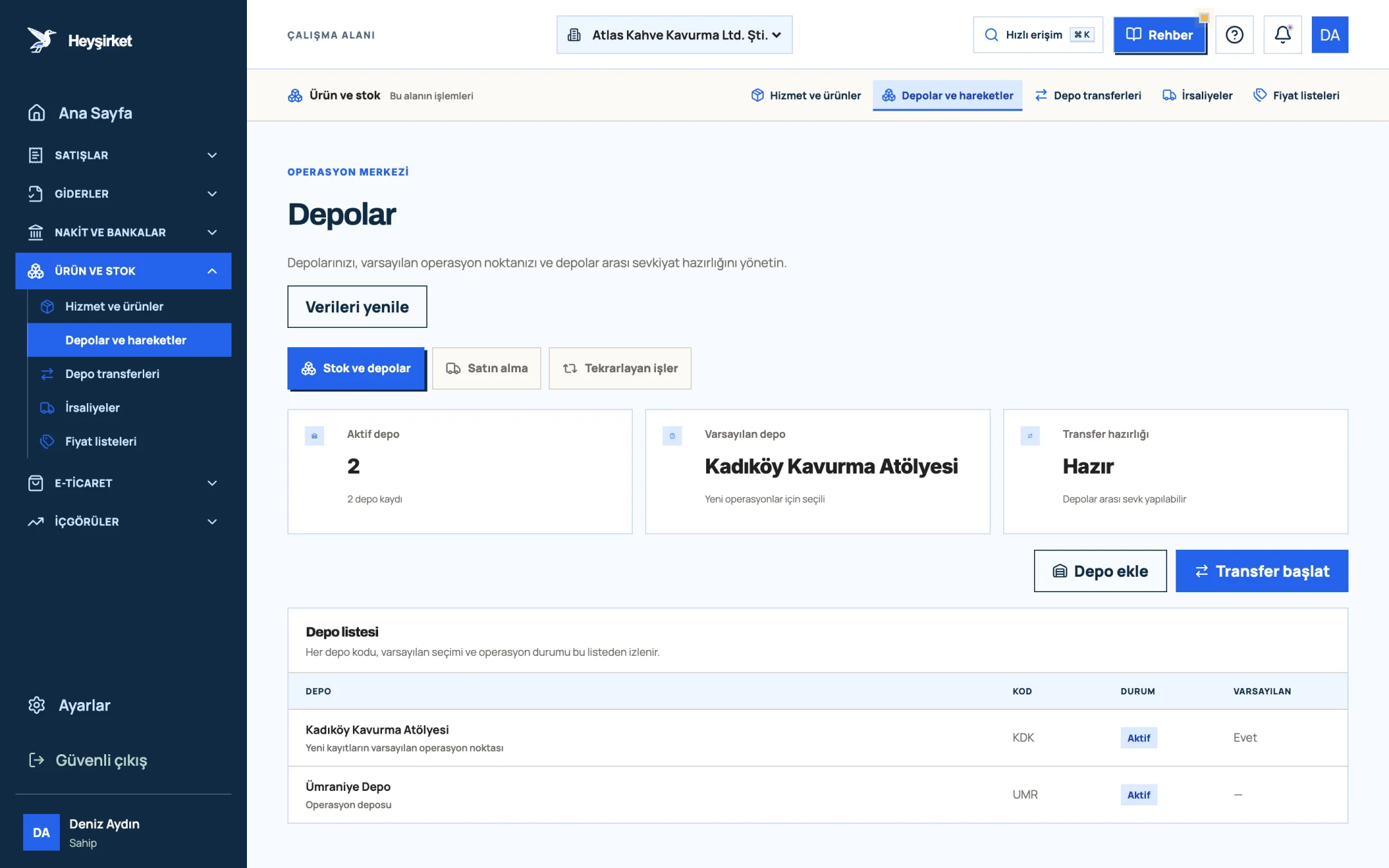
Prepare the target warehouse - 1. Add warehouse
- 2. Start transfer
- 3. Default warehouse
- 4. Warehouse list
Check stock tracking on the products
Only products with stock tracking turned on can be added to an incoming delivery note. Make sure the Track stock box is ticked on your raw material cards.
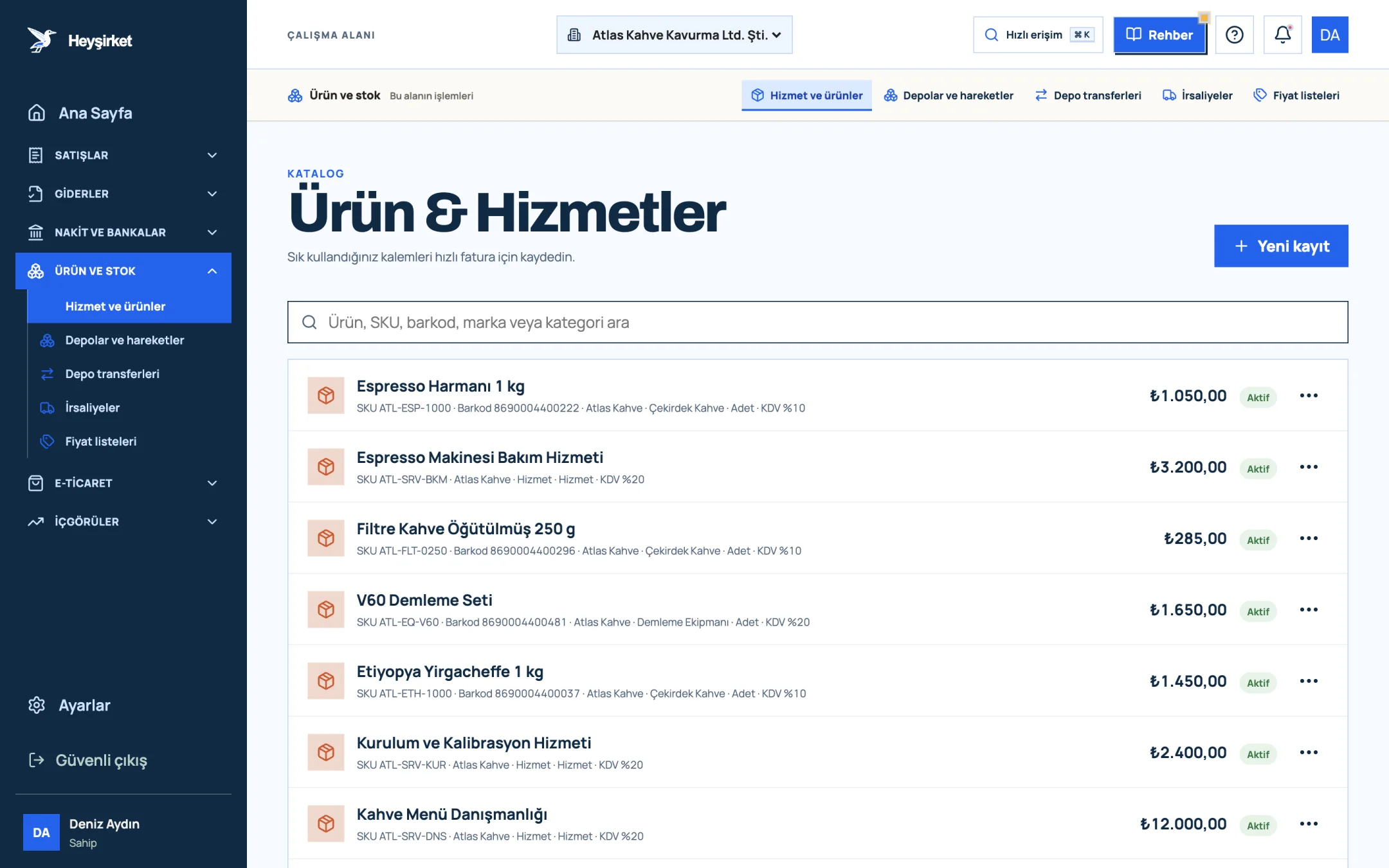
Check stock tracking on the products - 1. New item button
- 2. Product search (SKU, barcode, brand)
- 3. Product row: SKU, category, VAT, price
Open the form and choose the supplier
Press the New incoming delivery note button. Choose the supplier from the Supplier * list; their saved address fills in the Dispatch address field automatically. Check the Target warehouse * and Issue date * fields.
Enter the supplier's document details
Enter the number from the paper or electronic delivery note in your hands in the Supplier delivery note no. field, and the order number in the Supplier order no. field. If Transport method is set to Carrier or Courier, enter the company name; also enter the Driver name, Driver VKN/TCKN, Plate and Trailer plate details.
Add the items as per the document
In the “Incoming products” section, choose the product from the Select a product list and enter the quantity from the delivery note; press Add item for each new product. To save, press the Create draft incoming delivery note button.
Count the goods and receive them
If the physical count matches the document, press the Receive button on the row and accept the confirmation window. Each item is recorded as a stock entry in the target warehouse, and the status changes to Received.
Part 3 · Exceptions What should you do if goods arrive short or damaged?
When goods arrive short or damaged, only add to stock the quantity you actually accept, and settle the difference with the supplier in writing. That's why the draft stage exists: if the document and reality don't match, you can correct it without stock being affected at all.
| Situation | What to do in Heyşirket | What to do with the supplier |
|---|---|---|
| Quantity short | Cancel the draft, open a new draft with the quantity received and add a note | Notify them of the shortfall in writing; ask for the invoice to reflect the quantity received |
| Damaged product | Receive only the undamaged quantity | Report it with a written record (tutanak); discuss a return or replacement |
| Extra product | Receive the quantity matching the order; if you'll accept the extra, enter the item accordingly | Clarify whether the extra will be reflected on the invoice |
| Product not on the document | Get confirmation from the supplier before adding the item | It may be a shipping error; start the return process |
If you notice a difference after receiving, the delivery note record doesn't change; correct the physical situation with a stock count. The count difference goes into the transaction log with the reason written in the note.
Part 4 · Background The reasoning: why do delivery note, invoice and stock need a three-way check?
A three-way check when receiving goods means comparing the quantity ordered, the quantity that arrived with the delivery note and the quantity billed on the invoice. If the three don't match, you either pay for missing goods or your stock looks wrong.
- Purchase order — What was ordered?
- Incoming delivery note draft — What does it say arrived?
- Physical count — What actually arrived?
- Receive — Stock entry
- Incoming invoice — What will be paid?
If the supplier's invoice arrives as an e-Fatura (Turkish e-invoice), you'll see it on the incoming e-invoices screen. Don't schedule payment without comparing the quantity on the invoice with the quantity you received here.
Why can't I see the Receive button?
Permission to manage incoming delivery notes belongs to the Owner, Admin and Inventory roles. Other roles can view the records but can't receive them. The button also only appears on records with Draft status.
Can I put the same product on two lines?
No. A product can appear only once on an incoming delivery note. If two batches of the same product arrived, add up the quantities and enter them on a single line.
If I cancel a draft, is stock affected?
No. Since a draft never creates a stock movement, Cancel only closes the record.
What's the difference between a purchase order and an incoming delivery note?
A purchase order records what you asked the supplier for; an incoming delivery note records what arrived. You can also receive deliveries linked to an order from the order screen; details are in the suppliers and purchasing guide.
Record a pending delivery Enter the box at your door as a draft, count it and add it to stock in one click. Open Incoming delivery notes
Author: Heyşirket Editorial Team