Products and inventory · 9 min read · Updated:
Warehouses and stock movements: adding warehouses, stock in and out, and stock counts
To trust your stock figures, you need to know where every unit came from and where it went. This guide covers setting up your warehouses, recording movements and matching the figures to reality with a stock count.
In short
- The Warehouses and movements screen opens from the Products and inventory menu and shows your warehouse list, default warehouse and transfer readiness.
- The Add stock movement form records Stock in, Stock out, Reserve and Release movements.
- Count differences should be recorded with a Stock count, not a manual movement; that way the expected, counted and difference quantities are kept with an audit trail.
- Products that fall to their minimum stock level appear in the stock list with an At threshold label and in the Stock threshold alert counter.
At Atlas Kahve's Kadıköy workshop, the system showed 42 packs of espresso blend; there were 37 on the shelf. Where did five packs go? Nobody knew, because none of the samples had been recorded.
Stock figures are only reliable when every movement is recorded. In this guide you'll set up your warehouses, record movements with the right type and close differences with an auditable stock count. By the end, you'll be able to find the answer to “why are 5 missing?” in the system.
Part 1 · Tour What's on this screen?
Warehouses and movements is the Stock and warehouses tab under OPERATIONS CENTER; it brings your warehouses, stock quantities and every incoming and outgoing record together in one place. Open it from the Warehouses and movements link in the Products and inventory group of the left menu.
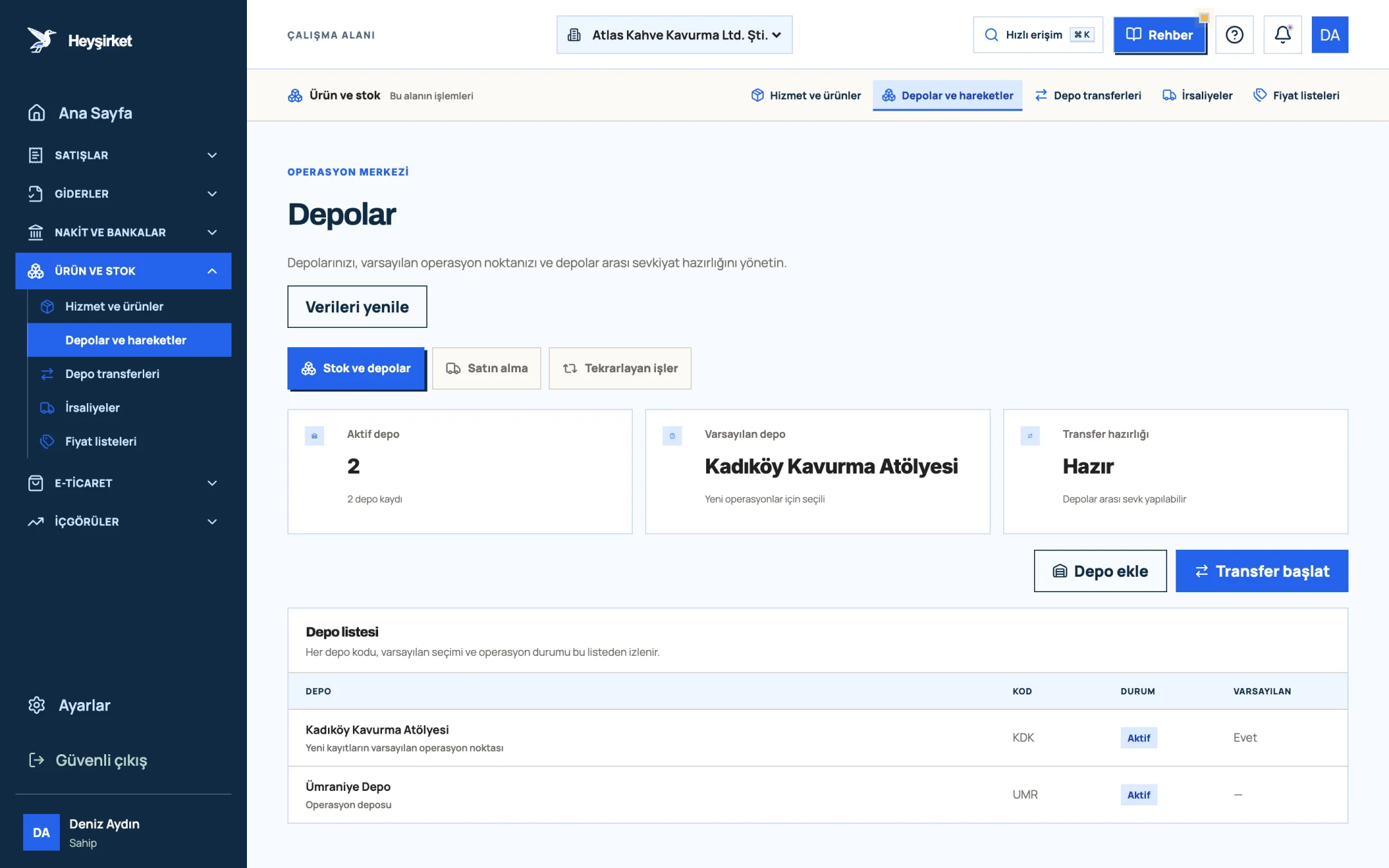
- 1. Add warehouse
- 2. Start transfer
- 3. Default warehouse
- 4. Warehouse list
- Active warehouses: The number of warehouses in use and the total number of warehouse records.
- Default warehouse: The warehouse selected first for new operations; in the list it's marked with the note “Default operating location for new records”.
- Transfer readiness: Shows “Ready” if there are two active warehouses, otherwise “Incomplete”; transfers between warehouses need a second warehouse.
- Stock view: In the overview of the Stock and warehouses tab, the “Product stock view” table shows On hand, Reserved and Minimum values for each product, with the “Recent stock movements” feed beside it.
The three counters at the top of the overview are for daily checks: Available to sell, Active warehouses and Stock threshold alert. If the alert counter isn't zero, it's time to reorder the products that have fallen below their threshold.
Part 2 · In practice Step by step: open a warehouse, record movements, run a count
To start tracking stock you first need a warehouse, then a product with stock tracking turned on; the movement and count buttons stay disabled without both. If you don't have any products yet, take a look at the adding products and services guide first.
Warehouses and stock movements step by step
Add the warehouse
Press the Add warehouse button. Enter “Kadıköy Workshop” in the Warehouse name field and a code of at least two characters, such as “KDK”, in the Short code field, then press Save warehouse. The code is converted to uppercase automatically.
Add the warehouse - 1. Add warehouse
- 2. Start transfer
- 3. Default warehouse
- 4. Warehouse list
Enter the opening stock
Open the “Stock movement” form with the Add stock movement button. Search for and choose the product in the Product field, choose the warehouse in the Warehouse field, leave Movement set to Stock in, enter the Quantity and press Save movement.
Record outgoing stock with the right type
For non-sale outflows such as samples, breakage or internal use, set the Movement field to Stock out in the same form. Don't enter a separate movement for stock-tracked products sold on an invoice; the invoice deducts the stock from the dispatch warehouse you choose.
Reserve goods set aside for orders
Use the Reserve movement for products you've promised to a customer but haven't shipped yet. The reserved quantity is deducted from available-to-sell stock; if the order falls through, release it with Release.
Start the count
Once a month or at the end of a period, press the Stock count button. Choose a Warehouse; the “Expected physical” quantity appears next to each product. Enter the quantity you counted in the Counted box; products you leave blank aren't included in the count.
Complete the count and check the differences
Enter the name of the person who did the count in the General note field and press Complete count. Differences automatically become a “Count adjustment” movement and appear in the “With differences” column of the “Recent stock counts” table.
Complete the count and check the differences - 1. Add warehouse
- 2. Start transfer
- 3. Default warehouse
- 4. Warehouse list
The movements are recorded; but where do you go when you need to look back? The answer is the transaction log.
Part 3 · Audit trail Where can I see my stock history?
Stock history is the “Transaction log”, where every stock in, stock out, reservation and count adjustment is kept with its date, warehouse and quantity. Records aren't deleted; mistakes are corrected with a new movement in the opposite direction.
| Movement | Effect on stock | When to use it |
|---|---|---|
| Stock in | Increases | Opening stock, receipts outside purchasing, returned goods |
| Stock out | Decreases | Outflows without an invoice, such as samples, waste or internal use |
| Reserve | Decreases available-to-sell stock | An order that's been promised but not shipped |
| Release | Increases available-to-sell stock | A reservation that was cancelled or postponed |
| Count adjustment | Increases or decreases depending on the difference | Created automatically only when a Stock count is completed |
In the transaction log, narrow down the record you're looking for with the “Search product, warehouse or note” box, the All warehouses filter and the All movements filter. For example, by choosing only Count adjustment you can see a whole year's count differences in one list.
Part 4 · Background The reasoning: why do stock figures matter as much as the balance sheet?
Stock is the business's money sitting on the shelf. If the recorded stock doesn't reflect reality, your profit calculation is wrong too: missing stock is a hidden cost, and stock that only looks like it's there is an asset that doesn't exist.
End-of-period inventory is the basis for preparing financial statements; at year end your accountant (mali müşavir) will ask you for the quantity and value of the goods you hold. Regular counts and explained differences turn that conversation into a few minutes. The month-end closing checklist is a good starting point for a month-end routine.
If you have more than one warehouse, moving goods from one to another also needs a record. There's a separate flow for that: warehouse transfer.
Why is the Add stock movement button disabled?
The button becomes active once there's at least one warehouse and at least one product with stock tracking turned on. First open a warehouse with Add warehouse, then tick the Track stock box on the product card.
Is reserved stock deducted from physical stock?
No. Reserved goods are still on the shelf; they're only set aside from available-to-sell stock. The stock count form reminds you of this too: reserved stock is part of physical stock, and the difference is calculated from the physical quantity at the time of the count.
Do I have to enter every product in a count?
No. Products you leave blank on the count form are left out of that count. This lets you do cycle counts, counting only fast-moving products each week.
How do I correct a movement I entered incorrectly?
Movements aren't deleted, to keep the audit trail. Correct a wrong Stock in by recording a Stock out for the same quantity, and a wrong Stock out by recording a Stock in. If you're unsure of the physical situation, the safest approach is to run a Stock count for that product.
How do I enter goods received from a supplier?
You can receive deliveries linked to a purchase order from the order screen, and post goods that arrive with a delivery note to stock by confirming Receive on the incoming delivery notes screen.
Set up your warehouses Add your first warehouse, enter your opening stock and plan your first count. Open Warehouses and movements
Author: Heyşirket Editorial Team