Purchasing · 7 min read · Updated:
Suppliers and purchasing: from order to receipt, from debt to statement
What did you order from your supplier, how much has arrived and how much do you still owe? The purchasing screen connects these three questions through orders, goods receipt and the statement.
In short
- The purchasing screen is the Purchasing tab of the Stock, procurement and workflows page, and opens from the Expenses › Suppliers row in the left menu.
- Creating a purchase order requires at least one supplier, one warehouse and one product record.
- Receiving posts the incoming quantities to stock movements; with a partial delivery, the order stays in "Partially received" status.
- An expense document can only be created from a fully received order; the amount and VAT are calculated from the order lines.
- Supplier balances are made up of expense documents and recorded payments; the Statement button shows a transaction-by-transaction breakdown.
Atlas Kahve buys Brazilian and Ethiopian beans from two different importers. Last month, 240 kilos of a 300-kilo order arrived; the remaining 60 kilos are still on the way. So is the debt to the supplier the full amount, or only the part that arrived?
This guide explains the purchasing process in three separate stages: the order, the goods receipt and the debt. By the end, your records will be tidy enough to reconcile with your supplier using a statement.
Part 1 · Tour What's on this screen?
The purchasing screen brings supplier cards, purchase orders and the remaining debt to suppliers together on a single page. You open it from the Expenses › Suppliers row in the left menu, or from the Purchasing tab on the "Stock, procurement and workflows" page.
| Section | What is it for? |
|---|---|
| Top indicators | Open orders (pending or partially received), Suppliers (number of active cards), Last order amount |
| Add supplier / Purchase order | Buttons for creating a new supplier card and a new order |
| Purchase orders | Order no, supplier, warehouse, amount, status and action columns; search and status filter |
| Supplier balances | For each supplier, the document count, remaining debt and a Statement button |
You search the order list with the "Search order no or supplier" box; the status filter offers All statuses, Draft, Sent, Partially received, Received and Cancelled. Now let's set things up in order.
Part 2 · In practice Step by step: from supplier to expense document
A purchase order is the document that records which product you plan to buy from a supplier, in what quantity and at what unit cost. The order turns into stock and debt when you receive the goods.
The purchasing flow
Open a supplier card
Press the Add supplier button, fill in the Company name and, if available, the VKN / TCKN (if any) (tax ID / Turkish ID number) field, then click Save supplier. This card also appears in the Saved supplier list on the expense form.
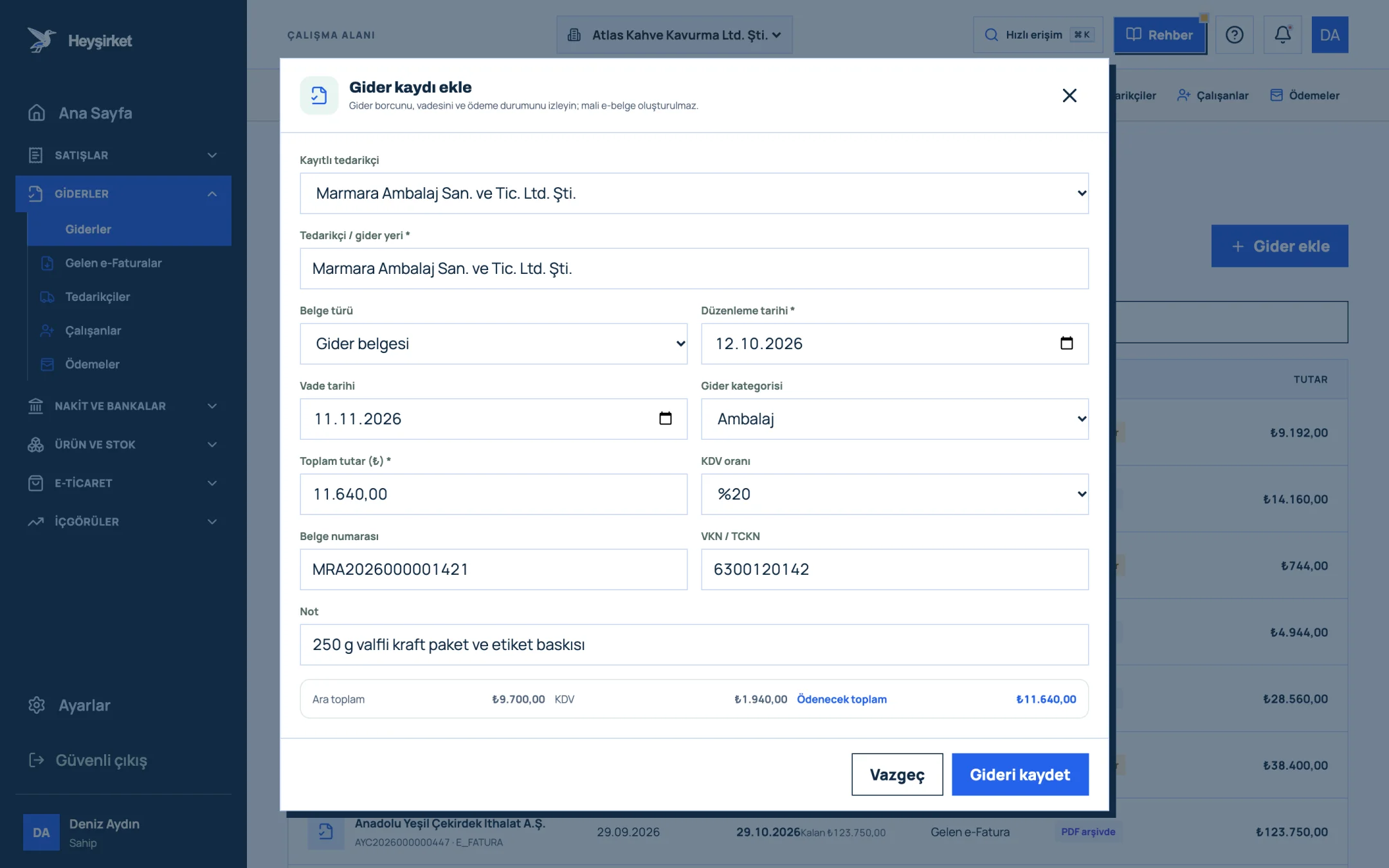
Open a supplier card - 1. Supplier selection
- 2. Expense category
- 3. Amount and VAT rate
- 4. Subtotal, VAT and total payable
- 5. Save expense
Have products and a warehouse ready
The Purchase order button stays disabled unless there's at least one supplier, one warehouse and one product record. If something is missing, first complete the product and warehouse records.
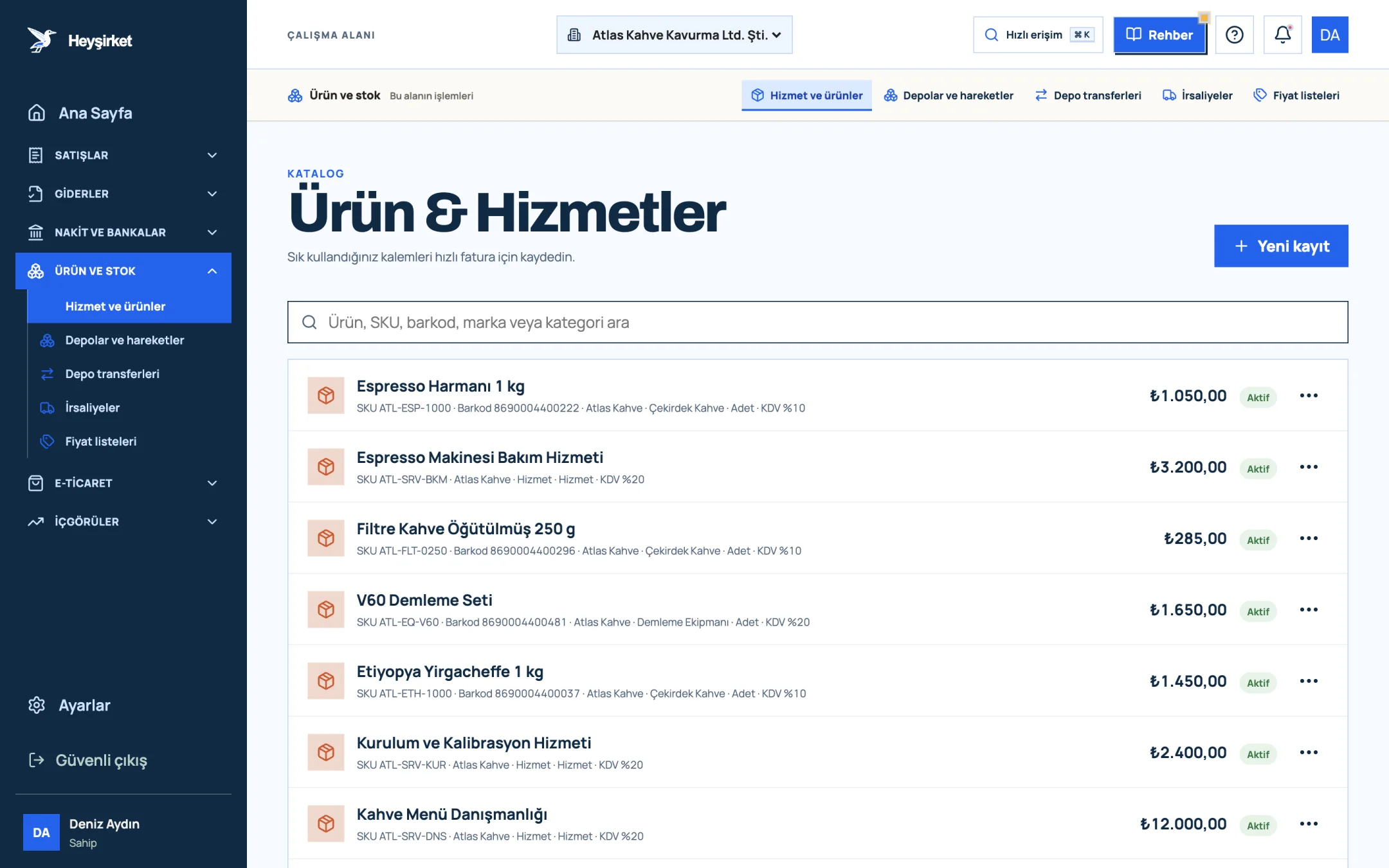
Have products and a warehouse ready - 1. New item button
- 2. Product search (SKU, barcode, brand)
- 3. Product row: SKU, category, VAT, price
Create the order
Press the Purchase order button. Choose the Supplier and Warehouse; in the "Product items" section, enter the product, Quantity and Unit cost. Use Add item for another line, then click Create order.
Receive the goods
When the goods arrive, press the Receive button on the order row. Enter the quantity received for each item (the ordered and previously received quantities are shown alongside) and click Receive and add to stock. With a partial delivery, the status becomes "Partially received".
Create the expense document
Once the order moves to "Received" status, a Create expense document button appears on the row. Fill in the Document date, Due date, Supplier invoice no, Expense category and Note fields, then click Create expense document. The row now reads "Expense document ready".
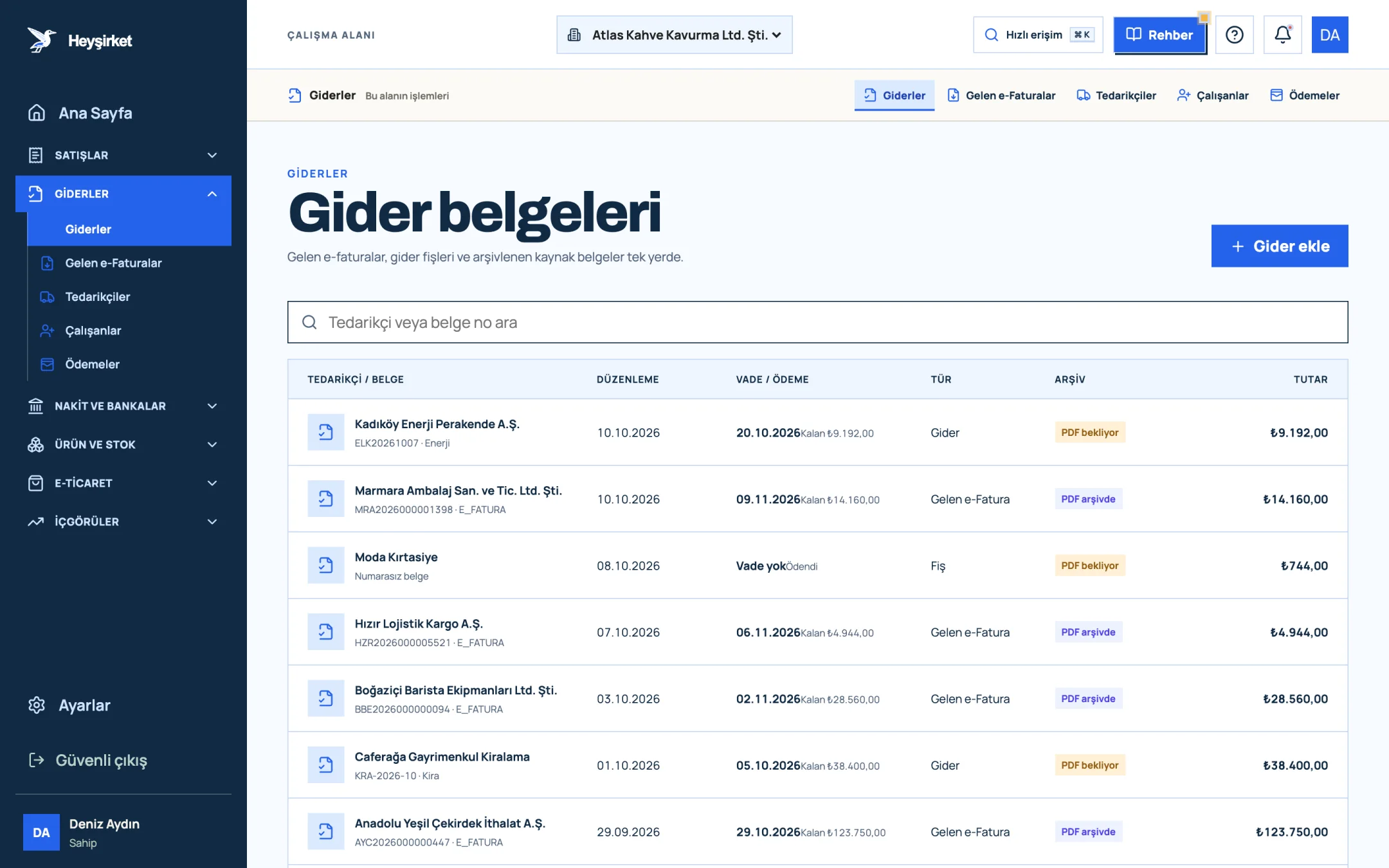
Create the expense document - 1. Add expense button
- 2. Due date and remaining payment
- 3. Document type (Expense, Incoming e-Fatura, Receipt)
- 4. Expense document row
Track the balance and statement
See the remaining debt in the "Supplier balances" section; the Statement button opens a transaction breakdown with Debt, Payment and Balance columns. Record payments with Add payment from the details of the related expense document. Incoming e-invoices that arrive automatically aren't linked to a supplier card, so they aren't reflected in this balance.
Track the balance and statement - 1. Add expense button
- 2. Due date and remaining payment
- 3. Document type (Expense, Incoming e-Fatura, Receipt)
- 4. Expense document row
Part 3 · Know-how The reasoning: three-way matching
Three-way matching means comparing the order, the goods received and the supplier invoice before you pay. It's the core control of purchasing departments at large companies, and the cheapest insurance for a small business too.
- Order — What did I ask for?
- Goods receipt — What arrived?
- Invoice — What was billed?
- Payment — If all three match
In Heyşirket this sequence is already built into the flow: an expense document can only come from a received order. At year-end reconciliation with the supplier, compare the remaining amount on the Statement screen with their cari (supplier account) statement; for the method, see our account reconciliation article.
Why is the Purchase order button disabled?
An order requires at least one active supplier, one warehouse and one product record. If any of the three is missing, the button can't be clicked.
Can I email the order to the supplier?
There's no send-to-supplier button on the purchase order screen. Send the order contents through your own channel; the record in Heyşirket is for goods receipt and debt tracking.
How is the supplier balance calculated?
It's the total of the expense documents linked to the supplier minus recorded payments. The Statement shows every document and payment in date order, with a running balance.
How do I record a service I bought without an order?
You don't need to open an order for service purchases. Record it with the Add expense form on the Expenses screen, choosing the supplier from the Saved supplier list; this document is also reflected in the supplier balance.
Open your first order One supplier card and one order are enough to start keeping stock and debt accurate together through goods receipt. Open purchasing screen
Author: Heyşirket Editorial Team