Products and inventory · 7 min read · Updated:
How to transfer stock between warehouses: a warehouse transfer guide
When goods move from one warehouse to another, total stock stays the same but its location changes. A warehouse transfer records that move as a single, two-sided, traceable entry.
In short
- A warehouse transfer creates an outgoing movement in the source warehouse and an incoming movement in the target warehouse in the same record.
- A transfer requires at least two active warehouses and at least one product with stock tracking turned on.
- The transfer quantity can't exceed the available-to-sell quantity in the source warehouse.
- The transfer date is recorded as the day of the transaction; use the note field to keep the reason for the move.
On Friday evening an urgent order comes in from Karaköy Pera Otel: 20 packs of espresso blend. There are 12 packs at the Kadıköy workshop and 15 at the Moda shop. To put the order together, 8 packs will be moved from Moda to the workshop.
If you don't record this move because you'll “fix it later”, both warehouses will show the wrong figures on Monday. The Warehouse transfer screen handles it in a single record; a few minutes from now, both warehouses' figures will be correct.
Part 1 · Tour What's on this screen?
The Warehouse-to-warehouse transfer screen is used to move products from a source warehouse to a target warehouse with two matching, traceable stock movements. Open it from the Warehouse transfers link in the Products and inventory group of the left menu.
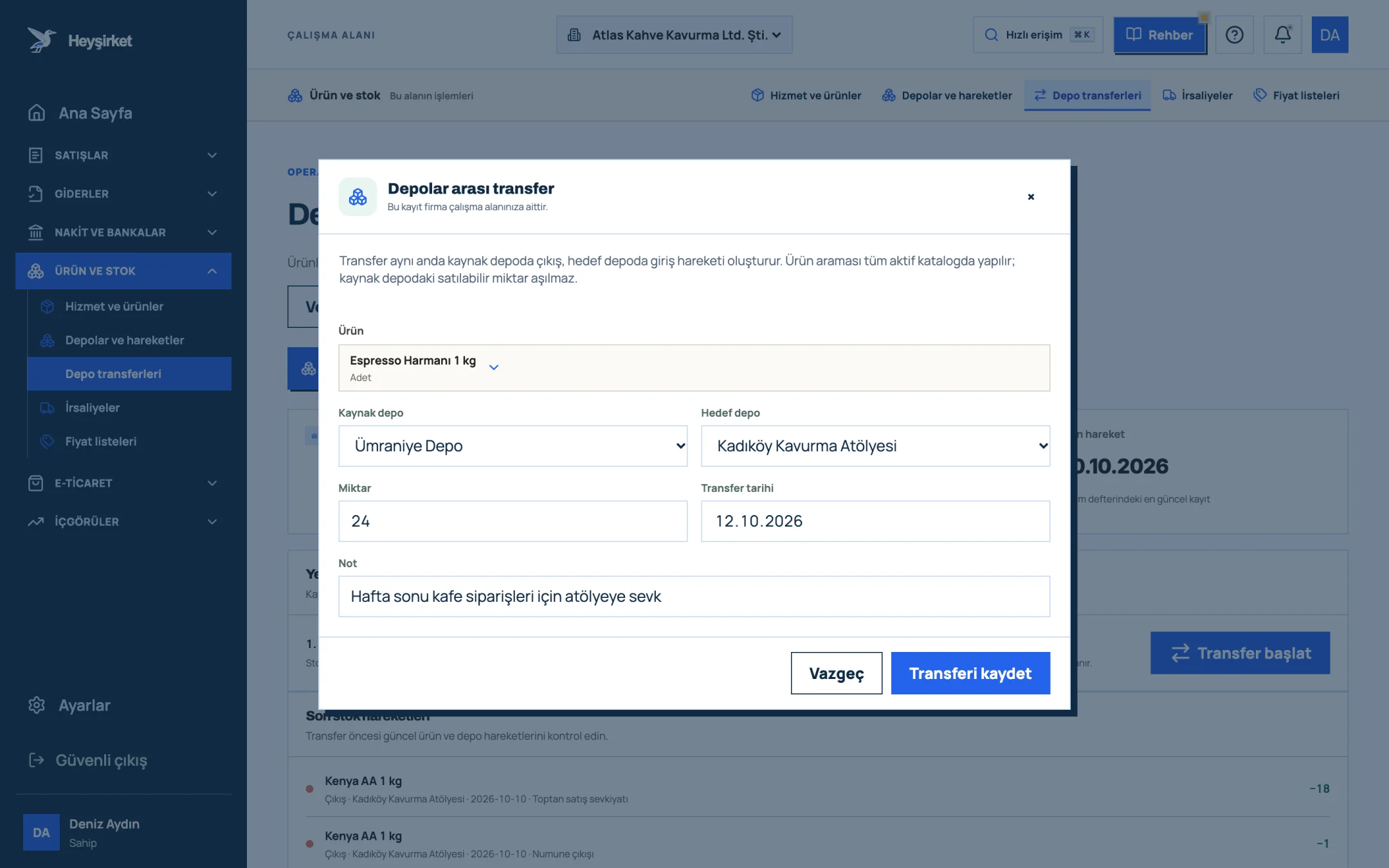
- 1. Product selection
- 2. Source and destination warehouse
- 3. Transfer quantity
- 4. Save transfer
- Source warehouse selection: The number of active warehouses available for transfers.
- Movable products: The number of product cards ready for transfer.
- Latest movement: The date of the most recent entry in the transaction log; it helps you tell whether stock is up to date before a transfer.
- Recent stock movements: The last 12 movements with product, movement type, warehouse, date and note. A quick look before a transfer helps you spot a pending receipt.
When you open the screen from the menu and the conditions are met, the transfer form opens automatically. If they aren't, the Start transfer button stays disabled; you'll find the reason in the warning below.
Part 2 · In practice Step by step: transferring between warehouses
A transfer is completed by choosing a product, source warehouse, target warehouse and quantity, then pressing Save transfer. Total stock doesn't change; only the warehouse where the goods are kept changes.
Warehouse transfer step by step
Open the transfer form
On the Warehouse transfers screen, press the Start transfer button. A form titled “Warehouse-to-warehouse transfer” opens.
Open the transfer form - 1. Product selection
- 2. Source and destination warehouse
- 3. Transfer quantity
- 4. Save transfer
Choose the product
In the Product field, click the “Select a product” box, type the product name in the “Search products…” box that opens and choose it from the list. The search covers the entire active catalog.
Set the source and target warehouses
The Source warehouse is where the goods leave from, and the Target warehouse is where they arrive. The target list doesn't show the warehouse you chose as the source, so you can't accidentally transfer to the same warehouse.
Enter the quantity and a note
Enter the quantity being moved in the Quantity field; you can use a comma for decimals. The Transfer date is the day of the transaction and can't be changed. In the Note field, write the reason, such as “Combining stock for the Pera Otel order”.
Save and check
Press Save transfer. The message “The warehouse transfer was recorded as a two-sided stock movement.” appears, and an outgoing row for the source warehouse and an incoming row for the target warehouse show up in the “Recent stock movements” list.
Save and check - 1. Product selection
- 2. Source and destination warehouse
- 3. Transfer quantity
- 4. Save transfer
Part 3 · Limits What if the source warehouse doesn't have enough stock?
The transfer quantity can't exceed the available-to-sell quantity in the source warehouse; the system won't save a transfer that would push stock below zero. This rule prevents moving goods that exist on paper but aren't on the shelf.
The available-to-sell quantity doesn't include reserved goods. If the Moda warehouse has 15 packs but 5 are reserved for another customer, you can move at most 10 packs. If the reservation is no longer needed, release it first with a Release movement.
| On hand at Kadıköy Workshop | 12 packs |
|---|---|
| On hand at Moda Shop | 15 packs |
| Reserved at Moda | 0 packs |
| Needed for the order (shipped from Kadıköy) | 20 packs |
| Moda → Kadıköy transfer quantity | 8 packs |
After the transfer, Kadıköy shows 20 packs and Moda 7; the combined total of the two warehouses stays unchanged at 27 packs.
Part 4 · Background The reasoning: why isn't a transfer a sale?
A warehouse transfer is goods changing location between two sites of the same business; it isn't a sale or a purchase, so it doesn't require an invoice. But moving goods from one place to another is still a shipment, and the paperwork for goods in transit is a separate matter.
The second benefit of transfers is analysis. Seeing which warehouse constantly needs goods helps you put stock in the right place from the start. We cover the reasoning behind this planning in our inventory management basics article.
Can I backdate a transfer?
No. The Transfer date is recorded as the day of the transaction and can't be changed in the form. If you're recording a move that happened in the past, write the actual date in the Note field.
Can I move more than one product in a single transfer?
Each transfer record is for a single product. If you're moving several products, record a separate transfer for each one; using the same note makes it easier to find the records together later.
I transferred to the wrong warehouse. How do I undo it?
Movements aren't deleted. Record a new transfer in the opposite direction with the same product and quantity, and note that it's a correction. Both warehouses return to their previous state and the audit trail is kept.
Does a transfer count as a shipment to a customer?
No. For goods going to a customer, use a delivery note or an invoice. Transfers are only between your own warehouses.
Record your first transfer If you have two active warehouses, open the form, choose the product, warehouses and quantity, and save. Open Warehouse transfers
Author: Heyşirket Editorial Team