Products and inventory · 9 min read · Updated:
How to create a delivery note: outgoing dispatch notes, shipping confirmation and invoicing
Goods should be recorded before they leave the door. This guide covers preparing a delivery note as a draft, confirming the shipment to deduct stock and moving from the same note to an invoice.
In short
- In Heyşirket, outgoing delivery notes are created with the New delivery note button on the Outgoing delivery notes screen in the Products and inventory menu.
- A draft delivery note doesn't change stock; the stock deduction only happens in the selected dispatch warehouse when you confirm Ship.
- From a shipped note, an invoice is prepared with Create invoice draft; the product, quantity and warehouse can't be changed on that invoice.
- Businesses registered for e-İrsaliye (e-delivery note) must issue the delivery note electronically before the goods are actually shipped; the delivery note screen in Heyşirket doesn't send an e-İrsaliye to GİB.
- For goods shipped with a delivery note, the invoice must be issued within 7 days of delivery at the latest under the Turkish Tax Procedure Law.
At 8 a.m., Atlas Kahve's van will take 30 kilos of beans to Nişantaşı Bistro. Before setting off, the driver asks: “Where's the paperwork?” The invoice isn't ready yet, because the bistro wants a single invoice at the end of the month.
That's the gap a delivery note fills: it records who the goods are going to, from which warehouse and in which vehicle, before the invoice. By the end of this guide you'll be able to manage a shipment in one flow, from draft to invoice, and you'll also learn when the e-İrsaliye rules apply to you.
Part 1 · Tour What's on this screen?
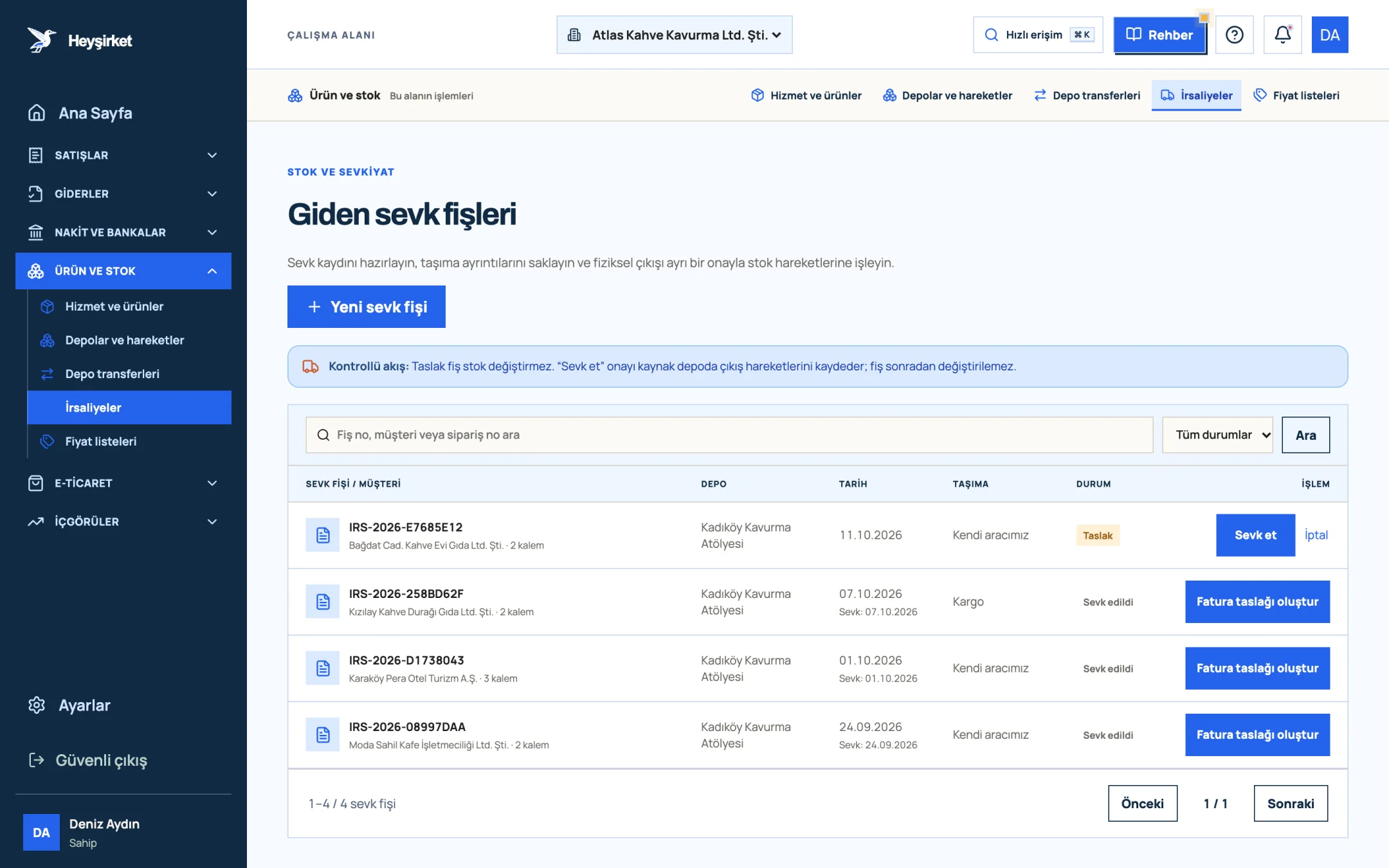
The Outgoing delivery notes screen is where you manage the shipping record, transport details and stock deduction for goods sent to customers. Open it from the Outgoing delivery notes link in the Products and inventory group of the left menu.
- 1. New delivery note
- 2. Shipping a draft note
- 3. Invoice draft from a shipped note
- 4. Controlled flow info
- Search and filter: With the “Search note no., customer or order no.” box and the All statuses filter, you can separate Draft, Shipped and Cancelled notes.
- Delivery note / customer: The note number (in IRS-year-code format), customer name, number of items and the customer's order number, if any.
- Transport: Our own vehicle, Carrier or Courier.
- Action: Ship and Cancel on drafts; Create invoice draft on a shipped note, or Open invoice draft if one has already been created.
Clicking a note's row opens the details window: dispatch warehouse, address, carrier and driver details, and each item's price snapshot and VAT rate.
Part 2 · In practice Step by step: create a delivery note and confirm the shipment
A delivery note has two stages: first a draft is created, then it's confirmed with Ship as the goods physically leave. This separation stops a shipment that was prepared but never sent from deducting stock for nothing.
Outgoing delivery note step by step
Open the form
On the Outgoing delivery notes screen, press the New delivery note button. The “New outgoing delivery note” form opens.
Open the form - 1. New delivery note
- 2. Shipping a draft note
- 3. Invoice draft from a shipped note
- 4. Controlled flow info
Choose the customer, warehouse and date
Choose the customer from the Customer * list; their saved address fills in the Delivery address field automatically. The Dispatch warehouse * is prefilled with the default warehouse; change it if needed. Check the Delivery note date * field and enter the Customer order no. if there is one.
Enter the transport details
In the Transport method field, choose Our own vehicle, Carrier or Courier. For carriers and couriers, the company name is required. Fill in the Driver name, Driver VKN/TCKN, Plate and Trailer plate fields.
Add the items
In the “Shipment items” section, choose the product from the Select a product list and enter the quantity; press Add item for a new line. Only products with stock tracking turned on can be added, and the same product appears only once on a note.
Save the draft
Press the Create draft delivery note button. The note appears in the list with Draft status; stock hasn't changed yet.
Save the draft - 1. New delivery note
- 2. Shipping a draft note
- 3. Invoice draft from a shipped note
- 4. Controlled flow info
Confirm the shipment as the goods leave
When the goods are loaded into the vehicle, press the Ship button on the note's row and accept the confirmation window. A stock deduction is created for each item in the dispatch warehouse, and the status changes to Shipped.
Confirm the shipment as the goods leave - 1. New delivery note
- 2. Shipping a draft note
- 3. Invoice draft from a shipped note
- 4. Controlled flow info
Turn it into an invoice
On a shipped note, press the Create invoice draft button. The invoice screen opens with the customer, items, prices and warehouse filled in; the delivery note number is added to the note field. Check it and complete the invoice.
Part 3 · Price Where do the prices on a delivery note come from?
Each item on a delivery note stores the price at the moment the note was created as a “price snapshot”. If a price list is assigned to the customer, the list price is used; otherwise, the unit price on the product card.
This way, when you move to invoicing at the end of the month, the price of the shipped goods is kept even if the catalog price has changed in the meantime. Beans sent to Moda Sahil Kafe on 1 October at the list price aren't affected by the price increase on 15 October.
Part 4 · Regulations The reasoning: when, and under which rules, is a delivery note issued?
A delivery note (sevk irsaliyesi) is the transport document that must accompany goods from the moment they leave the seller's warehouse until they reach the buyer. An invoice documents the sale, while a delivery note documents the transport; they're not the same thing.
| Topic | Rule |
|---|---|
| Timing of the delivery note | Issued before the goods are shipped and kept in the vehicle during transport |
| Invoice deadline | Within 7 days at the latest from the delivery of the goods or the performance of the service |
| e-İrsaliye requirement | Businesses with gross sales revenue of 10 million TL or more, from the start of July in the year following the fiscal period in which the threshold was exceeded; in some sectors no revenue threshold applies |
| Timing of the e-İrsaliye | Issued and transmitted to the GİB (Turkish Revenue Administration) system before the goods are actually shipped |
The practical upshot: even if you issue a single invoice at the end of the month, the 7-day deadline runs separately for each shipment. Scanning your delivery notes once a week with the Shipped filter and invoicing those without an invoice prevents missed deadlines. We cover the sales process side of this in our from quote to invoice sales process article.
Can I correct a note I've already shipped?
No. After you confirm Ship, the note can't be changed; the stock movement has been created. If there's a difference, work out the right way to correct it with your accountant, and on the stock side record the difference with a count or movement if needed.
What happens if I cancel a draft?
Cancel on the draft's row closes the note permanently. Since a draft doesn't change stock, cancelling it doesn't touch stock either.
Can I add service items to a delivery note?
No. Only products with stock tracking turned on can be added to an outgoing delivery note. Add services directly to the invoice.
Who can create delivery notes?
Users with the Owner, Admin, Accountant and Sales roles can create and confirm delivery notes; other roles can only view them. You can manage roles with the team and roles guide.
Where do I record a delivery note from a supplier?
There's a separate screen for incoming goods: incoming delivery notes. There, confirming Receive creates a stock entry in the target warehouse.
Prepare your first delivery note Record tomorrow's shipment as a draft today, and confirm it in one click while the goods are being loaded. Open Outgoing delivery notes
Author: Heyşirket Editorial Team