Sales and invoicing · 11 min read · Updated:
How to issue an invoice: from a blank form to an official invoice in Heyşirket
The New invoice screen has three steps and takes you all the way to an official document. With this guide you'll issue your first invoice in a few minutes, without mistakes.
In short
- In Heyşirket an invoice is issued in three steps: Customer and items, Payment and note, Review and preview.
- You don't choose whether the invoice is an e-Fatura or an e-Arşiv invoice; it's decided automatically at the moment of sending by checking the recipient's registration status.
- The unit price is entered excluding VAT; the line discount is a TL amount, and VAT is calculated on the amount after the discount.
- Before issuing the invoice you must open the PDF preview and tick the confirmation box; if the amount or recipient changes, the confirmation resets.
- If sending is interrupted, your details are saved automatically as a draft and duplicate documents are prevented.
Issuing an invoice takes a few minutes; fixing one issued incorrectly can take days. That's why the New invoice screen guides you to an official document in three short, controlled steps.
In this guide we'll use the example of a coffee grinder that Atlas Kahve Kavurma sells to Moda Sahil Kafe. By the end, your invoice will be issued, its PDF archived and on its way to your customer's inbox.
Part 1 · Tour What's on this screen?
The New invoice screen consists of a three-step form on the left and an Invoice summary card on the right that updates live. At the top there's a Step 1/3 indicator and a progress bar, and at the top right a Clear form link to start over.
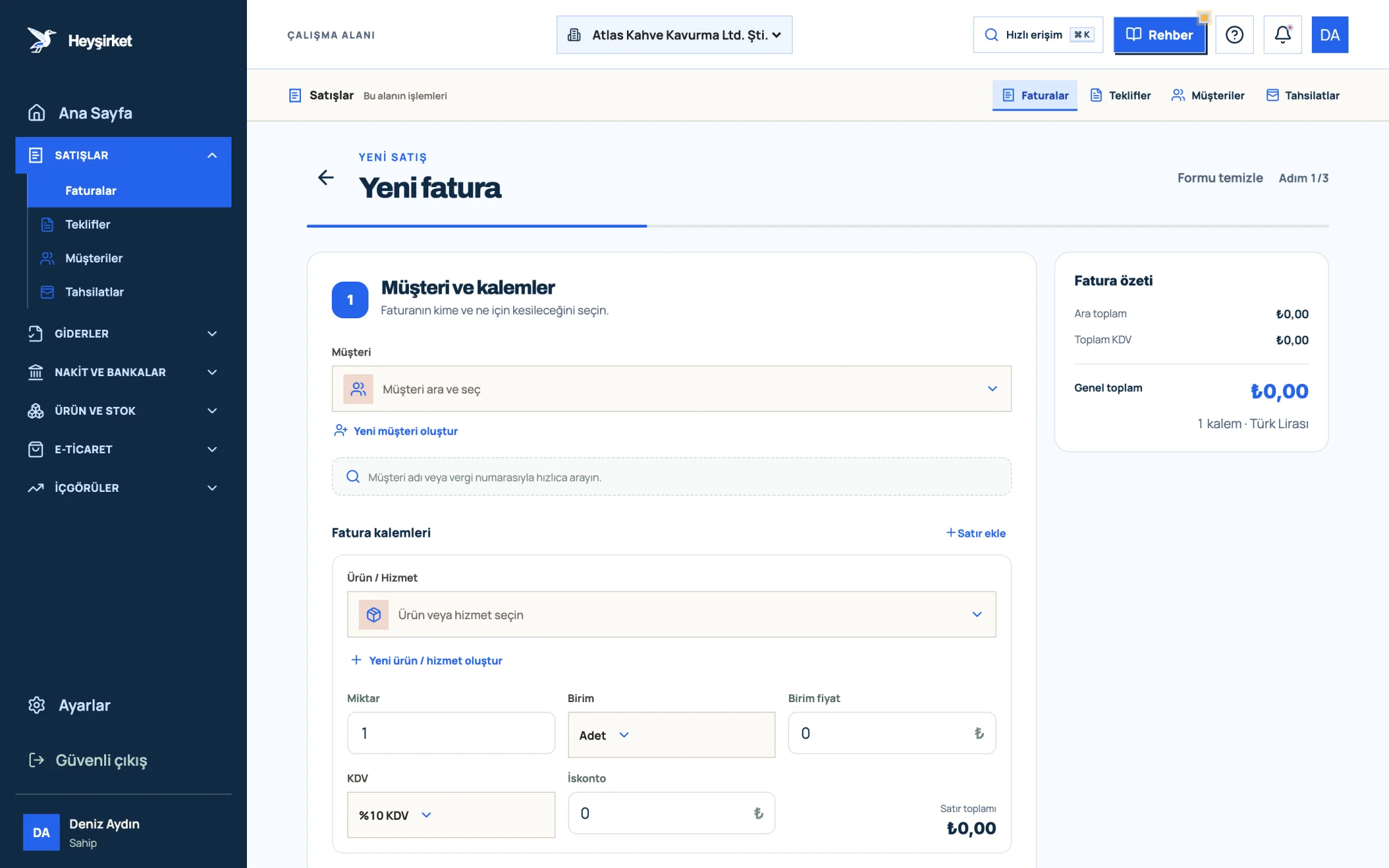
- 1. Customer selection
- 2. Create new customer link
- 3. Invoice line items and adding rows
- 4. Invoice summary
- 5. Step indicator
| Step | Heading on screen | What you enter |
|---|---|---|
| 1 | Customer and items | Customer, product / service, quantity, unit, unit price, VAT, discount and, if needed, the dispatch warehouse |
| 2 | Payment and note | To be collected / Collected choice, issue date and due date, invoice note, adding bank accounts to the note |
| 3 | Review and preview | Recipient and amount check, PDF preview, confirmation and issuing |
The same three buttons sit at the bottom of the screen in every step: Cancel (in the first step) or Back, Save draft and the main action button. The main button's label changes depending on what's missing; for example, if you haven't selected a customer it reads Select a customer first. That way you never have to hunt for what's missing.
Part 2 · In practice Issuing an invoice step by step
Issuing an invoice means selecting the customer and items, entering the due date, confirming the PDF preview and then pressing the Issue and send invoice button. Follow the steps below in order.
Step by step: your first sales invoice
Select the customer
Go to the Invoices page from the left menu and press the New invoice button. Click the Customer field and search by company name, VKN (tax ID) or tax office. If the customer isn't listed, add them without leaving the form using Create new customer. The selected customer's card shows their VKN/TCKN (tax ID / Turkish ID number), tax office and default payment term.
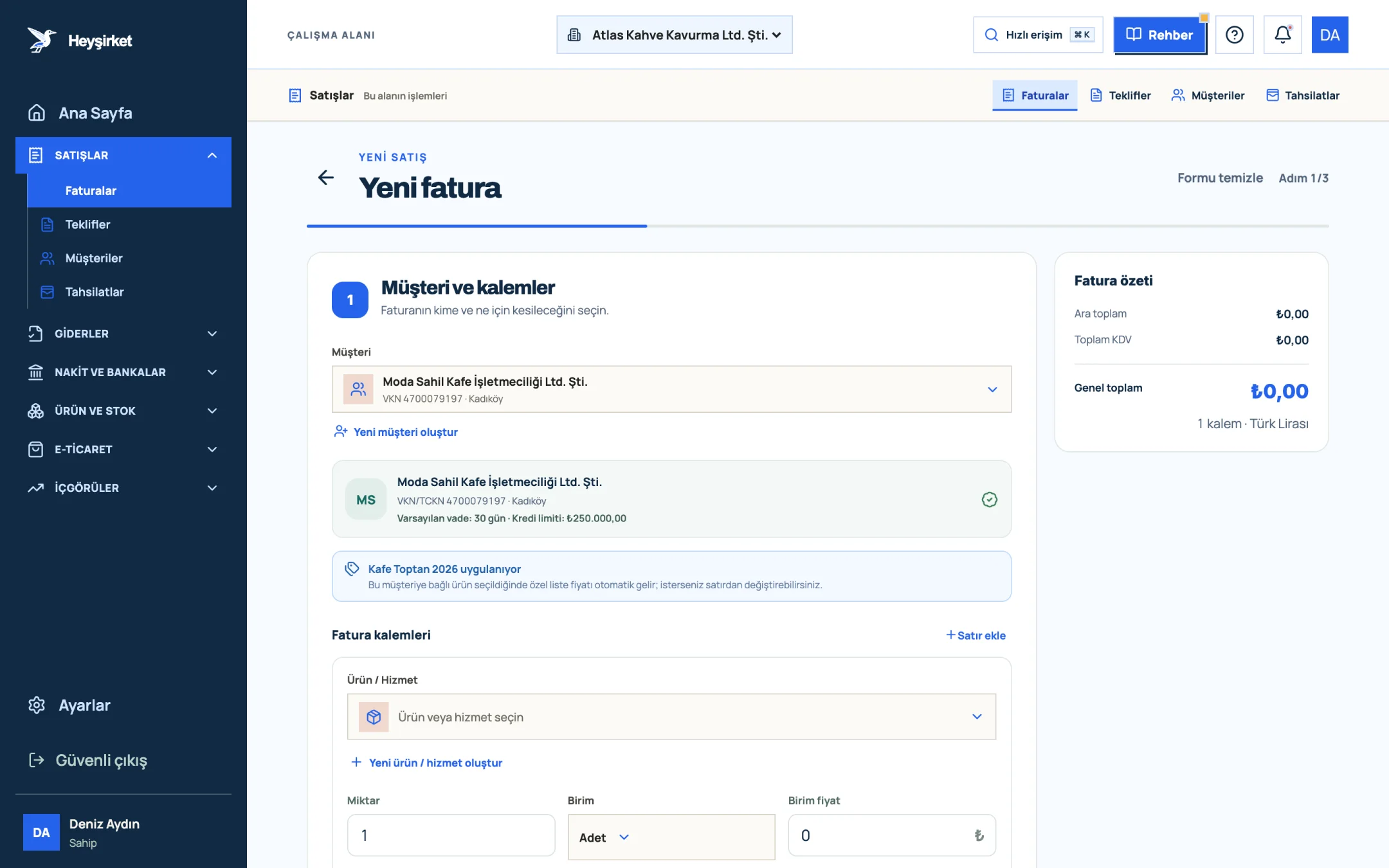
Select the customer - 1. Selected customer
- 2. Customer card summary (tax ID, payment terms, credit limit)
- 3. Customer price list info
Add the items
Choose a saved product from the Product / Service field; the unit, price and VAT rate come from the product card. If the product doesn't exist yet, add it with Create new product / service. Check the Quantity, Unit price, VAT and Discount fields; for more than one item, use the Add line button.
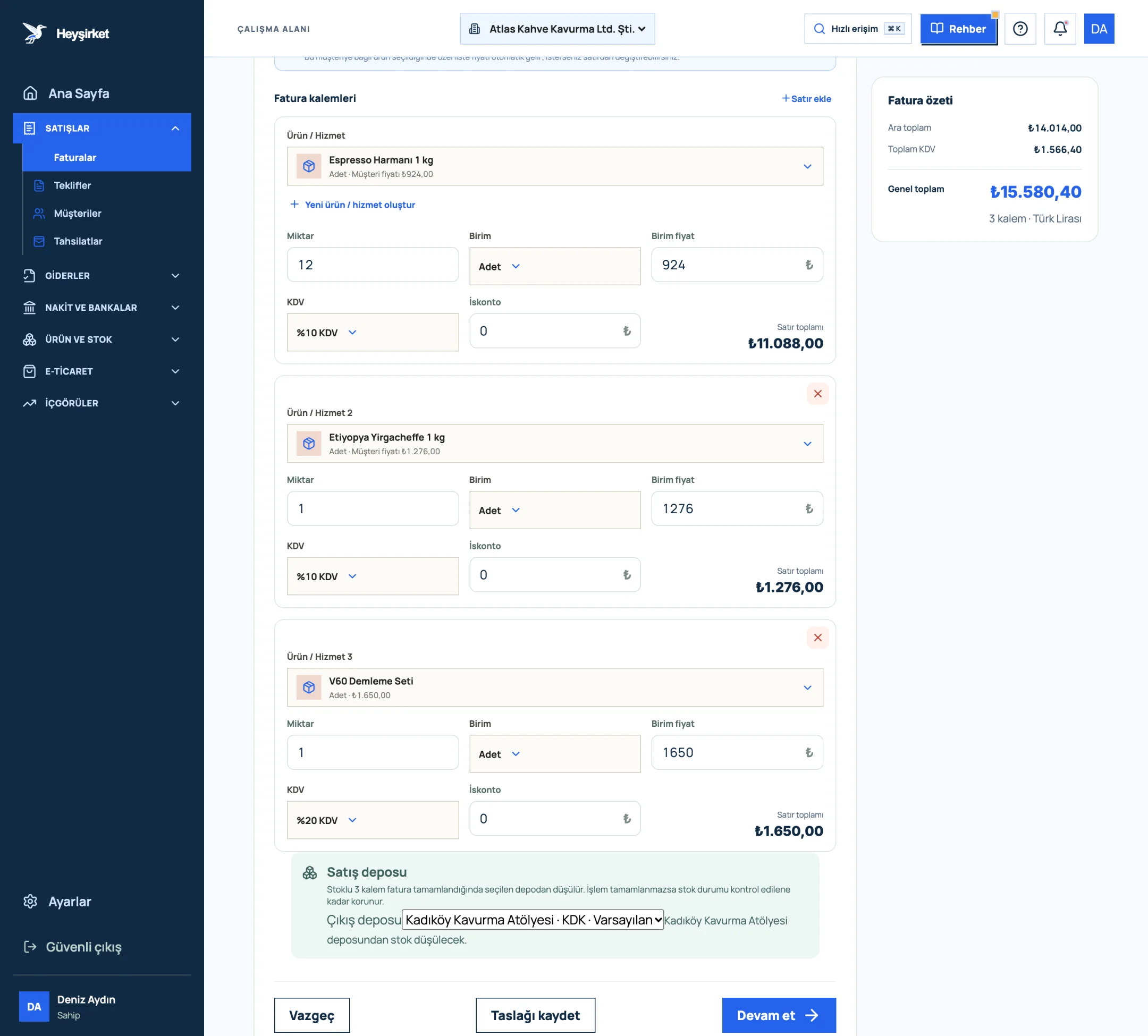
Add the items - 1. First invoice line item
- 2. VAT rate selection
- 3. Add row
- 4. Invoice summary and VAT total
Choose the warehouse for stocked products
If one of the items is a stock-tracked product, a Sales warehouse box appears. Choose the warehouse the product ships from in the Dispatch warehouse list; when the invoice is issued, stock is deducted from that warehouse. The default warehouse is preselected.
Set the payment status and due date
Move to the second step with Continue. If you haven't received payment yet, choose the To be collected card; if you have, choose Collected. When Collected is selected, the Payment method (Cash, Credit card, Bank transfer, Other) and Collection account fields appear. Check the Issue date and Due date fields.
Add a note and your IBAN
Use the Invoice note field for details such as the order number or delivery information. If the Add active bank accounts to the note box is ticked, the active IBANs from Settings are added to the note. The amount in words is added to the note automatically, so you don't need to type it.
Review and confirm the PDF
Move to the third step with Continue. Check the recipient, dates and items, then press the Preview as PDF button. Review the document in the window that opens and tick the I have checked the invoice details and the PDF box.
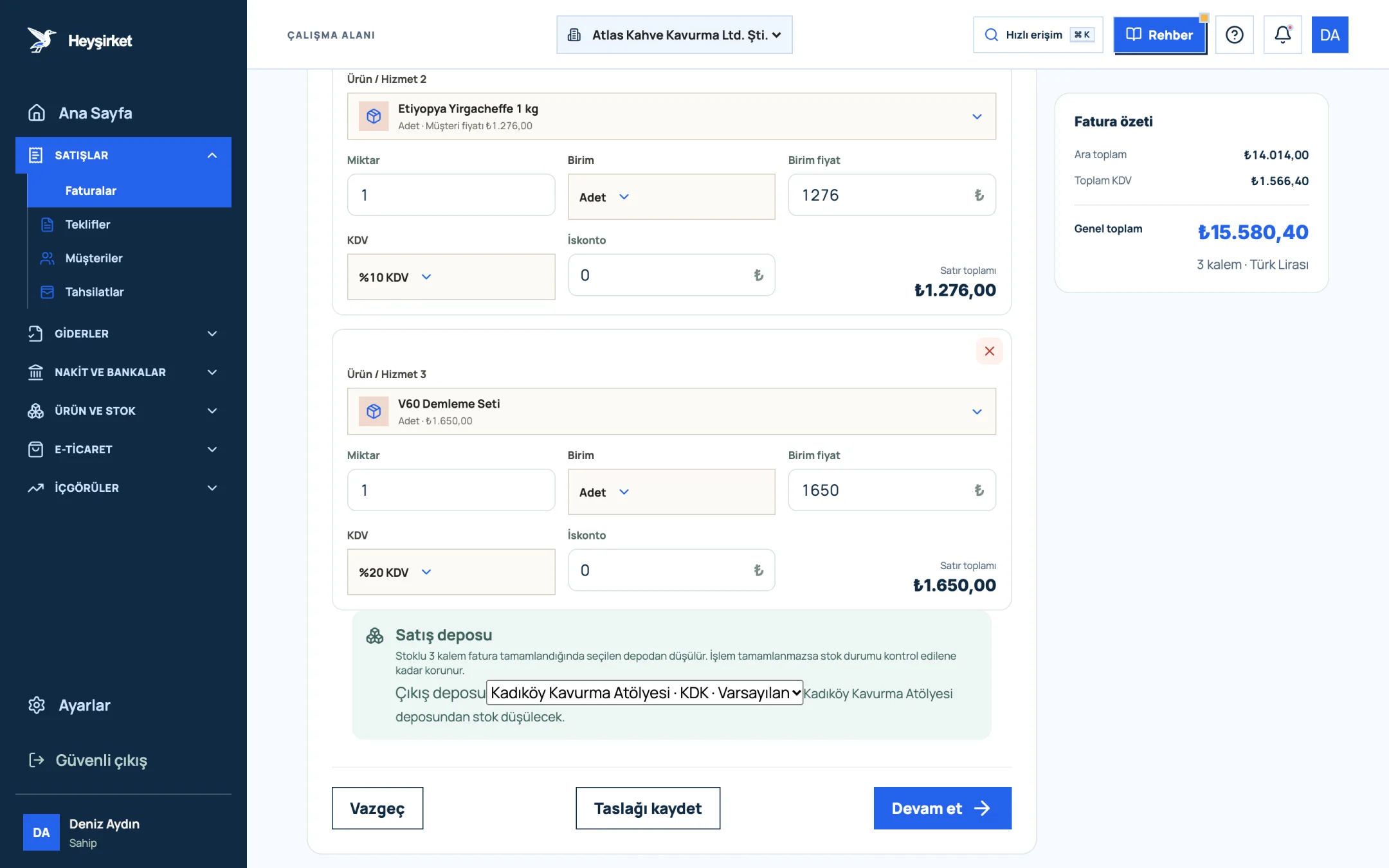
Review and confirm the PDF - 1. Grand total
- 2. Continue button
- 3. Save draft button
- 4. Sales warehouse to deduct stock from
Issue the invoice
Press Confirm and issue invoice in the preview window, or Issue and send invoice on the form. When issuing is complete, the Your invoice was created successfully screen opens; from there you can choose View invoice, Back to invoices or Create new invoice.
Part 3 · The numbers How are VAT and discounts calculated?
In Heyşirket the unit price is entered excluding KDV (VAT), the discount is entered per line as a TL amount, and VAT is calculated on the amount remaining after the discount. The VAT picker offers 0%, 1%, 10% and 20% rates.
| Quantity × unit price (2 × 18.500 TL) | 37.000,00 TL |
|---|---|
| Line discount | -2.000,00 TL |
| Subtotal (VAT base) | 35.000,00 TL |
| VAT 20% | 7.000,00 TL |
| Grand total | 42.000,00 TL |
The Invoice summary card on the right and the Total discount line on the PDF show exactly this calculation. Confirm the correct VAT rate for your product with your accountant (mali müşavir).
Part 4 · Document type Do I need to choose between e-Fatura and e-Arşiv?
No, you don't choose the document type. When the invoice is sent, the recipient's registration status is checked using their VKN/TCKN: if the recipient is registered in the e-Fatura (Turkish e-invoice) system, an e-Fatura is issued; if not, an e-Arşiv (e-archive) invoice is issued. That's why the PDF preview carries the note Type is determined by registration check.
Your choice of commercial or basic scenario is set once in the e-document section of Settings, in the E-Fatura scenario field. If you're curious about the differences, our article on the difference between e-Fatura and e-Arşiv explains it from start to finish.
Part 5 · Safety net Drafts and interrupted invoices
A draft is an invoice record that hasn't been issued yet and has no status as a financial document. Once you've entered a customer and at least one valid item, the Save draft button becomes available; after saving, it changes to Update draft.
If the connection drops while sending, or the provider returns an error, your details are kept automatically as a draft. The next time you sign in, a Your last invoice attempt was saved as a draft notice and an Open draft button appear at the top of the screen. For submissions whose outcome isn't known yet, the button reads Review draft, and resending is temporarily disabled to prevent duplicate documents.
If the customer's VKN, tax office or address is missing, issuing stops and the Complete the customer details for the invoice window opens. Fill in the missing details and choose Save details and return to invoice to continue from the same draft.
Part 6 · Sharing What happens after issuing?
Once the invoice is issued, the official PDF generated by the provider is transferred to the Heyşirket archive automatically; when it's ready, you can open it with View invoice. If Automatically send to customer when an invoice is issued is turned on in Settings, customers with a saved email address receive a notification with the official PDF attached.
To send it manually, click the invoice in the Invoices list; the Send invoice button in the Invoice details window emails the invoice, and the recipient can open it through a secure link and save it as a PDF. For open invoices nearing their due date, the same place has a Send reminder button. Details are in the managing invoices guide.
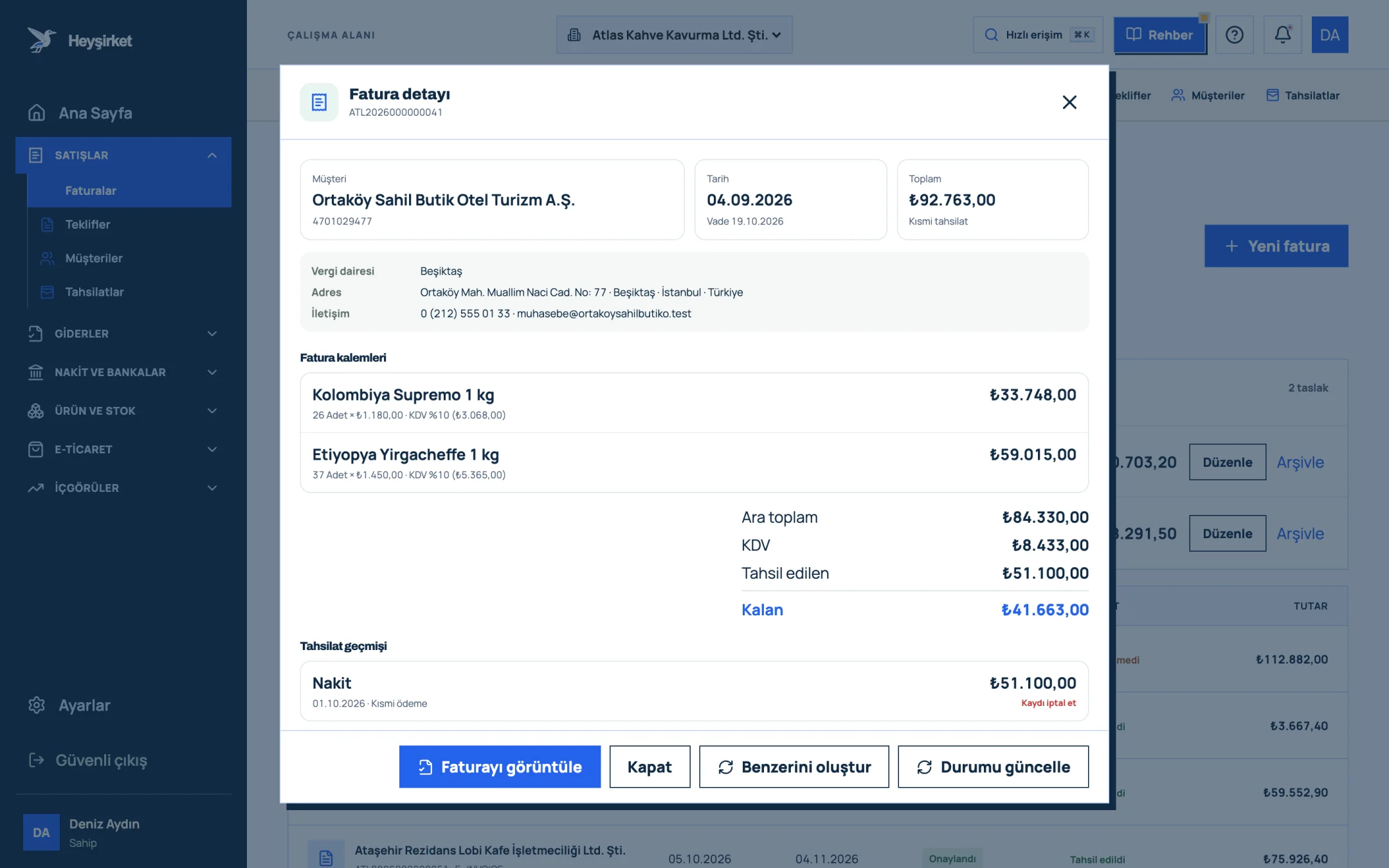
- 1. Invoice details window
- 2. View invoice / PDF
- 3. Collected and remaining amount
- 4. Collection history
- 5. Update status
Part 7 · Background The reasoning: why so many checks?
e-Fatura and e-Arşiv invoices become official documents the moment they're transmitted to GİB (Turkish Revenue Administration); you can't tear them up and rewrite them as you could with a paper invoice. A wrong document requires cancellation, objection or return processes. That's why the screen won't let you issue without confirming the PDF, and resets the confirmation when the amount or recipient changes.
The due date, on the other hand, is commercial rather than legal information, but it's the foundation of collection tracking. An invoice with the correct due date shows up on the right day on the collections screen and in cash flow reports.
Can I edit an invoice after issuing it?
No. An issued e-Fatura or e-Arşiv invoice is an official document and can't be edited in Heyşirket. Editing is only possible on drafts that haven't been issued. For an incorrect document, plan the cancellation or return process with your accountant.
I issue the same invoice every month; is there a shortcut?
Yes. Open the old invoice in the Invoices list and press the Create similar button in the Invoice details window. The customer and items are copied to a new form, and the dates are set to today.
What happens if the customer has no email address?
If the email is missing when you select the customer, a Customer has no email window opens. You can save an address or choose Continue without email. If the related option in Settings is turned on, the official PDF is sent to the user who issued the invoice.
How does a customer-specific price fill in automatically?
If a price list is linked to the customer, the list name appears on screen when you select the customer, and the special price fills the unit price field when you choose a product. Details are in the price list guide.
Can I issue a backdated invoice?
You can select a past date in the Issue date field, and that date is passed to the financial document request exactly as entered. Take care not to exceed the legal seven-day issuing period.
Issue your first invoice now Select your customer, add the items, check everything with the PDF preview and issue your invoice. Create new invoice
Author: Heyşirket Editorial Team