E-commerce · 8 min read · Updated:
Marketplace and store connections: securely connect Trendyol, WooCommerce and Shopify
Instead of copying orders by hand, connect your channel once. This guide walks you through the four-step setup wizard and explains how your keys are protected.
In short
- Connections is the first tab of the E-commerce center; the order, product and shipping screens open once at least one marketplace or store connection is active.
- The setup wizard has four steps: Preparation, Access details, Verify and Activate.
- Connections to Trendyol, WooCommerce and Shopify are verified automatically; for other channels, the details are saved and the connection stays in Awaiting verification status.
- Verification works with a single read-only request; your products, prices and orders on the channel don't change.
- Access keys are stored encrypted, and only users with administrator permission can set up a connection.
Atlas Kahve Kavurma sells coffee grinders and beans both on Trendyol and in its own WooCommerce store. Instead of copying orders from two panels every morning, they decided to connect both channels to Heyşirket once.
That's exactly what the Connections screen is for. Here you set up a channel, verify the access details and switch on the order flow. All the other e-commerce screens open after this step.
Part 1 · Tour What's on the Connections screen?
The Connections screen is the setup center that lists every sales and shipping channel your company can connect. You open it with Connections under E-commerce in the left menu; the page heading is E-commerce center.
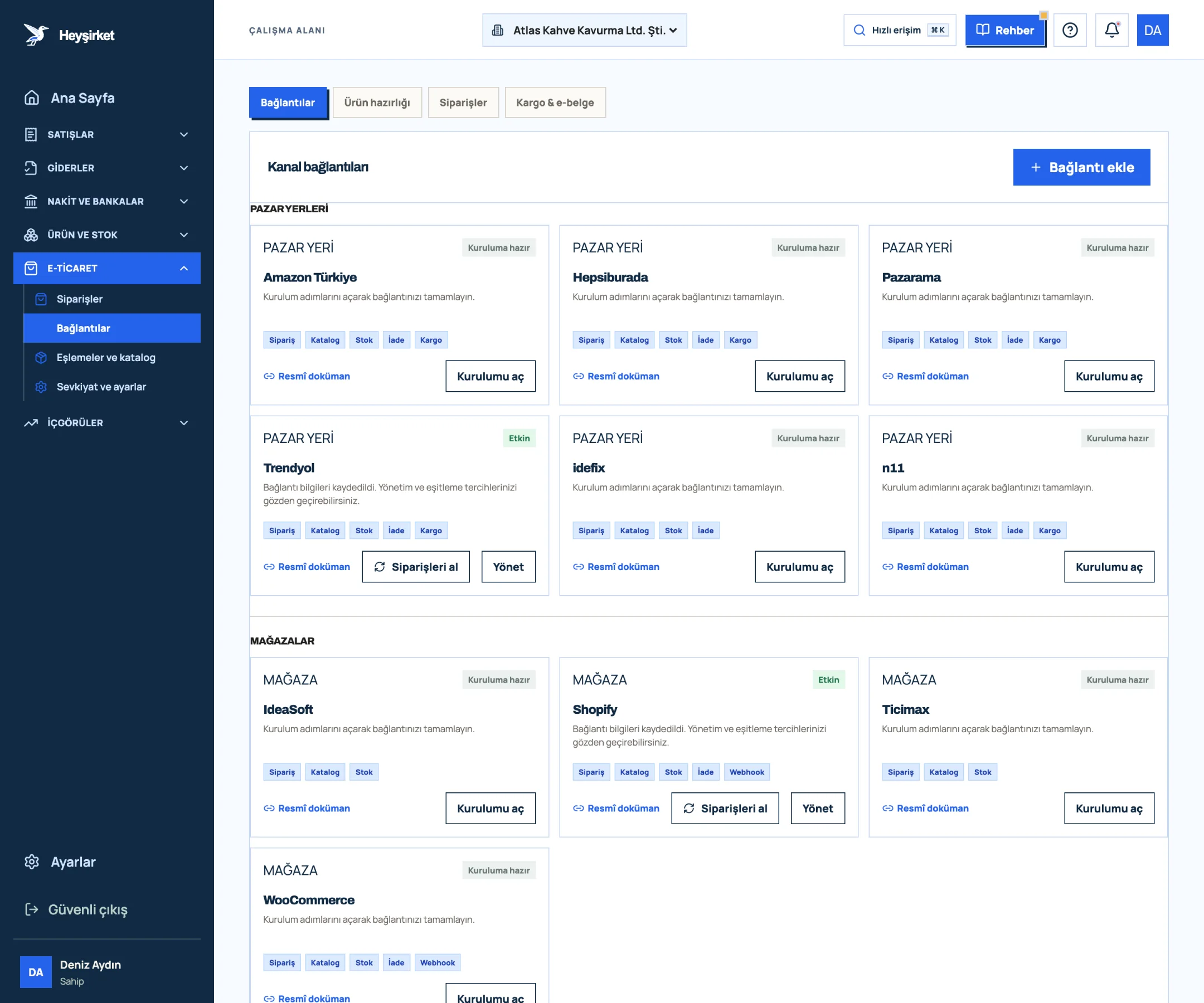
- 1. Add connection
- 2. Active Trendyol connection
- 3. Fetch orders button
- 4. Active Shopify store
The readiness strip at the top of the screen tells you the next step. If there are no connections, it reads Connect your sales channel first, and administrators see a Set up connection button.
| Group | Channel | Automatic verification |
|---|---|---|
| Marketplaces | Trendyol | Available |
| Marketplaces | Hepsiburada, n11, Pazarama, idefix | Not yet; details are saved |
| Marketplaces | Amazon Türkiye | Requires authorized app (OAuth) approval |
| Stores | WooCommerce, Shopify | Available |
| Stores | Ticimax, IdeaSoft | Not yet; details are saved |
| Shipping channels | Kargonomi, Sürat Kargo | Not yet; details are saved |
The status label on each card takes one of these values: Ready to set up, Draft, Awaiting verification, Active, Couldn't verify or Paused. The Official documentation link at the bottom of the card takes you to the provider's own developer page.
So where do you find the keys? Let's go channel by channel first.
Part 2 · Preparation Where do you get the API key?
An API key is a username and password pair that your sales channel generates to give software like Heyşirket permission to read data on behalf of your store. Each channel generates it in its own panel; Heyşirket never asks for your main panel password.
- Trendyol: In the Seller Panel, under My Account Details > Integration Details, you'll see your seller number (Seller ID) and two keys. In the form, these are requested as Connection key and Connection secret key.
- WooCommerce: In your store's admin panel, create a key with read permission from the REST API section of the WooCommerce settings. The form asks for Consumer key, Consumer secret and HTTPS store address.
- Shopify: In Shopify admin, configure app access for your store and grant permission to read orders. The form asks for the .myshopify.com store address and the Connection key.
- Amazon Türkiye: Instead of pasting a key, authorized app approval through Seller Central is required; the connection doesn't go live until the platform approval is complete.
Part 3 · Setup Step by step: connect your first channel
Step by step: marketplace connection
Choose the channel
Press the Add connection button at the top right. In the Choose a sales channel window that opens, select your channel; the Open setup button on the card opens the same wizard.
Choose the channel - 1. Add connection
- 2. Active Trendyol connection
- 3. Fetch orders button
- 4. Active Shopify store
Read the preparation step
The wizard's first step, Preparation, shows a 3-item setup path specific to your channel. You can go to the channel's own page with Open official provider documentation. When you're ready, press the I've entered the details button.
Enter the access details
In the Access details step, fill in the Seller / store ID, the store address if needed, and the two key fields. If your provider gave you a secret for order notifications, add it to the Webhook secret (if any) field.
Choose the scope
In the Scope to activate section, Receive orders is ticked by default. If you like, also turn on the Match catalog, Sync stock and Create invoice suggestion options; the last one doesn't issue a financial document.
Save the draft or move on to verification
If you'll complete the details later, click Save draft; the card moves to Draft status. To continue, press the Go to verification button.
Verify the connection
In the Verify step, press the Verify connection button. For channels without automatic verification, this button is labelled Send for review and the connection stays in Awaiting verification status.
Activate and move on to product preparation
If verification succeeds, the Connection active card appears and the channel card becomes Active. Use Go to product preparation to move to the next screen, product matching.
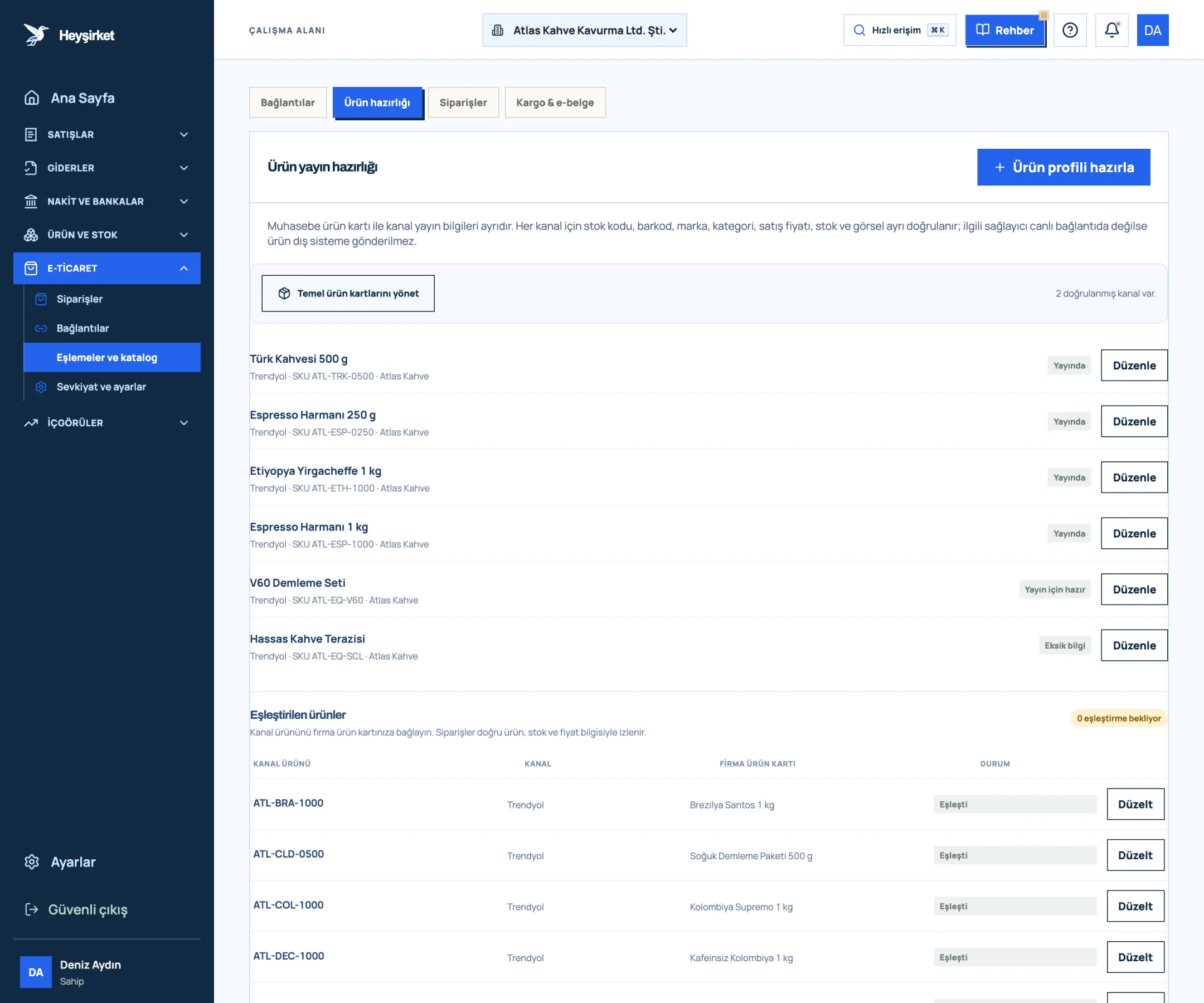
Activate and move on to product preparation - 1. Prepare product profile
- 2. Live product profile
- 3. Profile with missing info
- 4. Mapped products table
Part 4 · Security Does verification change anything on my channel?
No. Verification sends a single read-only request to your channel and checks whether the response is successful. Nothing changes in your products, prices, stock or order statuses.
- Trendyol: a single record is requested from the last 24 hours' order list.
- WooCommerce: a single record is requested from the product list.
- Shopify: only the store name and domain are queried.
Your keys are encrypted before they're saved. When you open the form later, the fields appear empty; as long as you don't type a new key, the existing key is kept. Every setup, verification and pause action is written to the audit log.
Part 5 · Background The reasoning: why the connection comes first
Most accounting errors in marketplace sales happen the moment an order is copied by hand: a wrong amount, a forgotten shipping fee, an order entered twice. A connection removes this copying; an order arrives in Heyşirket exactly as it is on the channel.
That's why the screens deliberately open in sequence. First the connection, then product preparation, and finally orders and shipping. Processing orders without matching products corrupts your stock and profitability figures from the start.
Don't forget the tax side of marketplace sales either: commission invoices, shipping deductions and the 1% e-commerce withholding tax (stopaj). We covered these in our accounting guide for marketplace sellers.
Who can set up a connection?
Setting up connections, entering keys and pausing are available only to users with administrator permission. Other users can see the channel cards, but see an Administrator label instead of Open setup. We explained roles in the Team and roles guide.
Why is my Hepsiburada or n11 connection in Awaiting verification status?
Automatic connection checks for these channels aren't available yet. Your details are saved encrypted; once the check is ready, you can activate the connection. The order flow isn't started in the meantime.
Why can't I see the Orders and Shipping & e-documents tabs?
These tabs open when at least one marketplace or store connection is Active and your company has at least one product card, product listing profile or product match. Verify the connection first, then complete the product matching step.
What happens if I change my key?
If you generated a new key on the channel, open the wizard with Manage, enter the new key and verify again. If you leave the field empty, the old key is kept.
Is connecting a shipping channel required?
No. A marketplace or store connection is enough for the order screens to open. You can also add the shipment tracking number manually from within the order; details are in the Shipping settings guide.
Connect your first channel Open the Connections screen, choose your channel and verify the connection with the four-step wizard. Open connections
Author: Heyşirket Editorial Team