E-commerce · 6 min read · Updated:
Shipping and settings: manage the shipping and document queue
An approved order gets packed, shipped and delivered. This guide explains how to take every open order through these three steps in a single queue.
In short
- The Shipping & e-documents tab gathers all orders that aren't completed or cancelled in the Shipping and document queue.
- The flow has three steps: Awaiting approval, Ready to ship, Delivery & documents.
- A tracking number is required to mark an order as shipped; the carrier and tracking link are optional.
- The Complete delivery button appears only on orders that have been shipped, and moves the order to Completed status.
- Per-channel preferences for orders, catalog, stock and invoice suggestions are changed from the Manage window on the Connections screen.
It's 16.00, and the courier van arrives at 17.00. Atlas Kahve's warehouse manager wants to see at a glance which packages are ready, which are waiting for a tracking number and which haven't been invoiced yet.
The Shipping & e-documents tab was designed for that one hour. All open orders sit in a single queue, with each one's shipping and document status side by side.
Part 1 · Tour What's on the Shipping & e-documents screen?
The Shipping & e-documents screen is the work queue that gathers orders waiting for approval, shipping or delivery in a single list. You open it with Shipping and settings under E-commerce in the left menu; the panel heading is Shipping and document queue.
- Open tasks badge: the number of orders in the queue, top right, for example 12 open tasks.
- Three-step flow strip: 1 Awaiting approval, 2 Ready to ship, 3 Delivery & documents.
- Queue rows: order number, channel, customer and date; delivery status; Pending, Ready or Completed in the Document field; the amount and an Open order button.
- Awaiting approval — Customer and address check
- Ready to ship — Carrier and tracking number
- Shipped — Awaiting delivery
- Completed — Documents and collection
Completed and cancelled orders drop out of the queue, so the list always shows only the work still to be done. The history of all orders stays on the Orders tab.
Part 2 · In practice Step by step: take an order from shipping to delivery
Step by step: shipping
Open the order from the queue
Press the Open order button on the next order in the queue. The window shows the order's customer, address, product and amount details.
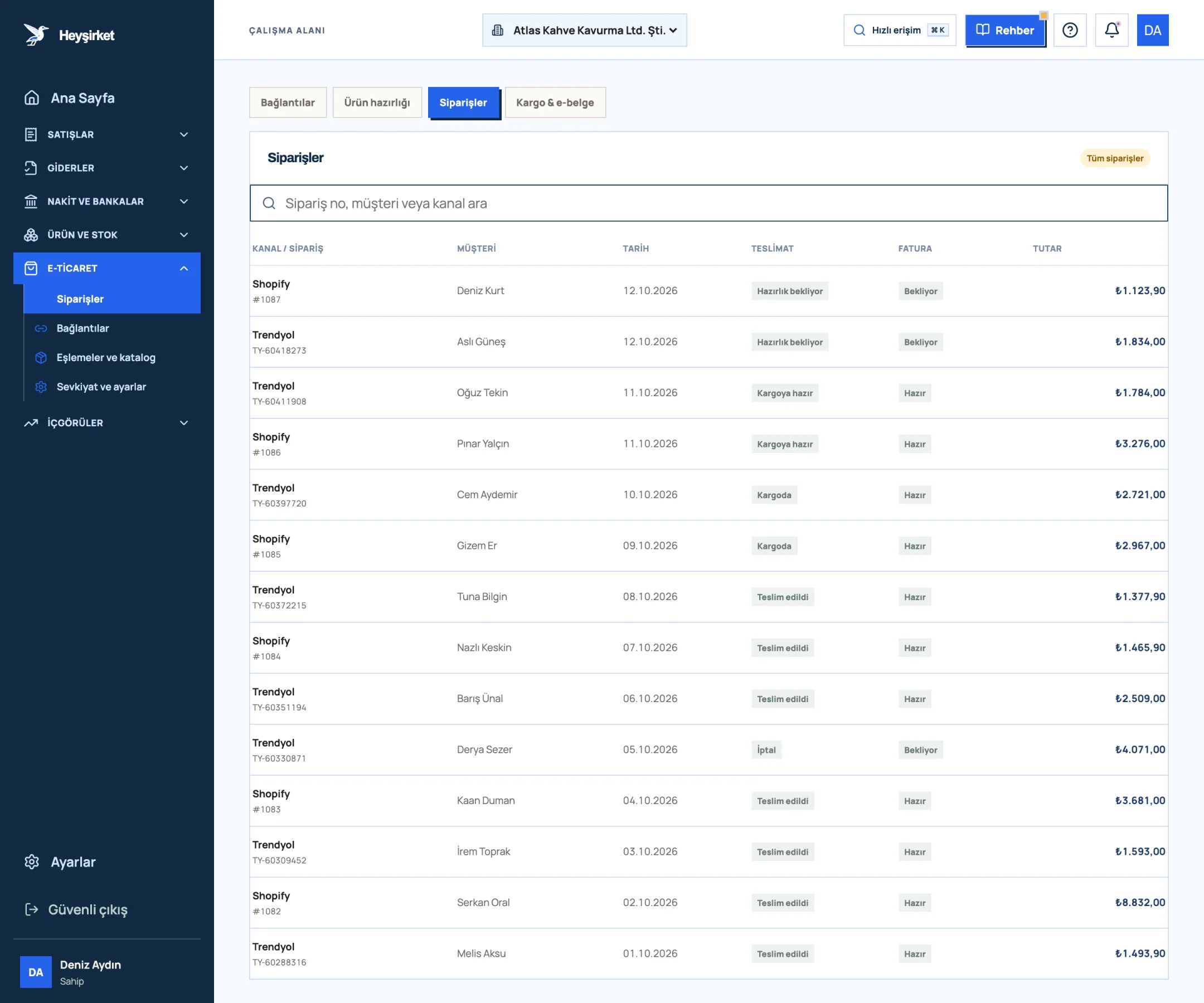
Open the order from the queue - 1. E-commerce tabs
- 2. Order search
- 3. New incoming Shopify order
- 4. Trendyol order ready to ship
Approve an order awaiting approval
If the order status is New or Awaiting approval, press the Approve order button at the bottom. The order becomes Ready to ship and the document status changes to Ready.
Open the shipping details
On an order that's ready to ship, the Add shipping details section appears. Press the Add shipping details button.
Enter the tracking number
Fill in the Carrier (e.g. Yurtiçi Kargo), Tracking number * and, if you like, Tracking link fields. The save button stays disabled while the tracking number is empty.
Save as shipped
Press the Save as shipped button. The order becomes Shipped, and the carrier, tracking number and dispatch time are added to the Shipment activity section. If you provided a tracking link, you can open it with Open tracking.
Complete the delivery
When the package has been delivered, open the order again and press the Complete delivery button. The order becomes Completed, the delivery becomes Delivered, and it drops out of the queue.
Part 3 · Settings Where do I change channel settings?
Channel settings are the preferences that determine which data each connection brings into Heyşirket. You'll find them in the Scope to activate section of the Access details step, in the window opened with the Manage button on the channel card in the Connections tab.
| Option | What does it do? |
|---|---|
| Receive orders | Enables the Receive orders button on the channel card; on by default |
| Match catalog | Saves the catalog matching preference |
| Sync stock | Saves the stock sync preference |
| Create invoice suggestion | Saves the invoice suggestion preference for orders; doesn't issue a financial document |
After changing the preferences, verify the connection again. The full setup is described in the Marketplace connection guide.
Part 4 · Background The reasoning: shipping, invoices and delivery notes
When goods are shipped in Türkiye, either a delivery note (sevk irsaliyesi) or an invoice must travel with them. For online sales, a printout of the e-Arşiv (e-archive) invoice can travel with the goods; for B2B sales, a separate delivery note is often issued.
The tracking number has another benefit: when a customer says "my package hasn't arrived" or a marketplace queries a shipping deduction, you can show within seconds which package was handed to which carrier on which day. At month end, comparing the shipment count on the carrier's invoice with the orders you saved as shipped on this screen is also the fastest way to reconcile.
If you send wholesale coffee beans to cafés, you'll find the delivery note process in the How to issue a delivery note guide. For where shipping deductions fit in your accounting, take a look at our Accounting for marketplace sellers article.
Why can't I see the Complete delivery button?
This button only appears on orders saved as shipped. First enter the tracking number and click Save as shipped.
How many orders appear in the queue?
The queue shows 50 orders per page; if there are more, navigate with the Previous and Next buttons at the bottom.
Who can enter shipping details?
The Approve order, Add shipping details and Complete delivery actions are available to users with administrator permission.
Are shipping details sent back to the channel?
No. The tracking details you enter on this screen are saved within Heyşirket. Complete the shipping steps in the channel's own panel separately.
Open the queue Process your orders awaiting approval, shipping and delivery in a single list. Open shipping queue
Author: Heyşirket Editorial Team