E-commerce · 7 min read · Updated:
E-commerce orders: track orders from every channel in one list
Orders from Trendyol, your own store or Shopify, all in the same list. This guide covers importing, reading and confirming orders.
In short
- The Orders tab shows orders imported from all connected channels in a single table, with channel, customer, date, delivery, invoice status and amount.
- Orders are imported with the Import orders button on the channel card in the Connections screen; importing the same order again doesn't create a duplicate, it updates the record.
- Confirming an order moves it to Ready to ship and sets its invoice status to Ready.
- Even when the invoice status is Ready, no financial document is issued automatically; the sales invoice is issued from the Invoices screen.
On Monday morning, Atlas Kahve's weekend sales are waiting in three different places: on Trendyol, in the WooCommerce store and on the Shopify storefront for international customers. The Orders screen brings these three lists down to a single table.
This is where you find an order, read its details and confirm it. The shipping and document steps start here too.
Part 1 · Tour What's on the Orders screen?
The Orders screen is the workspace that lists every order imported from your connected sales channels. Open it with Orders under E-commerce in the left menu.
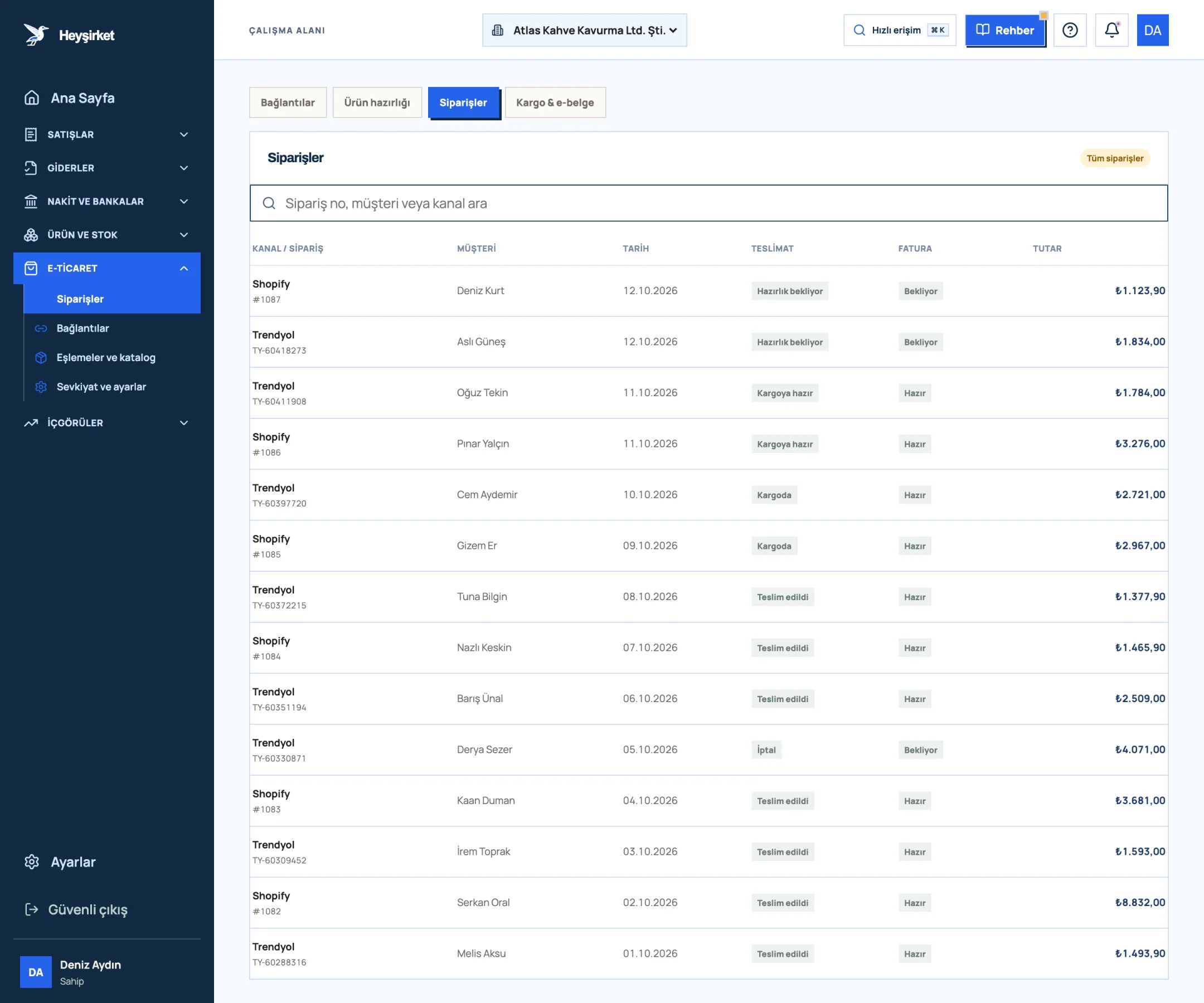
- 1. E-commerce tabs
- 2. Order search
- 3. New incoming Shopify order
- 4. Trendyol order ready to ship
- Summary boxes: New orders, Ready to ship, Awaiting invoice and Active connections. Below the Active connections box, the number of connections awaiting verification is also shown.
- Tabs: Connections, Product prep, Orders and Shipping & e-documents.
- Search box: searches by order number, customer name or channel name.
- Table columns: Channel / order, Customer, Date, Delivery, Invoice and Amount.
- Pagination: 50 orders per page; move between pages with Previous and Next.
Part 2 · Importing How do orders get into Heyşirket?
Orders are imported with the Import orders button on the channel card in the Connections screen. This button appears on Trendyol, WooCommerce and Shopify cards whose connection is Active and where the Import orders option was left on during setup.
| Channel | Orders read |
|---|---|
| Trendyol | Up to 50 order packages updated in the last 30 days |
| WooCommerce | The 50 most recent orders |
| Shopify | The 50 most recent orders |
When the import finishes, the screen tells you how many orders were checked, how many are new and how many were updated, and takes you to the Orders tab automatically. Importing the same order again doesn't create a duplicate; the existing record is updated to its latest state on the channel.
Part 3 · In practice Step by step: processing an order
Processing an order step by step
Import the orders
On the Connections tab, press the Import orders button on the channel card. When the import finishes, you're taken to the Orders tab.
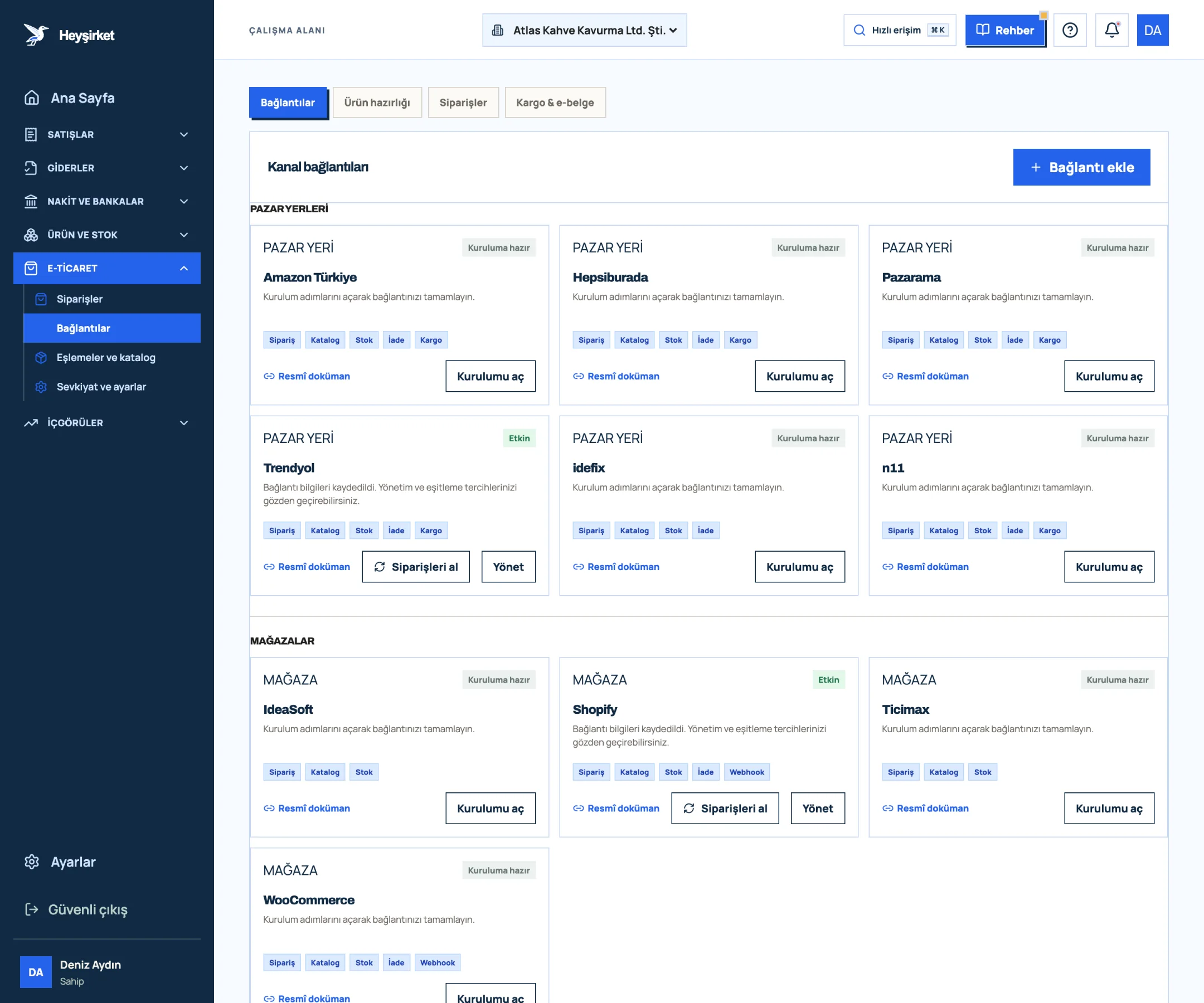
Import the orders - 1. Add connection
- 2. Active Trendyol connection
- 3. Fetch orders button
- 4. Active Shopify store
Find the order
Type the order number, customer name or channel name in the search box. For example, typing Moda filters the list down to Moda Sahil Kafe's order.
Find the order - 1. E-commerce tabs
- 2. Order search
- 3. New incoming Shopify order
- 4. Trendyol order ready to ship
Open the details
Click the row. At the top of the window that opens are the Order status, Delivery, Invoice status and Grand total.
Check the customer, address and amount
Read the Customer, Delivery address and Amount summary sections. The amount summary shows the Subtotal, Shipping, Discount (if any) and Total lines; the Products section shows the stock code and quantity of each line.
Confirm the order
If the status is New or Awaiting confirmation, press the Confirm order button. The order becomes Ready to ship and its invoice status changes to Ready.
Issue the invoice
For an order whose invoice status is Ready, issue the sales invoice from the Invoices screen with New invoice. Details are in the How to issue an invoice guide.
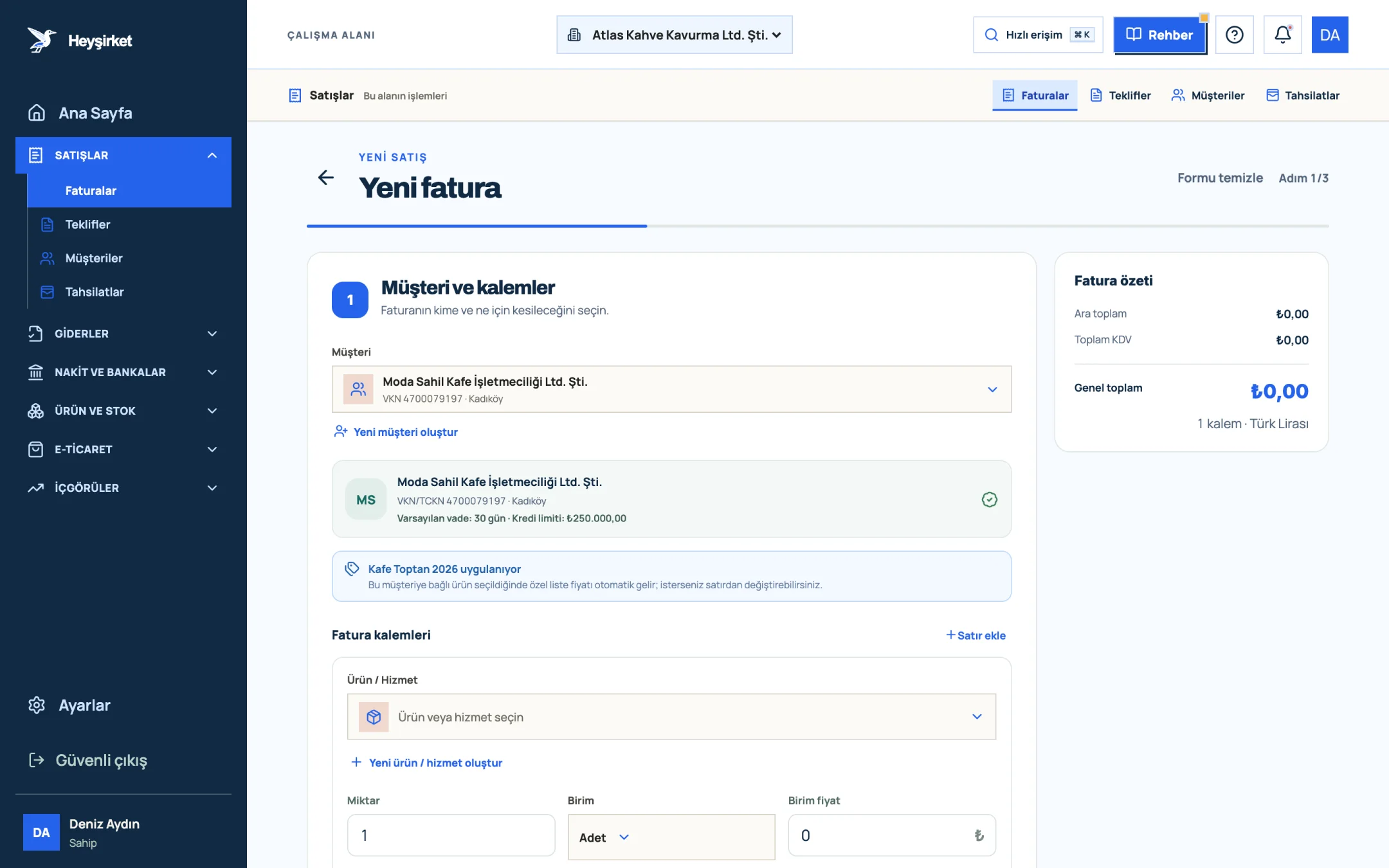
Issue the invoice - 1. Selected customer
- 2. Customer card summary (tax ID, payment terms, credit limit)
- 3. Customer price list info
Part 4 · Glossary What do the order statuses mean?
The order status is a label that shows where the order is in the sales process. The status coming from the channel is translated into Heyşirket's simple labels during import.
| Label | Meaning | Next step |
|---|---|---|
| New / Awaiting confirmation | The order has arrived and hasn't been checked yet | Confirm order |
| Confirmed | The order has been accepted | Prepare for shipping |
| Ready to ship | The package is ready; a tracking number is pending | Add shipping details |
| Shipped | The tracking number has been saved | Complete delivery |
| Completed / Delivered | The process is closed | Collection and reconciliation |
| Cancelled | Cancelled or returned on the channel | Correct the document, if there is one |
The shipping and delivery steps are gathered in a separate queue. We cover that in the next guide, Shipping settings.
Part 5 · Background The reasoning: why are orders and invoices separate?
An order is a commitment; an invoice is a tax document. If an invoice was issued for an order that later gets cancelled, a cancellation or return process is needed, which means extra work and a KDV (VAT) correction.
That's why Heyşirket moves an order to confirmation first, then to invoicing. You check first, then issue the document. You can find out how to record marketplace commissions and shipping deductions in our Accounting for marketplace sellers article.
Who can confirm orders?
The Confirm order, Add shipping details and Complete delivery buttons are only visible to users with admin permissions. Other users can view orders and their details.
Why can't I see the Import orders button?
The button only appears on Trendyol, WooCommerce and Shopify cards, when the connection is Active and the Import orders option was turned on during setup. Open the card with Manage and check the option.
If I import the same order twice, will I get a duplicate record?
No. The order is matched by its ID on the channel; the second import doesn't create a new record, it updates the existing one.
What happens in Heyşirket to an order cancelled on the channel?
On the next import, the order's status is updated to Cancelled. If you've already issued an invoice, you need to issue the cancellation or return document separately.
Open your orders See the orders from your connected channels in one list, check them and confirm them. Open orders
Author: Heyşirket Editorial Team