Customer accounts · 9 min read · Updated:
How to add a customer: a complete account card with tax ID, terms and credit limit
A correctly set up customer card means the invoice is issued right the first time and payments are tracked on time. With this guide you'll create a complete customer card in two minutes.

In short
- A new customer is created with the New customer button on the Customers screen; the only required field is Company name / Full name.
- Enter a 10-digit VKN (tax ID) for companies or an 11-digit TCKN (Turkish ID number) for individuals; whether an e-Fatura or e-Arşiv invoice is issued is decided automatically by a registration check when the invoice is sent.
- The Default payment term (days) fills in the due date of new invoices automatically; when the Credit limit (₺) is exceeded, the invoice isn't issued.
- Contacts are added from the customer workspace, and one of them can be marked as Primary.
Atlas Kahve Kavurma's sales lead is about to ship Moda Sahil Kafe its first 20-kilo order of coffee beans. Before issuing the invoice, they need just one thing: a correctly set up customer card.
That's exactly what this screen solves. The card you create here shows up with the same details on invoices, statements, collections and reports. Enter it correctly once and you won't have to think about it again.
Part 1 · Tour What's on the Customers screen?
The Customers screen lists all of your company's cari (customer account) cards in a card view. You open it from Customers in the left menu, and each card shows the company name, VKN/TCKN, province and district, payment terms and current account balance.
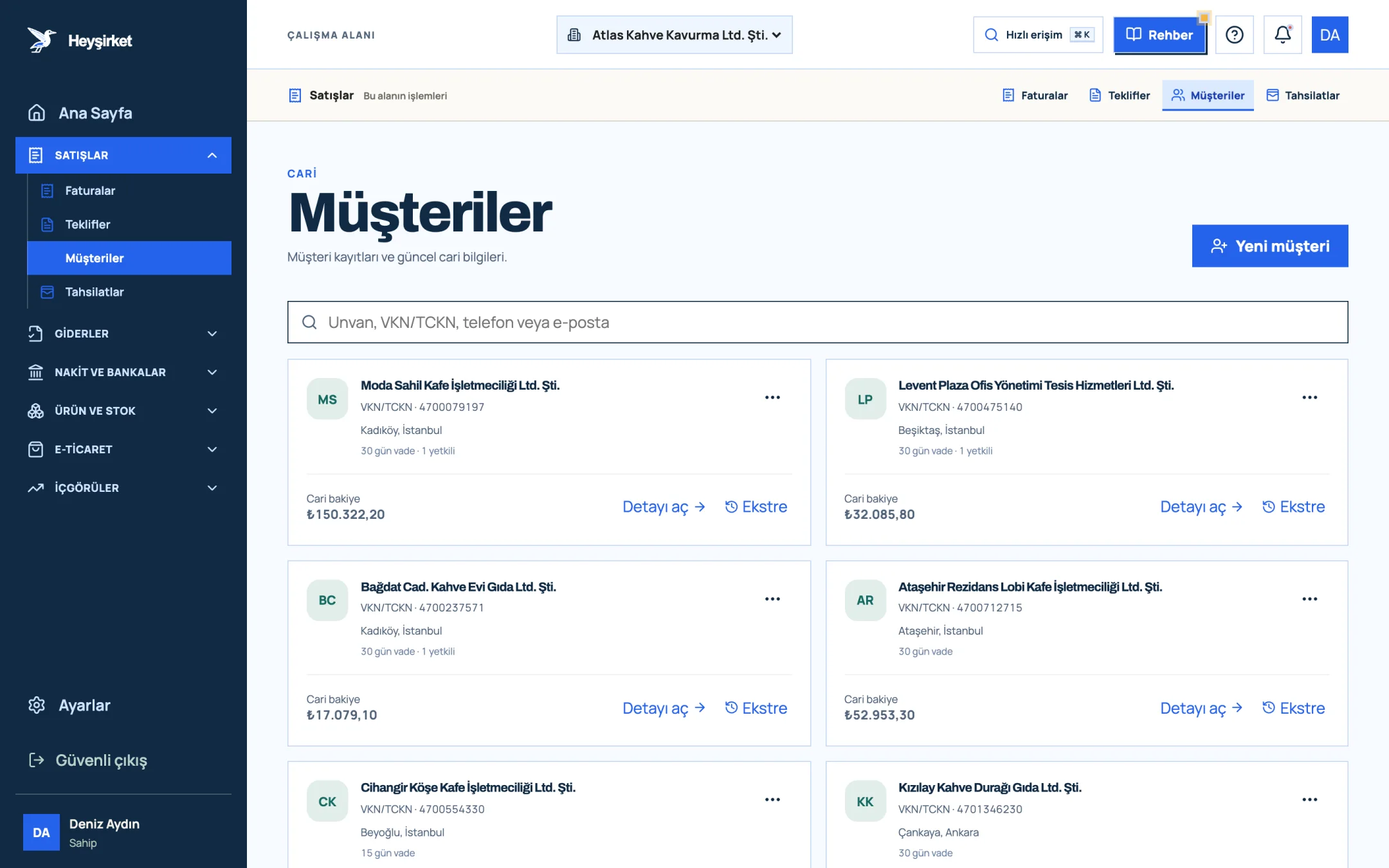
- 1. New customer button
- 2. Customer search
- 3. Customer card: account balance and payment terms
- 4. Statement link
- Search box: Searches by "Company name, VKN/TCKN, phone or email". The list narrows as you type.
- Customer card: A badge with the company's initials, the VKN/TCKN line, province and district, and a "30-day terms" or "Cash" label. If you've added contacts, a note such as "2 contacts" also appears.
- Account balance: The customer's current balance owed to you.
- Open details: Takes you to the customer's account workspace, where all documents, collections and contacts live.
- Statement: Opens a window showing invoices and collections in date order with a running balance.
- Three-dot menu: For editing the card or removing the customer from the list with Deactivate.
When the list gets busy, 48 cards are shown per page; you move between pages with Previous and Next at the bottom. Now let's get to the main task.
Part 2 · In practice Step by step: how do you add a new customer?
Adding a new customer means filling in the identity, address and commercial preference fields in the New customer window and clicking Save customer. Follow the order below and the card will be ready for its first invoice.
Creating a customer card step by step
Open the New customer window
Go to the Customers page from the left menu and click the New customer button at the top right. A window titled "Account details used on invoices" opens.
Open the New customer window - 1. New customer button
- 2. Customer search
- 3. Customer card: account balance and payment terms
- 4. Statement link
Enter the company name
In the Company name / Full name * field, enter the customer's full legal name exactly as it appears on their tax certificate (vergi levhası), e.g. "Moda Sahil Kafe Gıda Turizm Ltd. Şti.". This is the only required field and must be at least 2 characters.
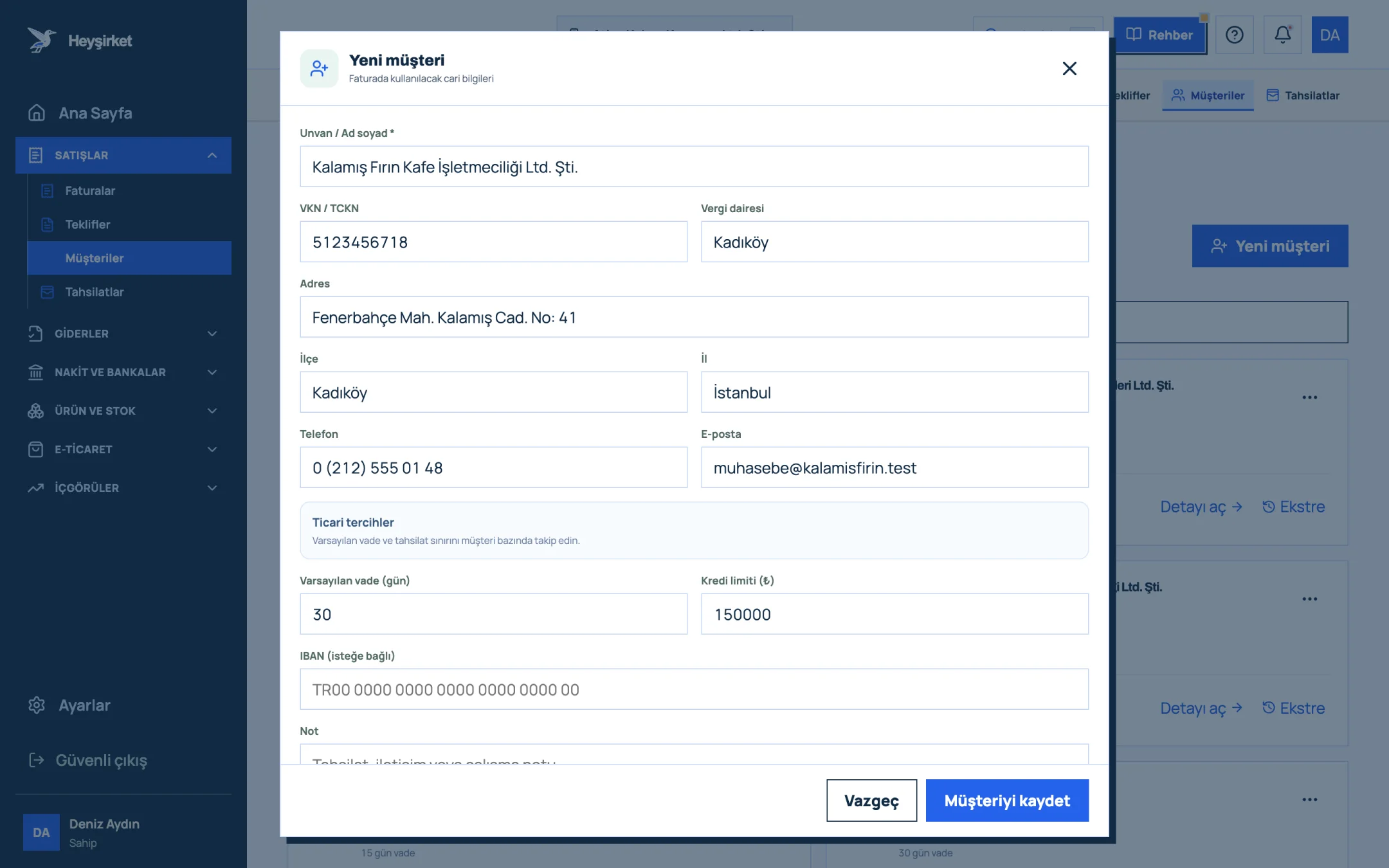
Enter the company name - 1. Company name field
- 2. Tax ID / national ID and tax office
- 3. Payment terms and credit limit
- 4. Save button
Enter the VKN or TCKN and tax office
In the VKN / TCKN field, enter the 10-digit tax ID number for companies, or the 11-digit Turkish ID number for sole proprietorships and individuals. The field accepts digits only. Then fill in the Tax office field.
Enter the VKN or TCKN and tax office - 1. Company name field
- 2. Tax ID / national ID and tax office
- 3. Payment terms and credit limit
- 4. Save button
Add address and contact details
Fill in the Address, District and Province fields; these details appear on the invoice. If you enter a Phone and Email, invoices and reminders can be sent directly to that address.
Add address and contact details - 1. Company name field
- 2. Tax ID / national ID and tax office
- 3. Payment terms and credit limit
- 4. Save button
Set commercial preferences
In the "Commercial preferences" section, enter the payment term you agreed on in Default payment term (days) (e.g. 30). If you leave Credit limit (₺) empty there's no limit; if you enter an amount, invoices that exceed it won't be issued. You can also fill in IBAN (optional) and Note if you like.
Set commercial preferences - 1. Company name field
- 2. Tax ID / national ID and tax office
- 3. Payment terms and credit limit
- 4. Save button
Save and check the card
Press the Save customer button. The new card appears in the list; use Open details to go to the workspace, where you can add the purchasing contact via Add contact.
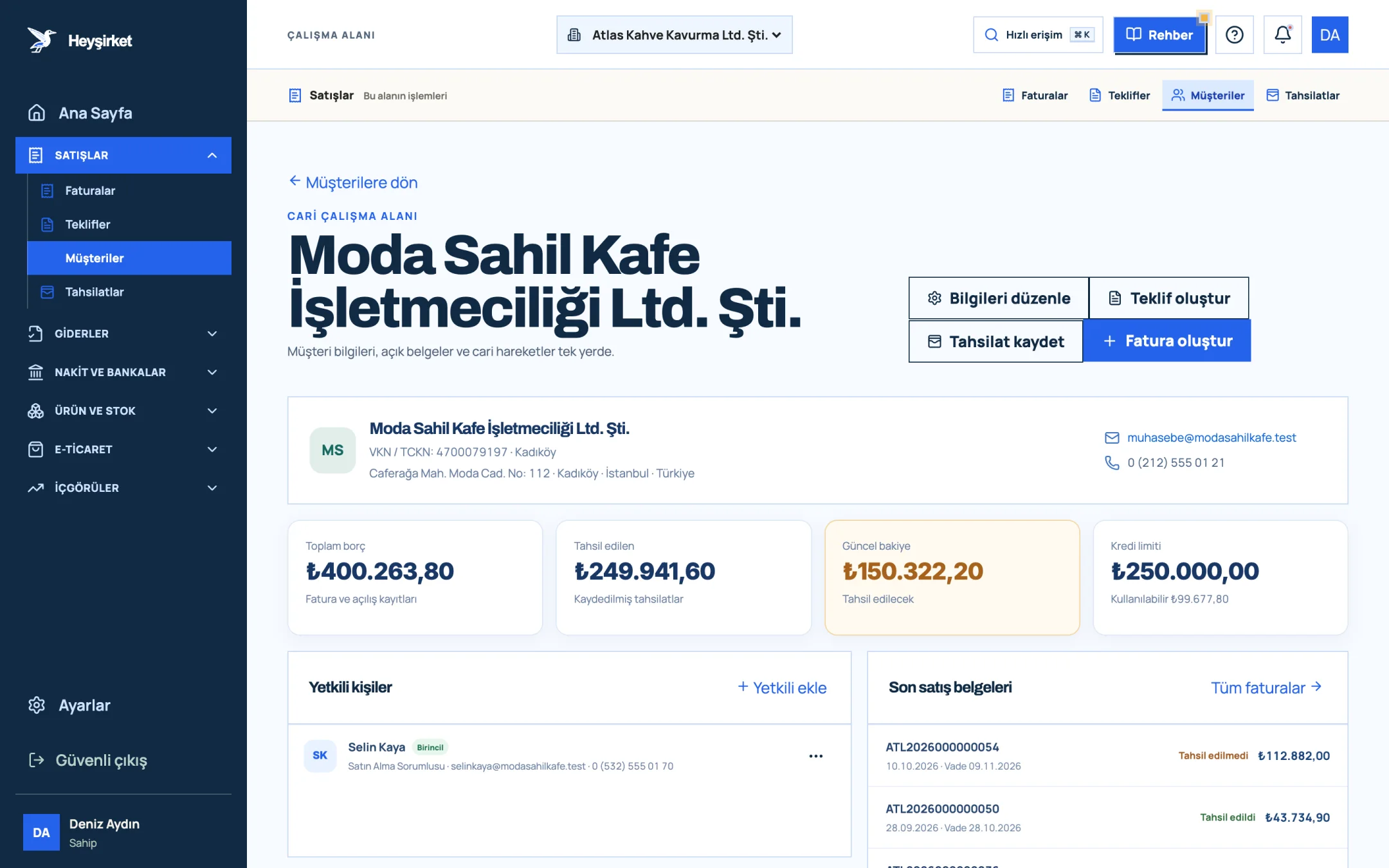
Save and check the card - 1. Quick actions (Create invoice, Record collection)
- 2. Current balance
- 3. Credit limit
- 4. Recent sales documents
Part 3 · e-Documents How do I know whether a customer is registered for e-Fatura?
e-Fatura registration shows whether the recipient is registered as an e-Fatura (Turkish e-invoice) user in the GİB (Turkish Revenue Administration) system; based on this, they receive either an e-Fatura or an e-Arşiv (e-archive) invoice. In Heyşirket you don't select this manually on the customer card.
The moment the invoice is sent, a registration check is run for the VKN/TCKN you entered: if the recipient is registered, the document is issued as an e-Fatura; if not, as an e-Arşiv invoice. That's why a correct VKN/TCKN is the only requirement for the correct document type. If you're curious about the differences, take a look at our article on the difference between e-Fatura and e-Arşiv.
| Customer type | Number to enter | Digits |
|---|---|---|
| Limited / joint-stock company | Tax ID number (VKN) | 10 |
| Sole proprietorship | The owner's Turkish ID number (TCKN) | 11 |
| Individual consumer | Turkish ID number (TCKN) | 11 |
Part 4 · Know-how The reasoning: why should terms and limits live on the card?
The customer card is the system's record of the commercial agreement you have with a customer. When you put the payment term and limit on the card, the rule is tied to the system rather than to a person.
When Default payment term (days) is filled in, the due date is calculated automatically as soon as you select the customer on a new invoice. That way nobody has to memorize that Nişantaşı Bistro gets 30 days and Karaköy Pera Otel gets 45.
The Credit limit (₺), meanwhile, is the ceiling on your risk. If the open balance plus the new invoice total exceeds the limit, the invoice isn't issued and the available limit is shown on screen. Giving a new customer a low limit in the first months and raising it as you see how they pay is the first step of a healthy receivables policy.
Which fields are required when adding a customer?
Only Company name / Full name is required to save the record. However, to issue an official invoice you also need the VKN / TCKN, Tax office, Address, District and Province; if any are missing, you'll be asked to complete them at the invoicing stage.
Do I need to mark separately that a customer is registered for e-Fatura?
No. When the invoice is sent, a registration check is run for the VKN/TCKN you entered and the document type (e-Fatura or e-Arşiv) is determined automatically.
Can I delete a customer?
Open the edit window from the three-dot menu on the customer card and use the Deactivate button. The record is removed from the list; past invoices aren't affected.
Can I add more than one contact to a customer?
Yes. Go to the workspace with Open details and use the Add contact link in the Contacts panel. You can mark one of them as the Primary contact.
Add your first customer now Open the Customers screen, click the New customer button and complete the card in two minutes. Open customers
Author: Heyşirket Editorial Team