Tax and VAT · 9 min read · Updated:
VAT report: see the VAT you'll pay before the return is due
The KDV (VAT) return is due on the 28th, but the amount is set on the last day of the month. The VAT report shows the difference from your sales and expense documents in advance, so you can plan your cash around it.
In short
- The VAT report compares the output VAT on sales invoices issued in the selected period with the input VAT on your expense documents.
- Net VAT is output VAT minus input VAT; a positive result points to VAT payable, a negative one to VAT carried forward.
- The report is a pre-check tool; VAT carried forward from earlier periods, withholding (tevkifat) and exemptions are handled separately by your accountant on the return.
- As a rule, the VAT return is filed by the evening of the 28th of the month following the period, and the tax is paid within the same deadline.
- For input VAT to show in full, expense documents must be entered in the correct period together with their VAT amounts.
It's 27 October. A message arrives from your accountant (mali müşavir): "VAT payable this month is 38.400 TL." Your account holds 20 thousand. This scene almost never happens at businesses that track VAT during the month rather than at month end.
The VAT report shows you this amount before the month is over. In this guide we explain how to read the screen, what drives the figure up, and what to check before the return is filed.
Part 1 · Tour What's on this screen?
The VAT report is the screen that shows the VAT difference calculated from the sales and expense documents in the selected period. You open it with the Tax and VAT link under Insights in the side menu; the heading reads "VAT report".
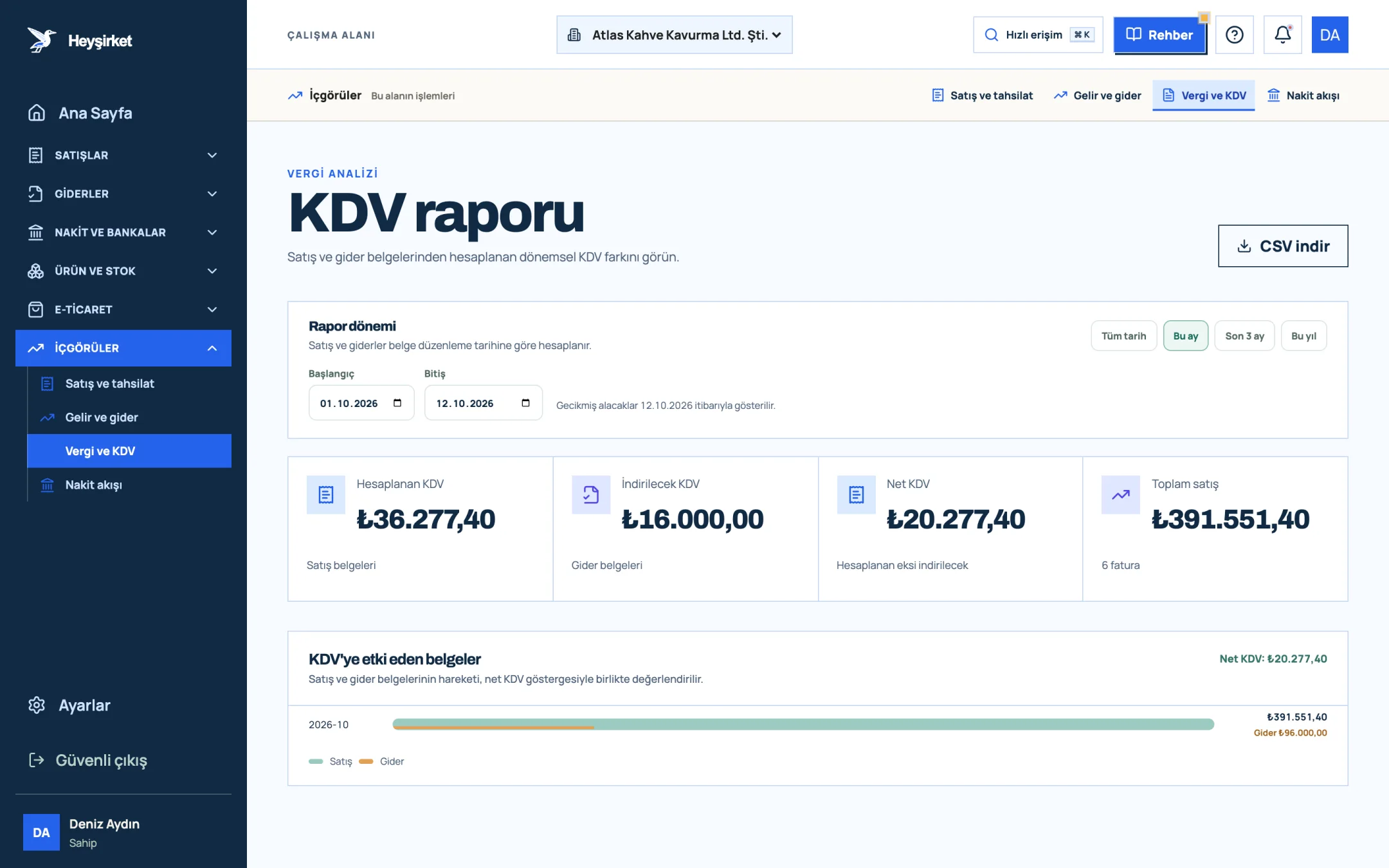
- 1. Output VAT
- 2. Deductible VAT
- 3. Net VAT
| Indicator | Source | Meaning |
|---|---|---|
| Output VAT | Sales documents | Total VAT you charged customers on the period's invoices (return invoices are deducted) |
| Input VAT | Expense documents | Total VAT you paid on expense documents entered in the period |
| Net VAT | Output minus input | If positive, VAT payable; if negative, the difference points to VAT carried forward |
| Total sales | Sales documents | Period sales including VAT; for comparing ratios |
The Documents affecting VAT chart below shows the sales and expense bars side by side for each month. If a month's Net VAT is unexpectedly high, it's usually because that month's expense bar came up short.
Part 2 · The math How is net VAT calculated?
Net VAT is the difference you get by subtracting the VAT you paid on purchases from the VAT you collected on sales. This difference is paid to the state; if it's negative, it carries forward to the next period.
| Product sales at 10%, 140.000 TL excl. VAT × 10% | 14.000 TL |
|---|---|
| Sales at 20%, 60.000 TL excl. VAT × 20% | 12.000 TL |
| Output VAT | 26.000 TL |
| Input VAT (green coffee, packaging, rent, energy documents) | 21.600 TL |
| Net VAT (26.000 − 21.600) | 4.400 TL |
The rates are examples; confirm the rate that applies to your product with your accountant. If there's VAT carried forward from an earlier period, it's deducted from this amount separately on the return; the report doesn't take carried-forward amounts into account.
Part 3 · Steps Pre-filing VAT check, step by step
Step by step: your monthly VAT pre-check
Open the report and choose the month
Click the Tax and VAT link in the Insights group. Enter the first and last day of the month you're filing for in the Start and End fields.
Open the report and choose the month - 1. Output VAT
- 2. Deductible VAT
- 3. Net VAT
Verify the output VAT
Filter the invoice list to the same month. Invoices left in Draft or Failed status are included in the report; either finalize them or cancel them. The report only excludes those in Cancelled status.
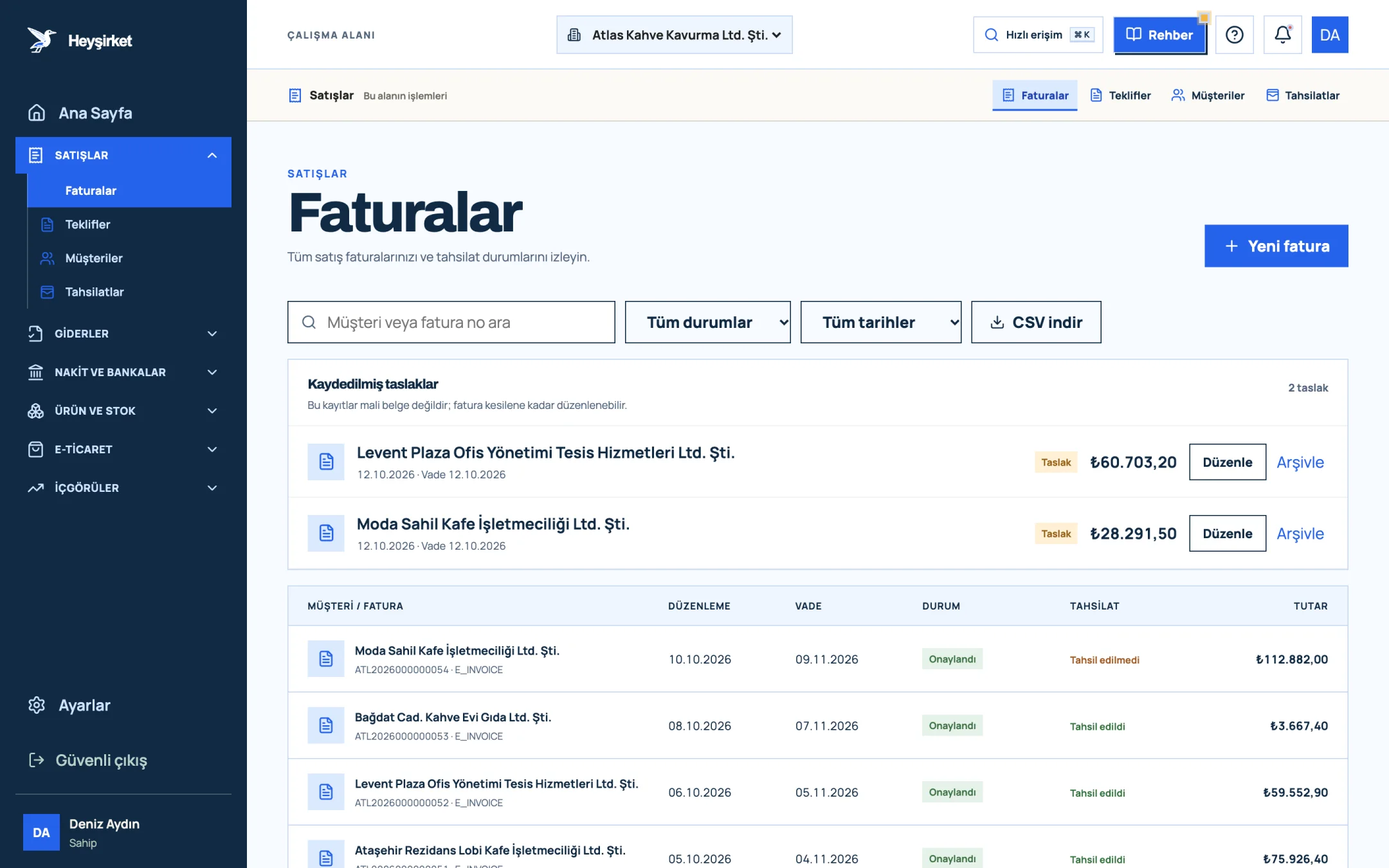
Verify the output VAT - 1. New invoice button
- 2. Search and filters
- 3. Collection status column
- 4. Saved invoice draft
Check incoming e-invoices
The e-Fatura (Turkish e-invoice) documents your suppliers issue to you appear on the Incoming e-Invoices screen. A document that hasn't been recorded as an expense isn't reflected in input VAT.
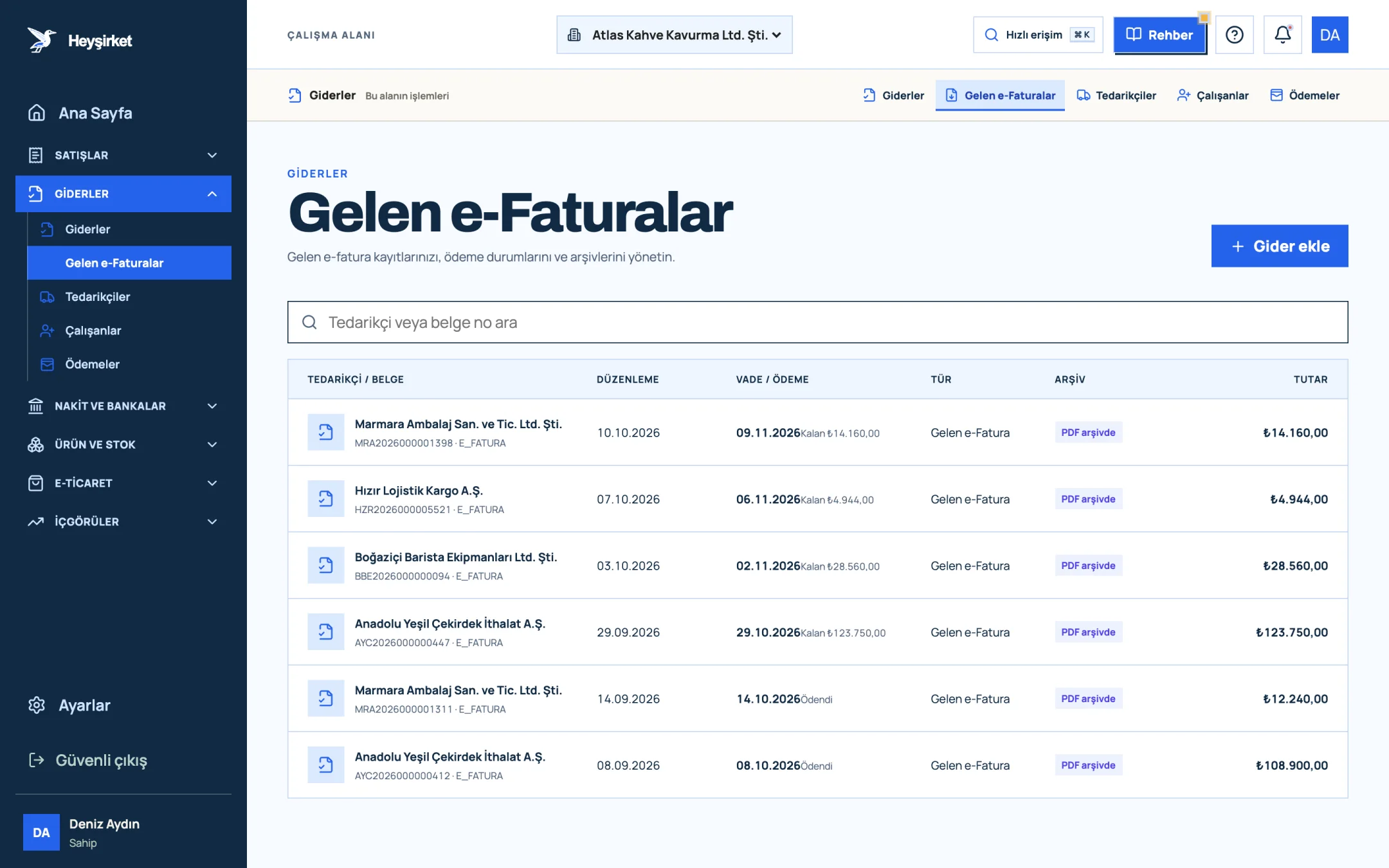
Check incoming e-invoices - 1. Incoming e-Faturas tab
- 2. Supplier and document number
- 3. Remaining payment amount
- 4. PDF archive status
Enter paper receipts and invoices
On the expense documents screen, use Add expense to enter paper documents with their VAT amount. Leave the document date as the date on the document; the report counts by document issue date.
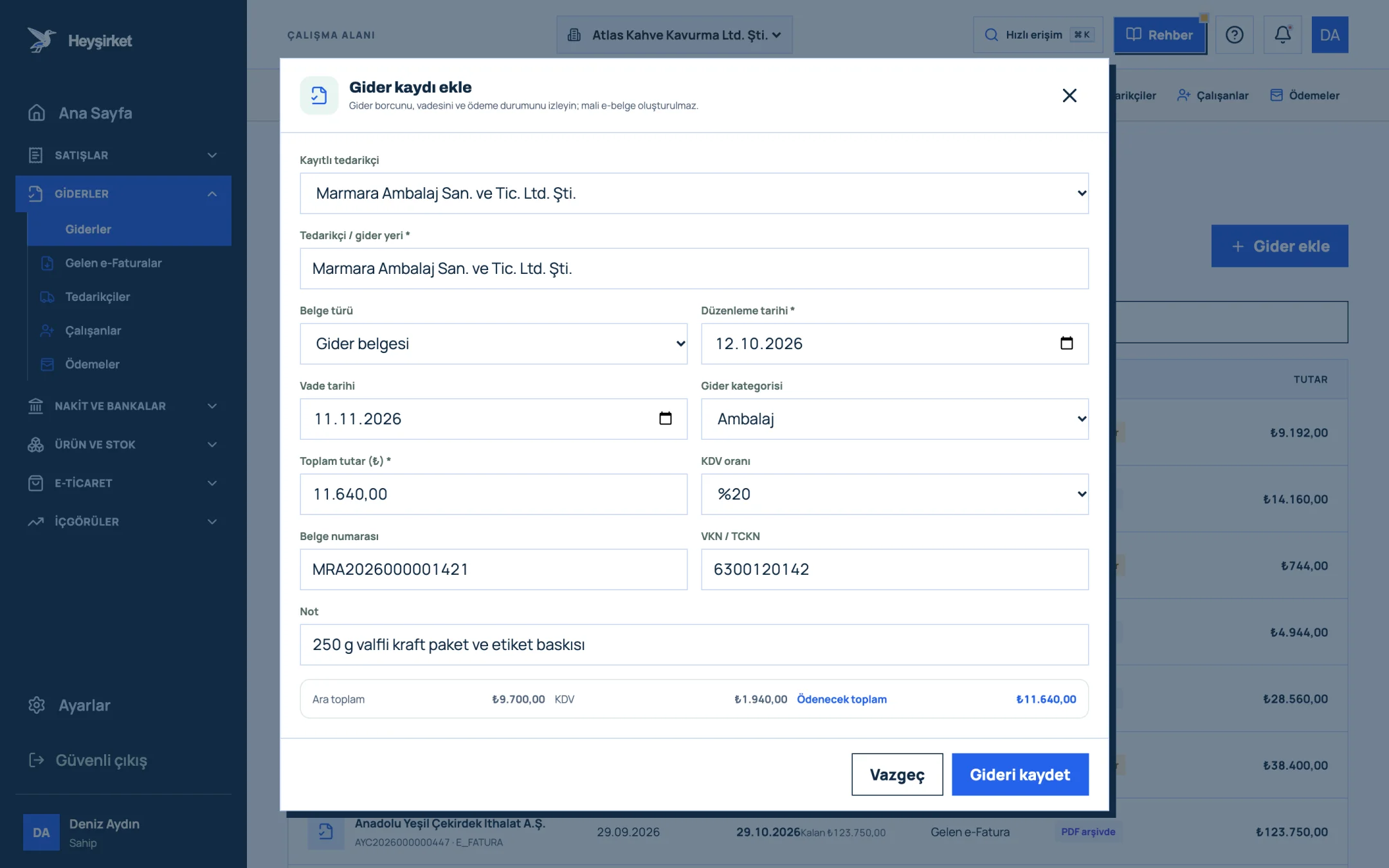
Enter paper receipts and invoices - 1. Supplier selection
- 2. Expense category
- 3. Amount and VAT rate
- 4. Subtotal, VAT and total payable
- 5. Save expense
Set the net VAT aside
If net VAT comes out positive, add that amount to your payment plan for the last week of the month. Check in the cash flow report whether enough balance will remain in your account until the 28th.
Send it to your accountant
Download the file with Download CSV at the top right; it includes the Net VAT row as well. Your accountant can compare it with their own records while preparing the return.
Three reasons net VAT grows unexpectedly
- Expense documents not entered: When month-end receipts and paper invoices aren't entered into the system, input VAT stays low.
- Documents entered in the wrong period: Entering a September invoice with an October date moves its VAT to the wrong month.
- Forgotten draft sales invoices: A draft invoice counts toward output VAT in the report unless it's cancelled.
At first glance, Atlas Kahve's September report showed net VAT of 8.100 TL. Once the packaging and shipping invoices sitting in a drawer were entered, the figure dropped to 4.400 TL. That difference alone shows the value of a month-end closing routine; all the steps are in our month-end closing checklist article.
Part 4 · Why The reasoning: VAT isn't your money
The VAT you collect on a sales invoice is the state's money, sitting in your account for a short while. A business that treats it as revenue and spends it runs into a cash crunch on the 28th.
On the deduction side, discipline matters. The VAT on a document that isn't recorded in the statutory books or isn't processed on time can be lost if the period for using the deduction right passes. Entering documents every week removes this risk. For the full picture, see our VAT guide.
Why is the amount in the VAT report different from the amount on the return?
The report only adds up the VAT on sales and expense documents entered in the portal. VAT carried forward from earlier periods, withholding, exemptions or documents not entered in the portal cause differences on the return.
Which date is used?
Sales invoices and expense documents are included in a period based on their document issue date.
How do return invoices affect VAT?
On the sales side, the VAT on return invoices is deducted from output VAT.
How often should I open the report?
Opening it once mid-month as a pre-check, and once more after the month closes and expense documents are complete, is enough. The net VAT from the second look is the closest to the figure you'll send your accountant.
What are the VAT rates?
The general VAT rates in Türkiye are 1%, 10% and 20%. Confirm with your accountant which rate applies to which goods or services.
Open the VAT report Select the current month and add the net VAT to your payment plan. Open report
Author: Heyşirket Editorial Team