Sales and invoicing · 9 min read · Updated:
Managing invoices: the list, filters, drafts and invoice details
The Invoices screen shows both the official status and the payment status of every document you issue on a single row. With the right filter, you can see in seconds which money is waiting where.
In short
- Every row on the Invoices screen carries two separate statuses: the e-document status (e.g. Approved, Rejected) and the payment status (Unpaid, Partially paid, Paid).
- The Overdue filter lists unpaid invoices whose due date is before today in one click.
- The Download CSV button exports every invoice that matches the filters you've applied at that moment.
- Saved drafts are not financial documents; use Edit to pick up where you left off, or Archive to remove them from the list.
- From the invoice details you can open the official PDF, email the invoice, send a payment reminder and quickly issue a recurring invoice with Create similar.
At the end of the month, the answer to “Who owes us how much?” is usually scattered across an Excel file, a few WhatsApp messages and someone's memory. The Invoices screen brings that answer together in one list.
In this guide we'll filter Atlas Kahve Kavurma's invoice list together: we'll find the overdue ones, resend an invoice to a customer and download the list as a CSV to pass on to the accountant.
Part 1 · Tour What's on this screen?
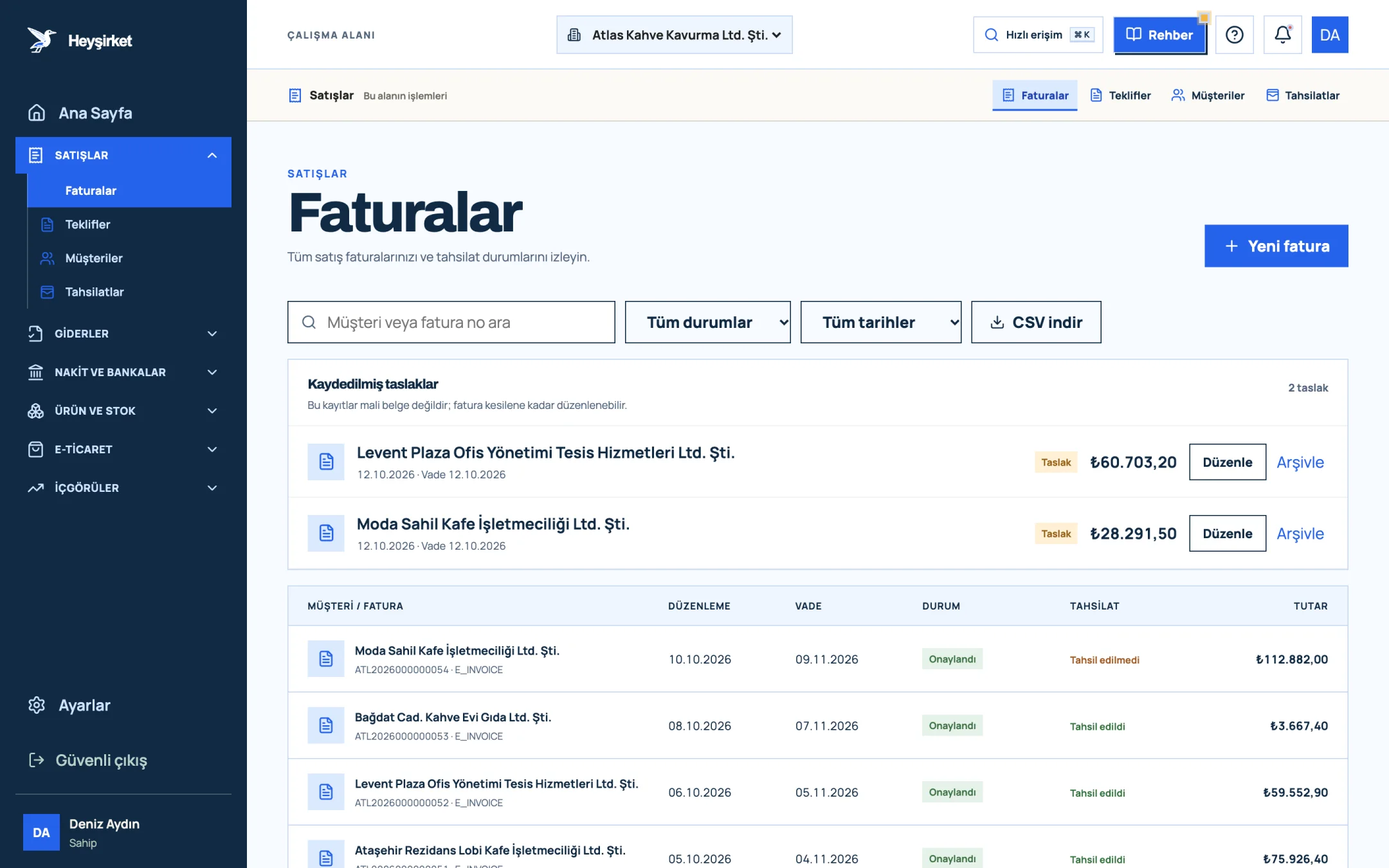
The Invoices screen lists all the sales invoices you've issued, along with their official and payment statuses. At the top there's a search box, two filter lists and a Download CSV button; the New invoice button is in the top right.
- 1. New invoice button
- 2. Search and filters
- 3. Collection status column
- 4. Saved invoice draft
The table has six columns: Customer / Invoice, Issue date, Due date, Status, Payment and Amount. The list shows 50 records per page; if there are more, Previous and Next buttons appear at the bottom.
If you have saved invoice drafts, a separate Saved drafts panel opens above the table. These records are not financial documents, and the panel says so clearly.
Part 2 · Labels What do the status and payment labels mean?
Every invoice row has two separate labels: Status shows the document's official status in the e-document system, and Payment shows how much of the money has come in. An invoice can be officially approved but not paid at all.
| Label | Type | Meaning |
|---|---|---|
| Draft | Status | A record that isn't official yet |
| Awaiting approval | Status | The document was sent and the result is pending |
| Approved | Status | The document was processed successfully in the e-document system |
| Finalized | Status | The document was officially completed |
| Rejected | Status | The recipient or the system rejected the document |
| Cancelled | Status | The document was cancelled |
| Failed | Status | An error occurred while sending; it needs checking |
| Unpaid | Payment | No payment has been recorded against the invoice |
| Partially paid | Payment | Part of the amount has been collected |
| Paid | Payment | The invoice is fully settled |
Part 3 · How to Step by step: filtering, sending and exporting invoices
Managing invoices means narrowing the list with the right filter and taking action from the relevant invoice's details. The flow below walks through the four most common tasks in order.
Step by step: working with the invoice list
Find the invoice you're looking for
Type “Nişantaşı” or part of the invoice number into the Search customer or invoice no. box. The list narrows as you type. When a filter is active, a summary line and a Clear filters link appear above the table.
Find the invoice you're looking for - 1. New invoice button
- 2. Search and filters
- 3. Collection status column
- 4. Saved invoice draft
Filter by status or payment
From the first filter list (All statuses), choose for example Unpaid or Rejected. The same list includes both e-document statuses and payment statuses.
List the overdue ones
From the second filter list (All dates), choose Overdue. This brings invoices that are past due and still open to the front. To see only this month's invoices, use the This month option.
Open the invoice details
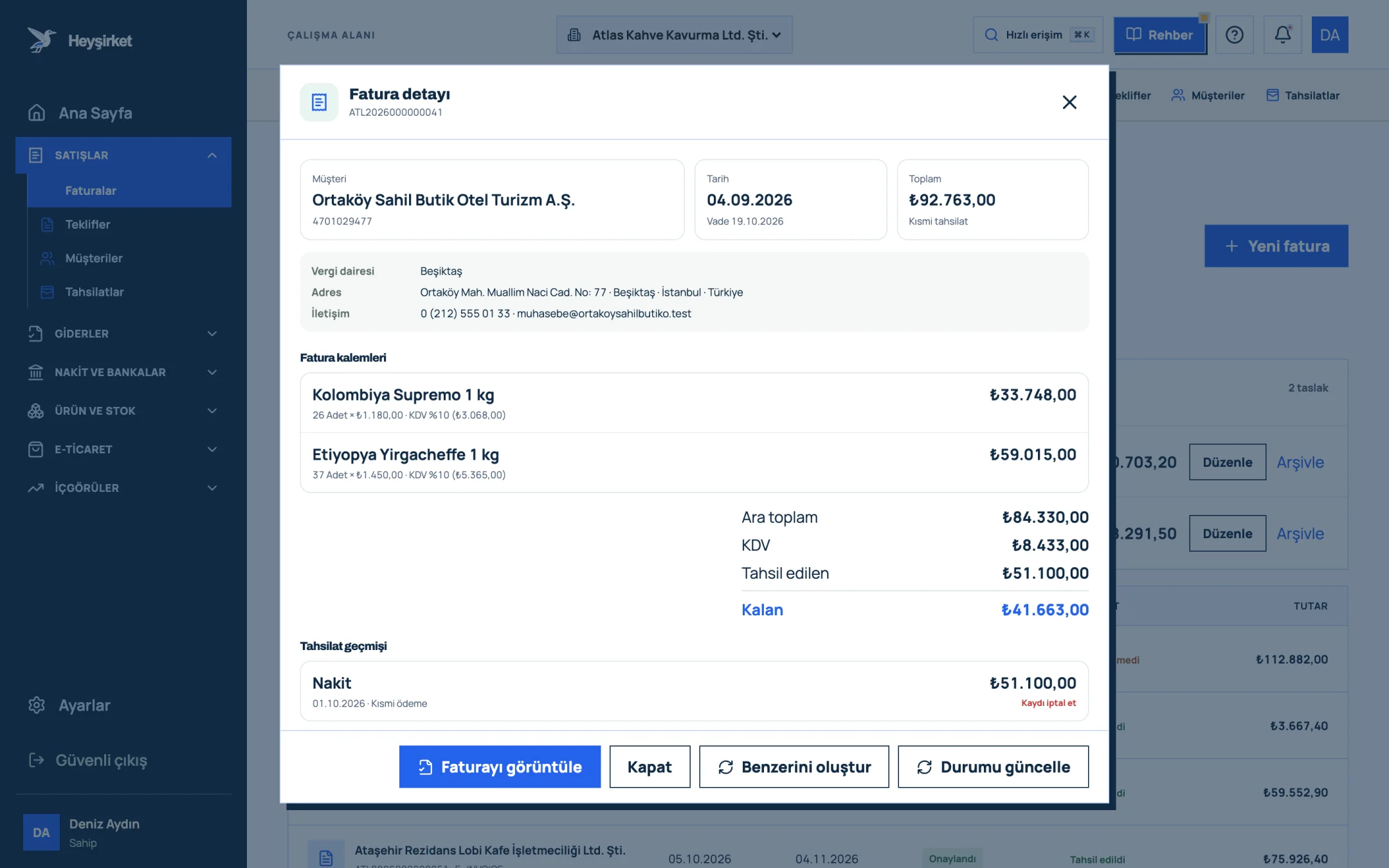
Click the row. The Invoice details window shows the customer, date, total, line items, the Collected and Remaining amounts, the payment history and the invoice history.
Open the invoice details - 1. Invoice details window
- 2. View invoice / PDF
- 3. Collected and remaining amount
- 4. Collection history
- 5. Update status
Send the invoice or a reminder
In the Share invoice by email section, check the customer's email and click Send invoice. If there's a remaining balance, a Send reminder button also appears; once you confirm, the customer gets a payment reminder.
Download the list as a CSV
Once your filters are set the way you want, click Download CSV. The file contains the Invoice No, Customer, Date, Due date, Status, Payment and Total (TL) columns and covers every record that matches your filters.
Part 4 · Details What else can you do in the invoice details?
The invoice details window brings together the full history and sharing options of a single invoice. The buttons at the bottom are:
- View invoice: Opens the official PDF created by the provider in a new tab. If the PDF hasn't been moved to the archive yet, the button reads Preparing PDF….
- Create similar: Opens a new invoice form with the same customer and line items; the dates are set to today. Ideal for maintenance, rent or subscription invoices you issue every month.
- Refresh status: Checks the latest status with your e-document provider.
- Close: Closes the window and returns to the list.
In the Payment history section, every payment linked to the invoice appears with its method and date. You can undo a payment entered by mistake with Cancel record; the invoice's remaining balance reopens. To record a new payment, see the payments guide.
Invoice history shows events in date order, such as when the document was created, when the official PDF was archived, whether emails were sent, and payment activity. When a customer says “we never got the invoice”, this is the first place to look.
Part 5 · Drafts How do I manage saved drafts?
A saved draft is an invoice record stored before it's issued, which you can edit at any time. Each draft row shows the customer, date, due date and amount; drafts left over from an interrupted send are marked with a Problem draft label and the last attempt's message.
The Edit button opens the draft in the new invoice form, so you can continue the invoicing steps where you left off. Remove a draft you no longer need from the list with Archive.
Part 6 · Background The logic: two statuses, two different questions
The official status answers “Is the document valid?”, and the payment status answers “Has the money arrived?”. Mixing the two up is the most common reason businesses look profitable on paper but find no cash in the till.
For e-Fatura (Turkish e-invoice) documents under the commercial scenario, the recipient has a limited time to accept or reject. That's why checking the Rejected filter once a week saves you from noticing a disputed invoice months later. The rules are explained in detail in our e-Fatura vs. e-Arşiv article.
Can I cancel an invoice from Heyşirket?
The Invoices screen has no button that creates a cancellation or return invoice. Cancelling an issued document is done in different ways depending on e-document regulations and the scenario; plan it with your accountant. Cancelled documents appear in the list with the Cancelled label.
Which invoices go into the CSV file?
The Download CSV button exports every invoice that matches the currently selected search and filters, without a page limit. To get all records, click the Clear filters link first.
A customer says they didn't receive the invoice. How do I check?
Open the invoice and look at the Invoice history section. It shows whether the email was sent, failed or prepared, along with the address. If needed, correct the address and resend it with Send invoice.
Can I issue recurring invoices automatically?
There's no automatic recurrence, but the Create similar button copies the customer and line items into a new form, so all you do is check and issue it.
Review your invoices Filter overdue invoices, send reminders and download the list as a CSV. Go to Invoices
Author: Heyşirket Editorial Team