Reports · 7 min read · Updated:
Payments report: your expense obligations and collections side by side
How much in expense obligations arose this month, how much did you collect, and what's the difference? The Payments report answers this with four indicators and a monthly chart.
In short
- The Payments report is a report view, opened from the Expenses › Payments row in the left menu, that compares expense obligations with collections.
- The report has four indicators: Expenses, Collected, Open receivables and Net movement (collections minus expenses).
- Sales and expenses are calculated by document issue date; the period is chosen with All time, This month, Last 3 months, This year or a custom date range.
- To see which individual expenses have been paid, check the due/payment column in the Expenses list and the payment history in the document details.
- The Download CSV button exports the report summary and the monthly sales, collections and expenses table to a file that opens in Excel.
Atlas Kahve had a good September in revenue, but at month end the bank account is weaker than expected. The reason is simple: the coffee bean supplier's large invoice arose this month, while the cafés' payments will arrive in October.
The Payments report makes exactly this situation visible: how much in obligations arose and how much was collected. In this guide you'll learn how to read the report and which screen to go to next.
Part 1 · Tour What's on this screen?
The Payments report is the report screen that compares the total of expense documents in the period you choose with collections and open receivables in the same period. Its heading is "Payments report" and its top label is "PAYMENT ANALYSIS".
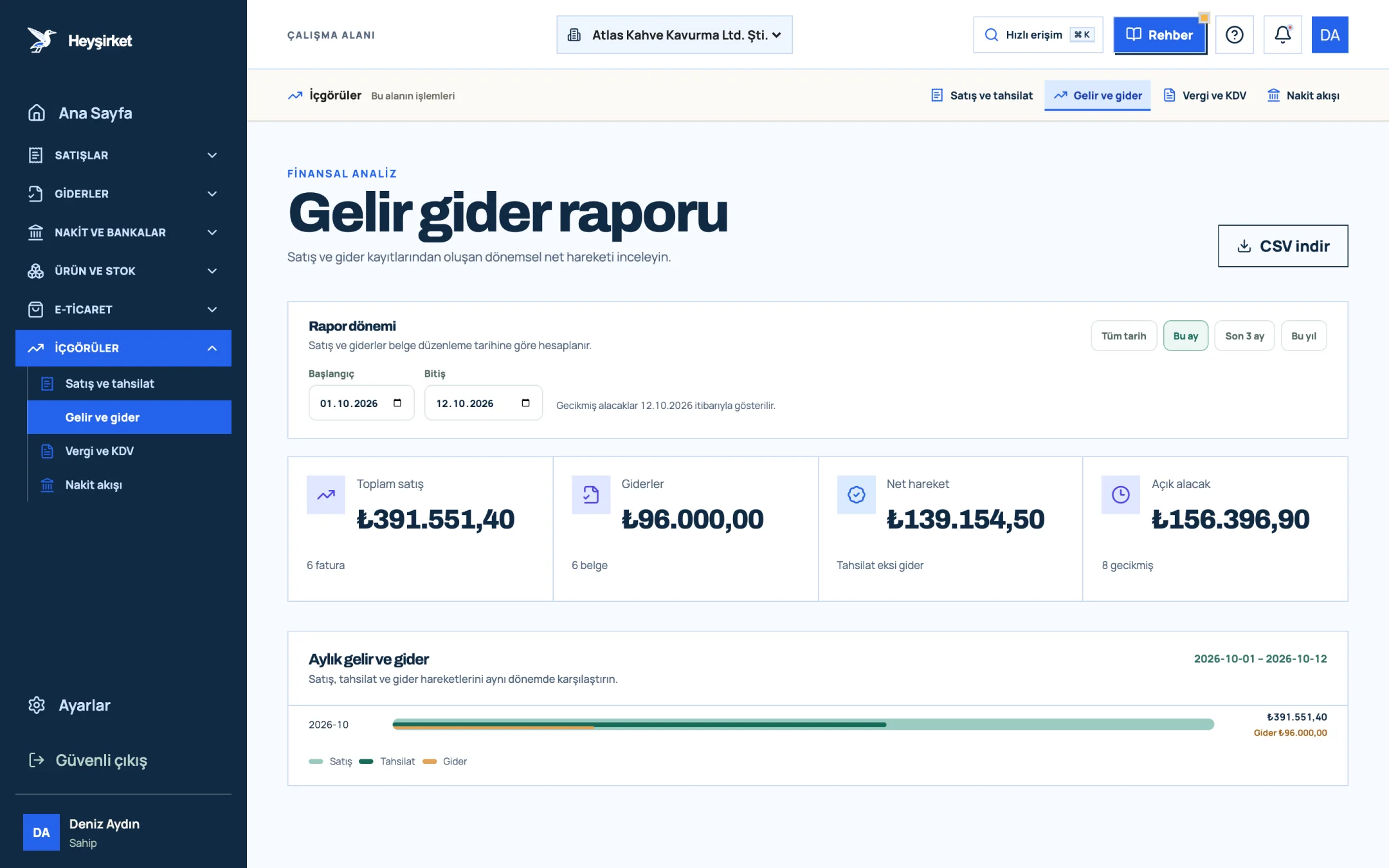
- 1. Total sales and expenses
- 2. Monthly income and expense chart
| Indicator | How is it calculated? |
|---|---|
| Expenses | Total including VAT and count of all expense documents issued in the period |
| Collected | Amount collected from sales invoices issued in the period |
| Open receivables | Sales amount not yet collected and the number of overdue documents |
| Net movement | Collected minus expenses |
The chart is titled "Payments and collections view"; for each month, collections and expense bars are drawn side by side, with the expense total on the right of the row. Now let's read the report step by step.
Part 2 · In practice Step by step: reading the Payments report
The order for using the report
Open the report
Click the Payments row in the Expenses group of the left menu. By default, the report shows the period from the start of this month to today.
Choose the period
In the "Report period" panel, press one of the All time, This month, Last 3 months or This year buttons; for a custom range, enter the Start and End dates.
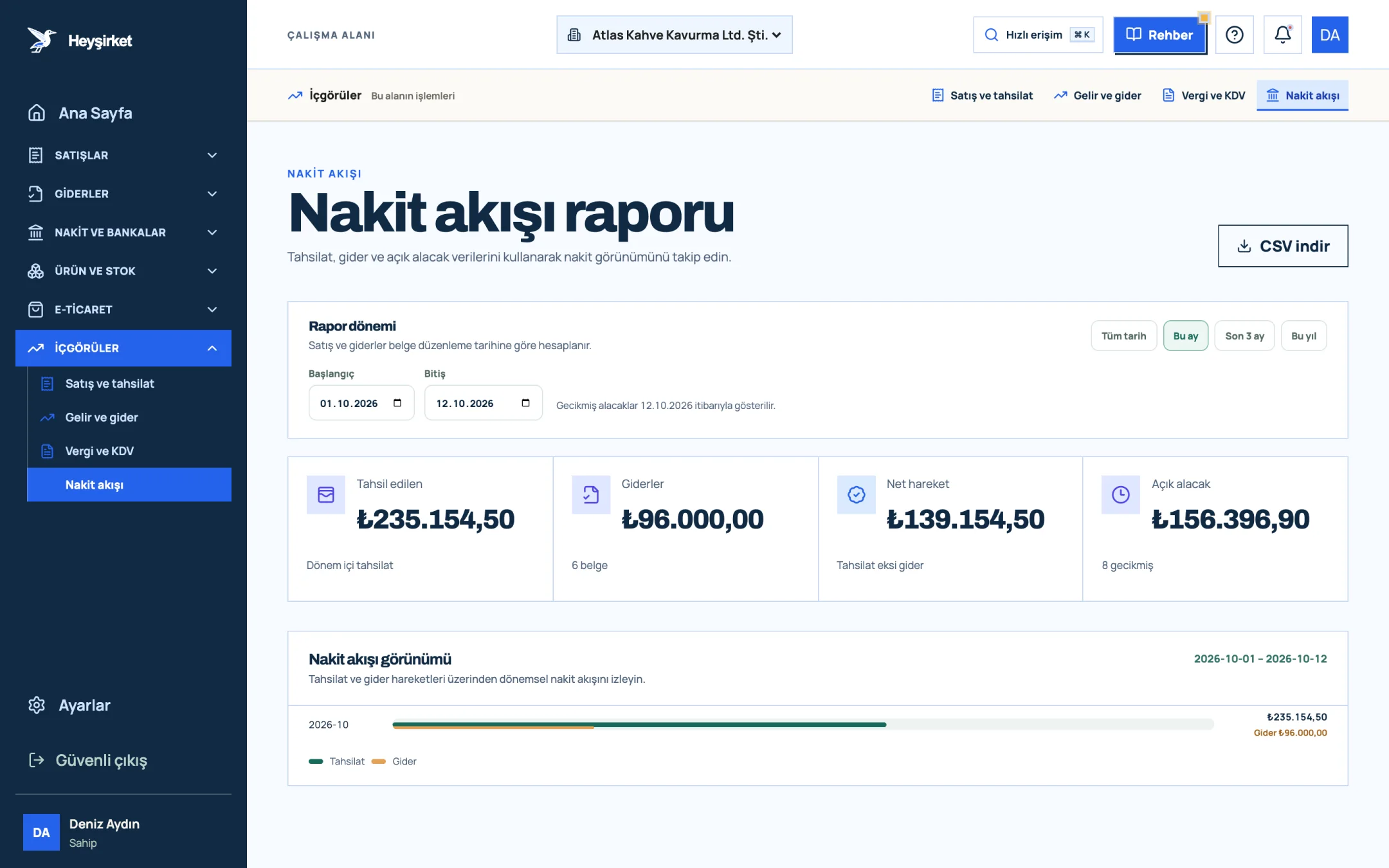
Choose the period - 1. Collected and expenses
- 2. Cash flow view
Interpret the net movement
If net movement is negative, more expense obligations arose in the period than you collected. The Open receivables card shows the expected money that could close this gap.
Compare the months
Mark the months in the chart where the collections bar is shorter than the expense bar; these are the months when a cash squeeze happened or will happen.
Drill down
To see which expense hasn't been paid, look at the "Due / payment" column in the Expenses list; open the document and record its payment with Add payment.
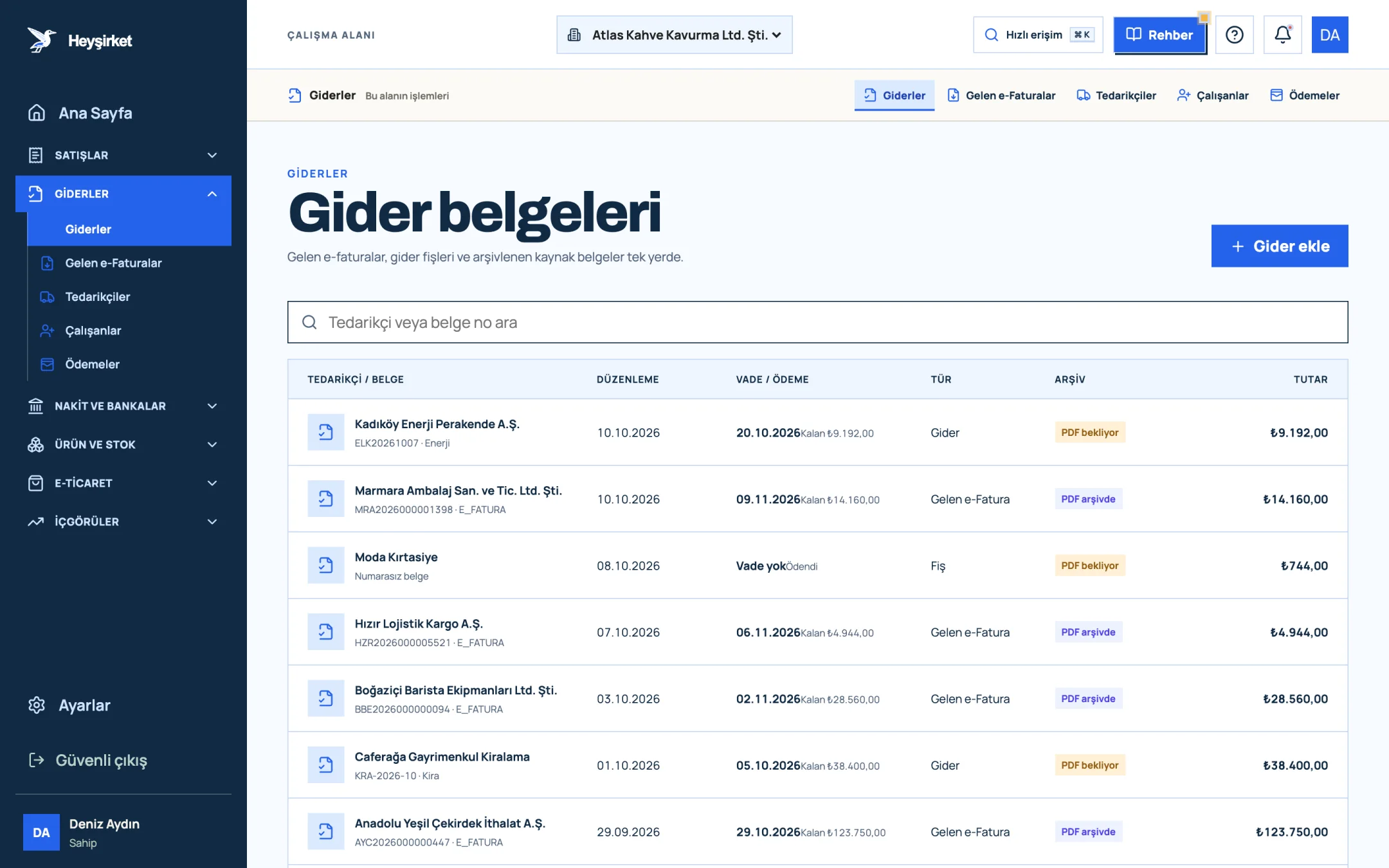
Drill down - 1. Add expense button
- 2. Due date and remaining payment
- 3. Document type (Expense, Incoming e-Fatura, Receipt)
- 4. Expense document row
Export
The Download CSV button at the top right downloads the period, the indicators and the monthly sales, collections and expenses table to a file that opens in Excel. You can send this file to your accountant (mali müşavir) or your business partner.
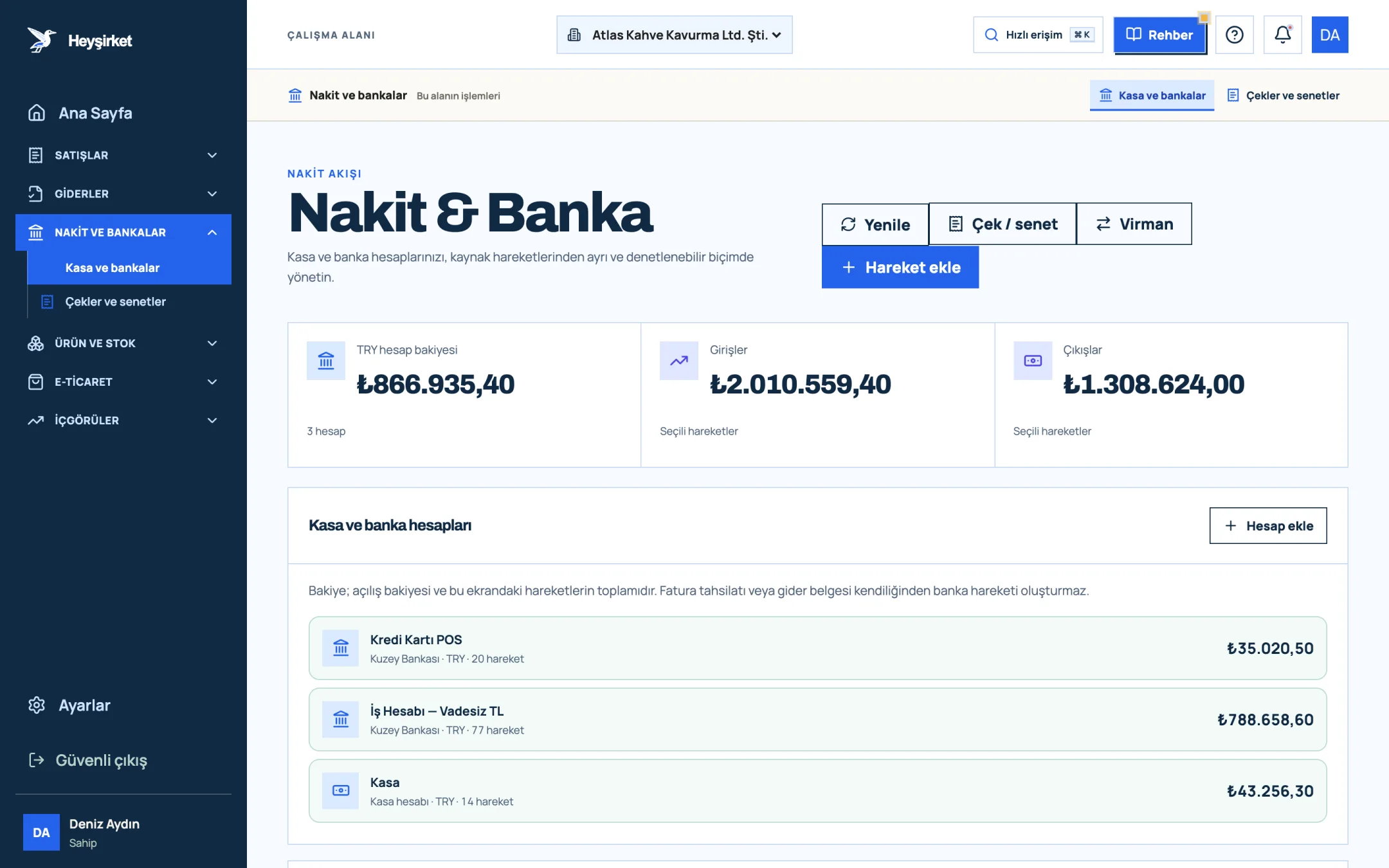
- 1. Add transaction button
- 2. Transfer between accounts
- 3. Total TRY balance
- 4. Cash and bank account list
Part 3 · Know-how The reasoning: obligations and cash are different things
An obligation is the debt to pay that arises the moment an invoice is issued; a cash outflow is the day that debt is actually paid. The time between the two is the payment term, and it's the most powerful financing tool small businesses have.
If you pay your supplier on 60-day terms while collecting from your customer in 30 days, your business runs on the supplier's money for the 30 days in between. If it's the other way round, cash gets tighter as you grow. The Payments report shows this balance monthly; for forward-looking forecasts, continue with the Cash flow report and our cash flow management article.
| Question | Where to look |
|---|---|
| How much in expense obligations arose this month? | Payments report › Expenses card |
| Which invoices are still unpaid? | Expenses list › Due / payment column |
| How much do I owe a supplier in total? | Suppliers › Supplier balances and Statement |
| What actually left the bank this month? | Cash and bank accounts › account transactions |
| Will cash be enough in the coming weeks? | Cash flow report |
Why can't I see the Payments menu?
The Payments report isn't shown in the menu for users with the Sales role and requires report viewing permission. Ask your company administrator to update your role for access.
Where can I see a list of the individual payments I've made?
In the "Payment history" section of each expense document's details; payments recorded with an account selected also appear in the transactions of the related cash or bank account.
Which date is the report calculated by?
Sales and expenses are calculated by document issue date. Even if the payment date falls in a different month, the document is counted in the month it was issued.
The CSV file looks garbled in Excel, what should I do?
The file is semicolon-separated and UTF-8 encoded. Turkish characters should display correctly when you open it in Excel by double-clicking; if they don't, open it with Data › From Text/CSV import.
Check this month's balance Expenses, collections and open receivables on the same screen. Checking the sign of net movement takes a second. Open Payments report
Author: Heyşirket Editorial Team