Reports · 8 min read · Updated:
Sales and collections report: what did you sell, and how much reached the bank?
Making sales is only half the job. The Sales report shows, period by period, how much of your invoiced amount has turned into cash and how much is still in your customers' pockets.
In short
- The Sales report shows the total of invoices issued in the selected period, the collected portion, open receivables and output VAT.
- The period filters invoices by their document issue date, not by collection date.
- The collected amount is the portion of the invoices issued in that period that has been collected to date.
- The number of overdue invoices is calculated as of the selected end date.
- The Download CSV button exports the period summary and a monthly sales, collections and expenses breakdown to a file that opens in Excel.
Atlas Kahve closed September with record sales: 312.000 TL invoiced. In mid-October, the founder looked at the cash position and asked the obvious question: "How much of this money has actually come in?"
The Sales report answers exactly this question. In this guide you'll get to know the screen, choose the right period and learn the two rules you need to know so you don't misread the figures.
Part 1 · Tour What's on this screen?
The Sales report is the screen that shows the sales, collections, open receivables and VAT totals of invoices issued in the selected period. You open it with the Sales and collections link under Insights in the side menu; the screen heading reads "Sales report".
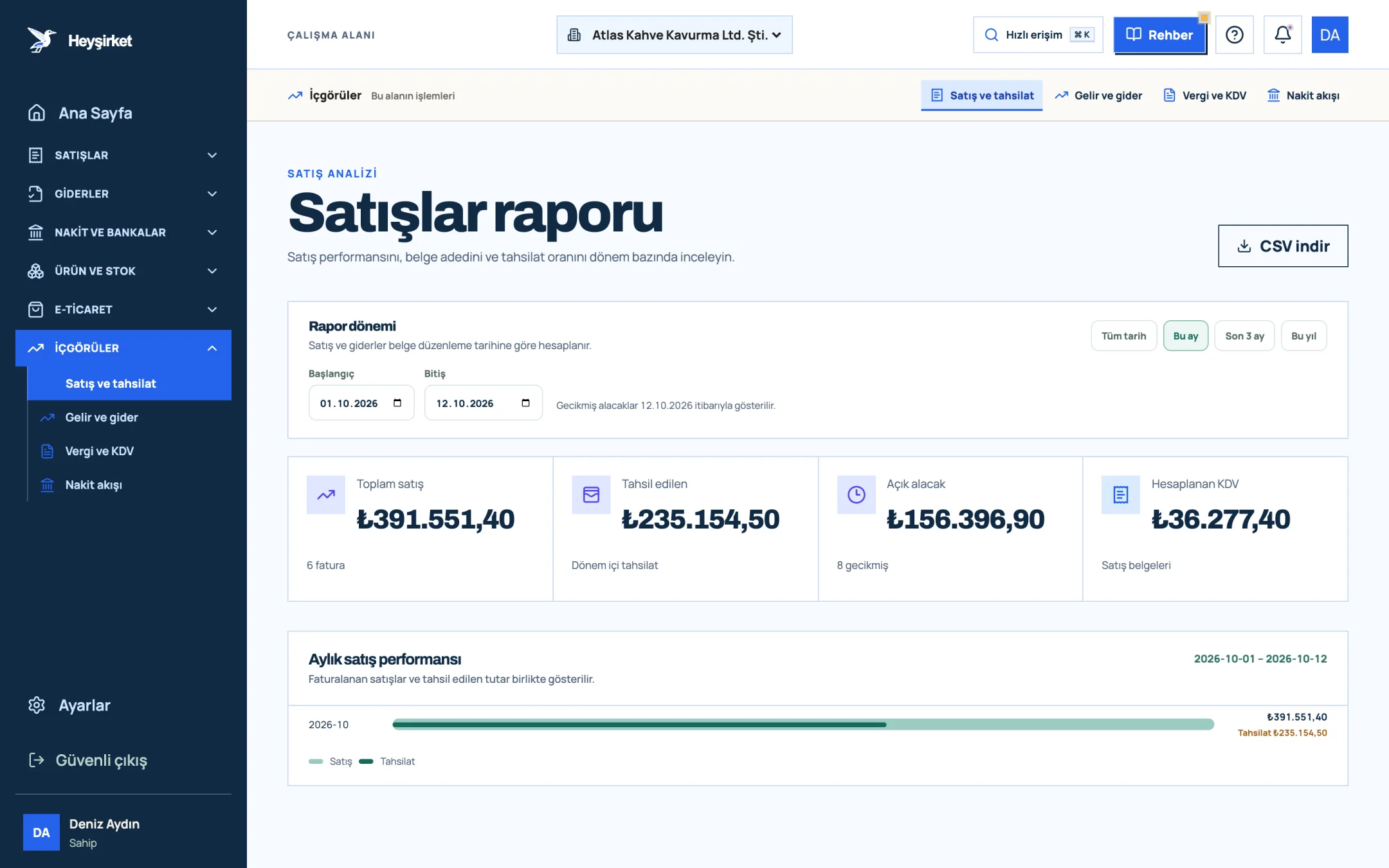
- 1. Report period selection
- 2. Total sales
- 3. Collected
- 4. Monthly sales performance chart
- 5. Download CSV
| Indicator | What does it mean? | Sub-line |
|---|---|---|
| Total sales | Total including VAT of non-cancelled invoices issued in the period (return invoices are deducted) | Invoice count |
| Collected | Amount collected to date from these invoices | Collections in the period |
| Open receivables | Amount remaining on these invoices that hasn't been collected yet | Number of overdue invoices |
| Output VAT | Total VAT on the period's invoices | Sales documents |
The Monthly sales performance chart below the indicators draws two bars for each month: invoiced sales and the collected amount. Months are sorted from newest to oldest; the figure on the right shows total sales, and the small line below shows that month's collections.
The /reports address without parameters opens the overview titled "Reports": Total sales, Expenses, Net movement and Open receivables on a single screen. You can start there for a quick overview and switch to this report when you want to focus on sales.
Part 2 · Steps How do you choose the report period?
The report period is the start and end dates that determine which invoices are counted. When the screen first opens, it shows the period from the first of the month to today.
Step by step: the sales report
Open the report
Expand the Insights group in the side menu and click the Sales and collections link. On your phone, you reach the same group through Menu.
Open the report - 1. Report period selection
- 2. Total sales
- 3. Collected
- 4. Monthly sales performance chart
- 5. Download CSV
Choose a preset range
Click one of the This month, Last 3 months, This year or All time buttons in the Report period panel. Last 3 months covers the period from the first day of the month two months ago to today.
Enter dates manually if needed
For a specific period, enter dates in the Start and End fields. For example, for the September report, 01.09.2026 and 30.09.2026. The start date can't be after the end date.
Check the overdue date
Next to the date fields, a note appears saying "Overdue receivables are shown as of ...". If you entered an end date, overdue items are counted as of that day; if not, as of today.
Read the indicators
The difference between Total sales and Collected appears on the Open receivables card. If the overdue count on the Open receivables card isn't zero, go to the Collections screen.
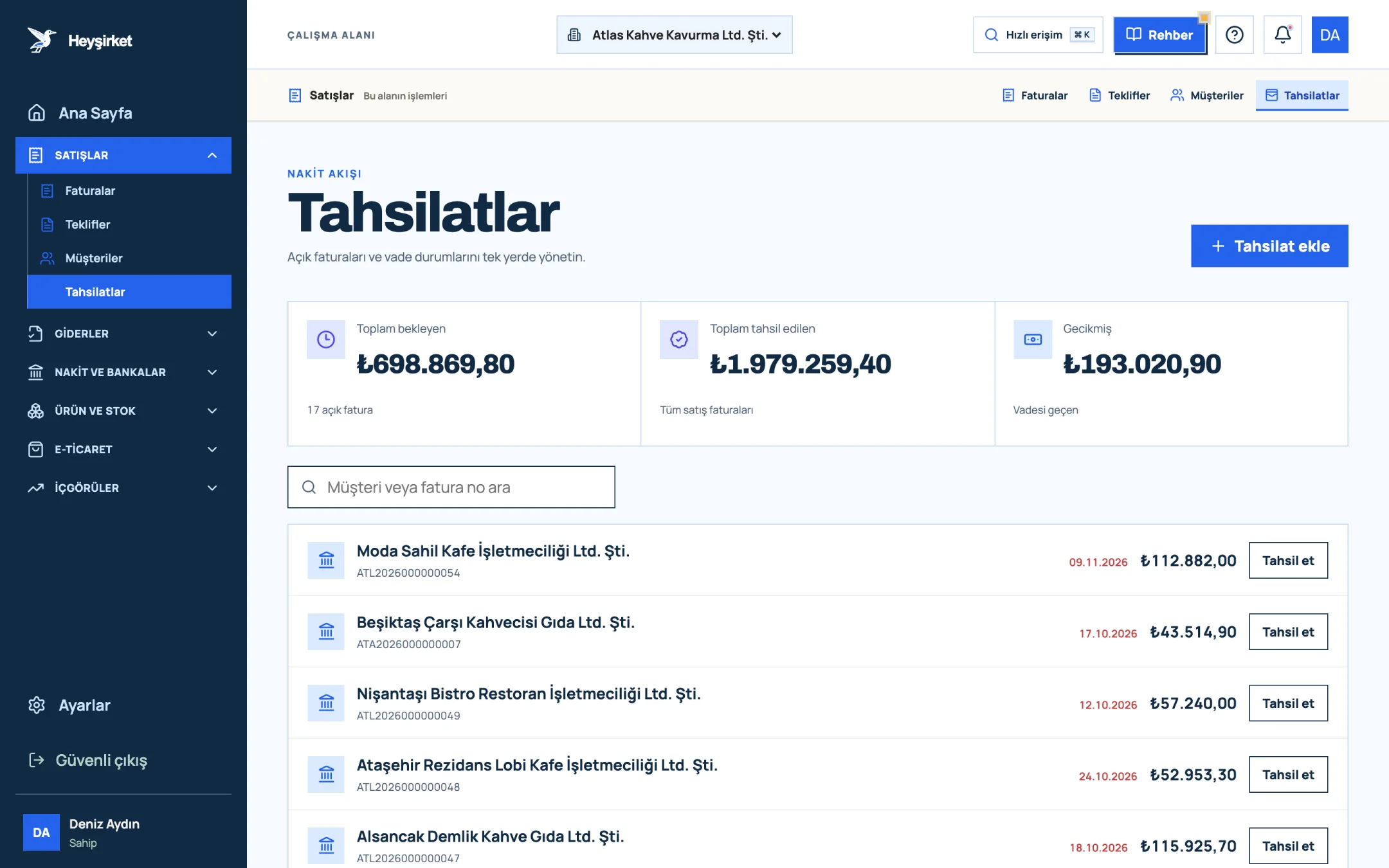
Read the indicators - 1. Add collection button
- 2. Total pending receivables
- 3. Total overdue receivables
- 4. Per-row Collect button
Download the report
Click the Download CSV button at the top right. The file contains the period details, the main indicators and a monthly Sales, Collections and Expenses breakdown; it opens in Excel with Turkish characters intact.
Part 3 · Watch out Two rules so you don't misread the figures
Rule one: the period is selected by the invoice's issue date. As stated at the top of the report, sales and expenses are calculated by document issue date.
Rule two: Collected is the payments made to date against invoices issued in the period you chose. A bank transfer you received in October for an August invoice appears in the August report, not the October one.
| Total sales (42 invoices, incl. VAT) | 312.000 TL |
|---|---|
| Collected | 228.000 TL |
| Open receivables | 84.000 TL |
| Collection rate (228.000 / 312.000) | 73% |
| Portion of September sales not yet turned into cash | 84.000 TL |
The collection rate isn't shown as a separate card in the report; you calculate it by dividing Collected by Total sales. The Collection health panel on the Home page shows the same rate for the current month only.
Part 4 · Why The reasoning: sales or collections?
The sales report measures not profitability but commercial volume and collection discipline. In a business that sells on credit, cash can shrink while sales grow, because growing sales mean growing receivables.
That's why you should watch the Total sales and Collected bars together. If the gap between the two bars widens month after month, the problem isn't sales but payment terms or collection follow-up. We explained in detail which report answers which question in our reading financial reports article.
Total sales is the amount including VAT; the Output VAT card separately shows the part of this amount that belongs to the state. If you track your revenue targets excluding VAT, simply subtract Output VAT from Total sales. For VAT details, see the VAT report guide.
Does the sales report include VAT?
Yes. Total sales is the total of the invoices including VAT. The VAT amount is shown separately on the Output VAT card.
Can I get a sales report per customer?
The Sales report shows period totals. To see a customer's invoices, collections and balance, use that customer's cari (customer account) workspace or the Statement view.
The CSV file opens with garbled characters in Excel, what should I do?
The file is prepared as UTF-8 and semicolon-separated. Opening it directly in Excel is enough in most cases; if you run into problems, use text import from the Data tab and choose UTF-8 and semicolon.
How is the number of overdue invoices calculated?
It counts non-cancelled invoices that aren't fully collected and whose due date passed before your chosen end date (today, if there's no end date). This number doesn't depend on the period start; older invoices issued up to the end date are included as well.
Open the Sales report Choose last month and check the difference between Total sales and Collected. Open report
Author: Heyşirket Editorial Team