Accounting routine · 17 min read · Updated:
Month-end close checklist: a clean month in 12 steps
The month-end close is a two-to-three-hour routine done in the first week of the next month, not on the last day. Done in the right order, it puts an end to "this document is missing" messages from your accountant.
In short
- The month-end close means making a month's sales, collection, expense, bank and stock records complete and consistent with each other, then handing them over to your accountant (mali müşavir).
- The order of the close matters: sales and collections first, then the bank, then expenses, and tax and handover last.
- Bank reconciliation means matching the account balance in your records exactly to the balance on the bank statement, and it's the backbone of the close.
- Because the KDV (VAT) return is generally due by the evening of the 28th of the month following the period, your documents need to reach your accountant in the first week of the month.
- Form Ba-Bs notifications were abolished from the September 2024 period; this step is no longer part of the month-end list.
It's the 3rd of the month, 17:40. The third message from your accountant arrives: "What was the 14.200 TL payment out of the Garanti account? And August's shipping invoices still haven't come in." Meanwhile, you're trying to remember what that payment was.
This scene repeats every month in most businesses, and the reason isn't a lack of information but a lack of order. In businesses that close in a set order rather than at random, the same job is done in two to three hours.
Below we share the 12-step routine that a coffee roastery, Atlas Kahve, follows every month. At the end of the article there's a one-page checklist you can print and pin above your desk.
Part 1 · The logic What is the month-end close, and why does order matter?
The month-end close means making all of a month's sales, collection, expense, bank and stock records complete, consistent with each other and ready to hand over to your accountant. The goal is to "lock" the month and leave a clean start for the next one.
Order matters because each step feeds the next. If you reconcile the bank before recording collections, you'll see hundreds of unmatched items. If you look at VAT before completing your expense documents, the figure comes out wrong and you do the work twice.
- Sales — Steps 1-3: invoices and collections
- Cash — Steps 4-5: bank, cash, cheques and notes
- Expenses and stock — Steps 6-10: documents, payments, accounts, count
- Tax and handover — Steps 11-12: VAT and your accountant
- 12 steps
- 2-3 hours typical time for a well-kept month
- The 28th general deadline for the VAT return
Who does the close?
In a small business, one person can do the whole close; but splitting the roles both speeds it up and catches mistakes. Making sure the person who issues invoices doesn't match their own collections against the bank is a simple but effective internal control.
| Steps | Responsible | Heyşirket role |
|---|---|---|
| 1-3 Sales and collections | Sales lead | Sales |
| 4-5 Bank, cash, cheques and notes | Finance lead | Finance |
| 6-10 Expenses, accounts, stock | Finance lead and warehouse | Finance |
| 11-12 VAT and handover | Founder and accountant | Owner, Accountant |
When should you do the routine? Not on the last day of the month, but in the first two or three business days of the following month. That way invoices issued on the last day and transfers that reach the bank late are included too.
Part 2 · Sales Steps 1-3: How do you close the sales side?
Step 1: Clean up the invoice list
The first job is to check the status of the month's invoices. Heyşirket reports only exclude invoices with the Cancelled status; a document forgotten as Draft, Awaiting approval or Error is included in sales and VAT totals.
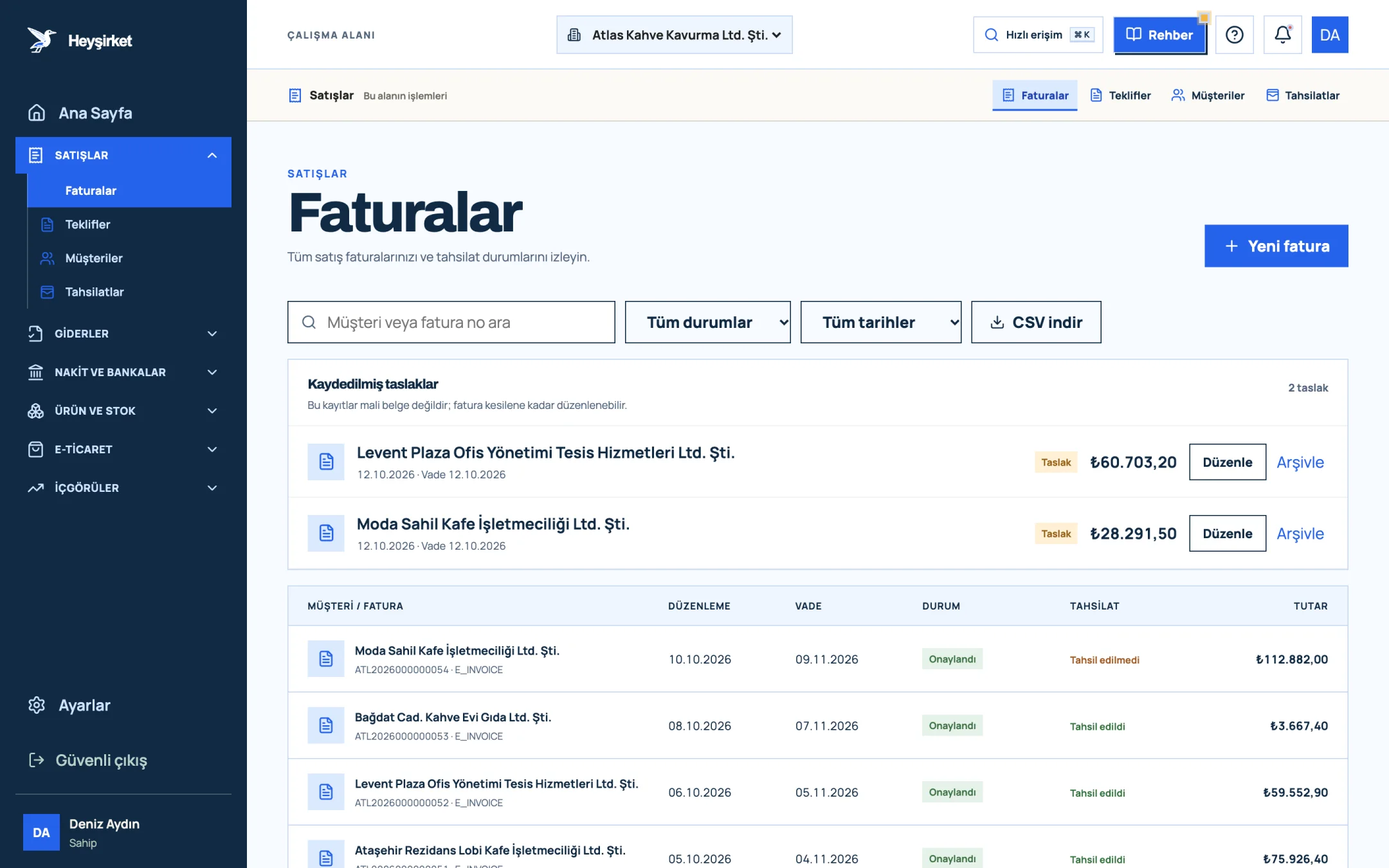
- 1. New invoice button
- 2. Search and filters
- 3. Collection status column
- 4. Saved invoice draft
Because the close is done in the first week, check the date range manually in the Invoice date filter instead of choosing This month. Everything about managing invoices is in the managing invoices guide.
Step 2: Leave no sale uninvoiced
Check whether any goods were shipped or services provided during the month without an invoice. Compare month-end shipments on the delivery notes screen and e-commerce orders against the invoice list.
Step 3: Record every collection
Open the bank statement and check that every customer payment received during the month has been recorded as a collection against the related invoice. On the Collections screen, search by customer or invoice number and enter anything missing with Collect.
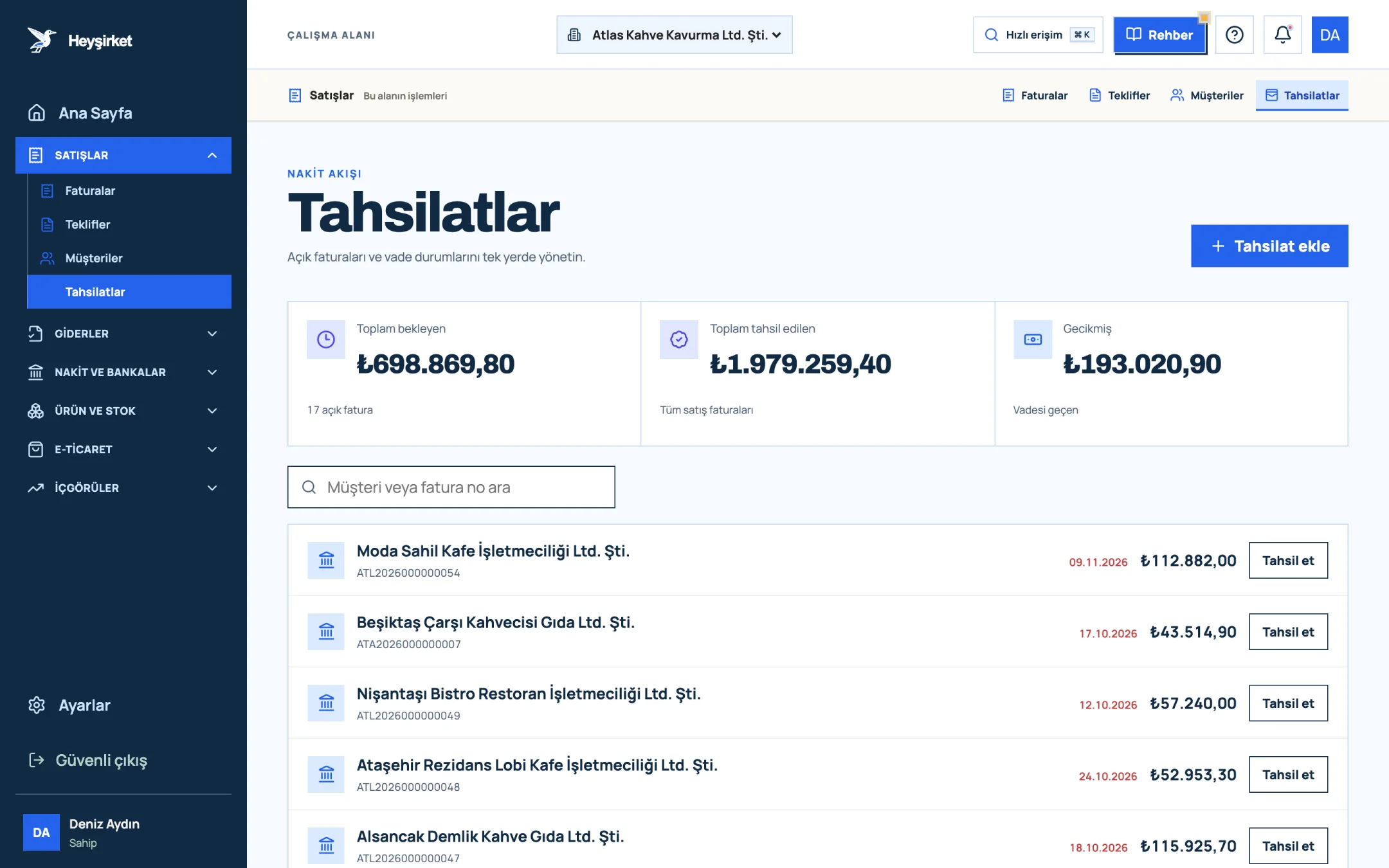
- 1. Add collection button
- 2. Total pending receivables
- 3. Total overdue receivables
- 4. Per-row Collect button
The sales side is closed. Now we move to the backbone of the close, the bank, because that's where most questions come from.
Part 3 · Cash Steps 4-5: How do you do a bank reconciliation?
Step 4: Bank and cash reconciliation
Bank reconciliation means matching the account balance in your records to the bank statement balance on the same date and explaining each difference one by one. A month without a reconciliation doesn't count as closed.
In Heyşirket, the balance on the Cash and banks screen is the opening balance plus the transactions entered on that screen. An important detail: an invoice collection or an expense document doesn't create a bank transaction by itself. You enter bank transactions with Add transaction and transfers between accounts with Transfer.
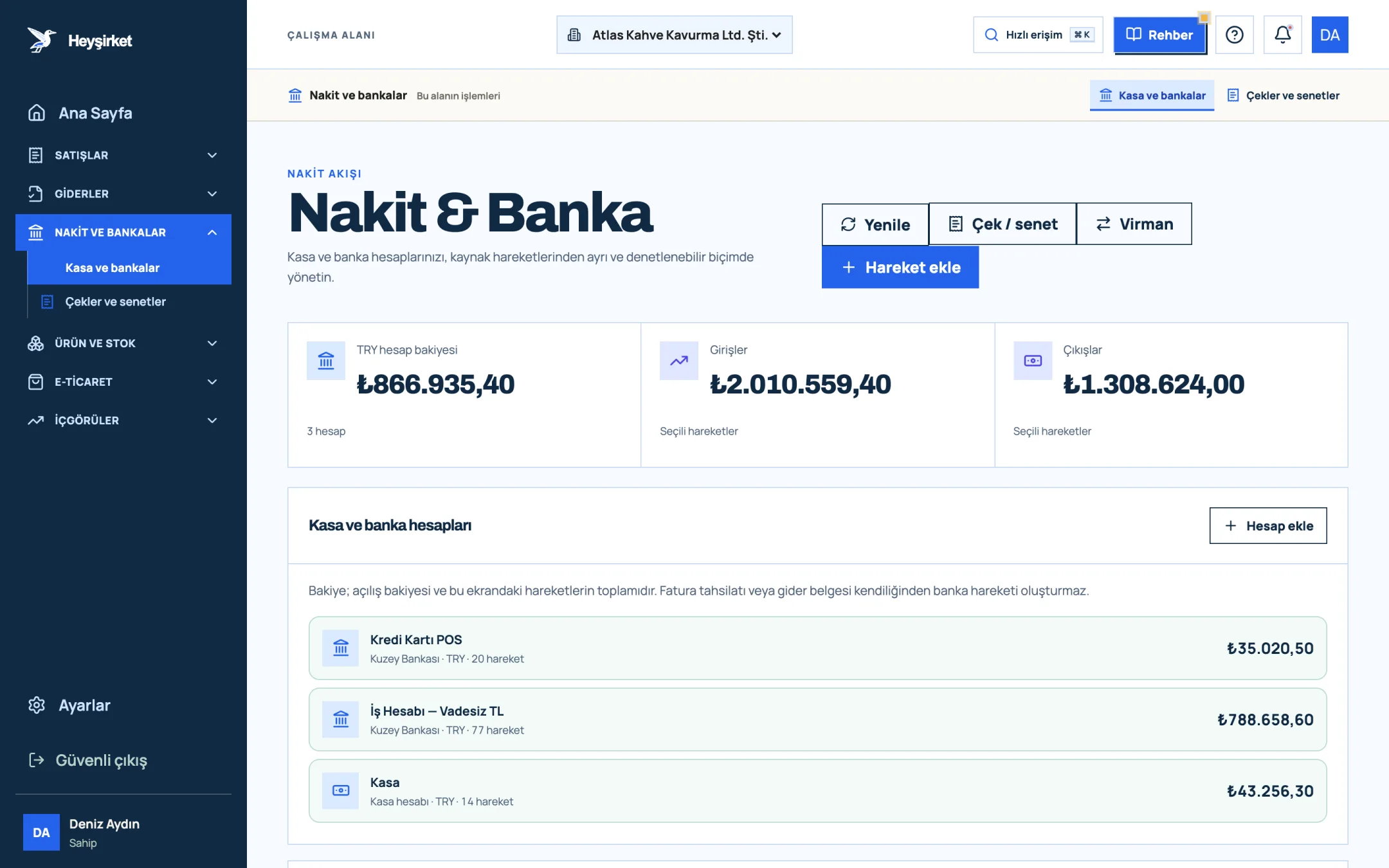
- 1. Add transaction button
- 2. Transfer between accounts
- 3. Total TRY balance
- 4. Cash and bank account list
| Item | Amount | Explanation |
|---|---|---|
| Bank account balance in the portal | 186.450 TL | Cash and banks screen |
| + Unrecorded incoming transfer (Karaköy Pera Otel) | +24.000 TL | Arrived on 29 September, not entered as a transaction |
| − POS commission | −1.380 TL | On the bank statement, not in the records |
| − Rent payment (standing order) | −18.000 TL | Expense document exists, bank transaction not entered |
| − Account maintenance fee | −70 TL | On the bank statement |
| Adjusted balance | 191.000 TL | |
| Balance on the bank statement | 191.000 TL | Difference: 0 TL |
Keep going until the difference is zero. Even a small unexplained difference can be the tip of a bigger mistake later: a collection recorded twice, or a payment entered in the wrong account.
Step 5: Update your cheque and promissory note portfolio
Update the status of cheques and promissory notes that fell due during the month: collected, endorsed, returned. On the Cheques and promissory notes screen, make sure every document in the portfolio reflects its real status. For more detail, see the cheque and promissory note tracking guide.
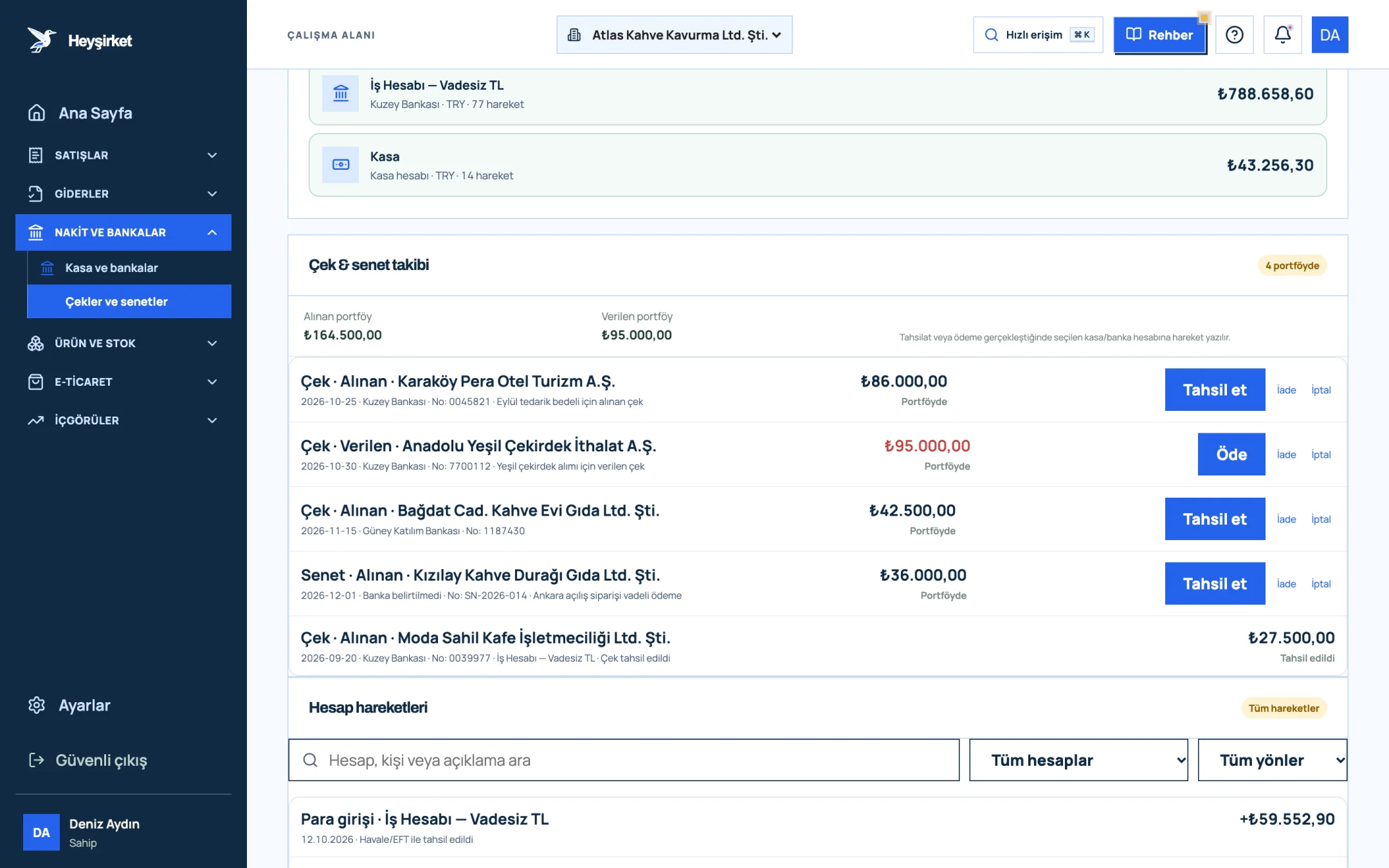
- 1. Received and issued portfolio summary
- 2. Received check in portfolio and Collect
- 3. Issued check and Pay
- 4. Collected check
Part 4 · Expenses and stock Steps 6-10: How do you close expenses, accounts and stock?
Step 6: Enter paper expense documents
Gather the receipts and invoices waiting in your bag, your car and your desk drawer. On the Expense documents screen, enter each one with Add expense, including its document date, amount and VAT. Don't change the document date; reports count by the date the document was issued.
Step 7: Check incoming e-invoices
e-Fatura (Turkish e-invoice) documents your suppliers issue to you are listed on the Incoming e-Invoices screen. Check that all of the month's incoming e-invoices have been seen and recorded as expenses; a missing document lowers your deductible VAT.
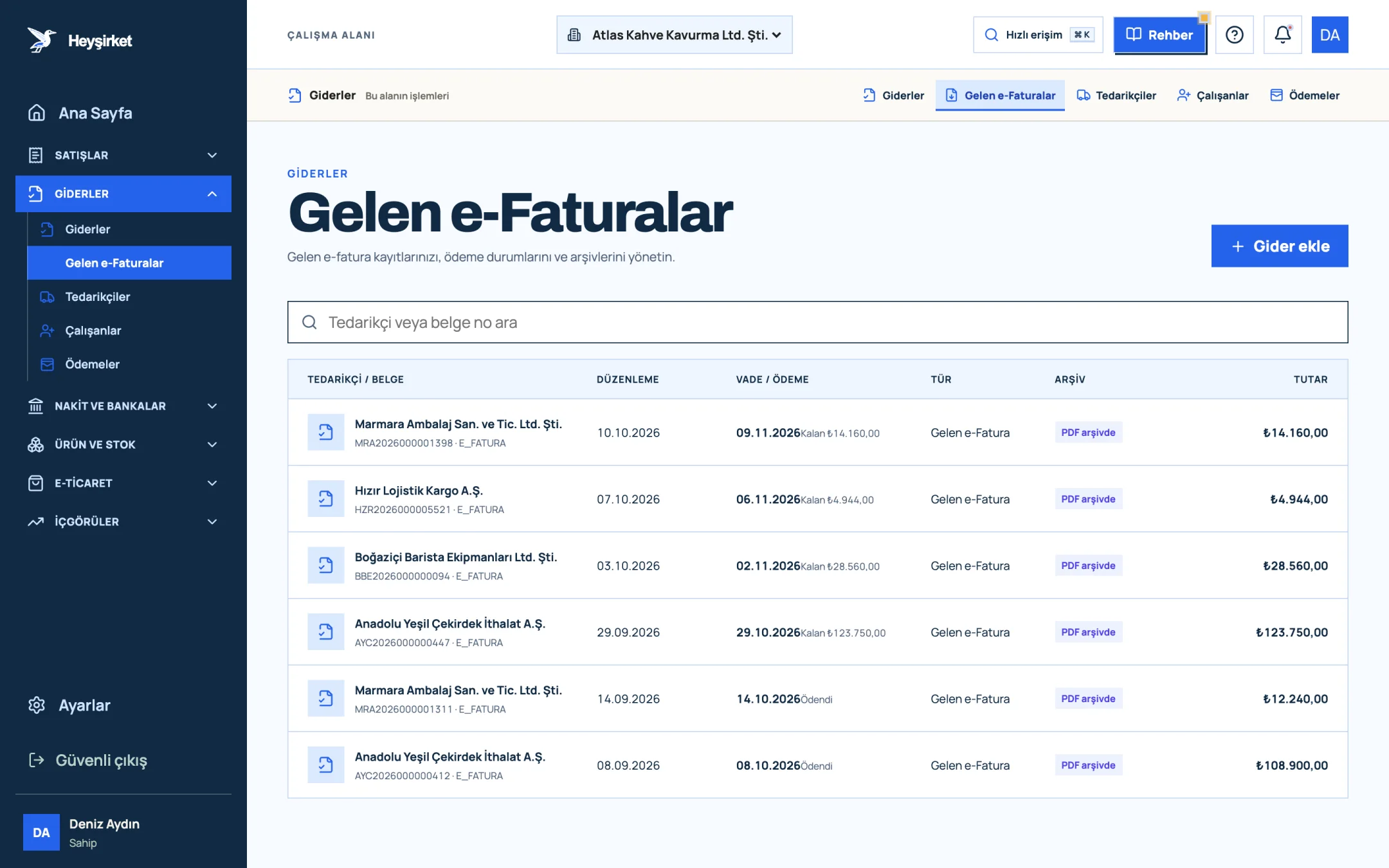
- 1. Incoming e-Faturas tab
- 2. Supplier and document number
- 3. Remaining payment amount
- 4. PDF archive status
Step 8: Match supplier payments
Compare the payment status of expense documents (Payment pending, Partially paid, Paid) with the bank statement. The Payments report in the Expenses group shows the period's expense obligations on the same screen as collections; build next month's payment plan from here.
Step 9: Reconcile with your largest accounts
Agree on the month-end balance with your customers and suppliers with the highest balances. The Statement button on the Customers screen shows each customer's invoices, collections and balance in debit-credit format; the same button is on the Suppliers screen for suppliers.
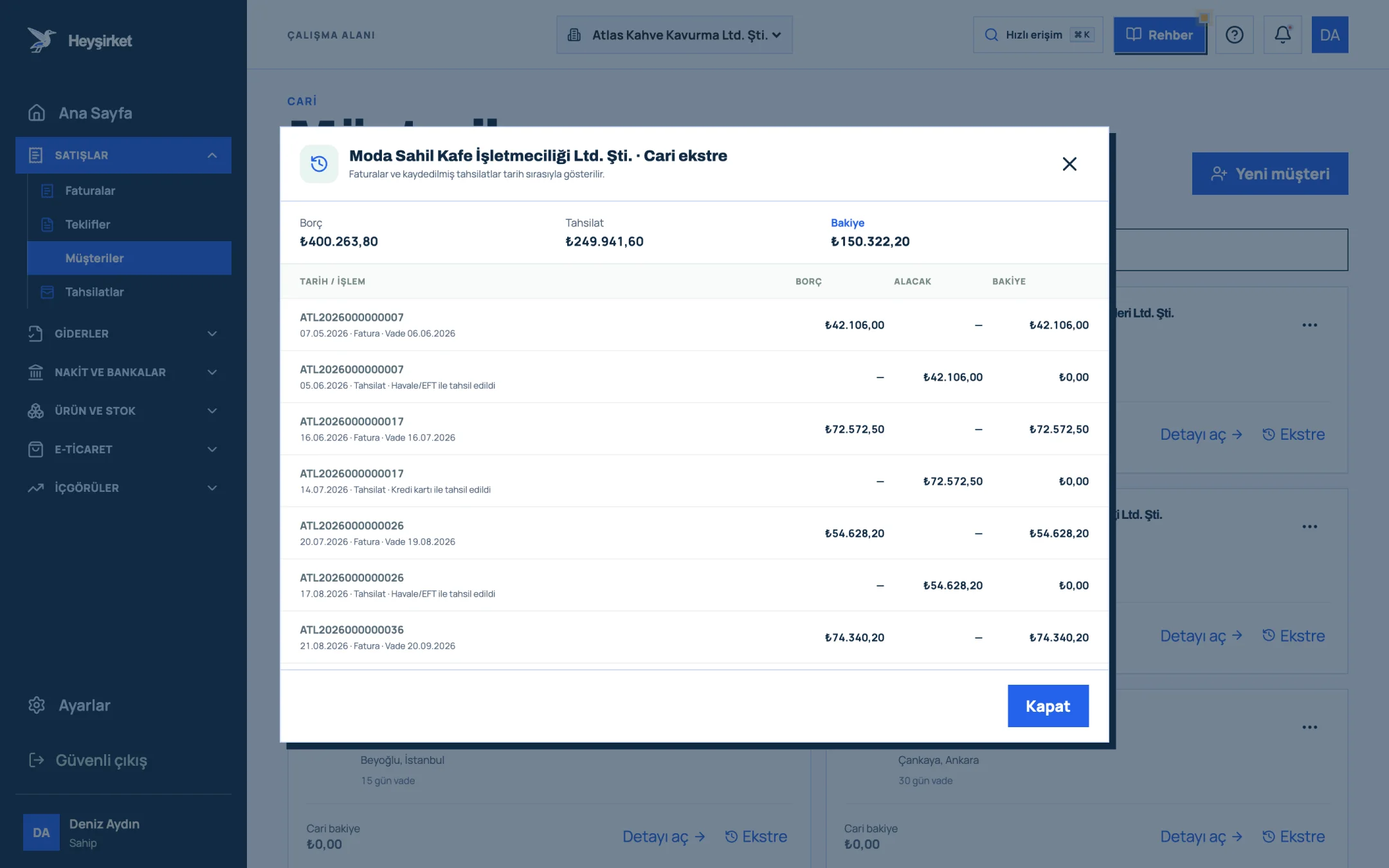
- 1. Account statement window
- 2. Statement transactions and balance
How to request a reconciliation and resolve differences is the subject of our account reconciliation article.
Step 10: Stock count
If you hold stock, count at least your high-value and fast-moving products at month end. Use the Stock count button on the Warehouses and movements screen to choose the warehouse and count date, enter the counted quantities and save with Complete count. Counts with differences are posted separately as stock movements, in an auditable way.
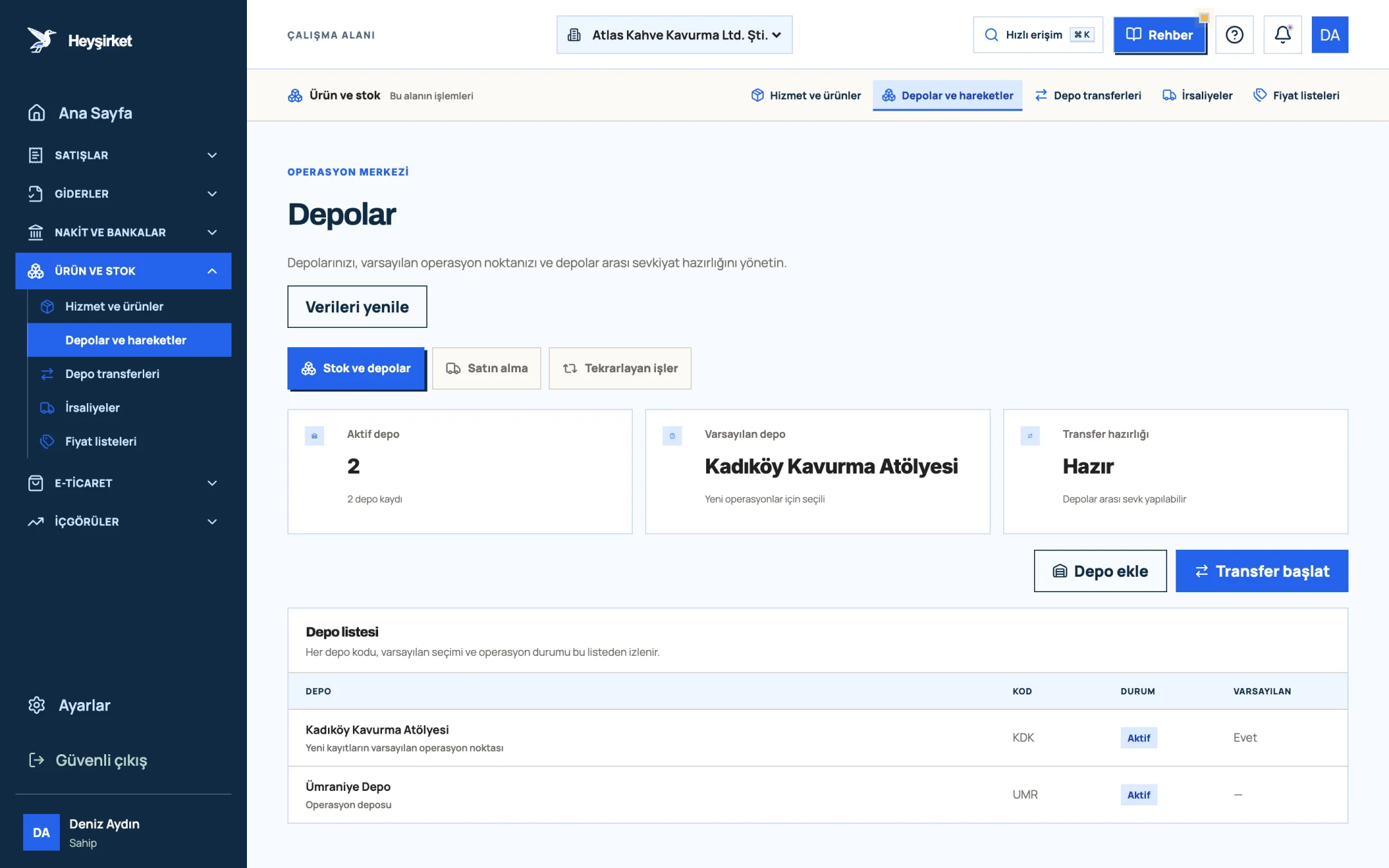
- 1. Add warehouse
- 2. Start transfer
- 3. Default warehouse
- 4. Warehouse list
Atlas Kahve counts only its green beans and packaging every month and does a full count at the end of each quarter. To decide how often to count which product, see our inventory management basics article.
The records are complete. Now it's time to look at how they show up in your taxes.
Part 5 · Tax Steps 11-12: VAT check and handover to your accountant
Step 11: Check the VAT report
The VAT check means seeing, before the return, the difference between output VAT on your sales documents and deductible VAT on your expense documents. In the VAT report, enter the start and end dates of the month you're closing and read the Output VAT, Deductible VAT and Net VAT cards.
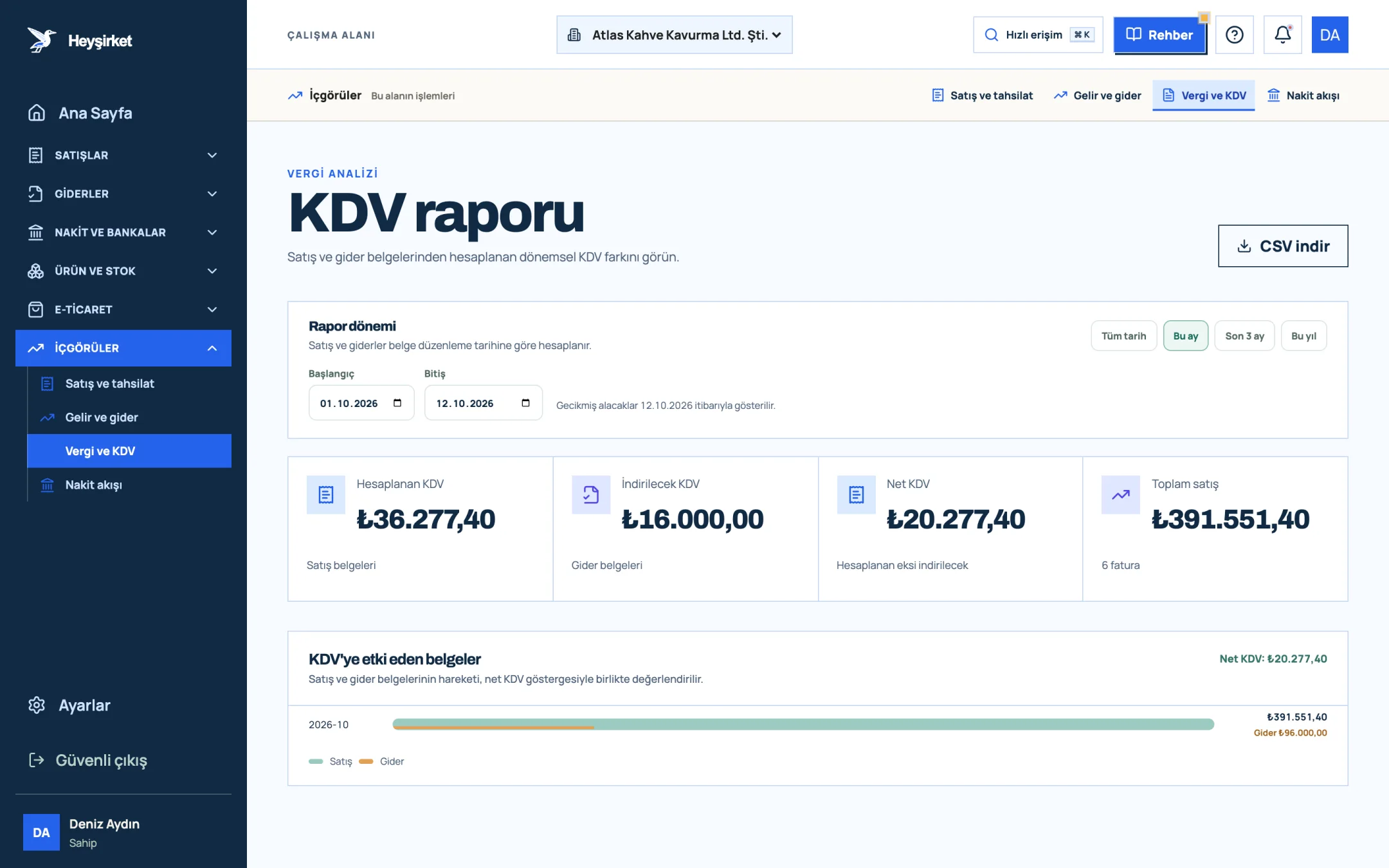
- 1. Output VAT
- 2. Deductible VAT
- 3. Net VAT
| Total sales (VAT included) | 312.000 TL |
|---|---|
| Output VAT | 26.000 TL |
| Deductible VAT (after steps 6-7 are complete) | 21.600 TL |
| Deductible VAT before steps 6-7 | 17.900 TL |
| Net VAT (26.000 − 21.600) | 4.400 TL |
Had you looked before completing the expense documents, Net VAT would have shown 8.100 TL. The 3.700 TL difference is the VAT on receipts and invoices sitting in the drawer. Your accountant assesses items such as VAT carried forward and withholding separately on the return.
Step 12: Download the reports and hand them to your accountant
In the Sales, Income and expense and VAT reports, select the month you're closing and get the files with Download CSV. Add the Download CSV export for the same period from the invoice list as well. Put scanned copies of paper documents and the bank statement in the same folder.
Even easier: invite your accountant to the portal. In the Users section under Settings, the "Accountant" role gives access to the financial screens, so you both look at the same figures without moving files around. Roles are explained in the team and roles guide, and tips for working together are in our working with your accountant article.
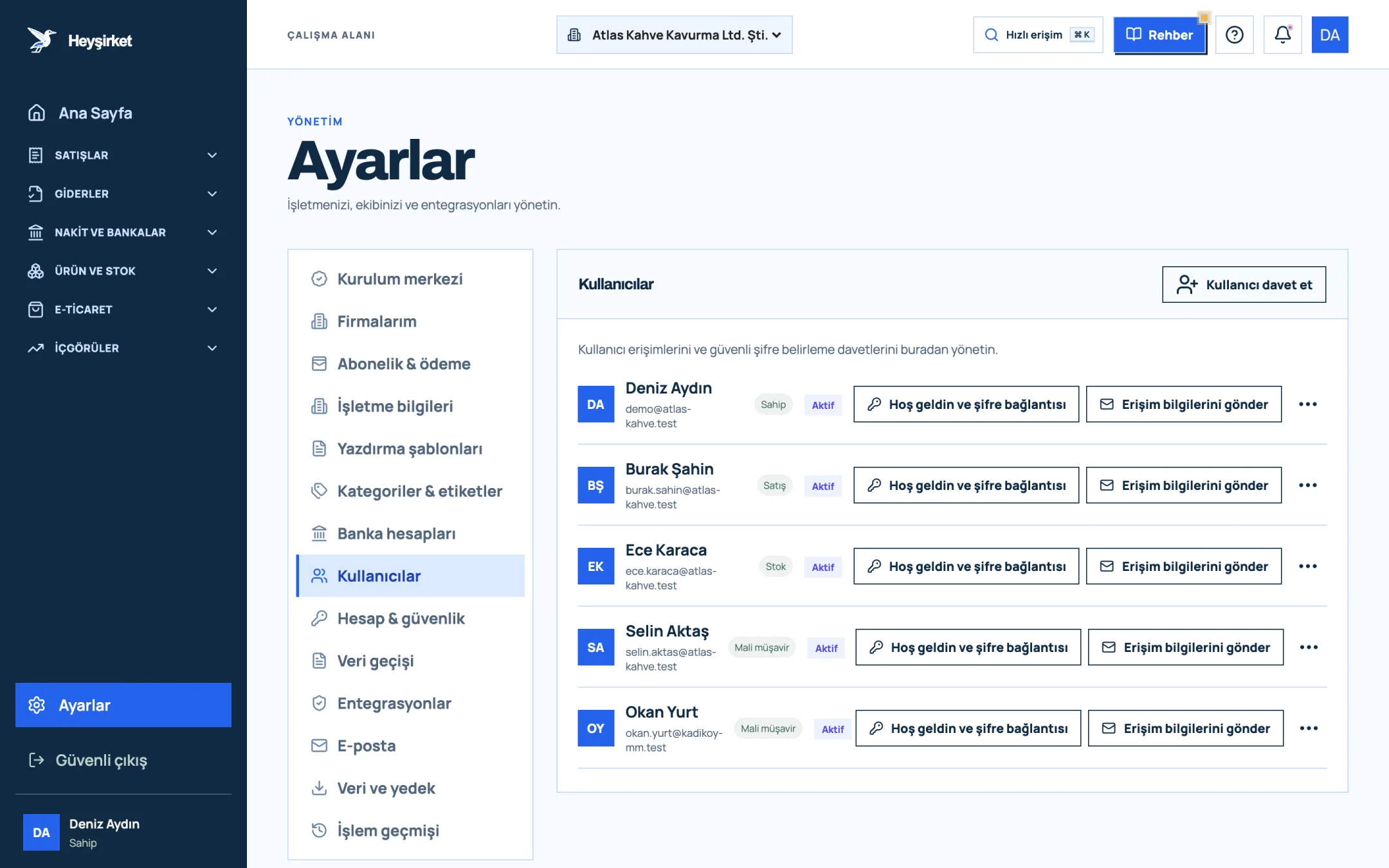
- 1. Invite user
- 2. User role (Owner, Sales, Stock, Accountant)
- 3. Send access details
One last habit: once the close is done, take a backup with Download full data backup in the Data & backup section of Settings and keep it somewhere safe. Under the Tax Procedure Law, books and documents are kept for five years, and under the Turkish Commercial Code, commercial books and documents are kept for ten years; a digital backup complements this obligation.
Part 6 · The list Printable month-end checklist
The list below is a one-page summary of the 12 steps in this article. Open it on the first business day of every month and tick it off in order.
Month-end close: 12 steps
- 1. In the Invoices list, make official or cancel any Draft, Awaiting approval and Error documents.
- 2. Check month-end shipments and e-commerce orders; leave no sale uninvoiced.
- 3. Upload the bank statement in Cash & Bank with Upload statement and match transfers to invoices; record the rest on the Collections screen.
- 4. Match cash and bank account balances to the statement; close differences with Add transaction and Transfer.
- 5. Update the status of cheques and promissory notes that fell due.
- 6. Enter paper receipts and invoices with Add expense, using their document dates.
- 7. Confirm that every document on the Incoming e-Invoices screen has been processed.
- 8. Compare expense document payment statuses with the bank; draw up next month's payment plan.
- 9. Reconcile balances with your largest customers and suppliers using Statement.
- 10. Count critical stock; record differences with Stock count.
- 11. Read Net VAT in the VAT report and add it to your payment calendar.
- 12. Download reports as CSV, share them with your accountant and take a full data backup.
The first time you follow the list, it may feel long, because gaps piled up from earlier months surface too. In the second month it takes half the time, and from the third month on the close is a morning's work. The real gain isn't time; it's that the back-and-forth questions between you and your accountant drop to almost nothing.
A clean close lets you make next month's first decision with the right numbers. A messy close carries the mistake into the next month.
Heyşirket editorial team
Once the close is done, if you'd like to look at the numbers through an owner's eyes, we explain how to interpret the same reports in our reading financial reports article.
When should the month-end close be done?
We recommend doing it in the first two or three business days of the following month. That way invoices issued on the last day of the month and payments that reach the bank late are included in the close, and there's still enough time for the VAT return.
What should I do if the bank reconciliation difference won't close?
Note the amount of the difference and look for a single transaction of the same amount; if you can't find one, look for twice or half the difference, because a record entered in the wrong direction doubles the difference. If you still can't find it, go through it with your accountant.
Are Ba-Bs forms still filed?
No. Form Ba and Form Bs notifications were abolished from the September 2024 period by VUK General Communiqué No. 565. For corrections relating to earlier periods, consult your accountant.
Do I have to do a full stock count every month?
Legally there's a year-end inventory obligation; a month-end count is for management purposes. Counting high-value and fast-moving products every month and all stock at the end of each quarter is a practical balance.
Can I give my accountant access to the portal?
Yes. You can invite them from the Users section under Settings and choose the "Accountant" role; this role gives access to the financial screens.
I recorded a collection; why didn't the bank balance change?
In Heyşirket, an invoice collection doesn't create a bank transaction by itself. You enter the bank transaction separately on the Cash and banks screen; this separation gives you a check during reconciliation.
Start your close with the bank Compare the balances of your cash and bank accounts with this month's bank statement. Open cash and banks
Author: Heyşirket Editorial Team