Getting started · 12 min read · Updated:
Home dashboard guide: read your business's morning summary in 5 minutes
The Home page brings your business's current position together on a single screen. Once you know what each panel counts, you can set the day's priorities before you finish your morning coffee.

In short
- The Heyşirket Home page sums up this month's sales, the amount collected, expenses and total open receivables in four summary cards.
- The rate in the Collection health panel shows how much of this month's invoices has been collected; payments for invoices from previous months don't change it.
- The Open receivables card and the Open balance concentration panel cover the remaining balance on all non-cancelled invoices, not just this month.
- The priority card at the top highlights overdue collections if there are any; otherwise it shows invoices due in the next seven days.
- On mobile, the Home, Invoices, New, E-commerce and Menu buttons in the bottom bar take you to every module.
The founder of Atlas Kahve Kavurma asks the same question every morning: "Who should I call today?" The Home page puts the answer in front of you before you even open the invoice list.
In this guide we explain what each panel on the screen counts, which figures belong to this month and which cover all time, and walk you through a five-minute morning routine. At the end you'll also see the mobile view and the sidebar.
Part 1 · Tour What's on this screen?
The Home page is the screen that opens when you sign in to the portal. It summarizes your business's sales, collections, expenses and receivables at a glance, and is made up of five layers from top to bottom.
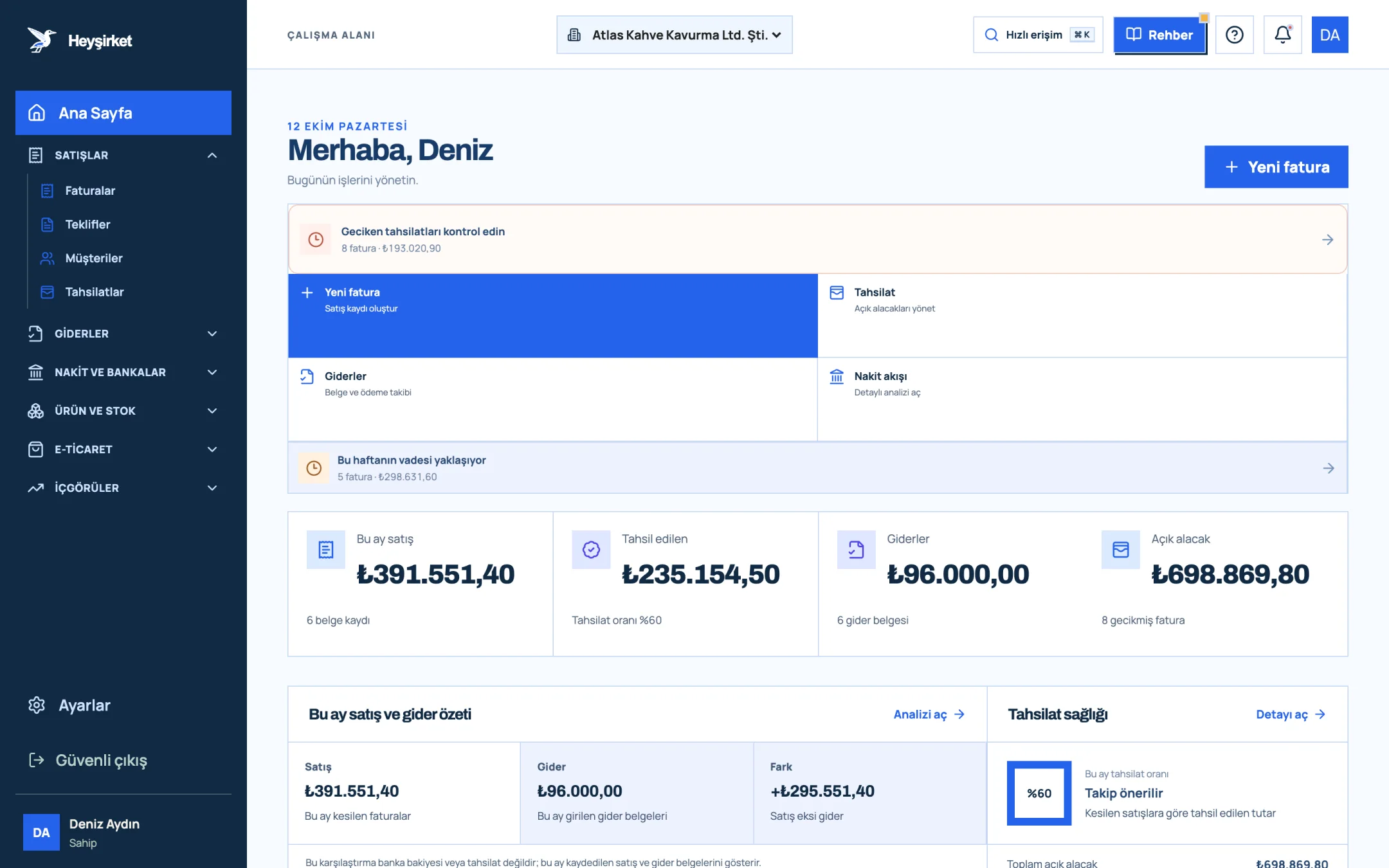
- 1. Create new invoice button
- 2. Overdue collections alert
- 3. Sales invoiced this month
- 4. Total open receivables
| Section | What it shows | Time range |
|---|---|---|
| Priority card | A "Check overdue collections" or "This week's due dates are coming up" alert, with the number of invoices and the amount | As of today |
| Quick actions | New invoice, Collection, Expenses, Cash flow shortcuts | — |
| Sales this month | Total of invoices issued this month and the number of documents | This month |
| Collected | Amount collected on this month's invoices and the collection rate | This month |
| Expenses | Total and number of expense documents entered this month | This month |
| Open receivables | Remaining balance on all non-cancelled invoices and the number of overdue invoices | All time |
| Sales and expenses this month | Sales, Expenses and Difference, with a sales vs. expenses breakdown for recent months below | This month and the last 6 months |
| Collection health | Collection rate ring, total open receivables, overdue receivables, due this week | Mixed |
| Collection priorities | Overdue invoices, this week's due dates and open balance | As of today |
| Recent collections | The last four recorded collections, with date and payment method | Newest |
| Open balance concentration | The four customers with the highest open balances | All time |
| Recent invoices | The last three invoices issued and their status | Newest |
Summary cards: four figures, two time ranges
The Sales this month, Collected and Expenses cards count documents issued from the first day of the month up to today. The Open receivables card is different: it adds up the remaining balance on every non-cancelled invoice.
This distinction matters. On the third of the month, the Sales this month card may look almost empty while the Open receivables card is high; that's not an error, it's receivables carried over from previous months.
Collection health panel
Collection health is the panel that shows, as a ring chart, what percentage of this month's sales has been collected. If the rate is 80% or above it reads "Looking balanced", between 50% and 79% it reads "Follow-up recommended", and below that it reads "Prioritize".
Next to the ring there are three lines: Total open receivables, Overdue receivables (invoices whose due date was before today and that haven't been fully collected) and Due this week (invoices falling due within seven days from today).
Collection priorities, Recent collections and Open balance concentration
Collection priorities consists of three clickable rows: Overdue invoices, This week's due dates and Open balance. The first two open the Collections screen; the third opens the Customers screen.
Recent collections lists the last four collections with the customer name, date and method (Bank transfer, Cash, Card, Other). Open balance concentration ranks the four customers with the highest open balances; this is where you can see whether your receivables are piling up with just a few customers.
Now that you know the panels, let's look at how to use this information in five minutes every morning.
Part 2 · Routine How to read the Home page in 5 minutes every morning
A morning routine means reading the Home page from top to bottom in a set order and pulling out the day's collection and payment tasks. The order below is the flow Atlas Kahve's finance lead uses.
Step-by-step morning check
Read the priority card
The card at the very top is titled "Check overdue collections" if there are overdue payments, or "This week's due dates are coming up" if there aren't. Clicking the card opens the Collections screen. If both alerts apply, the second one appears on its own row below the quick action buttons.
Read the priority card - 1. Create new invoice button
- 2. Overdue collections alert
- 3. Sales invoiced this month
- 4. Total open receivables
Compare the four cards with last week
Look at the Sales this month and Expenses cards: are the "document" and "expense document" counts beneath them what you expect? A missing expense document may be a receipt that hasn't been entered yet.
Compare the four cards with last week - 1. Create new invoice button
- 2. Overdue collections alert
- 3. Sales invoiced this month
- 4. Total open receivables
Check collection health
If the Overdue receivables line isn't zero, that's your first job of the day. Note the number of invoices on the Due this week line; a friendly reminder before the due date prevents most late payments.
Start your calls from Collection priorities
Click the Overdue invoices row. On the Collections screen that opens, search by customer or invoice number and record the payments that have arrived with Collect.
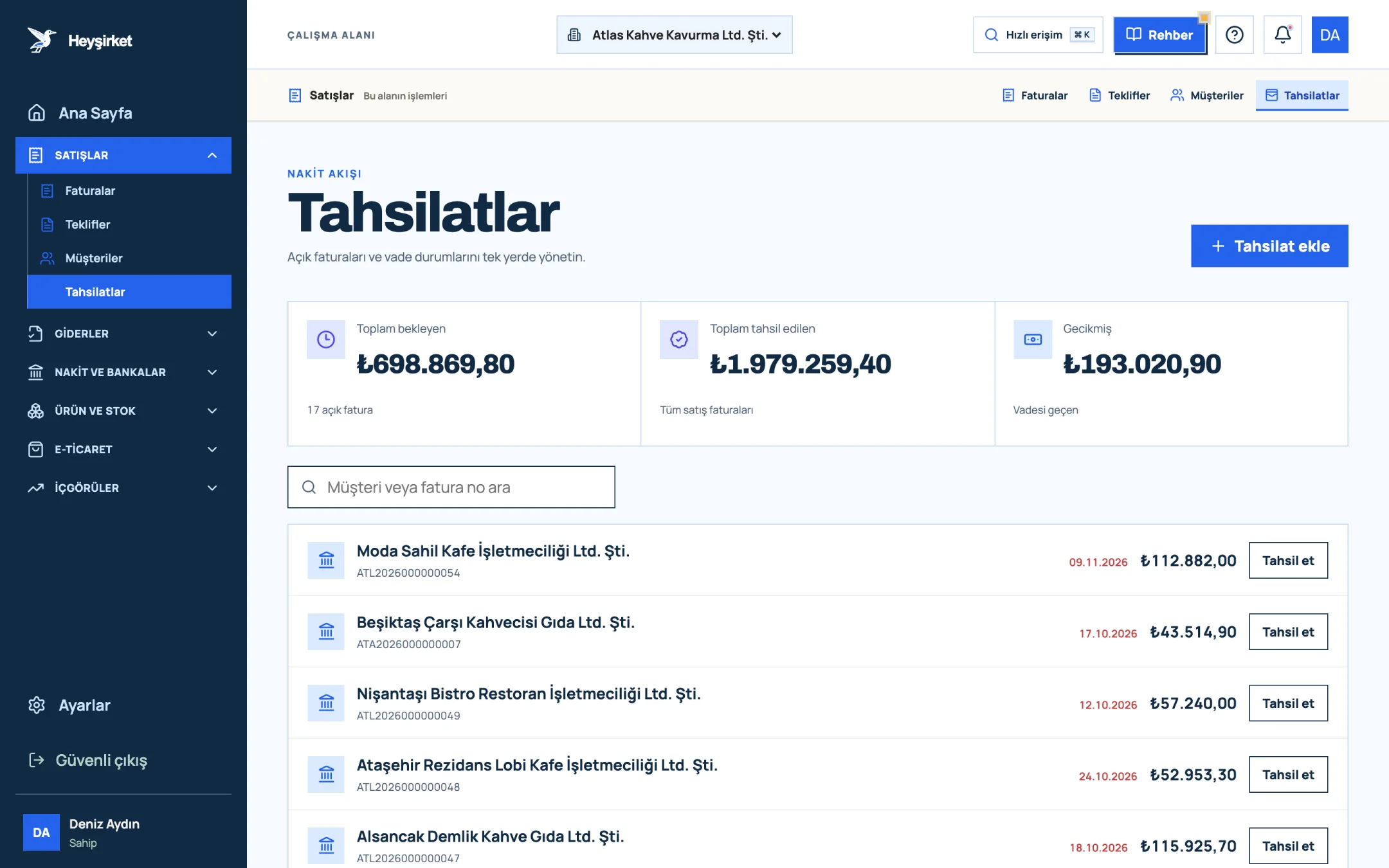
Start your calls from Collection priorities - 1. Add collection button
- 2. Total pending receivables
- 3. Total overdue receivables
- 4. Per-row Collect button
Verify recent collections
Do the bank transfers that arrived yesterday show up in the Recent collections list? If not, they haven't been recorded yet. Since recording a collection doesn't create a bank transaction, it's a good habit to put this list side by side with your bank statement.
Glance at open balance concentration
If the customer at the top of the list carries a large share of your receivables on their own, open that customer's account workspace before taking a new order and talk through a payment plan.
The second half of the routine isn't about the numbers but the logic behind them. In the next part, let's see why the Sales and expenses summary panel isn't your bank balance.
Part 3 · Reading What does the Sales and expenses this month summary tell you, and what doesn't it?
The Sales and expenses this month summary is the panel that shows the difference between invoices issued this month and expense documents entered this month. As the note at the bottom of the panel says, this comparison is not your bank balance or your collections.
For example, if Atlas Kahve issued 240.000 TL in invoices and entered 175.000 TL in expenses this month, the Difference line shows +65.000 TL. But if customers have paid only 90.000 TL so far, the actual movement in the bank looks very different. To see where your money is really flowing, use the Cash flow shortcut; for period comparisons, use the Income and expense report via the Open analysis link.
The monthly breakdown at the bottom of the panel lists total sales, total expenses and the difference for each of the last six months. Seasonality shows up here right away: for coffee shops, November and December are usually strong months.
Part 4 · Mobile What does the Home page look like on a phone?
The mobile Home page stacks the same panels in a single column and adds a fixed quick access bar at the bottom. The New invoice button at the top right on desktop is hidden on phones; the New button in the middle of the bottom bar takes its place.
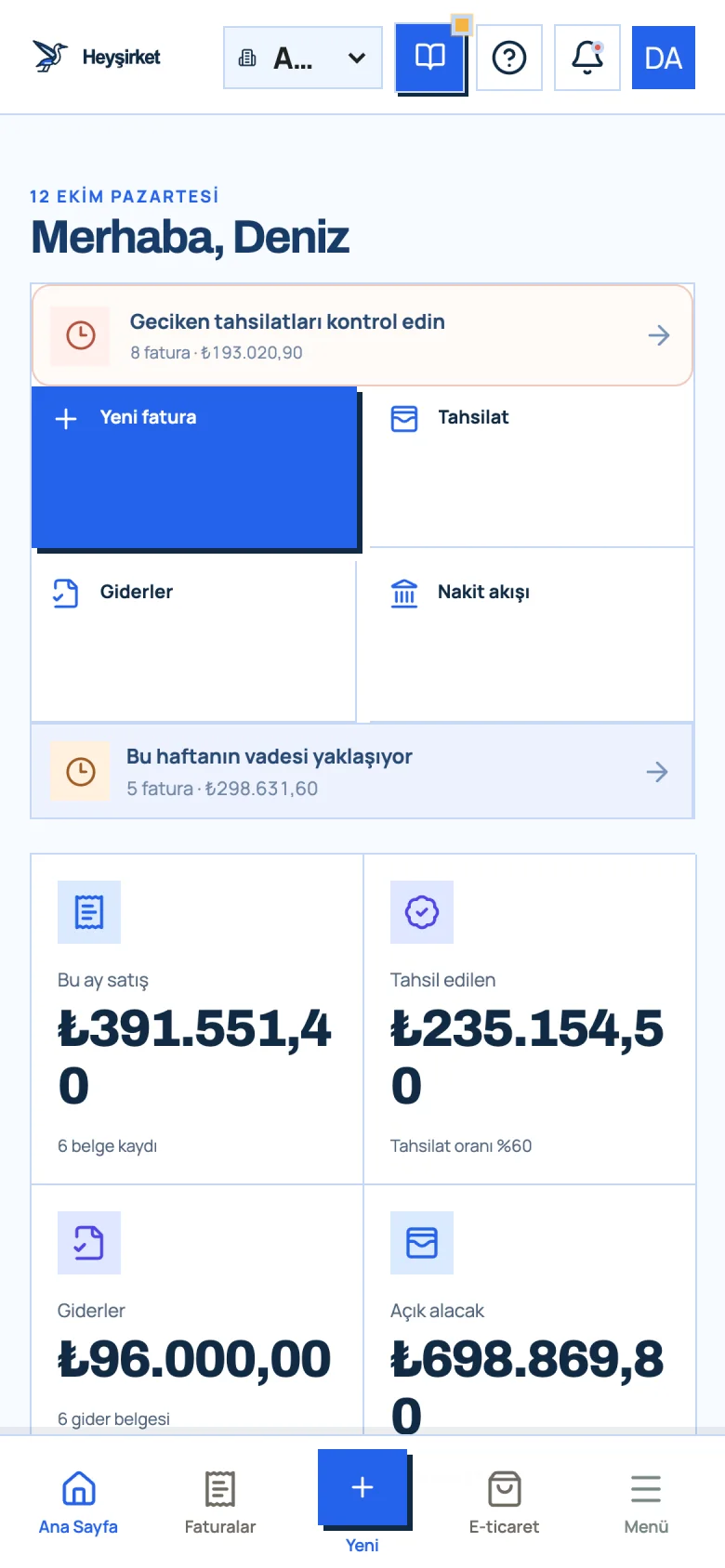
- 1. New invoice
- 2. Overdue collections alert
The Menu button opens the full menu: at the top is the Home link with the description "Back to business overview", below it the Business modules groups, and at the bottom, under the Management heading, Settings and Sign out securely. To record a collection from your phone while visiting a customer, see the Collections guide.
Part 5 · Navigation What's in the sidebar and the top bar?
The sidebar is the left-hand panel that groups all the portal's modules under six headings: Sales, Expenses, Cash and banks, Products and stock, E-commerce and Insights. The Home link at the top always brings you back to this screen.
| Group | Pages |
|---|---|
| Sales | Invoices, Quotes, Customers, Collections |
| Expenses | Expenses, Incoming e-Invoices, Suppliers, Employees, Payments |
| Cash and banks | Cash and bank accounts, Cheques and promissory notes |
| Products and stock | Services and products, Warehouses and movements, Warehouse transfers, Outgoing delivery notes, Incoming delivery notes, Price lists |
| E-commerce | Orders, Connections, Mappings and catalog, Shipping and settings |
| Insights | Sales and collections, Income and expenses, Tax and VAT, Cash flow |
The groups work like an accordion: when you open one, the other closes. Depending on your role and the modules enabled for your company, some groups may not appear; this is managed on the Team and roles screen.
The top bar has the Active company switcher (if you have more than one company), the Quick access search box (⌘ K on a Mac), Help, Notifications and the profile menu. Notifications list overdue receivables by customer; clicking one opens the related invoice.
Part 6 · Why The reasoning: why every morning?
A daily check means catching a small delay before it turns into a big cash problem. Reminding a customer about an invoice that's one day overdue is easy; collecting on one that's sixty days overdue is hard and strains the relationship.
Read the Open balance concentration panel as a risk indicator too. If more than half of your receivables sit with a single customer, a one-month delay from that customer affects your entire payment schedule. We cover this in depth in our article on speeding up receivables collection.
Why is the Collected amount on the Home page different from the deposits in my bank?
The Collected card shows the collected portion of invoices issued this month. Payments for invoices from previous months and bank deposits not linked to an invoice aren't included in this card.
Why is the Open receivables card larger than this month's sales?
The Open receivables card adds up the remaining balance on all non-cancelled invoices, not just this month. Receivables carried over from previous months are included in this figure.
Which days does the Due this week line cover?
It covers invoices that fall due within seven days starting today, including today, and that haven't been fully collected.
How do return invoices affect the figures?
Return invoices are deducted from sales and receivables totals, so the Sales this month and Open receivables cards show the net amount.
How do I get to Reports on my phone?
Tap the Menu button in the bottom bar, open the Insights group under Business modules and choose the report you want.
Open your Home page Start your morning routine by checking today's priority card and the Collection health panel. Go to Home
Author: Heyşirket Editorial Team