e-Documents · 12 min read · Updated:
How to issue an e-Arşiv invoice in Türkiye: GİB e-Arşiv Portal and software, step by step
You've sold to an individual or to a business that doesn't use e-Fatura. You can issue the invoice from GİB's free portal or from software. Here are the steps for both, and what to watch out for.
In short
- An e-Arşiv invoice is the electronic invoice issued to buyers who aren't registered in the e-Fatura system, i.e. end consumers and businesses that don't use e-Fatura.
- There are two ways to issue an e-Arşiv invoice: GİB's free e-Arşiv Portal, or accounting software connected to a private integrator (e-document provider).
- On the GİB e-Arşiv Portal an invoice is approved with an SMS code after it's created; an approved invoice can no longer be edited, so mistakes are fixed by cancellation or a return document.
- An e-Arşiv invoice is sent to the buyer by email or, on request, as a paper printout; for online sales it must be delivered electronically.
- An invoice must be issued within at most 7 days of delivery or service (VUK art. 231/5).
A customer has bought a product or a service from you. They're an individual, not registered in the e-Fatura system. The invoice for this sale is an e-Arşiv invoice. So how do you issue it, where from, and how does it reach the customer?
In this article we cover both routes in turn: GİB's free e-Arşiv Portal (GİB is the Turkish Revenue Administration) and software connected to an e-document provider. We've also added the details every invoice must carry, the extra rules for online sales and the most common mistakes.
The difference between e-Fatura and e-Arşiv, the thresholds and the amount limits are a separate topic. We covered them in e-Fatura vs e-Arşiv, and the e-Fatura steps in how to issue an e-Fatura. Here we focus only on issuing an e-Arşiv invoice.
Part 1 · The buyer first Who do you issue an e-Arşiv invoice to?
An e-Arşiv invoice is issued to buyers who aren't registered in the e-Fatura system. Most of them are individual customers, i.e. end consumers. Small businesses, associations and some institutions that don't use e-Fatura are in this group too.
You don't choose the document type; the buyer's status decides it. If the buyer is registered in the e-Fatura system, the same sale gets an e-Fatura. This is checked against GİB's list of registered users with the tax number (VKN) or national ID number (TCKN). Most software does this check for you.
Part 2 · Two routes What do you need to issue an e-Arşiv invoice?
There are two ways to issue an e-Arşiv invoice. The first is GİB's free e-Arşiv Portal, which suits businesses that issue only a few invoices and don't use separate software. The second is accounting software working through a GİB-authorised private integrator, i.e. an e-document provider.
| GİB e-Arşiv Portal | Software connected to an e-document provider | |
|---|---|---|
| Cost | The portal is free | Software fee plus the provider's per-document credit (kontör) fee |
| Login | Interactive Tax Office user code and password, or e-signature / financial seal | The software's own login; the provider connection is set up once |
| Approval | Each invoice is approved one by one with an SMS code | When you send, the provider signs it and transmits it to GİB |
| Customer details | Typed in by hand every time | Taken from the customer card |
| Customer account and payments | Not tracked | The invoice goes to the customer account, payments and reports |
| Who is it for? | Those issuing a few invoices a month | Those who sell regularly and want to track payments and VAT |
To use the portal, the e-Arşiv Portal application must have been made. Application and usage conditions are updated from time to time; you'll find the current application page and guides at ebelge.gib.gov.tr.
Part 3 · Portal steps How do you issue an e-Arşiv invoice on the GİB e-Arşiv Portal?
The portal's look changes from time to time, but the flow stays the same: log in, create the invoice, check it and approve it by SMS. The steps below follow that flow.
Issuing an invoice on the GİB e-Arşiv Portal
Log in to the portal
Go to GİB's e-Arşiv Portal and log in with your Interactive Tax Office user code and password. Always open the address from GİB's own pages; never type your password into similarly named sites from search results.
Open the invoice creation screen
Go to the invoice creation screen from the document operations menu. The invoice date and time, currency and invoice type (sale, return and so on) are chosen here.
Enter the buyer's details
Enter the buyer's name or company name, address and TCKN or VKN. If the buyer is a business, add its tax office. If you don't know an individual customer's ID number, 11111111111 is used in practice; if you know the number, enter the real one.
Enter the lines and VAT
For each line, enter the name of the goods or service, quantity, unit, unit price and VAT rate. Show any discount on the line. Totals are calculated on screen; still compare the total with the amount you agreed with the customer.
Create and check
When you create the invoice it isn't final yet; it waits for approval in the list of issued documents. At this stage open the preview and check the buyer, the amount and the VAT lines one last time.
Approve with the SMS code
At the approval step a code is sent to your registered phone. When you enter it, the invoice is signed, gets its number and becomes final. An approved invoice can no longer be edited.
Send it to the customer
Download the PDF of the final invoice and email it to the customer, or give them a printout if they ask. The portal keeps a copy, but it's good to keep your own archive too.
The portal does the job for a few invoices a month. As volume grows, retyping customer details every time, approving each document by SMS and tracking payments somewhere else starts to take time. That's when issuing through software makes more sense.
Part 4 · Content What details are mandatory on an e-Arşiv invoice?
An e-Arşiv invoice has the same legal standing as a paper invoice, so it must carry the details listed in article 230 of the VUK. On an electronic document the number, date and time are assigned by the system; the rest comes from what you enter.
What an e-Arşiv invoice must include
- Issue date and document number
- Seller's name or company name, address, tax office and tax number
- Buyer's name or company name, address and, if available, TCKN or VKN
- Type, quantity, unit price and amount of the goods or service
- VAT rate and amount applied, and any discount
- Delivery date of the goods and, if any, delivery note details
- A statement that the document is an e-Arşiv invoice (the portal and software add this automatically)
Extra details for online sales
If you sell goods or services online, an e-Arşiv invoice carries a few extra details: the website where the sale was made, the payment method and date, the shipping date and the carrier's details, for example. These fields are defined in Communiqué No. 509. If you run an online shop, check that your portal or software fills them in.
Part 5 · Delivery How do you send an e-Arşiv invoice to the customer?
An e-Fatura goes to the buyer's mailbox in the system. An e-Arşiv invoice has no such mailbox; you deliver it yourself. The general rule is that the invoice is sent to the buyer electronically, usually by email. If the buyer asks, a paper printout can be given too.
- In a shop or face to face: Ask the customer for their email address. If they want paper, give them a printout of the invoice.
- For online sales: The invoice is delivered electronically; sending it with the order email is a common way.
- For a business that doesn't use e-Fatura: Send the invoice to their accounts team's email address so payment approval isn't delayed.
An invoice must be issued within 7 days (VUK art. 231/5), counted from the date of delivery or service. Invoices saved up until month end are risky for this reason. We cover deadlines and limits in detail in invoice issuing deadline and limit.
Part 6 · With software How do you issue an e-Arşiv invoice in Heyşirket?
Heyşirket has no separate e-Arşiv screen. You prepare the invoice as usual on the Yeni fatura (New invoice) screen. When it's sent, the buyer's VKN or TCKN is checked; if the buyer isn't registered in the e-Fatura system, the document is issued as an e-Arşiv invoice automatically.
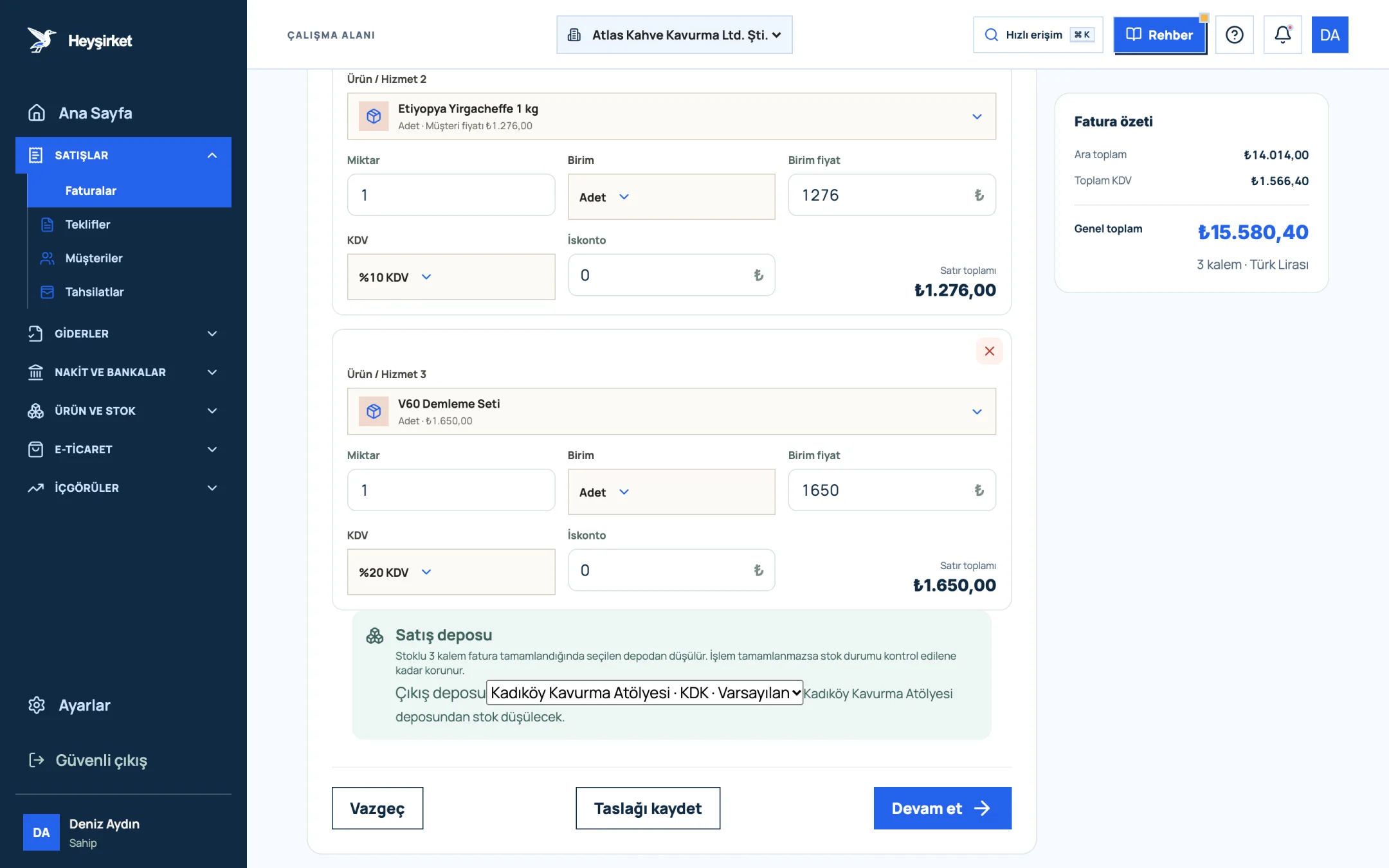
- 1. Grand total
- 2. Continue button
- 3. Save draft button
- 4. Sales warehouse to deduct stock from
For this, an e-document provider must be connected in the pre-accounting module of your company panel. The connection is set up once; the test and go-live steps are in the e-document connection guide. Credits, i.e. the per-document fee, are between you and your provider.
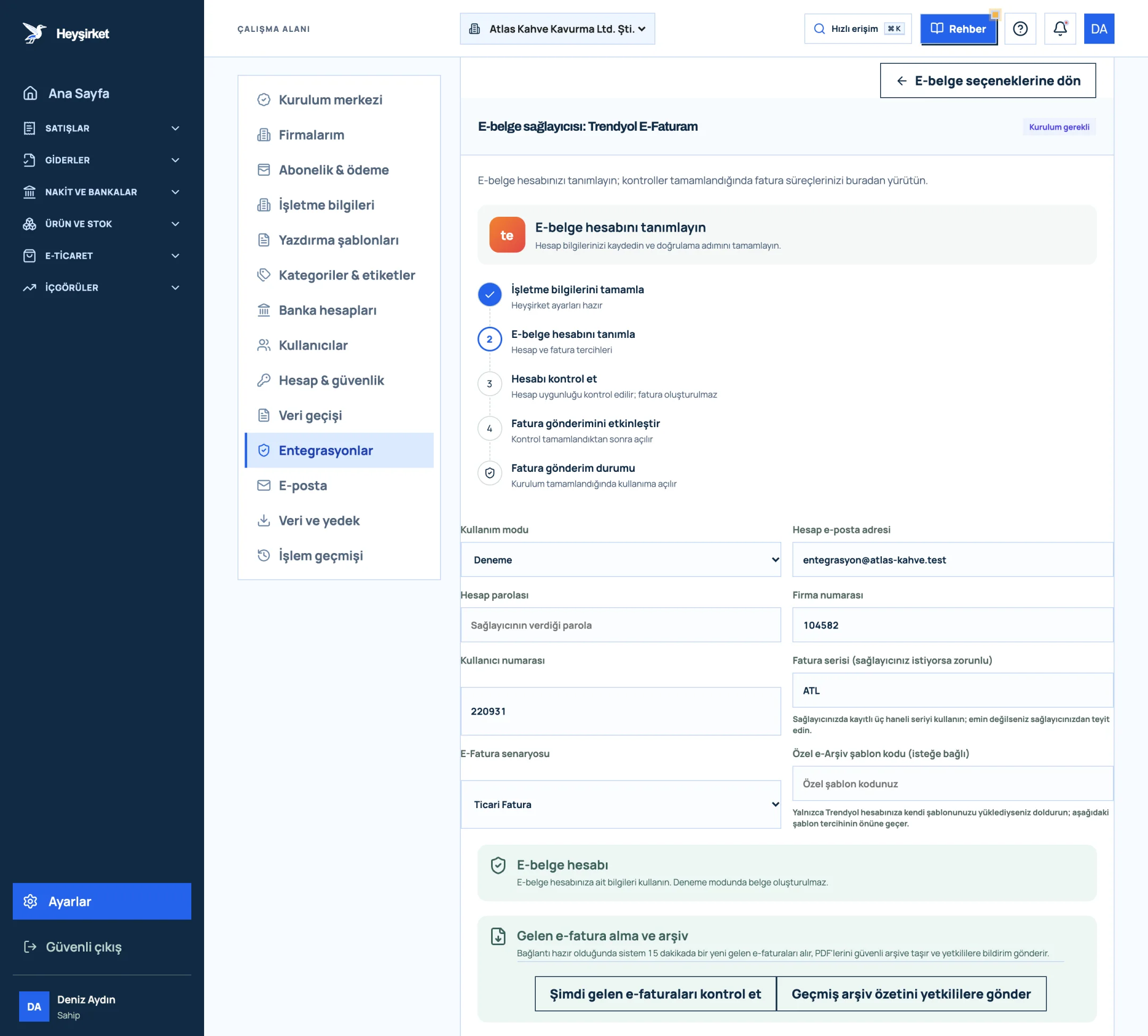
- 1. Setup steps
- 2. Usage mode (Trial / Live)
- 3. Provider account details
- 4. Invoice series
- 5. Receiving incoming e-Faturas and archive
- No retyping customer details. The name, address and ID details on the customer card go onto the invoice.
- Automatic sending. If automatic sending to customers is on in Settings, the official PDF goes to the customer's email address by itself.
- Card payment. If you've connected iyzico, a Kartla öde (Pay by card) button appears in the invoice email; the customer pays by card and the payment is recorded against the invoice.
- Customer account and reports. The invoice is posted to the customer's account, the payments list and the VAT report.
Every step of the screen is explained in the how to issue an invoice guide. Pre-accounting is included in the Profesyonel and Premium packages; it isn't part of the Başlangıç package. A summary of the feature and the packages is on the e-Arşiv page.
Part 7 · Checks The most common mistakes when issuing an e-Arşiv invoice
Most mistakes can be prevented by a few seconds of checking before approval. Keep the list below in mind on every invoice, especially if you use the portal.
Pre-approval checklist
- Is the buyer really not registered in the e-Fatura system? If they are, an e-Fatura is needed, not an e-Arşiv invoice.
- Are the buyer's name, address and ID details correct?
- Are quantity, unit price and VAT rate correct on every line?
- Is the invoice date within 7 days of delivery or service?
- For an online sale, are the payment and shipping details on the invoice?
- Has an invoice already been issued for the same sale? A duplicate document means declaring the same income twice.
- Has the invoice been sent to the customer and a copy kept in your own archive?
If a mistake slipped through, close the wrong invoice the right way before issuing a new one. When to cancel and when to use a return is explained in return and cancellation invoices.
Does it cost anything to issue an e-Arşiv invoice?
GİB's e-Arşiv Portal is free. If you issue through an e-document provider and accounting software, there's a software fee and the provider's per-document credit fee.
Can I issue an e-Arşiv invoice from my phone?
Yes, browser-based tools let you prepare invoices on a phone too. On the GİB portal an SMS code is sent to your phone for approval. If you invoice regularly, software that also works on a phone is more practical.
What do I enter if I don't know an individual customer's ID number?
In practice 11111111111 is used for individual buyers whose ID number isn't known. If you know the number, enter the real one; ask your mali müşavir about special cases.
Do I have to print the e-Arşiv invoice and hand it over?
No. An e-Arşiv invoice is delivered electronically, usually by email. A paper printout can be given if the buyer asks; for online sales the invoice is delivered electronically.
There's a mistake on an e-Arşiv invoice I approved. Can I correct it?
An approved invoice can't be edited. You need to cancel it within the allowed time and issue the correct one, or use a return if the goods came back. If the invoice is already in a VAT return, talk to your mali müşavir first.
Do I need to choose between e-Arşiv and e-Fatura in Heyşirket?
No. When the invoice is sent, the buyer's taxpayer status is checked; if the buyer isn't registered in the e-Fatura system, the document is issued as an e-Arşiv invoice. For this, an e-document provider must be connected in pre-accounting.
Issue e-Arşiv invoices from one screen Pick your customer and enter the lines; if the buyer doesn't use e-Fatura, the document is issued as e-Arşiv automatically and emailed to the customer. Create a new invoice
Author: Heyşirket Editorial Team