e-Documents · 12 min read · Updated:
How to issue an e-Fatura in Türkiye: a 2026 step-by-step guide
Once it is set up properly, issuing an e-Fatura takes less time than a paper invoice. We first explain how you get into the system, then how a single invoice reaches the buyer.
In short
- To issue an e-Fatura you must first register with the e-Fatura system, either through GİB's e-Document panel or through a private integrator.
- An e-Fatura is issued only to buyers registered in the e-Fatura system; if the buyer isn't registered, an e-Arşiv invoice is issued for the same sale.
- An invoice shows the issue date, series and sequence number, both parties' names, addresses, tax offices and numbers, and the type, quantity, price and amount of the goods or service (VUK 230).
- With a private integrator, each e-Document uses a credit; credits are bought from the provider, separately from your software subscription.
- In Heyşirket you don't choose the document type; the buyer's status is checked when sending, and the invoice is issued as an e-Fatura or an e-Arşiv invoice.
The question “how do I issue an e-Fatura?” usually hides two questions. The first is “how do I get into the e-Fatura system?”, the second is “once I'm in, how do I prepare and send an invoice?”. The first is a one-time setup; the second is daily work.
In this article we start with the setup: who has to switch to e-Fatura (the Turkish e-invoice), how to apply and how to check a buyer's status. Then we cover what an e-Fatura must contain, choosing a scenario, sending and credits. Finally we show the same job in Heyşirket with real screens.
Part 1 · Basics What is an e-Fatura and how is it used?
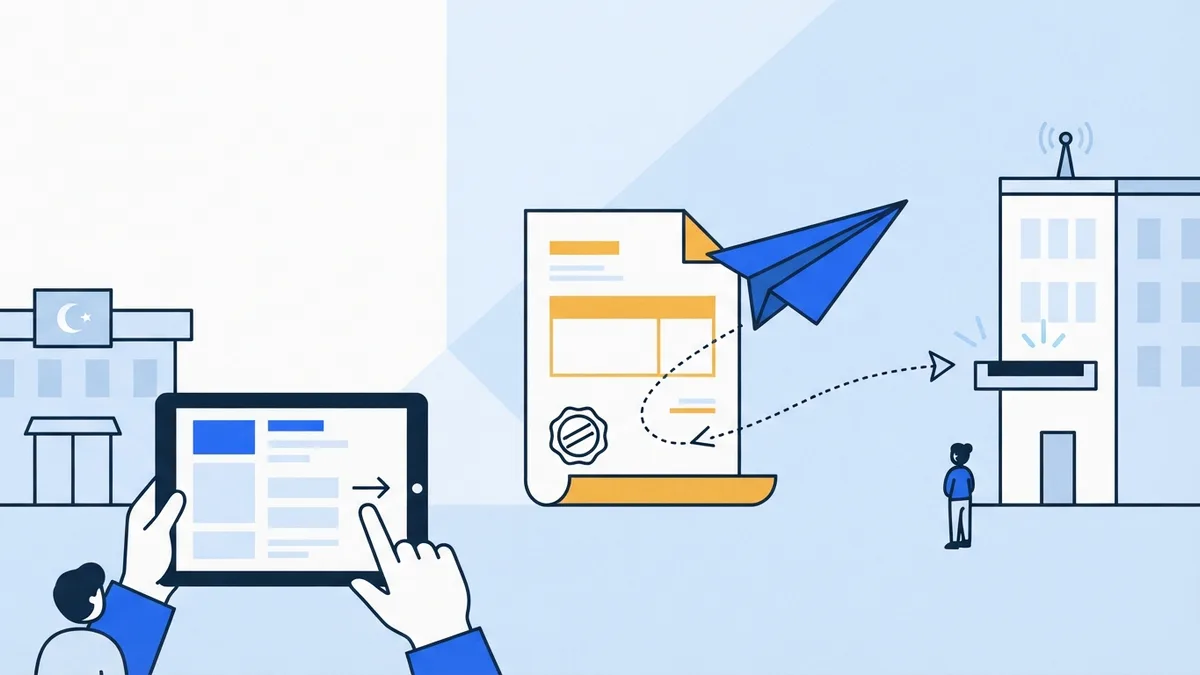
An e-Fatura is an invoice issued electronically between two taxpayers registered in the e-Fatura system of GİB (the Turkish Revenue Administration), and delivered electronically too. It has the same legal standing as a paper invoice, but it isn't printed and handed over; it lands in the buyer's inbox in the system.
In practice you prepare the invoice in software or on GİB's panel, press send, the document reaches the buyer through GİB, and the buyer sees it in their own software. If the buyer isn't registered in the e-Fatura system, an e-Arşiv invoice is issued for the same sale. We covered the differences, thresholds and deadlines in detail in e-Fatura vs e-Arşiv; here we focus on the issuing steps.
Part 2 · Joining What do you need before issuing an e-Fatura?
To issue an e-Fatura your business must be registered in the e-Fatura system. Businesses with gross sales revenue of 3 million TL or more must switch from 1 July of the year after the year they crossed the threshold. For some groups, such as online sellers, the threshold is lower. Businesses below the threshold can also join voluntarily.
There are two ways in. Which one suits you depends on how many invoices you issue and where you want to issue them from.
| GİB e-Document panel | Private integrator | |
|---|---|---|
| What is it? | GİB's own free interface | A GİB-licensed company that sends invoices on your behalf |
| Document fee | None | One credit per document |
| How you use it | You prepare each invoice manually on the panel | You issue invoices from the software you already use |
| Who is it for? | Businesses issuing few invoices | Businesses invoicing regularly and working in software |
| Archive | Through the panel | Through the provider and your software |
Applications usually require a financial seal (mali mühür) or an electronic signature for identity verification. Because the documents and screens involved change from time to time, check the current steps on ebelge.gib.gov.tr or with your chosen provider.
Part 3 · The buyer How do you check whether a buyer is an e-Fatura user?
The first question before issuing an invoice is whether the buyer is registered in the e-Fatura system. If so, the document is an e-Fatura; if not, it is an e-Arşiv invoice. This is looked up by tax ID (VKN) or national ID (TCKN) in GİB's list of registered users; private integrators use the same list.
Checking by hand has two weak spots. It takes time, and the list changes: a customer who wasn't registered last month may have joined this month. That's why checking on every invoice, at the moment of sending, is the safest approach.
Part 4 · Content How do you write an e-Fatura: which details are mandatory?
An e-Fatura carries the same mandatory details as a paper invoice; the only difference is that they sit in an electronic template. Article 230 of the Tax Procedure Law requires at least the following:
What an invoice must show
- Issue date, series and sequence number.
- The issuer's name, trade name, business address, tax office and tax number (VKN).
- The customer's name, trade name, address and, if any, tax office and tax number.
- Type, quantity, price and amount of the goods or work.
- Delivery date and dispatch note number for goods sold (unless the invoice also serves as the dispatch note).
- VAT rate and amount, plus any discount and withholding.
On sales with VAT withholding, the amount on the invoice differs from the amount you collect. We explain this with an example in VAT withholding and withholding tax.
Part 5 · Scenario Basic or commercial? Choosing a scenario
Every e-Fatura also has a scenario. Under the commercial scenario, the buyer can accept or reject the invoice in the system within 8 days. Under the basic scenario there is no in-system response; objections go through other channels. Scenarios apply only to e-Fatura; e-Arşiv invoices have none.
Which to choose usually depends on how you work with customers. If you want the buyer's approval on record, the commercial scenario fits better. Decide with your mali müşavir, then stop rethinking it on every invoice.
Part 6 · Sending How do sending, numbering and credits work?
- Preparation — Software or panel
- Sending — Provider or GİB portal
- GİB — Document enters the system
- Buyer's inbox — In the buyer's software
The moment you press send, the document gets an invoice number and becomes official. From then on it can't be torn up and rewritten like paper; mistakes are corrected through cancellation, rejection or a return invoice. Checking the amount, buyer and date once more before sending is the cheapest safeguard.
With a private integrator, each document uses a credit (kontör). Credits are separate from your software subscription; you buy them in packages from your provider, who sets the price. If credits run out, sending stops on the provider's side, so checking your balance at the start of each month is a good habit.
Part 7 · In practice How do you issue an e-Fatura in Heyşirket?
In Heyşirket, e-Fatura is issued from the accounting module in your company panel. Accounting is included in the Professional, Premium and Custom plans, with no separate subscription. The party that makes the document official is your GİB-connected e-Document provider, so the first step is connecting your provider account. Credits are separate from your plan and priced by the provider.
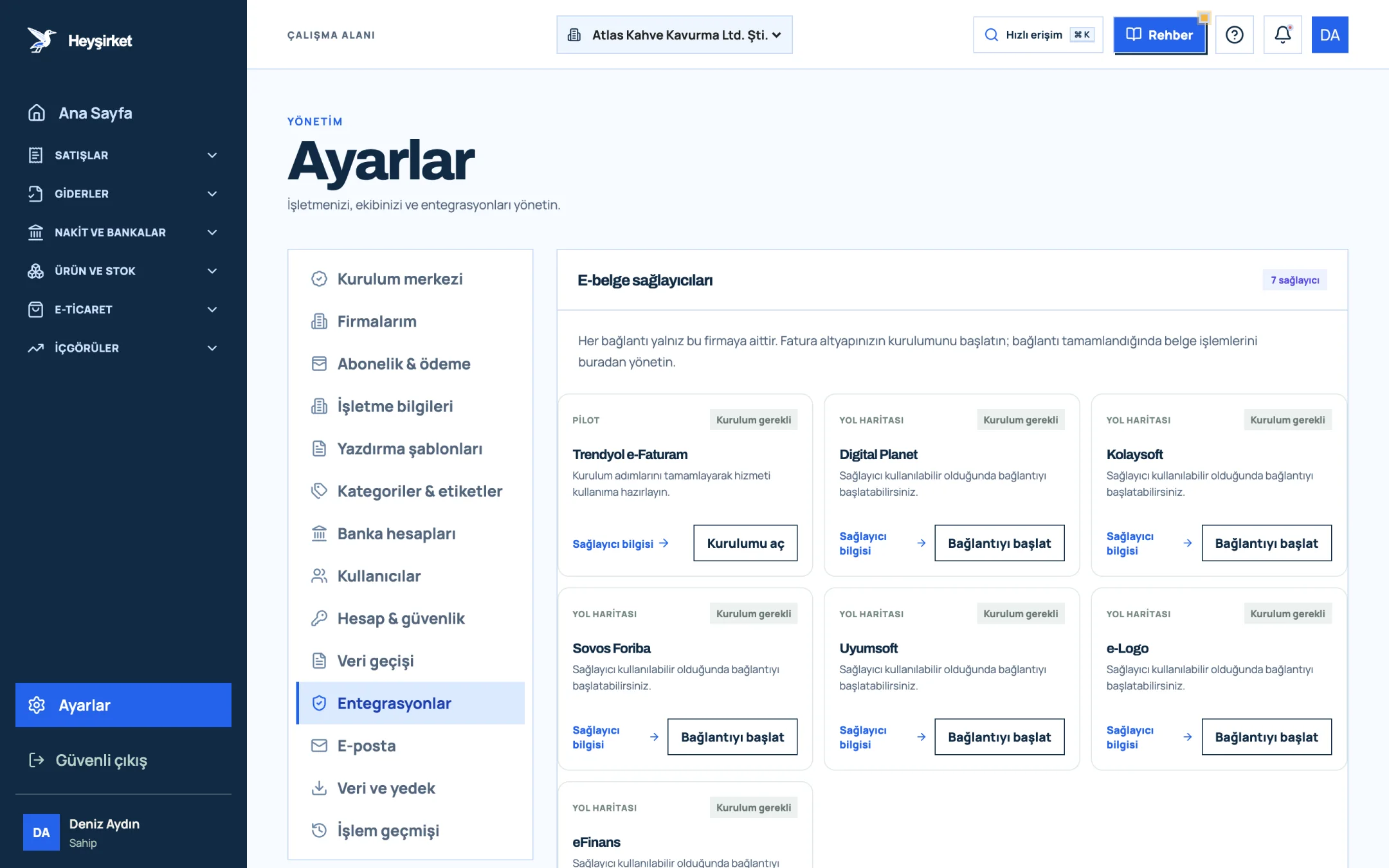
- 1. Integrations tab
- 2. Trendyol e-Faturam card
- 3. Open setup button
- 4. Other e-document providers
The steps to test the connection in trial mode and then go live are in the e-Document connection guide. Once the connection is ready, an invoice is issued in this order:
Your first e-Fatura in Heyşirket
Choose the customer
On the Invoices page press New invoice and pick the buyer in the Customer field. The tax ID, tax office and default payment term from the customer record are filled in; a price list linked to the customer is applied too.
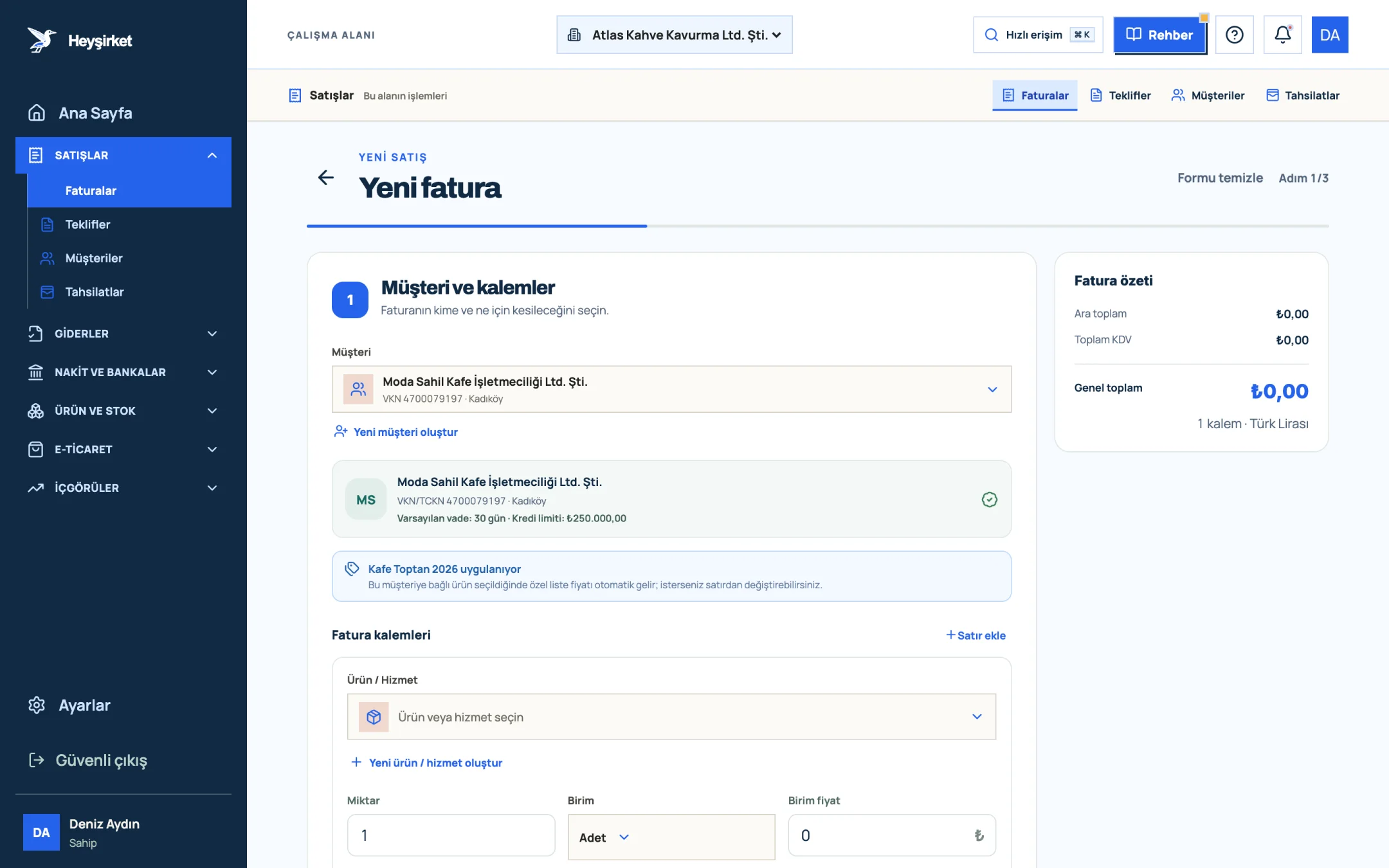
Choose the customer - 1. Selected customer
- 2. Customer card summary (tax ID, payment terms, credit limit)
- 3. Customer price list info
Enter the lines
Select the product or service; check quantity, unit price (excluding VAT), VAT rate and any discount. The invoice summary on the right shows the subtotal, VAT and grand total instantly.
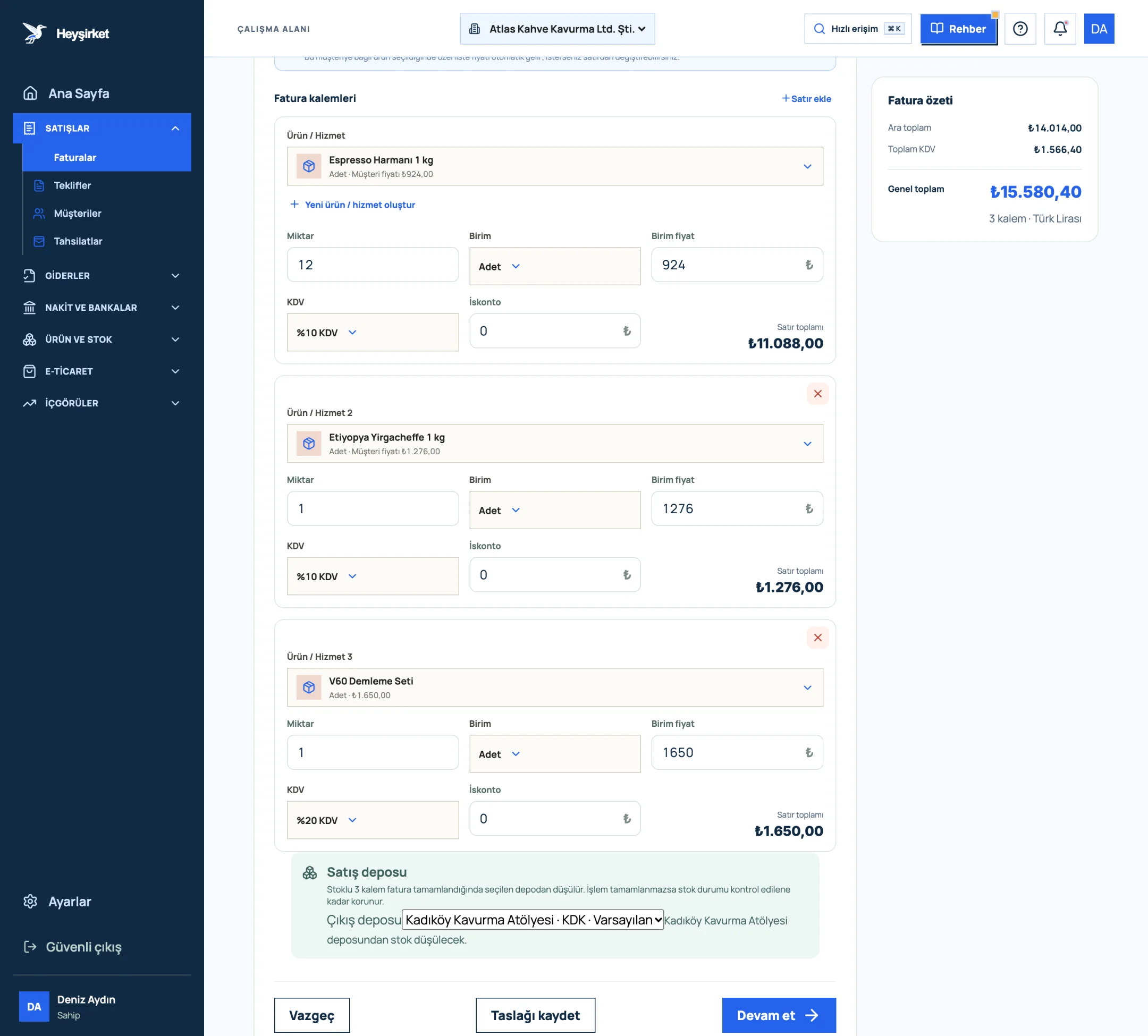
Enter the lines - 1. First invoice line item
- 2. VAT rate selection
- 3. Add row
- 4. Invoice summary and VAT total
Add payment details and a note
Press Continue and, in step two, enter the due date, payment status and invoice note. You can tick the box to add your bank accounts to the note.
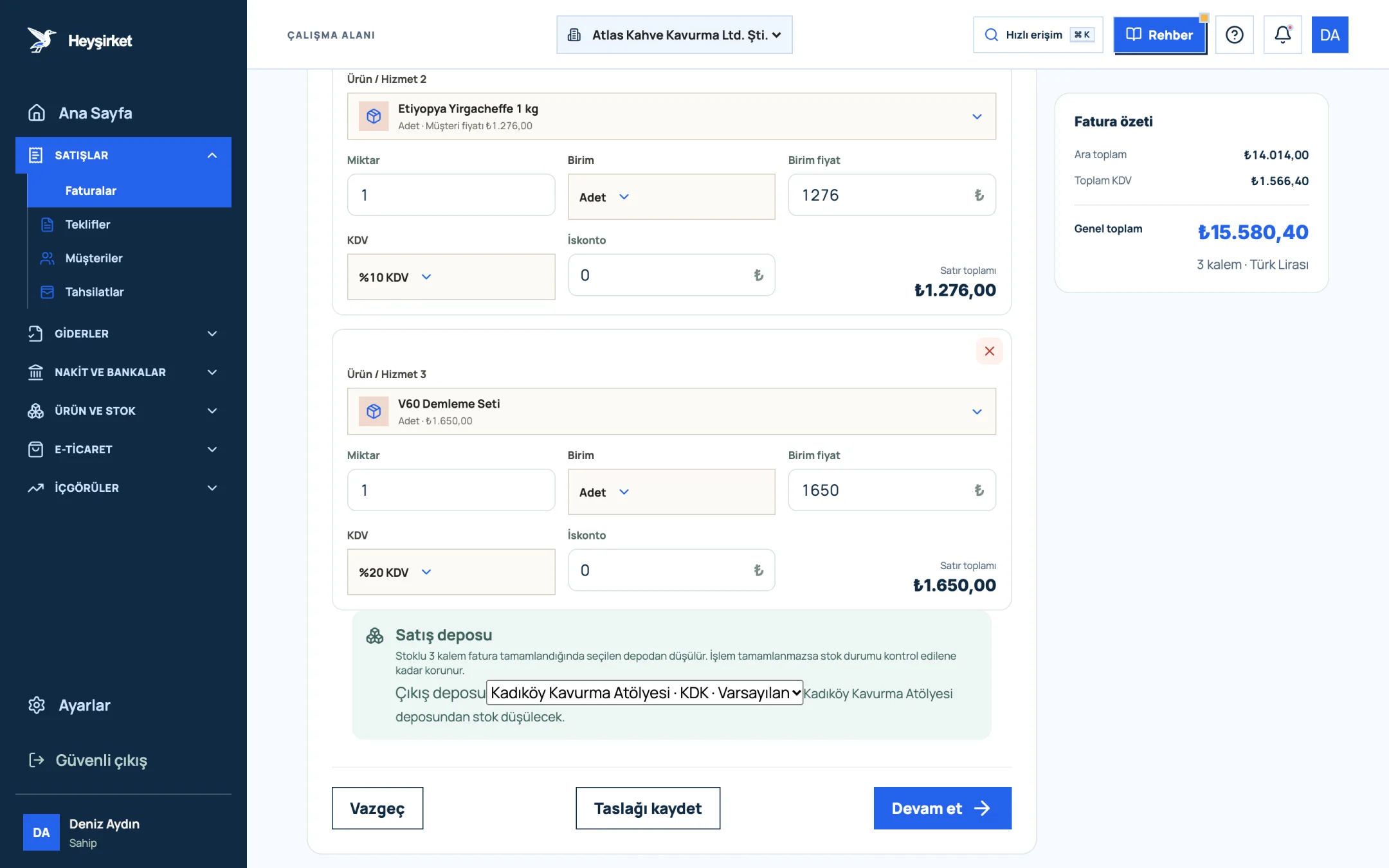
Add payment details and a note - 1. Grand total
- 2. Continue button
- 3. Save draft button
- 4. Sales warehouse to deduct stock from
Check the PDF and issue
In step three, review the document with Preview as PDF, tick the confirmation box and press Issue and send invoice. The document type is decided at this moment by checking the buyer's status.
In short, you don't choose between e-Fatura and e-Arşiv. If the buyer is registered in the e-Fatura system, an e-Fatura is issued; otherwise an e-Arşiv invoice. Your e-Fatura scenario is chosen once in the e-Document section of Settings. Every screen and button is covered in detail in the how to issue an invoice guide.
Part 8 · Afterwards After issuing: delivery, collection and corrections
After an invoice is issued in Heyşirket, the official PDF created by the provider is moved to your company's own archive. If automatic sending is on in Settings, customers with an email address on file automatically receive an email with the official PDF attached. If you've connected your own iyzico account, a Pay by card button is added to that email so the customer can pay by card.
Issued invoices can't be edited in Heyşirket. To close a wrong document the right way, see return and cancellation invoices and talk to your mali müşavir before issuing a new one. When payment arrives, follow the how to record a collection guide.
Final check before issuing an e-Fatura
- My business is registered in the e-Fatura system and my provider connection is live.
- My provider account has enough credits.
- The customer's tax ID, tax office and address are correct.
- I entered unit prices excluding VAT and checked the VAT rates.
- No more than 7 days have passed since delivery or service.
- I read the buyer, amount and date on the PDF preview.
Do I have to be an e-Fatura user to issue an e-Fatura?
Yes. An e-Fatura is issued only from a registered seller to a registered buyer in the e-Fatura system. If you aren't registered, you first need to apply through GİB's e-Document panel or a private integrator.
Do I have to use e-Fatura software?
No. If you issue few invoices you can use GİB's free panel. If you invoice regularly and want customer accounts, collections and stock in the same place, accounting software connected to a private integrator makes the job easier.
What should I issue if my customer isn't an e-Fatura user?
If the buyer isn't registered in the e-Fatura system, an e-Arşiv invoice is issued for the same sale. Heyşirket runs this check when sending and sets the document type automatically.
What are credits and where do I buy them?
A credit is the unit used for each e-Fatura and e-Arşiv document sent through a private integrator. Credits are separate from your software subscription and are bought from your e-Document provider.
Can I correct an e-Fatura after issuing it?
A sent e-Fatura is an official document and can't be changed. Under the commercial scenario the buyer can reject it within 8 days; otherwise cancellation or return procedures apply. Decide the right route together with your mali müşavir.
Issue your first e-Fatura Choose your customer, enter the lines and check the PDF; let the buyer's status decide whether it becomes an e-Fatura or an e-Arşiv invoice. Create new invoice
Author: Heyşirket Editorial Team